|
VOOZH | about |
|
VOOZH | about |
When working with data in Google Sheets, it's common to encounter columns with full names that need to be separated into first names, last names, or even middle names. Instead of manually splitting each name, Google Sheets provides built-in tools and functions to automate the process efficiently.
The "Split Text to Columns" tool in Google Sheets is a straightforward way to split names based on a delimiter (such as a space, comma, or other character). This method is ideal for consistently formatted names.
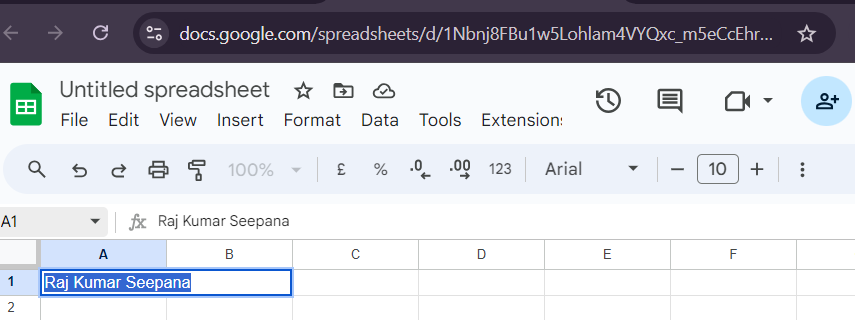
Navigate to the Google Sheets document containing the column of full names.
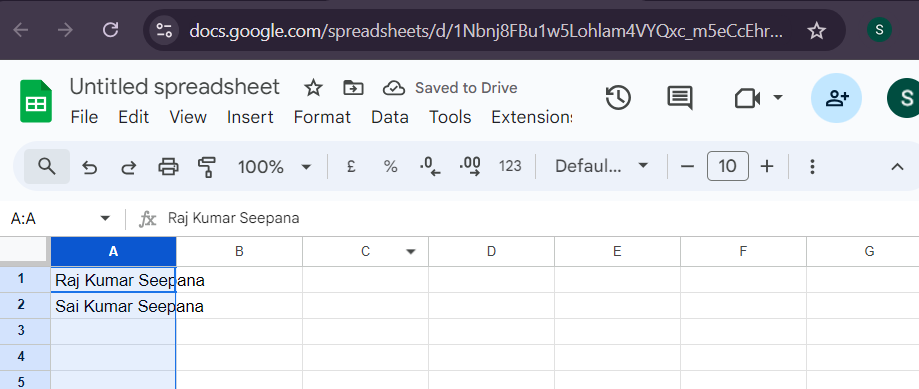
Highlight the column with the full names by clicking the column letter (e.g., A).
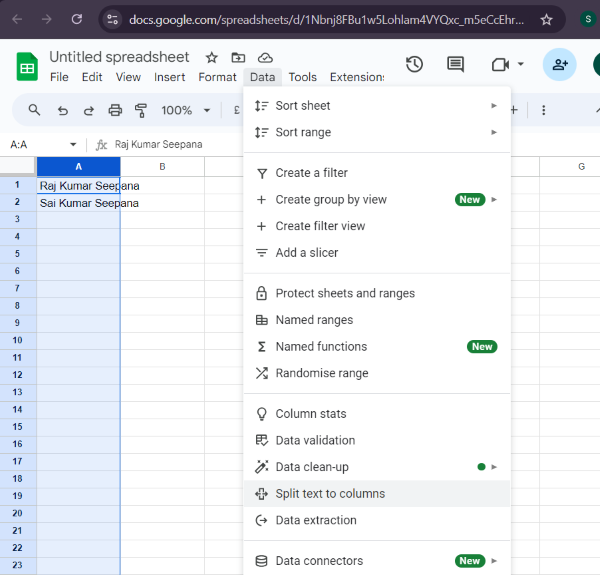
At the top of the screen, click on Data > Split text to columns.
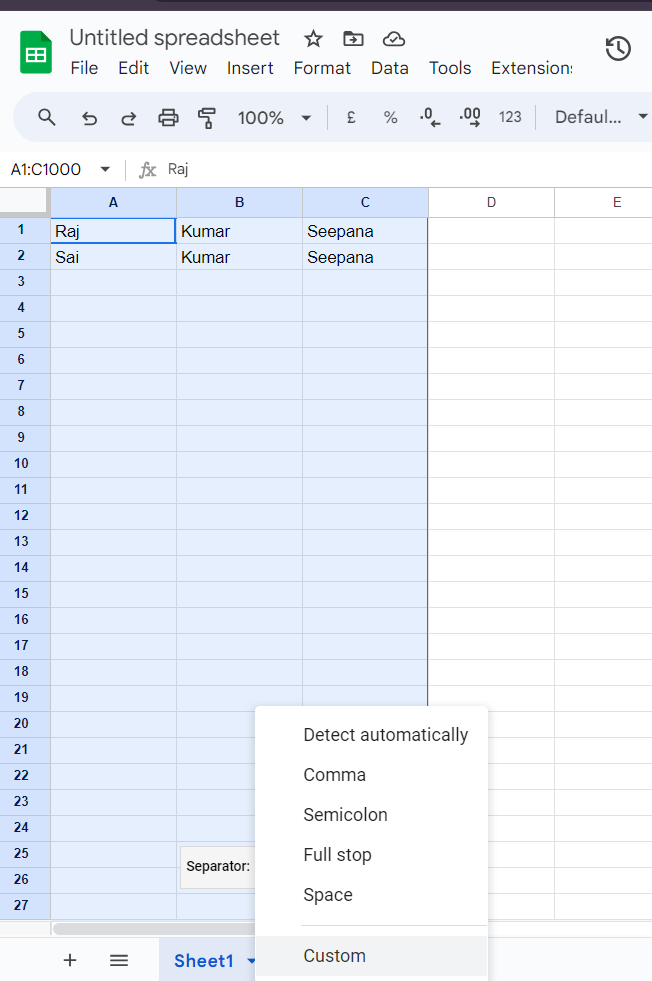
Google Sheets will attempt to automatically detect the separator (e.g., space or comma).
Your column will now split into multiple columns, with first names, middle names (if any), and last names in separate columns.
Tips for This Method
- Ensure the full names in your column are consistently formatted (e.g., all names separated by spaces or commas).
- If some rows are formatted differently, consider cleaning the data before applying this tool.
For more control or when handling complex name formats, formulas in Google Sheets provide flexibility. These formulas can handle scenarios such as names with middle names or inconsistent formatting.
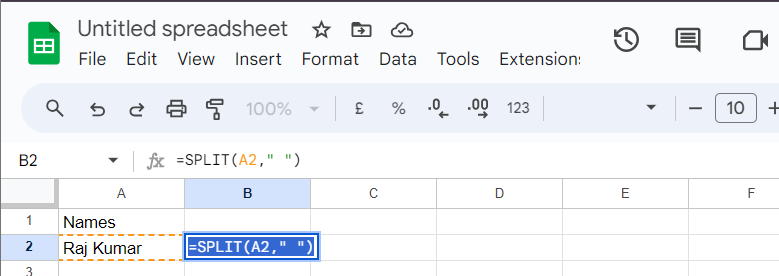
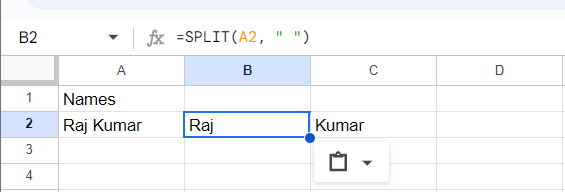
SPLITThe SPLIT function divides names based on a delimiter (e.g., space).
=SPLIT(A2, " ")The name will split into separate columns for each word.
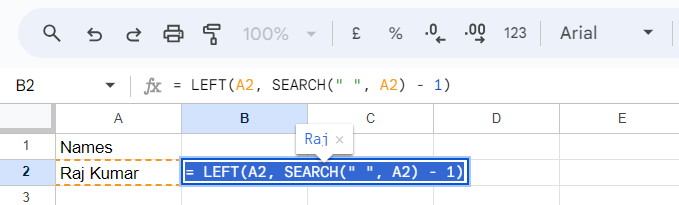
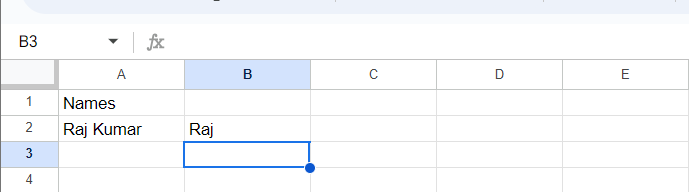
LEFT and SEARCHIf you only need the first name, use the LEFT and SEARCH functions to isolate the text before the first space.
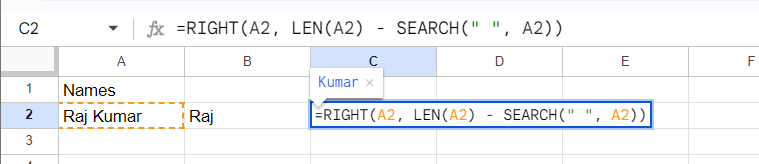
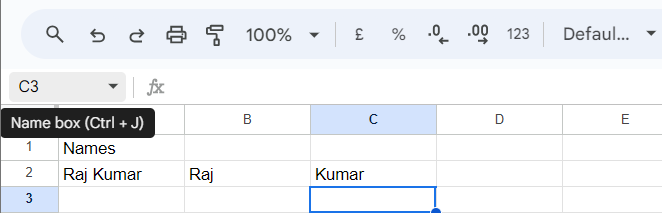
Step 3: Extract Last Name Using RIGHT, LEN, and SEARCH
To extract the last name, combine the RIGHT, LEN, and SEARCH functions to capture text after the first space.
Example:
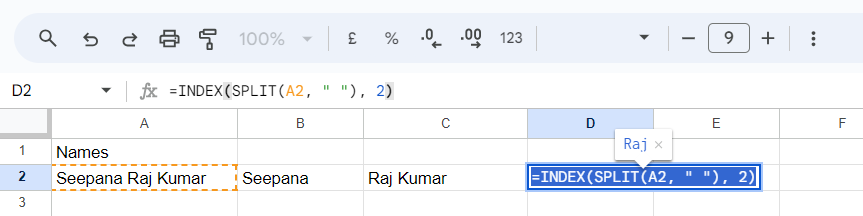
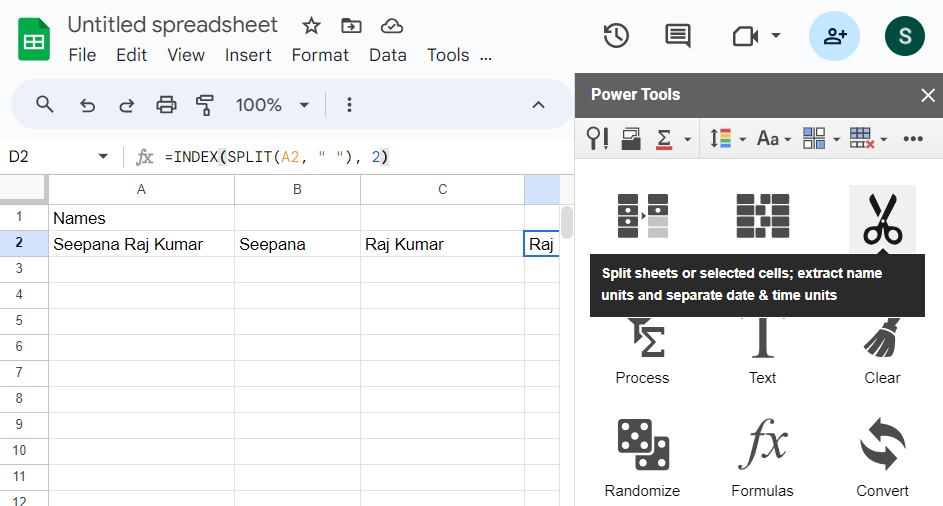
If names include middle names, you can handle each part using the INDEX function after splitting the text with SPLIT.
Tips for Using Formulas
- Formulas offer greater flexibility but require more manual setup.
- Be mindful of edge cases, such as names without a middle name or extra spaces.
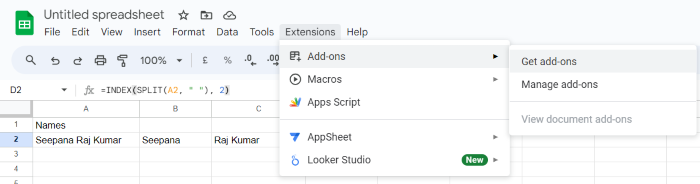
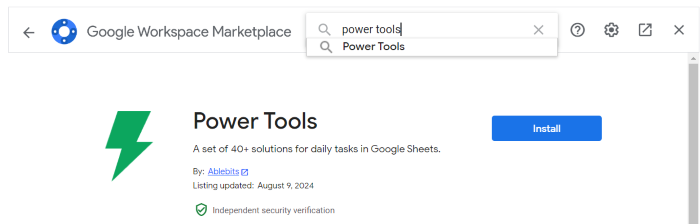
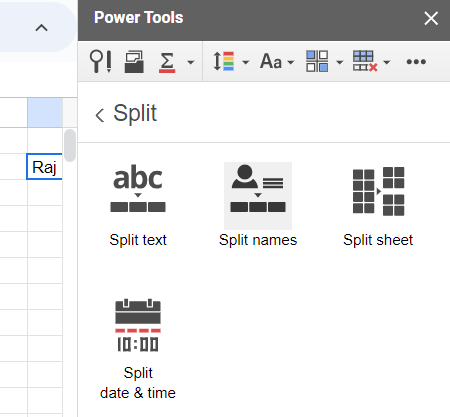
For irregularly formatted data or large datasets, you can use add-ons like Power Tools to automate the separation process further.
Some names might be separated by commas, tabs, or multiple spaces, making it difficult to split them.
Solution:
- Clean the data first using the Find and Replace tool (
Ctrl + H) to standardize the delimiter.
Some entries may only include a first name.
Solution:
Use formulas like
IFERRORto handle missing values gracefully.
- Example: =IFERROR(SPLIT(A2, " "), "")
For thousands of rows, formulas might slow down the sheet.
Solution:
- Use add-ons like Power Tools for bulk processing.