|
VOOZH | about |
|
VOOZH | about |
Combining data in Google Sheets can often simplify complex tasks, whether you’re working with text, numbers, or a mix of both. The CONCATENATE function allows you to easily combine cells in Google Sheets, making it an essential tool for creating unified datasets or custom strings of information.
The Google Sheets CONCATENATE function is a powerful tool used to combine multiple strings of text from different cells into one. Whether you're merging names, addresses, or any other data, CONCATENATE simplifies the process of combining text for easy display or analysis. It's an essential function for improving data presentation and streamlining workflows in Google Sheets.
The CONCATENATE function takes several text inputs or cell references and merges them into a single string. It helps when you need to join names, dates, or any other values in a spreadsheet into a continuous string without manually typing them out. This function is commonly used in data manipulation tasks and automating text-related processes in Google Sheets.
The syntax for the CONCATENATE function is simple:
=CONCATENATE(text1, [text2, ])| Feature | CONCATENATE | CONCAT |
|---|---|---|
| Functionality | Combines multiple strings or values. | Combines exactly two strings or values. |
| Flexibility | Highly flexible, supports multiple arguments. | Limited to two arguments. |
| Use Case | Suitable for complex tasks with multiple inputs. | Ideal for simple tasks with two inputs. |
| Syntax Example | =CONCATENATE(A1, " ", B1) | =CONCAT(A1, B1) |
| Ease of Use | Requires specifying each value individually. | Simpler and quicker for basic tasks. |
Learning how to use the CONCATENATE function is essential when you need to combine cells in Google Sheets. This powerful tool allows you to merge text or data from multiple cells into a single string, making your data cleaner and easier to manage. Follow these steps to combine cells quickly and effectively.
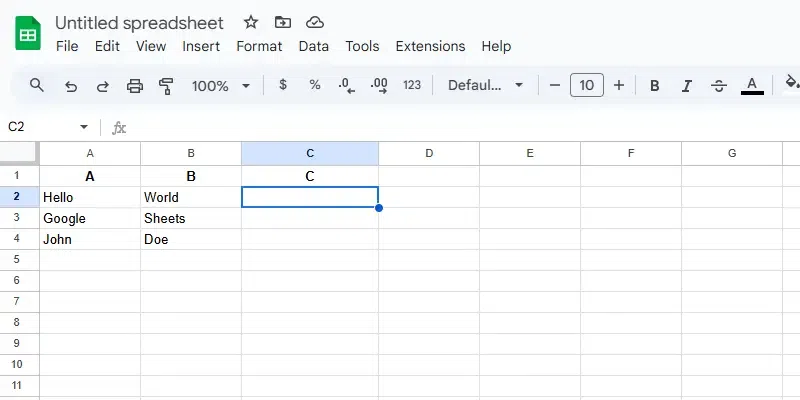
Identify the cells containing the text strings you want to combine. For instance:
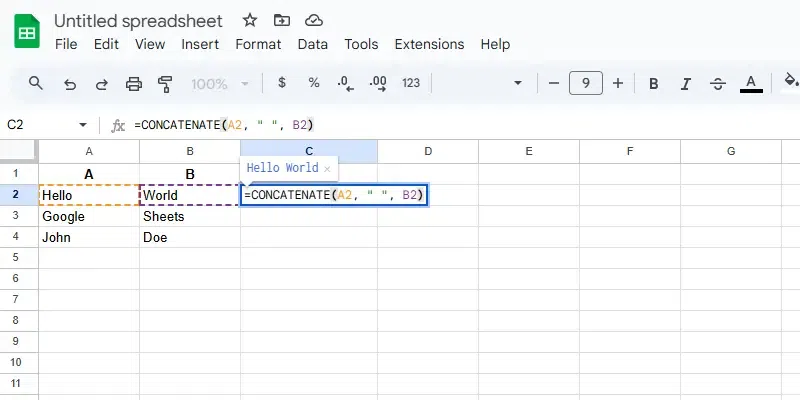
In the selected cell (e.g., C2), enter the following formula:
=CONCATENATE(A2, " ", B2)
" ": A space between the two text strings.The CONCATENATE function in Google Sheets allows you to combine or join together text and numbers from different cells into a single cell, making it a powerful text merging function. This is especially useful for text and number concatenation, such as creating labels, generating custom reports, or organizing data in a more readable format. Follow the steps below to get started.
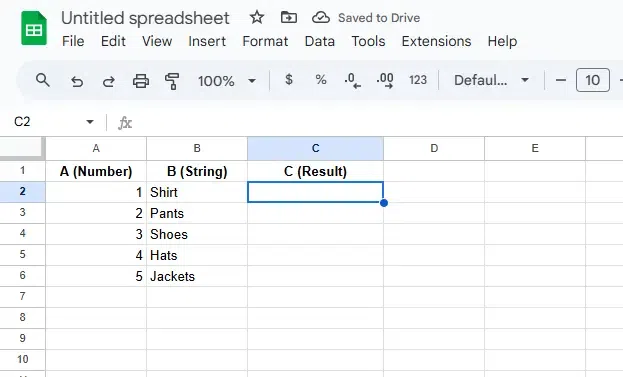
Identify the cells containing the number and text that you want to combine.
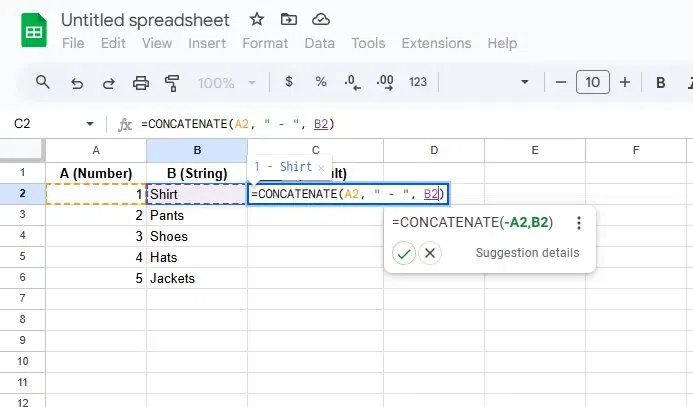
=CONCATENATE(A2, " - ", B2)
A2 refers to the product ID in column A (for example, 1 in cell A2)." - " is the separator (you can change this to a space, comma, or any other character as needed).B2 refers to the product name in column B (for example, Shirt in cell B2).Result: The combination of these three elements will create a label like "1 - Shirt" in C2.
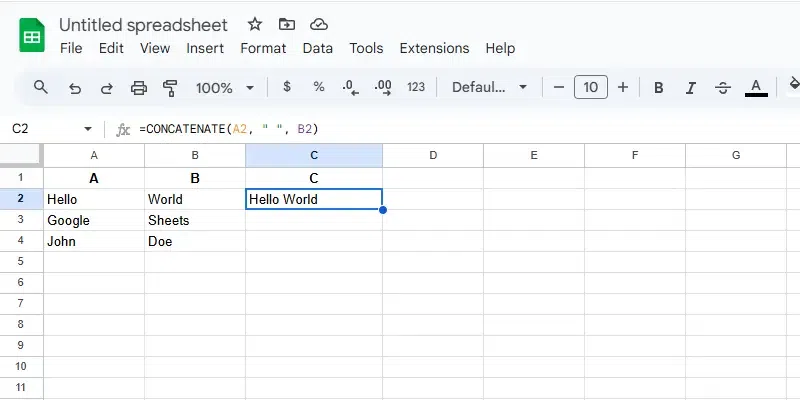
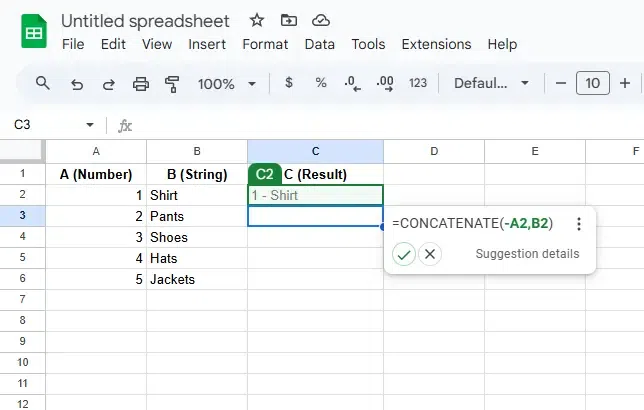
After typing the formula in C2, press Enter. The cell will display the combined result, such as:
1 - Shirt
Now, you will see the product ID and name combined into a single label in C2.
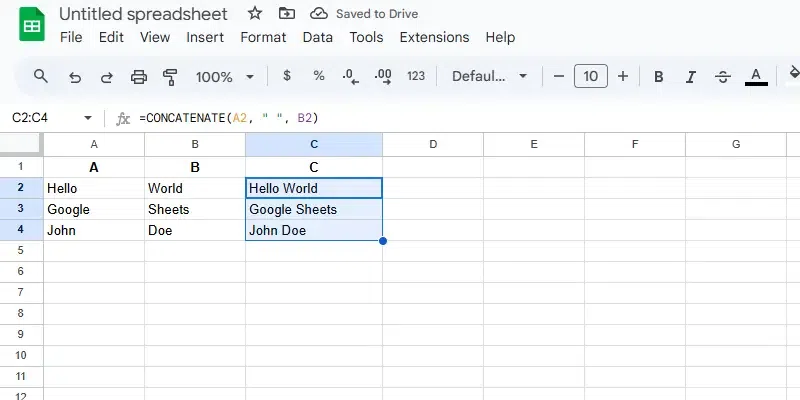
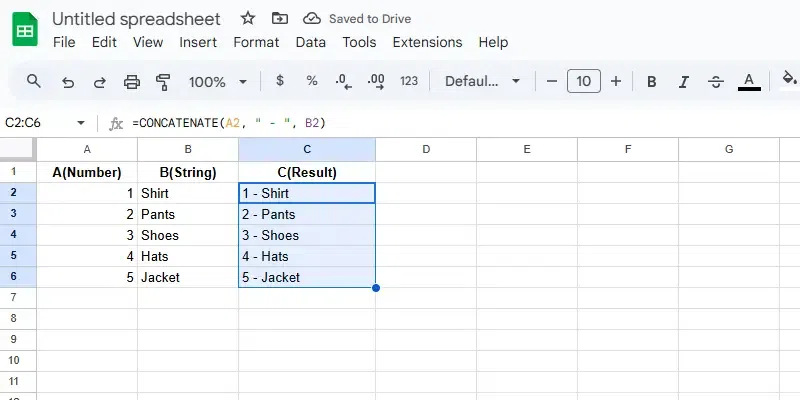
To apply the formula to the other rows, click on the fill handle (the small square at the bottom right corner of C2) and drag it down to fill the cells below. Google Sheets will automatically adjust the formula for each row. For example:
In C3, the formula will combine the product ID 2 and product name Pants, resulting in
2 - Pants
In C4, the formula will combine 3 and Shoes, resulting in:
3 - Shoes
This will continue for all rows.
Adjusting Separator: If you want to change the separator, simply edit the " - " part of the formula. For example:
For a comma: =CONCATENATE(A2, ", ", B2)
If you’re looking for alternatives to the CONCATENATE function, there are simpler and more versatile options available in Google Sheets. One popular method is Using & operator in Google Sheets, which allows you to merge text quickly without a function. Another powerful tool is the TEXTJOIN function, which combines text from ranges with a delimiter and handles empty cells effortlessly. These alternatives make text merging tasks easier and more efficient, especially for complex datasets.
Combines multiple strings with a specified delimiter.
Example:
=TEXTJOIN(" ", TRUE, A1, B1, C1)
Joins text directly without a function.
Example:
=A1 & " " & B1
Useful for combining arrays of data.
Example:
=ARRAYFORMULA(A1:A5 & " " & B1:B5)
Combines values with formatting options.
Example:
=TEXT(A1, "0.00") & " is the value"
Also Read: