How to Use Conditional Formatting in Google Sheets
Last Updated : 10 Oct, 2025
Conditional formatting in Google Sheets is a tool that automatically styles cells based on specific rules, making it easier to highlight trends, identify outliers, or emphasize critical data. Whether you're managing budgets, tracking project milestones, or analyzing sales data, conditional formatting enhances data visualization and decision-making.
Conditional Formatting in Google Sheets
Conditional formatting dynamically styles cells based on predefined conditions or custom formulas. It allows you to:
Highlight specific text, numbers, or dates.
Color-code cells based on their values.
Apply formatting to entire rows or ranges.
Use custom formulas for complex logic, such as identifying errors or time-based conditions.
For example, you can highlight sales above $500 in green or flag overdue tasks in red, making data insights instantly actionable.
How to Apply Conditional Formatting in Google Sheets
Follow these steps to apply conditional formatting in Google Sheets:
Prerequisites
Open Google Sheets via Google Workspace (access through the 9-dot menu in your browser or directly at sheets.google.com).
Use a spreadsheet with data or create a new one.
How to use Conditional Formatting in Google Sheets
Google Sheets' conditional formatting automatically styles cells according to present criteria, enhancing the platform's functionality. The steps to how to use:
Step 1: Select the Range
Choose the Range of cells for conditional formatting.
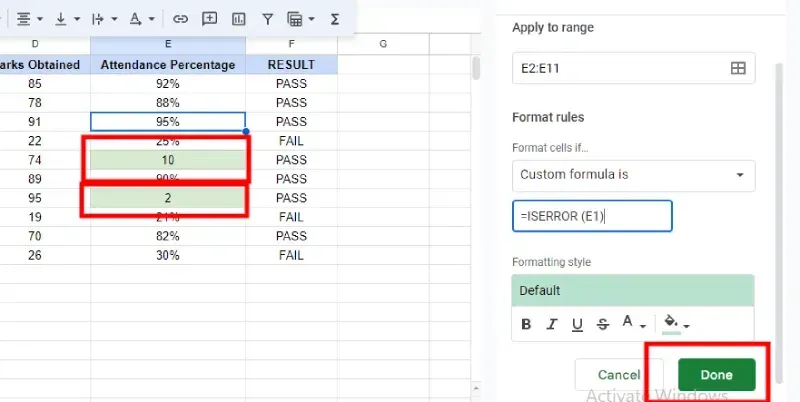
Enter a formula to identify the error type. Examples include highlighting formula errors with =ISERROR(A1) and specific errors like division by zero with formulas such as =ISDIV(A1).
How to Use Conditional Formatting in Google Sheets Based on Time-related Conditions
Step 1: Select the Range
Select the Range of the cell in Google Sheets.
Step 2: Open Conditional Formatting
Go to the format menu and select conditional formatting
Step 3: Choose "Date is" or "Custom formula is"
Select "Date is" or "Custom formula is" based on the complexity of the condition you need.
Note:
"Date is" suits common conditions like "is after" or "is before," while "Custom formula is" is for more intricate conditions.
Step 4: Condition Setup
For "Date is": Choose a condition, like "is before" or "is on," from dropdown. Input date or time value.
For "Custom Formula is, "Enter a formula output TRUE or FALSE. Example: To highlight post-today dates: =A1>TODAY() or date range: =AND(A1>=DATE(2024,1,1), A1<=DATE(2024,12,31).
Step 6: Apply the Formatting
Click "Done" to apply the formatting.
How to Remove Conditional Formatting in Google Sheets
Step 1: Select the Range
Choose the cell range to remove conditional formatting.


.webp)
.webp)
.webp)
.webp)
.webp)
.webp)
.webp)
.webp)
.webp)
.webp)
.webp)
.webp)
.webp)
.webp)
.webp)
.webp)
.webp)
.webp)
.webp)
.webp)
.webp)
.webp)
.webp)
.webp)
.webp)
.webp)
.webp)
.webp)
.webp)
.webp)
.webp)
-(1).webp)
-(1).webp)