|
VOOZH | about |
|
VOOZH | about |
The COUNTIFS function in Google Sheets counts the number of cells that meet multiple criteria across one or more ranges. It's an extension of COUNTIF, allowing you to apply multiple conditions, making it ideal for complex data analysis where you need to count entries that satisfy several criteria.
COUNTIFS(range1, criterion1, [range2, criterion2,])The Google Sheets COUNTIFS function is a powerful tool for counting cells based on multiple conditions. It simplifies data analysis by filtering and counting entries that meet specific criteria. Follow these steps to use it effectively:
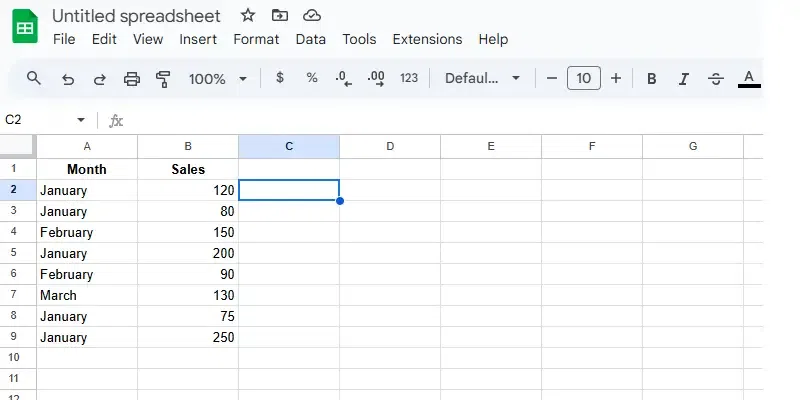
Click on the cell where you want the result to appear (e.g., C2).
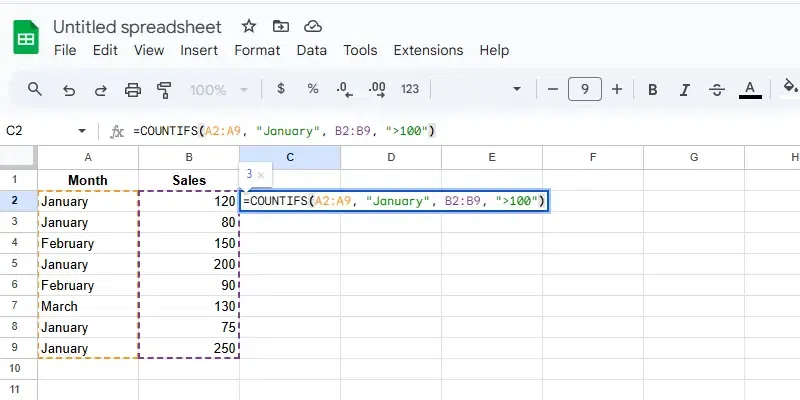
In the selected cell (e.g., C2), type the formula:
=COUNTIFS(A2:A9, "January", B2:B9, ">100")After typing the formula, press Enter.
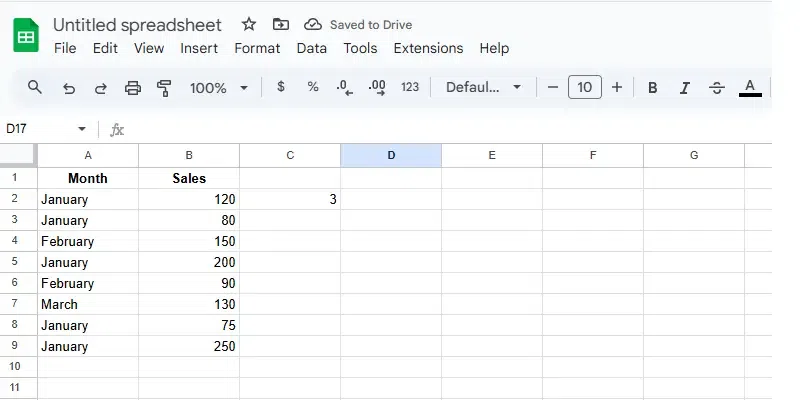
The result will show the count of sales greater than 100 in January (in this case, the count will be 3).
The COUNTIFS function in Excel or Google Sheets allows you to count cells that meet multiple criteria, making it a powerful tool for advanced data analysis. Here are detailed, real-world applications of the COUNTIFS function:
Scenario: You need to count how many employees were present on a specific date.
Formula Example:
=COUNTIFS(Dates!A2:A100, "01/10/2023", Attendance!B2:B100, "Present")Explanation:
"01/10/2023": The specific date to filter."Present": The criterion to count only "Present" entries.Use Case: Track employee participation during a meeting or daily attendance for compliance and reporting.
Scenario: Identify how many products in a specific category are below the stock threshold.
Formula Example:
=COUNTIFS(Category!A2:A100, "Electronics", Stock!B2:B100, "<10")Explanation:
"Electronics": Filters the products belonging to the "Electronics" category."<10": Counts only items with stock levels below 10.Use Case: Manage inventory by identifying low-stock items for reordering to avoid stockouts.
Scenario: Determine how many sales transactions exceeded $500 in a specific region.
Formula Example:
=COUNTIFS(Sales!A2:A100, ">500", Region!B2:B100, "North")Explanation:
">500": Filters transactions where the sales amount exceeded $500."North": Counts only sales in the "North" region.Use Case: Evaluate regional sales performance and identify high-value markets for targeted strategies.
The COUNTIFS function in Google Sheets and Excel becomes even more versatile when used with wildcards and date-based conditions. Here’s a detailed explanation with examples:
Wildcards allow you to perform partial or flexible text matching in your dataset.
* for Any Number of Characters* wildcard represents zero or more characters, making it ideal for finding text that contains a specific word or phrase.Example:
=COUNTIFS(A2:A100, "*John*")? for a Single CharacterThe ? wildcard represents exactly one character, making it useful for slight variations in spelling or formatting.
Example:
=COUNTIFS(A2:A100, "J?hn")Using COUNTIFS with dates helps filter data within specific timeframes or relative to particular dates.
>=, <=) to define start and end dates.Example:
=COUNTIFS(Date!A2:A100, ">=01/01/2023", Date!A2:A100, "<=12/31/2023")< or > to set open-ended date conditions.Example:
=COUNTIFS(Date!A2:A100, "<01/01/2023")Also Read: