|
VOOZH | about |
|
VOOZH | about |
The HLOOKUP function in Google Sheets is a valuable tool for performing horizontal lookups in your data tables. Unlike VLOOKUP, which searches vertically, HLOOKUP searches across rows to find a specific value and returns corresponding data from another row.
The formula scans the top row for the search key and retrieves data from the corresponding row below.
HLOOKUP(search_key, range, row_index, [is_sorted])search_key (required):range (required):search_key, and the function returns a value from the specified index row.index (required):index is 2, the function returns a value from the second row of the range.is_sorted (optional):A Boolean value that determines whether the search is performed using an exact match or approximate match:
FALSE (or 0): Searches for an exact match.TRUE (or 1): Searches for an approximate match, assuming the first row of the range is sorted in ascending order.| HLOOKUP | VLOOKUP |
|---|---|
| Horizontal Lookup | Vertical Lookup |
| Searches for a value in the first row of a range and retrieves a value from a specified row below it. | Searches for a value in the first column of a range and retrieves a value from a specified column to the right. |
| Looks across rows (horizontal). | Looks down columns (vertical). |
| Retrieves a value from a specific row below the lookup row. | Retrieves a value from a specific column to the right of the lookup column. |
| Data must be organized horizontally (key values in the first row). | Data must be organized vertically (key values in the first column). |
HLOOKUP(search_key, range, index, [is_sorted]) | VLOOKUP(search_key, range, index, [is_sorted]) |
=HLOOKUP("January", A1:D3, 2, FALSE) | =VLOOKUP("Product A", A1:D10, 2, FALSE) |
| Ideal for datasets where values like months or categories are in the top row. | Ideal for datasets where values like IDs or names are in the first column. |
To use HLOOKUP function in Google Sheets follow the steps given below:
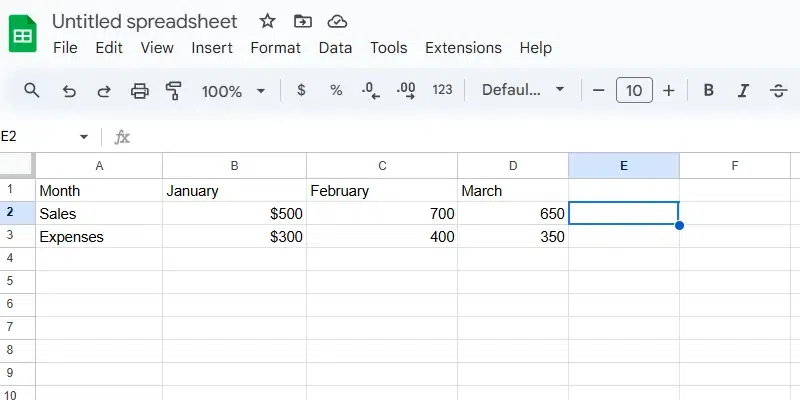
Choose the cell where you want the lookup result to appear, e.g., E2. Decide the value you want to search for in the first row of your dataset. For Example, "January."
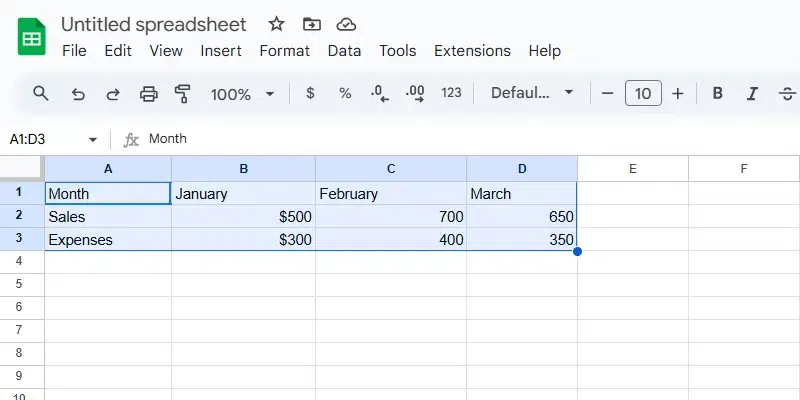
Select the range where the search will take place. The first row should contain the lookup values, and the rows below should have the return data. For example, A1:D3.
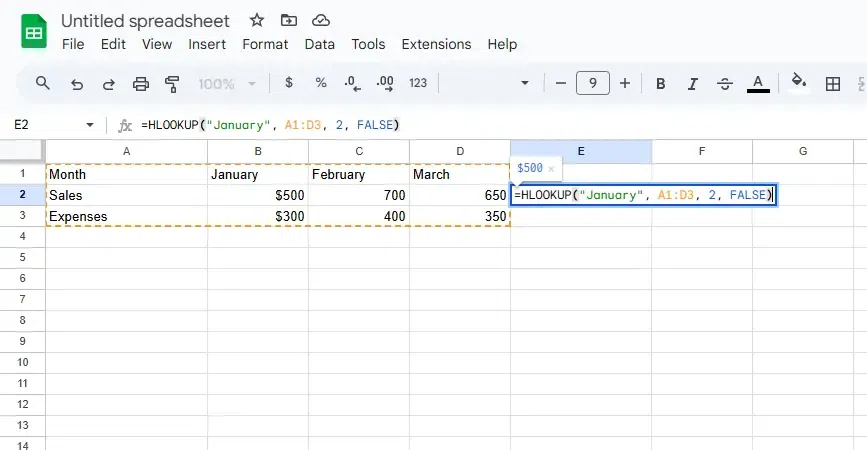
In the selected cell, type the HLOOKUP formula:
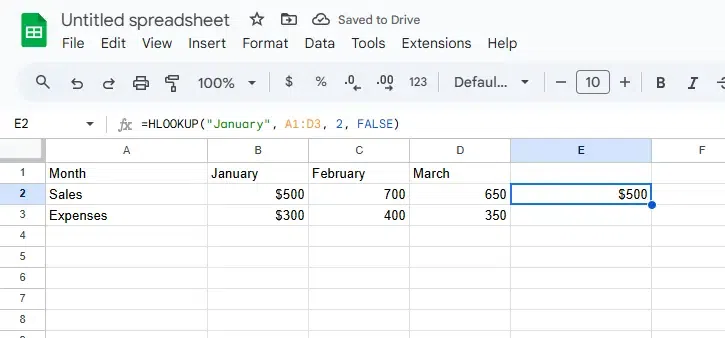
=HLOOKUP("January", A1:D3, 2, FALSE)Press Enter to complete the formula. The cell will display the value from the second row of the range that corresponds to "January" in the first row.