|
VOOZH | about |
|
VOOZH | about |
The MIN function in Google Sheets helps you find the smallest number in a set of values, whether it’s from a range, individual numbers, or multiple ranges. It’s especially useful for quickly identifying the lowest value in datasets such as prices, scores, or measurements.
Use the below Google Sheets MIN formula:
=MIN(value1, [value2,])
value1: The first number, cell reference, or range to evaluate.[value2,]: Optional additional numbers, cell references, or ranges.1. Basic Example:
To find the smallest number in the range A1 to A10:
=MIN(A1:A10)
2. Using Multiple Ranges:
To evaluate two separate ranges (A1:A10 and B1:B10):
=MIN(A1:A10, B1:B10)
3. Ignoring Non-Numeric Values:
If the range includes text or empty cells, the MIN function skips them and calculates only numeric values.
These examples show how the MIN formula simplifies data organization in Google Sheets.
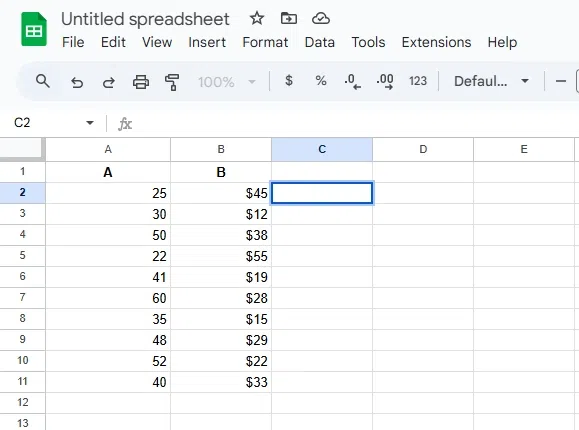
The MIN formula is a powerful tool for finding the smallest value in a dataset, often used as a lowest price finder or for data organization in Google Sheets. Here’s a simple MIN function example to guide you:
Click on the cell where you want the result (minimum value) to appear.
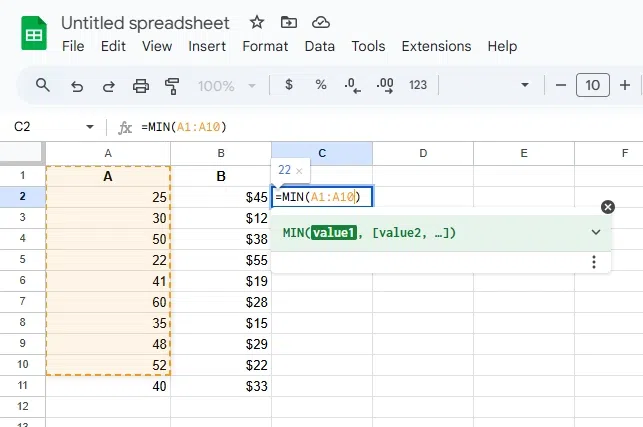
Type the following formula:
=MIN(A1:A10)
For example, =MIN(A1:A10) to find the smallest value in the range A1 to A10.
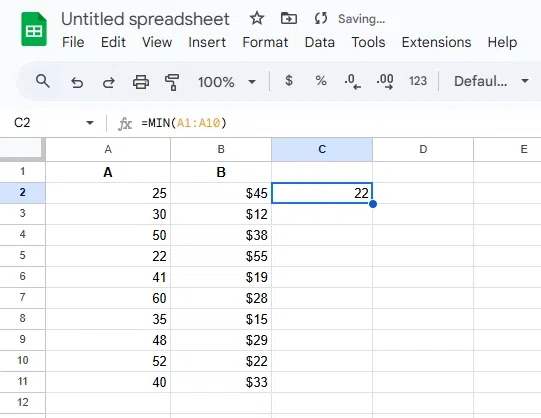
Press Enter. The smallest value in the specified range will be displayed in the selected cell.
MIN function returns 0.These tips help address common issues when using the MIN function in Google Sheets.