|
VOOZH | about |
|
VOOZH | about |
Text wrapping in Google Sheets is a feature that controls how text is displayed within a cell when it exceeds the cell's width. It ensures your data is readable and fits well within the spreadsheet layout.
| Option | Behavior | Example |
|---|---|---|
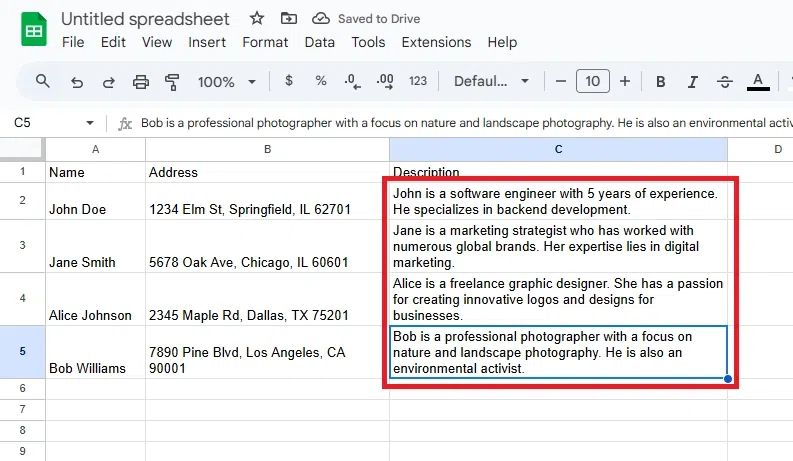
| Wrap | Adjusts the row height to display all text within the cell. | Text appears on multiple lines. |
| Overflow | Text spills into adjacent empty cells if available. | Text extends beyond the cell. |
| Clip | Cuts off text that doesn’t fit within the cell. | Only visible text fits the cell. |
To wrap text in Google Sheets using the Format menu, follow these simple steps to ensure your data is displayed neatly and clearly within the cells.
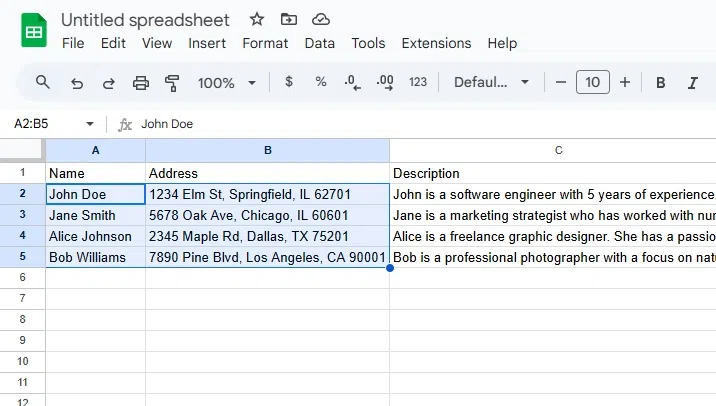
Highlight the cell or range of cells where you want to apply text wrapping.
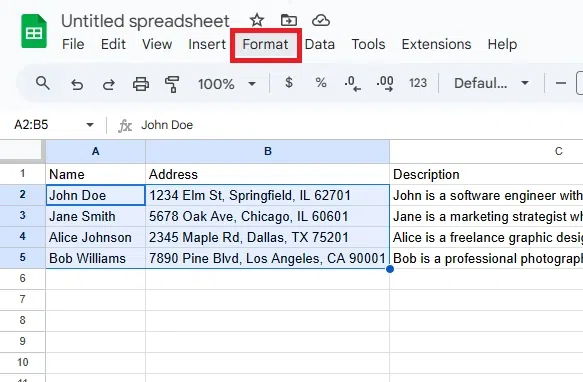
Click on the Format option in the top menu bar to access formatting tools.
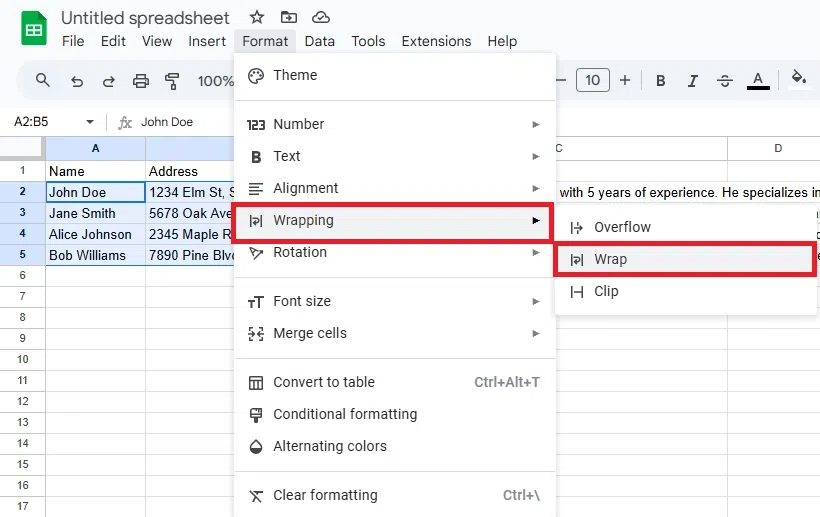
In the dropdown menu, hover over Text Wrapping to reveal additional options. Choose one of the following:
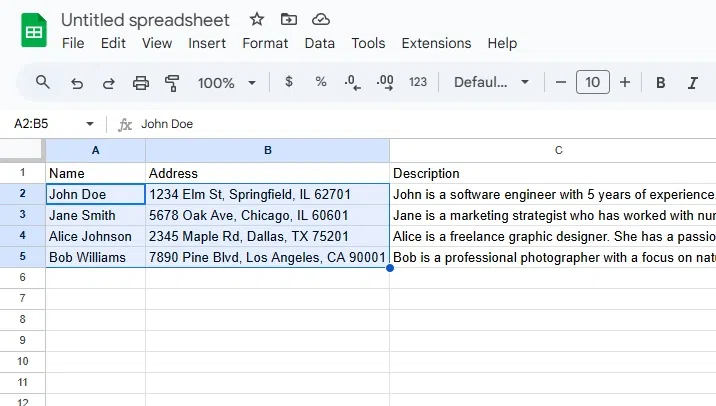
Now you have successfully wrapped your text in Google Sheets.
To wrap text in Google Sheets using the toolbar, follow these easy steps:
Click on the cell or range of cells where you want to wrap text.
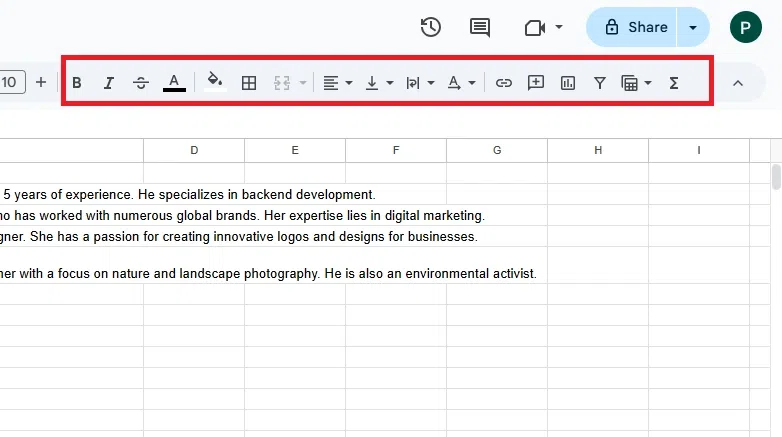
Find the Text Wrapping icon in the toolbar (it looks like a text box with a curved arrow). Click on the icon to open the wrapping options.
Select Wrap to make the text automatically fit within the cell and wrap to the next line.
Now you have wrapped the selected text using the toolbar.
To wrap text in Google Sheets using a shortcut:
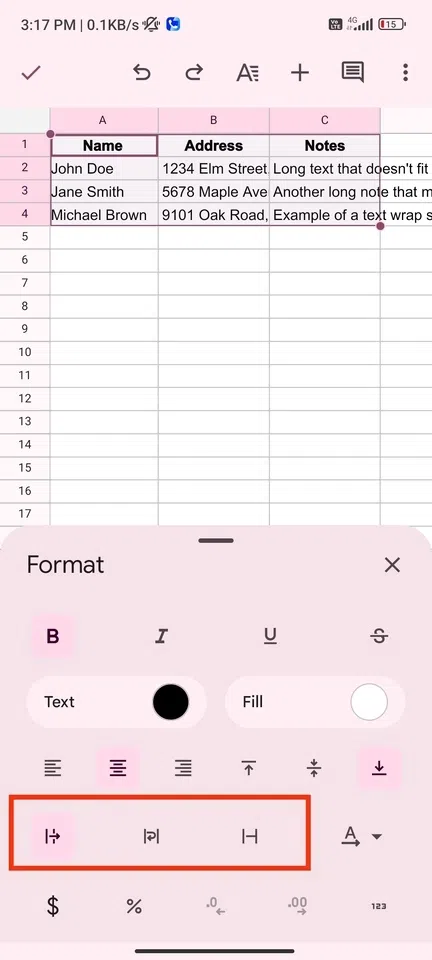
To wrap text in Google Sheets on mobile (Android & iOS), follow these steps:
Launch the Google Sheets app on your mobile device and open the spreadsheet you want to work with.
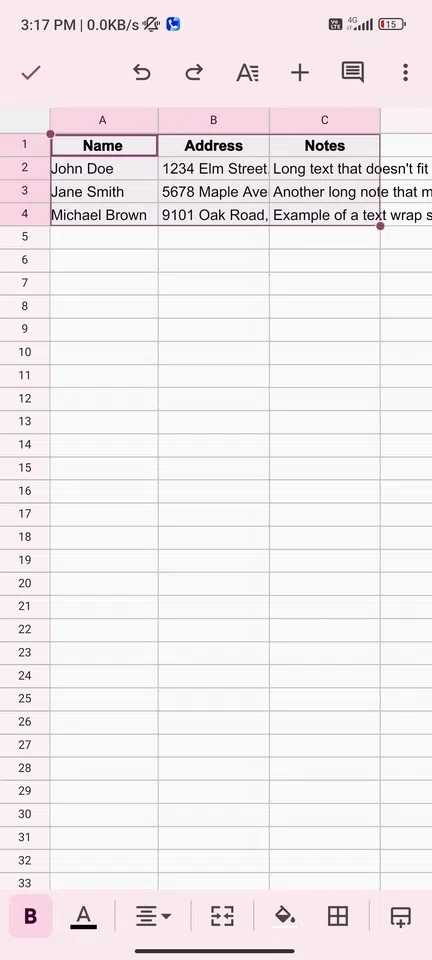
Tap on the cell or range of cells where you want to wrap text.
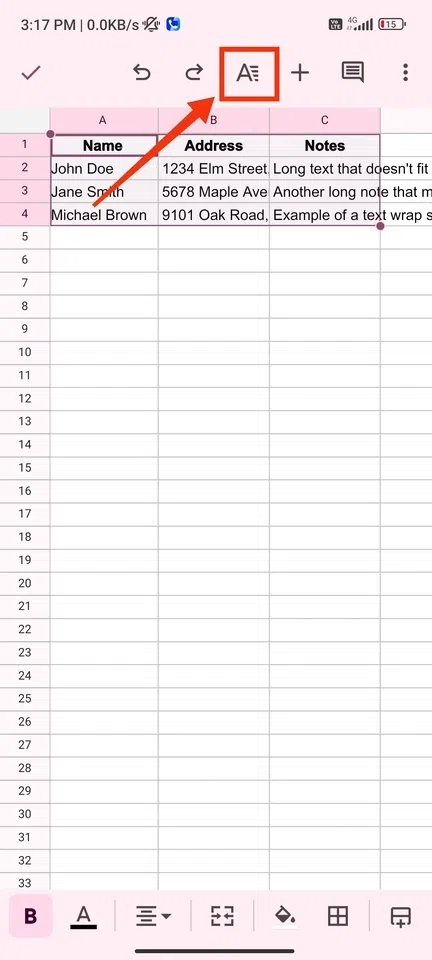
Tap the three vertical dots (More options) in the upper-right corner of the screen to access the menu.
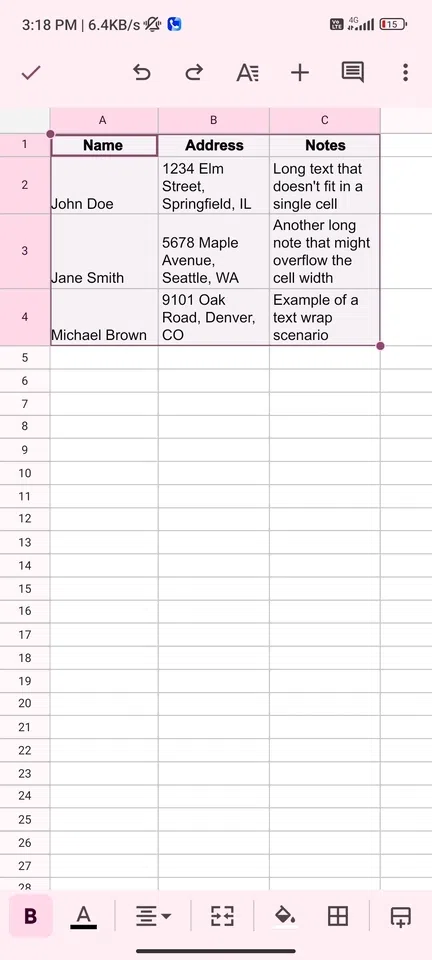
Choose Wrap to enable text wrapping for the selected cell(s). The text will now automatically wrap within the cell.
Now the selected text is wrapped and you can change it different wrap options.
Here are some frequent problems with text wrapping in Google Sheets and solutions to address them:
| Issue | Cause | Solution |
|---|---|---|
| Text Not Wrapping Properly | Text wrapping is not enabled for the cell. | Select the cell(s), go to Format > Text Wrapping > Wrap to enable wrapping. |
| Row Height Doesn’t Adjust Automatically | Automatic row resizing is disabled. | Right-click the row, choose Resize Row, or double-click the row boundary for auto-adjustment. |
| Overflowing Text into Adjacent Cells | Text wrapping is set to Overflow. | Change the wrapping option to Wrap or Clip under Format > Text Wrapping. |
| Text Clipped Within Cell | Wrapping is set to Clip instead of Wrap. | Update the wrapping setting to Wrap under Format > Text Wrapping. |
| Misaligned Text After Wrapping | Default alignment causes text placement issues. | Align the text using the alignment options under the Toolbar (e.g., Center, Left). |
By addressing these issues, you can ensure your text is displayed cleanly and efficiently in Google Sheets.
Also Read: