|
VOOZH | about |
|
VOOZH | about |
Upload a PDF to Google Docs without losing formatting - Quick Steps
- Save the PDF to your computer.
- Log into your Google account.
- Upload the PDF file.
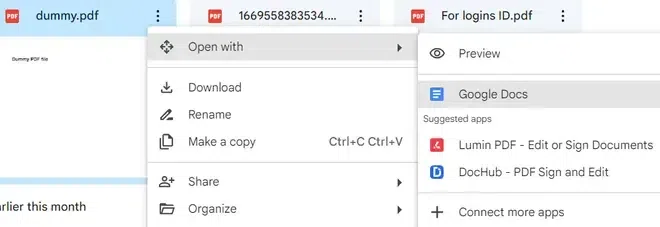
- Select the Uploaded File
- Select Open with > Google Docs
Inserting a PDF into Google Docs is a useful way to enhance your documents by incorporating additional content, such as reports, articles, contracts, or any other form of information stored in a PDF format. However, Google Docs does not directly allow embedding PDFs into a document as an image or file. But don’t worry—there are several method to insert the content of a PDF into your Google Doc.
Table of Content
There are several method by which you can insert a PDF into Google Docs. Here are few
If you want to reference the entire PDF but not embed the full content in your Google Docs, linking the PDF is a simple solution.
To start, initiate the upload of the PDF file into your Google Drive. Once the PDF file is successfully uploaded to your Google Drive account, proceed with the subsequent step.
Open your Google Doc and place the cursor where you want to add the link.
If you want to insert a PDF as an image (for example, a scanned page of a book or a chart), you can convert the PDF page into an image and insert it into your Google Doc.
Cmd + Shift + 4 to select the area for the screenshotFor an Example below we have used I Love PDF free Online Converter, Click here to use the Converter.
After inserting the image, you may need to resize or reposition it to fit neatly within your document.
If you need to insert the text content of the PDF into Google Docs, you can convert the PDF to text using Google Docs itself.
Another way to insert a PDF into a Google Doc is by using third-party add-ons that allow you to embed the entire PDF as an object.
Search for PDF embedder add-ons in the Google Workspace Marketplace by clicking on Add-ons > Get add-ons in Google Docs. Look for an add-on like PDF Embedder or similar tools.
Once the add-on is installed, follow the add-on’s instructions to embed your PDF file directly into the document. The add-on will typically convert the PDF into an embeddable object within the document.
If you want to present the PDF visually and interactively within Google Docs, converting it into a Google Slides presentation and embedding it can be an effective solution.
Convert the PDF pages into images (JPEG or PNG) using an online tool like Smallpdf or pdf2jpg.net.
Uploading documents to Google Docs is a straightforward and efficient way to manage your files. By mastering how to upload files in Google Docs, you ensure that your important documents are easily accessible and editable from any device. Whether you need to upload PDFs to Google Docs or other document types, the process is simple and user-friendly. Embrace the convenience and flexibility of how to upload to Google Docs to enhance your productivity and streamline your workflow. Start uploading your documents today and experience the benefits of having your files organized and accessible in the cloud.