Print PDF documents programmatically in C# and VB.NET
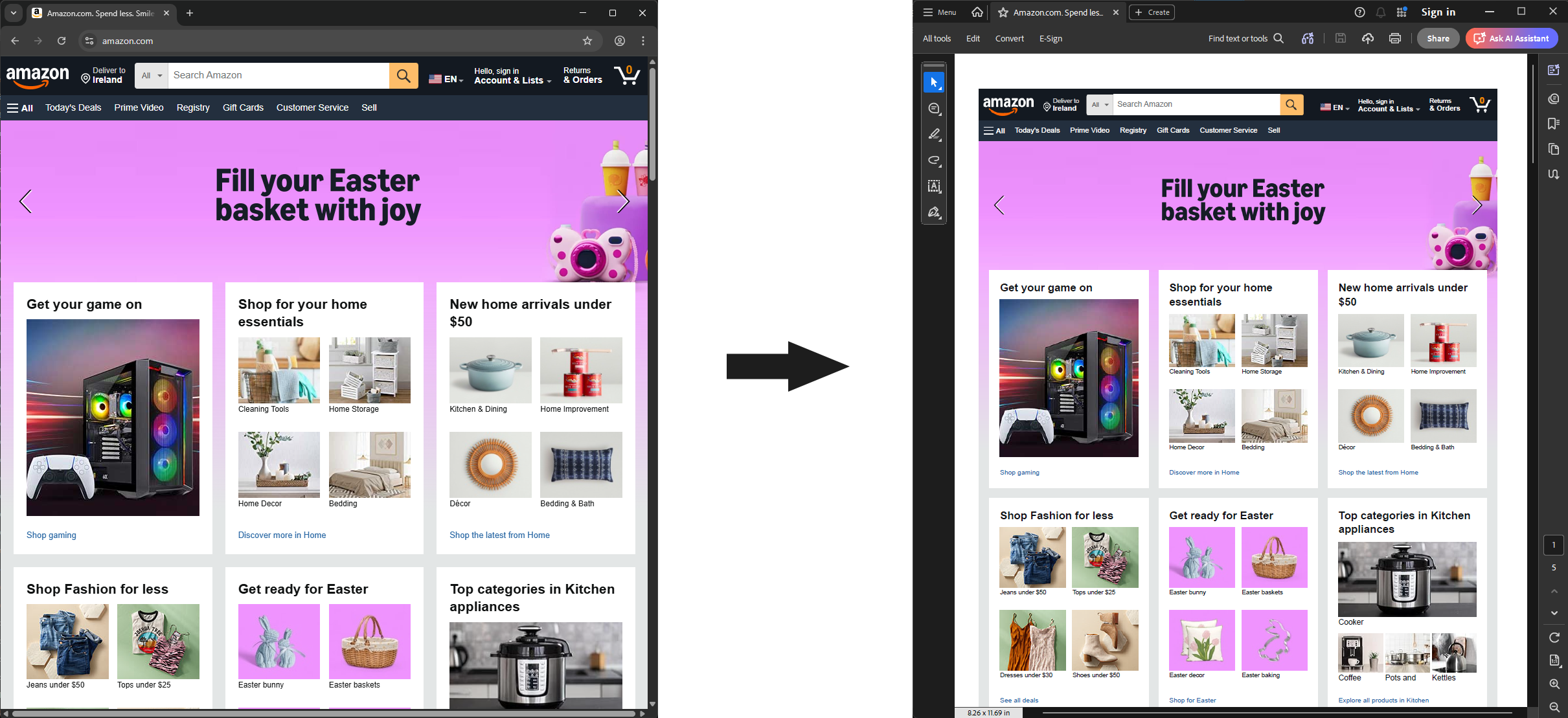
When working with many PDF documents, the best solution is to manage all the operations programmatically. That includes printing on a large scale since you can solve everything faster with just a few lines of code instead of doing everything manually. With the GemBox.Pdf library, you can print high-quality PDF documents in .NET, using C# and VB.NET.
In this article, you will learn how to print PDF files programmatically, send them to the default printer, or specify any other local or network printer connected to your machine. You will also learn how to provide a print dialog and print preview.
Table of contents:
- Install and configure the GemBox.Pdf library
- How to print PDF documents in C# and VB.NET
- How to print multiple PDF files programmatically
- How to print specific pages of a PDF
- Print a PDF document using different paper trays in C# and VB.NET
- How to Print a PDF on Both Sides of Papers (Duplex)
- How to print multiple copies of a PDF in C# and VB.NET
- How to specify the printer name
- How to print a PDF in Black and White (Grayscale) in C# and VB.NET
- How to print PDF documents in a WPF application
- How to print PDF documents in a Windows Forms application
Install and configure the GemBox.Pdf library
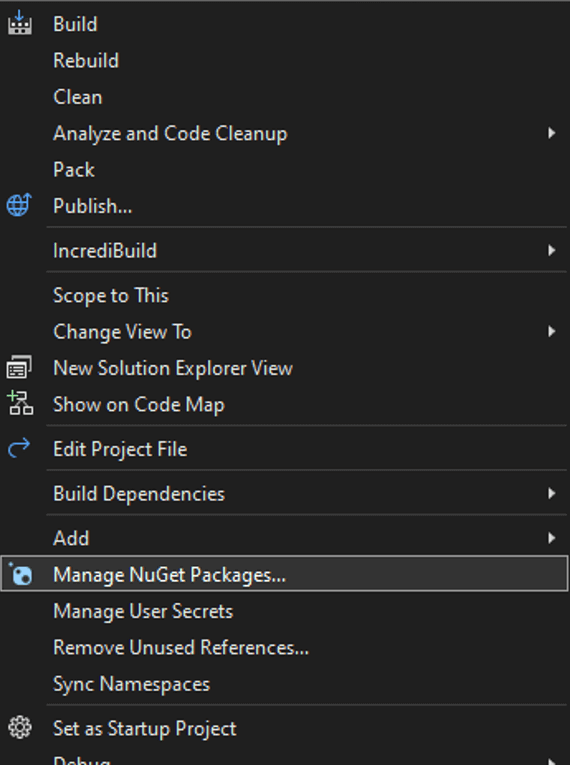
Before you start, you need to install GemBox.Pdf. The best way to do that is to install the NuGet Package by following these instructions:
Add the GemBox.Pdf component as a package using the following command from the NuGet Package Manager Console:
Install-Package GemBox.PdfAfter installing the GemBox.Pdf library, you must call the ComponentInfo.SetLicense method before using any other member of the library.
ComponentInfo.SetLicense("FREE-LIMITED-KEY");
In this tutorial, by using "FREE-LIMITED-KEY", you will be using GemBox's free mode. This mode allows you to use the library without purchasing a license, but with some limitations. If you purchased a license, you can replace "FREE-LIMITED-KEY" with your serial key.
You can check this page for a complete step-by-step guide to installing and setting up GemBox.Pdf in other ways.
How to print PDF documents in C# and VB.NET
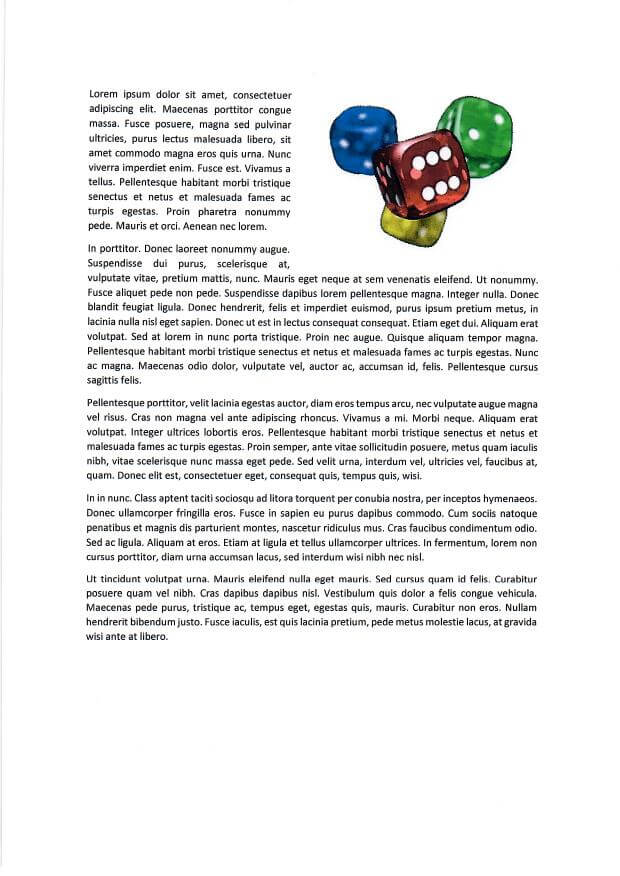
To automate the printing of PDF documents, you can follow the simple steps below:
- Load the input PDF document using the
PdfDocumentclass. - Print the PDF file to a default printer with one of the
PdfDocument.Printmethods.
The following code shows how to print a PDF file using C# and VB.NET:
How to print multiple PDF files programmatically
Depending on your work demands for PDF, it can be overwhelming and even impossible to handle each document individually, especially when you need to print dozens of different files simultaneously. As you can imagine, by extending the code presented in the previous section, you can easily print multiple files programmatically. To do that, simply follow these steps:
- Compose a list of the source file names you need to print.
- Iterate through the list of file names.
- Load the input PDF file using
PdfDocument.Load(String). - Print the files on the list with
PdfDocument.Print(String).
The following code snippet shows how to print multiple PDF files using C# and VB.NET:
// Define file names
var fileNames = new string[]
{
 "PrintFile01.pdf",
 "PrintFile02.pdf",
 "PrintFile03.pdf"
};

// Define the printer name or set to 'null' for the default one
string printerName = null;

// Iterate through the list of file names
foreach (var fileName in fileNames)
 // Load a PDF file
 using (var document = PdfDocument.Load(fileName))
 // Print the document to specified printer
 document.Print(printerName);
' Define file names
Dim fileNames = New String(2) _
{
"PrintFile01.pdf",
"PrintFile02.pdf",
"PrintFile03.pdf"
}
' Define the printer name or set to 'Nothing' for the default one
Dim printerName As String = Nothing
' Iterate through the list of file names
For Each fileName In fileNames
' Load a PDF file
Using document = PdfDocument.Load(fileName)
' Print the document to specifed printer
document.Print(printerName)
End Using
NextHow to print specific pages of a PDF
With GemBox.Pdf, you can also print a specific range of pages by following the steps below:
- Load the file you want to print the pages from, using the
PdfDocumentclass. - Select the printer by specifying the printer name, or set it to
nullto use the default one. - Set specific pages to print by defining a range with the
FromPageandToPageparameters. - Print the pages using the
PdfDocument.Print(printerName, printOptions)method.
The code snippet below shows how to print specific pages of the document using C# and VB.NET:
using (var document = PdfDocument.Load("%#LoremIpsum.pdf%"))
{
 // Define the printer name
 var printerName = "Microsoft Print to PDF";

 // Define the range of pages to print (second to third page in this case)
 // NOTE: page range is zero-based which means that page numbers start with 0
 var printOptions = new PrintOptions()
 {
 FromPage = 1,
 ToPage = 2
 };

 // Print the pages
 document.Print(printerName, printOptions);
}
Using document = PdfDocument.Load("%#LoremIpsum.pdf%")
' Define the printer name
Dim printerName = "Microsoft Print to PDF"
' Define the range of pages to print (second to third page in this case)
' NOTE: page range Is zero - based which means that page numbers start with 0
Dim PrintOptions = New PrintOptions() With
{
.FromPage = 1,
.ToPage = 2
}
' Print the pages
document.Print(printerName, PrintOptions)
End UsingPrint a PDF document using different paper trays in C# and VB.NET
You can print from a specific tray on a printer by specifying the paper size. Note that you need to configure the paper tray sizes on the printer before using this feature.
The following steps explain how to print a PDF document from the printer's paper source (tray) configured for the A5 paper size.
- Load the Pdf document you wish to print.
- Create a PrintTicket instance and set the paper source (tray) with the
printTicket.PageMediaSize() method. - Create a new instance of PrintOptions from that PrintTicket.
- Print the PDF document with options.
And below you can check how the code will be like:
using (PdfDocument document = PdfDocument.Load("Print.pdf"))
{
 // Creating a print ticket with customized paper source (tray)
 var printTicket = new System.Printing.PrintTicket
 {
 PageMediaSize = new System.Printing.PageMediaSize(System.Printing.PageMediaSizeName.ISOA5)
 };

 // Print PDF document to default printer (e.g. 'Microsoft Print to Pdf').
 string printerName = null;

 // Create options for printing
 var printOptions = new PrintOptions(printTicket.GetXmlStream());
 document.Print(printerName, printOptions);
}
Using document = PdfDocument.Load("Print.pdf")
' Creating a print ticket with customized paper source (tray)
Dim printTicket = New Printing.PrintTicket With
{
.PageMediaSize = New Printing.PageMediaSize(Printing.PageMediaSizeName.ISOA5)
}
' Print PDF document to default printer (e.g. 'Microsoft Print to Pdf').
Dim printerName As String = Nothing
' Create options for printing
Dim printOptions = New PrintOptions(printTicket.GetXmlStream())
document.Print(printerName, printOptions)
End UsingHow to print a PDF file on Both Sides of Papers (Duplex)
If your printer supports duplex printing, you can follow these steps to print a PDF document on both sides of a paper:
- Load the desired PDF document using the
PdfDocument.Load()class. - Create a print ticket, define print job settings, set the Collation, and use
Duplexing.TwoSidedLongEdgeorDuplexing.TwoSidedShortEdge, depending on your needs. - Convert the print ticket to GemBox.Pdf.PrintOptions.
- Print the document to the default printer.
using (var document = PdfDocument.Load("LoremIpsum.pdf"))
{
 var printTicket = new PrintTicket
 {
 Collation = Collation.Collated,
 Duplexing = Duplexing.TwoSidedLongEdge
 };

 var printOptions = new PrintOptions(printTicket.GetXmlStream());
 document.Print(null, printOptions);
}
Using document = PdfDocument.Load("LoremIpsum.pdf")
Dim printTicket = New PrintTicket With
{
.Collation = Collation.Collated,
.Duplexing = Duplexing.TwoSidedLongEdge
}
Dim printOptions = New PrintOptions(printTicket.GetXmlStream())
document.Print(Nothing, printOptions)
End UsingNote that when working with PrintTicket instances, you don't have to fetch the DefaultPrintTicket from the desired printer's PrintQueue. GemBox.Pdf will do that internally and merge it with the PrintTicket you provided in your code. That's why, as shown in the example above, it's not necessary to specify all the options but only the ones you want to change.
How to print multiple copies of a PDF in C# and VB.NET
These instructions explain how to print multiple copies of a PDF document:
- Load a PDF document using the
PdfDocument.Load()class. - Create a print ticket and define print job settings, setting the desired
CopyCount. - Call the
document.Print()method to print the document.
using (var document = PdfDocument.Load("LoremIpsum.pdf"))
{
 var printTicket = new PrintTicket
 {
 CopyCount = 2,
 };

 var printOptions = new PrintOptions(printTicket.GetXmlStream());
 document.Print(null, printOptions);
}
Using document = PdfDocument.Load("LoremIpsum.pdf")
Dim printTicket = New PrintTicket With
{
.CopyCount = 2,
}
Dim PrintOptions = New PrintOptions(printTicket.GetXmlStream())
document.Print(Nothing, PrintOptions)
End UsingHow to specify the printer name
If you have more than one printer, you can direct the printing of the PDF document to a designated printer by following these steps:
- Use the PdfDocument class to load the PDF document.
- Indicate the desired printer by assigning the name to the printerName string.
- Initiate the printing process by calling the document.Print(printerName) method.
using (var document = PdfDocument.Load("ExampleDocument.pdf"))
{
 // Define the printer name
 var printerName = "Microsoft Print to PDF";

 // Print the pages
 document.Print(printerName);
}
Using document = PdfDocument.Load("LoremIpsum.pdf")
' Define the printer name
Dim printerName = "Microsoft Print to PDF"
' Print the pages
document.Print(printerName, PrintOptions)
End UsingHow to print a PDF in Black and White (Grayscale) in C# and VB.NET
The following steps outline how to programmatically print a PDF in black and white using C# and VB.NET:
- Load the desired PDF document.
- Create options for printing and a new printTicket.
- Set the output color of the document you want to print.
- Initiate the printing process by setting up the default printer.
using (PdfDocument document = PdfDocument.Load("Print.pdf"))
{
 // Creating a print ticket with customized output color
 var printTicket = new System.Printing.PrintTicket
 {
 OutputColor = System.Printing.OutputColor.Grayscale
 };

 // Print PDF document to default printer (e.g. 'Microsoft Print to Pdf').
 string printerName = null;

 // Create options for printing
 var printOptions = new PrintOptions(printTicket.GetXmlStream());
 document.Print(printerName, printOptions);
}
Using document = PdfDocument.Load("Print.pdf")
' Creating a print ticket with customized output color
Dim printTicket = New Printing.PrintTicket With
{
.OutputColor = Printing.OutputColor.Grayscale
}
' Print PDF document to default printer (e.g. 'Microsoft Print to Pdf').
Dim printerName As String = Nothing
' Create options for printing
Dim printOptions = New PrintOptions(printTicket.GetXmlStream())
document.Print(printerName, printOptions)
End UsingHow to print PDF documents in a WPF application
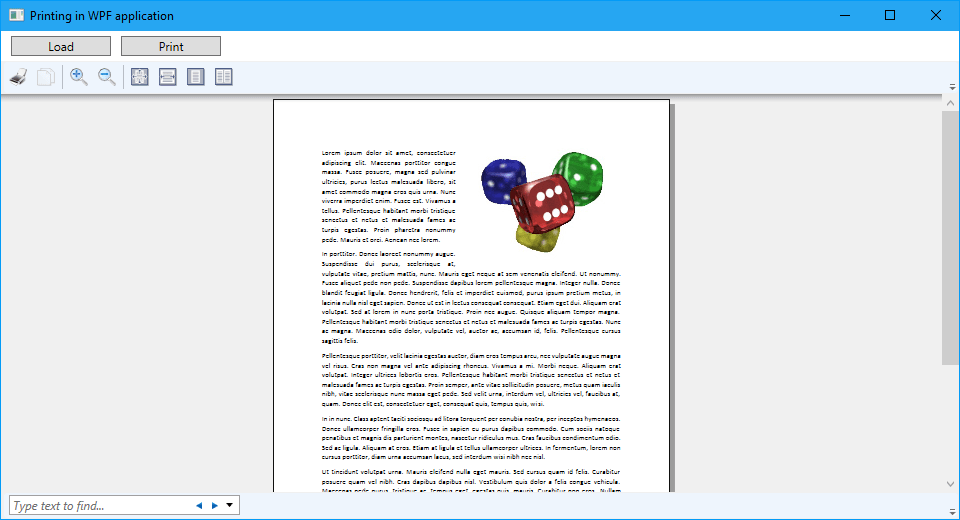
The following tutorial shows how you can use PrintDialog to define GemBox.Pdf's print options and how to use the DocumentViewer control for print previewing.
- Add the references to your project, such as System.Windows.Controls, Microsoft.Win32, and other required WPF libraries.
- In your
MainWindow.xaml, set up the user interface with buttons for loading and printing PDF files and aDocumentViewercontrol for previewing. - Then, implement the logic to load, display, and print PDF files in your
MainWindow.xaml.csfile. - Set up
GemBox.Pdfwith a license key and define variables for managing the PDF document. - Clean up resources by closing the PDF document when the window is closed.
- Add code to open a PDF file and display it in the
DocumentViewer. - To show a print preview, convert the loaded PDF document to an XPS document, which is compatible with WPF's
DocumentViewer. - Use a
PrintDialogto configure and print the loaded PDF document.
<Window x:Class="MainWindow"
 xmlns="http://schemas.microsoft.com/winfx/2006/xaml/presentation"
 xmlns:x="http://schemas.microsoft.com/winfx/2006/xaml"
 Title="Printing in WPF application" Height="450" Width="800">
 <DockPanel>
 <StackPanel DockPanel.Dock="Top" Orientation="Horizontal" Margin="5">
 <Button x:Name="LoadFileBtn" Content="Load" Width="100" Margin="5,0" Click="LoadFileBtn_Click"/>
 <Button x:Name="PrintFileBtn" Content="Print" Width="100" Margin="5,0" Click="PrintFileBtn_Click"/>
 </StackPanel>
 <DocumentViewer x:Name="DocViewer"/>
 </DockPanel>
</Window>
using GemBox.Pdf;
using Microsoft.Win32;
using System.Windows;
using System.Windows.Controls;
using System.Windows.Xps.Packaging;
public partial class MainWindow : Window
{
private PdfDocument document;
public MainWindow()
{
ComponentInfo.SetLicense("FREE-LIMITED-KEY");
InitializeComponent();
}
private void Window_Closing(object sender, System.ComponentModel.CancelEventArgs e)
{
if (this.document != null)
this.document.Close();
}
private void LoadFileBtn_Click(object sender, RoutedEventArgs e)
{
OpenFileDialog openFileDialog = new OpenFileDialog();
openFileDialog.Filter =
"PDF files (*.pdf)|*.pdf";
if (openFileDialog.ShowDialog() == true)
{
if (this.document != null)
this.document.Close();
this.document = PdfDocument.Load(openFileDialog.FileName);
this.ShowPrintPreview();
}
}
private void PrintFileBtn_Click(object sender, RoutedEventArgs e)
{
if (this.document == null)
return;
PrintDialog printDialog = new PrintDialog() { UserPageRangeEnabled = true };
if (printDialog.ShowDialog() == true)
{
PrintOptions printOptions = new PrintOptions(printDialog.PrintTicket.GetXmlStream());
printOptions.FromPage = printDialog.PageRange.PageFrom == 0 ? 0 : printDialog.PageRange.PageFrom - 1;
printOptions.ToPage = printDialog.PageRange.PageTo == 0 ? int.MaxValue : printDialog.PageRange.PageTo - 1;
this.document.Print(printDialog.PrintQueue.FullName, printOptions);
}
}
private void ShowPrintPreview()
{
XpsDocument xpsDocument = this.document.ConvertToXpsDocument(SaveOptions.Xps);
// Note, XpsDocument must stay referenced so that DocumentViewer can access additional resources from it.
// Otherwise, GC will collect/dispose XpsDocument and DocumentViewer will no longer work.
this.DocViewer.Tag = xpsDocument;
this.DocViewer.Document = xpsDocument.GetFixedDocumentSequence();
}
}
Imports GemBox.Pdf
Imports Microsoft.Win32
Imports System.Windows.Xps.Packaging

Partial Public Class MainWindow
 Inherits Window

 Dim document As PdfDocument

 Public Sub New()
 ComponentInfo.SetLicense("FREE-LIMITED-KEY")
 InitializeComponent()
 End Sub

 Private Sub Window_Closing(sender As Object, e As ComponentModel.CancelEventArgs)
 If Me.document IsNot Nothing Then
 Me.document.Close()
 End If
 End Sub

 Private Sub LoadFileBtn_Click(sender As Object, e As RoutedEventArgs)

 Dim openFileDialog As New OpenFileDialog()
 openFileDialog.Filter =
 "PDF files (*.pdf)|*.pdf"

 If (openFileDialog.ShowDialog() = True) Then
 If Me.document IsNot Nothing Then
 Me.document.Close()
 End If

 Me.document = PdfDocument.Load(openFileDialog.FileName)
 Me.ShowPrintPreview()
 End If

 End Sub

 Private Sub PrintFileBtn_Click(sender As Object, e As RoutedEventArgs)

 If document Is Nothing Then Return

 Dim printDialog As New PrintDialog() With {.UserPageRangeEnabled = True}
 If (printDialog.ShowDialog() = True) Then

 Dim printOptions As New PrintOptions(printDialog.PrintTicket.GetXmlStream())

 printOptions.FromPage = If(printerSettings.FromPage = 0, 0, printerSettings.FromPage - 1)
 printOptions.ToPage = If(printDialog.PageRange.PageTo = 0, Integer.MaxValue, printDialog.PageRange.PageTo - 1)

 Me.document.Print(printDialog.PrintQueue.FullName, printOptions)
 End If

 End Sub

 Private Sub ShowPrintPreview()

 Dim xpsDocument As XpsDocument = document.ConvertToXpsDocument(SaveOptions.Xps)

 ' Note, XpsDocument must stay referenced so that DocumentViewer can access additional resources from it.
 ' Otherwise, GC will collect/dispose XpsDocument and DocumentViewer will no longer work.
 Me.DocViewer.Tag = xpsDocument
 Me.DocViewer.Document = xpsDocument.GetFixedDocumentSequence()

 End Sub

End Class
How to print PDF documents in a Windows Forms application
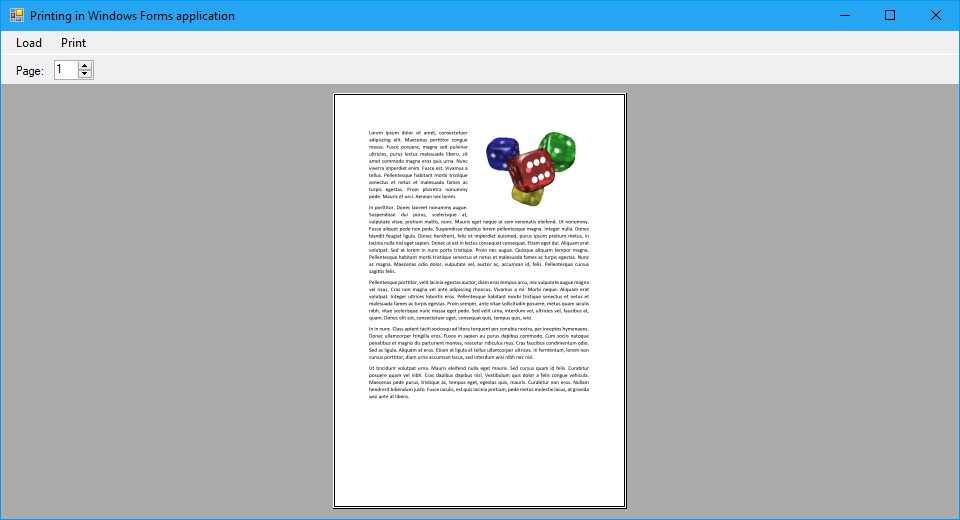
If you want to create a print preview in a Windows Forms application, you can reuse the same DocumentViewer WPF control from the section above. To achieve this integration, simply host the WPF control within the ElementHost control in Windows Forms.
These steps show how you can render document pages as images and draw those images on the PrintDocument.PrintPage event for print previewing.
- UI Setup: Add a MenuStrip for "Load File" and "Print File" options, a
PrintPreviewControlto display pages, and aNumericUpDownfor page navigation to your Windows Forms project. - Implement a
LoadFileMenuItem_Clickevent to open a file dialog, load the selected PDF into aPdfDocument, and render its pages as images for display in thePrintPreviewControl. - Add a
PrintFileMenuItem_Clickevent to show a print dialog, configure print settings, and print the PDF. - Handle the
ValueChangedyevent of theNumericUpDowncontrol to navigate between pages in thePrintPreviewControl. - Resource Management: Ensure the PDF document is closed when the form closes to free resources.
using GemBox.Pdf;
using System;
using System.Drawing;
using System.Drawing.Printing;
using System.IO;
using System.Windows.Forms;

public partial class Form1 : Form
{
 private PdfDocument document;

 public Form1()
 {
 ComponentInfo.SetLicense("FREE-LIMITED-KEY");
 InitializeComponent();
 }

 private void Form1_FormClosing(object sender, FormClosingEventArgs e)
 {
 if (this.document != null)
 this.document.Close();
 }

 private void LoadFileMenuItem_Click(object sender, EventArgs e)
 {
 OpenFileDialog openFileDialog = new OpenFileDialog();
 openFileDialog.Filter =
 "PDF files (*.pdf)|*.pdf";

 if (openFileDialog.ShowDialog() == DialogResult.OK)
 {
 if (this.document != null)
 this.document.Close();

 this.document = PdfDocument.Load(openFileDialog.FileName);
 this.ShowPrintPreview();
 }
 }

 private void PrintFileMenuItem_Click(object sender, EventArgs e)
 {
 if (this.document == null)
 return;

 PrintDialog printDialog = new PrintDialog() { AllowSomePages = true };
 if (printDialog.ShowDialog() == DialogResult.OK)
 {
 PrinterSettings printerSettings = printDialog.PrinterSettings;
 PrintOptions printOptions = new PrintOptions();

 // Set PrintOptions properties based on PrinterSettings properties.
 printOptions.CopyCount = printerSettings.Copies;
 printOptions.FromPage = printerSettings.FromPage == 0 ? 0 : printerSettings.FromPage - 1;
 printOptions.ToPage = printerSettings.ToPage == 0 ? int.MaxValue : printerSettings.ToPage - 1;

 this.document.Print(printerSettings.PrinterName, printOptions);
 }
 }

 private void ShowPrintPreview()
 {
 // Create image for each Word document's page.
 Image[] images = this.CreatePrintPreviewImages();
 int imageIndex = 0;

 // Draw each page's image on PrintDocument for print preview.
 var printDocument = new PrintDocument();
 printDocument.PrintPage += (sender, e) =>
 {
 using (Image image = images[imageIndex])
 {
 var graphics = e.Graphics;
 var region = graphics.VisibleClipBounds;

 // Rotate image if it has landscape orientation.
 if (image.Width > image.Height)
 image.RotateFlip(RotateFlipType.Rotate270FlipNone);

 graphics.DrawImage(image, 0, 0, region.Width, region.Height);
 }

 ++imageIndex;
 e.HasMorePages = imageIndex < images.Length;
 };

 this.PageUpDown.Value = 1;
 this.PageUpDown.Maximum = images.Length;
 this.PrintPreviewControl.Document = printDocument;
 }

 private Image[] CreatePrintPreviewImages()
 {
 int pageCount = this.document.Pages.Count;
 var images = new Image[pageCount];

 for (int pageIndex = 0; pageIndex < pageCount; ++pageIndex)
 {
 var imageStream = new MemoryStream();
 var imageOptions = new ImageSaveOptions(ImageSaveFormat.Png) { PageNumber = pageIndex };

 this.document.Save(imageStream, imageOptions);
 images[pageIndex] = Image.FromStream(imageStream);
 }

 return images;
 }

 private void PageUpDown_ValueChanged(object sender, EventArgs e)
 {
 this.PrintPreviewControl.StartPage = (int)this.PageUpDown.Value - 1;
 }
}
Imports GemBox.Pdf
Imports System.Drawing.Printing
Imports System.IO

Partial Public Class Form1
 Inherits Form

 Dim document As PdfDocument

 Public Sub New()
 ComponentInfo.SetLicense("FREE-LIMITED-KEY")
 InitializeComponent()
 End Sub

 Private Sub Form1_FormClosing(sender As Object, e As FormClosingEventArgs) Handles MyBase.FormClosing
 If Me.document IsNot Nothing Then
 Me.document.Close()
 End If
 End Sub

 Private Sub LoadFileMenuItem_Click(sender As Object, e As EventArgs) Handles LoadFileMenuItem.Click

 Dim openFileDialog As New OpenFileDialog()
 openFileDialog.Filter =
 "PDF files (*.pdf)|*.pdf"

 If (openFileDialog.ShowDialog() = DialogResult.OK) Then
 If Me.document IsNot Nothing Then
 Me.document.Close()
 End If

 Me.document = PdfDocument.Load(openFileDialog.FileName)
 Me.ShowPrintPreview()
 End If

 End Sub

 Private Sub PrintFileMenuItem_Click(sender As Object, e As EventArgs) Handles PrintFileMenuItem.Click

 If document Is Nothing Then Return

 Dim printDialog As New PrintDialog() With {.AllowSomePages = True}
 If (printDialog.ShowDialog() = DialogResult.OK) Then

 Dim printerSettings As PrinterSettings = printDialog.PrinterSettings
 Dim printOptions As New PrintOptions()

 ' Set PrintOptions properties based on PrinterSettings properties.
 printOptions.CopyCount = printerSettings.Copies
 printOptions.FromPage = If(printerSettings.FromPage = 0, 0, printerSettings.FromPage - 1)
 printOptions.ToPage = If(printerSettings.ToPage = 0, Integer.MaxValue, printerSettings.ToPage - 1)

 Me.document.Print(printerSettings.PrinterName, printOptions)
 End If

 End Sub

 Private Sub ShowPrintPreview()

 ' Create image for each Word document's page.
 Dim images As Image() = Me.CreatePrintPreviewImages()
 Dim imageIndex As Integer = 0

 ' Draw each page's image on PrintDocument for print preview.
 Dim printDocument = New PrintDocument()
 AddHandler printDocument.PrintPage,
 Sub(sender, e)
 Using image As Image = images(imageIndex)
 Dim graphics = e.Graphics
 Dim region = graphics.VisibleClipBounds

 ' Rotate image if it has landscape orientation.
 If image.Width > image.Height Then image.RotateFlip(RotateFlipType.Rotate270FlipNone)

 graphics.DrawImage(image, 0, 0, region.Width, region.Height)
 End Using

 imageIndex += 1
 e.HasMorePages = imageIndex < images.Length
 End Sub

 Me.PageUpDown.Value = 1
 Me.PageUpDown.Maximum = images.Length
 Me.printPreviewControl.Document = printDocument

 End Sub

 Private Function CreatePrintPreviewImages() As Image()

 Dim pageCount As Integer = Me.document.Pages.Count
 Dim images = New Image(pageCount - 1) {}

 For pageIndex As Integer = 0 To pageCount - 1
 Dim imageStream = New MemoryStream()
 Dim imageOptions = New ImageSaveOptions(ImageSaveFormat.Png) With {.PageNumber = pageIndex}

 Me.document.Save(imageStream, imageOptions)
 images(pageIndex) = Image.FromStream(imageStream)
 Next

 Return images

 End Function

 Private Sub PageUpDown_ValueChanged(sender As Object, e As EventArgs) Handles PageUpDown.ValueChanged
 Me.printPreviewControl.StartPage = Me.PageUpDown.Value - 1
 End Sub

End Class
Conclusion
Now, you know how to optimize your work by printing PDF files programmatically. Besides the actions for printing described in this article, you can use the GemBox.Pdf library to read, write, merge, and split PDF files and execute other low-level object manipulations in a very straightforward and quick way.
For more information regarding the GemBox.Pdf, check the documentation pages.