Add Excel Text Boxes
The example below shows how to create, customize, and add text boxes to an Excel worksheet in C# and VB.NET, using the GemBox.Spreadsheet API.
using GemBox.Spreadsheet;
using GemBox.Spreadsheet.Drawing;

class Program
{
 static void Main()
 {
 // If using the Professional version, put your serial key below.
 SpreadsheetInfo.SetLicense("FREE-LIMITED-KEY");

 var workbook = new ExcelFile();
 var worksheet = workbook.Worksheets.Add("Text Boxes");

 // Create the first shape.
 var shape = worksheet.Shapes.Add(ShapeType.Rectangle, "B2", "D8");

 // Get the shape's text content.
 var textBox = shape.Text;

 // Create the first paragraph with bold, red run element.
 var run = textBox.Paragraphs.Add().Elements.AddRun("Shows how to use text boxes with GemBox.Spreadsheet component.");
 run.Format.Bold = true;
 run.Format.Fill.SetSolid(DrawingColor.FromName(DrawingColorName.Orange));

 // Create an empty paragraph.
 textBox.Paragraphs.Add();

 // Create a right-aligned (multi-line) paragraph.
 var paragraph = textBox.Paragraphs.Add();
 paragraph.Format.Alignment = HorizontalAlignment.Right;

 // Create and add a run element.
 run = paragraph.Elements.AddRun("This is a ...");
 var lineBreak = paragraph.Elements.AddLineBreak();
 run = paragraph.Elements.AddRun("... multi-line paragraph.");

 // Create the second shape.
 shape = worksheet.Shapes.Add(ShapeType.Oval, 200, 50, 150, 150, LengthUnit.Point);
 shape.Fill.SetSolid(DrawingColor.FromName(DrawingColorName.DarkOliveGreen));
 shape.Outline.Fill.SetNone();
 textBox = shape.Text;
 textBox.Format.VerticalAlignment = VerticalAlignment.Middle;

 // Create a list.
 paragraph = textBox.Paragraphs.Add();
 paragraph.Elements.AddRun("This is a paragraph list:");

 paragraph = textBox.Paragraphs.Add();
 paragraph.Format.List.NumberType = ListNumberType.DecimalPeriod;
 run = paragraph.Elements.AddRun("First list item");

 paragraph = textBox.Paragraphs.Add();
 paragraph.Format.List.NumberType = ListNumberType.DecimalPeriod;
 run = paragraph.Elements.AddRun("Second list item");

 paragraph = textBox.Paragraphs.Add();
 paragraph.Format.List.NumberType = ListNumberType.DecimalPeriod;
 run = paragraph.Elements.AddRun("Third list item");

 workbook.Save("Text Boxes.%OutputFileType%");
 }
}
Imports GemBox.Spreadsheet
Imports GemBox.Spreadsheet.Drawing

Module Program

 Sub Main()

 ' If using the Professional version, put your serial key below.
 SpreadsheetInfo.SetLicense("FREE-LIMITED-KEY")

 Dim workbook As New ExcelFile()
 Dim worksheet = workbook.Worksheets.Add("Text Boxes")

 ' Create the first shape.
 Dim shape = worksheet.Shapes.Add(ShapeType.Rectangle, "B2", "D8")

 ' Get the shape's text content.
 Dim textBox = shape.Text

 ' Create the first paragraph with bold, red run element.
 Dim run = textBox.Paragraphs.Add().Elements.AddRun("Shows how to use text boxes with GemBox.Spreadsheet component.")
 run.Format.Bold = true
 run.Format.Fill.SetSolid(DrawingColor.FromName(DrawingColorName.Orange))

 ' Create an empty paragraph.
 textBox.Paragraphs.Add()

 ' Create a right-aligned (multi-line) paragraph.
 Dim paragraph = textBox.Paragraphs.Add()
 paragraph.Format.Alignment = HorizontalAlignment.Right

 ' Create and add a run element.
 run = paragraph.Elements.AddRun("This is a ...")
 Dim lineBreak = paragraph.Elements.AddLineBreak()
 run = paragraph.Elements.AddRun("... multi-line paragraph.")

 ' Create the second shape.
 shape = worksheet.Shapes.Add(ShapeType.Oval, 200, 50, 150, 150, LengthUnit.Point)
 shape.Fill.SetSolid(DrawingColor.FromName(DrawingColorName.DarkOliveGreen))
 shape.Outline.Fill.SetNone()
 textBox = shape.Text
 textBox.Format.VerticalAlignment = VerticalAlignment.Middle

 ' Create a list.
 paragraph = textBox.Paragraphs.Add()
 paragraph.Elements.AddRun("This is a paragraph list:")

 paragraph = textBox.Paragraphs.Add()
 paragraph.Format.List.NumberType = ListNumberType.DecimalPeriod
 run = paragraph.Elements.AddRun("First list item")

 paragraph = textBox.Paragraphs.Add()
 paragraph.Format.List.NumberType = ListNumberType.DecimalPeriod
 run = paragraph.Elements.AddRun("Second list item")

 paragraph = textBox.Paragraphs.Add()
 paragraph.Format.List.NumberType = ListNumberType.DecimalPeriod
 run = paragraph.Elements.AddRun("Third list item")

 workbook.Save("Text Boxes.%OutputFileType%")
 End Sub
End Module
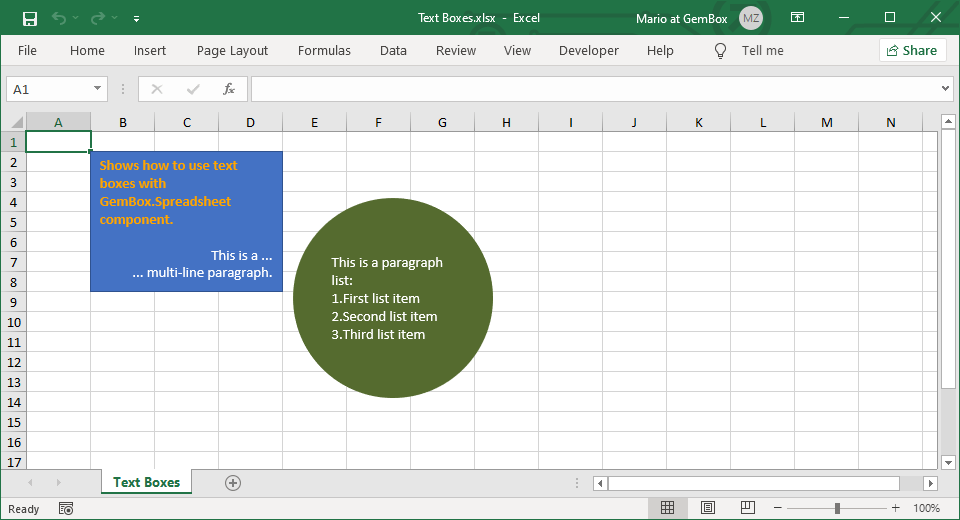
In GemBox.Spreadsheet, text boxes are represented by the ExcelShape class. It allows you to specify the element's size, location, and geometry (for more information, see the Shapes example), while the Text property allows you to set the text content and text formatting.