Export Excel in WPF
The following example shows how you can convert a sheet from an Excel file to an image and attach it to WPF's Image control using GemBox.Spreadsheet. Alternatively, you can also see how to convert an Excel file to XPS and attach it to WPF's DocumentViewer control.
<Window x:Class="MainWindow"
 xmlns="http://schemas.microsoft.com/winfx/2006/xaml/presentation"
 xmlns:x="http://schemas.microsoft.com/winfx/2006/xaml"
 Title="Export in WPF Example">

 <Grid>
 <Grid.RowDefinitions>
 <RowDefinition Height="Auto"></RowDefinition>
 <RowDefinition></RowDefinition>
 </Grid.RowDefinitions>
 <Grid Grid.Row="0" HorizontalAlignment="Center" Margin="0,10,0,0">
 <Grid.Resources >
 <Style TargetType="Button" >
 <Setter Property="Margin" Value="5,0,5,0" />
 </Style>
 </Grid.Resources>
 <Grid.ColumnDefinitions>
 <ColumnDefinition></ColumnDefinition>
 <ColumnDefinition></ColumnDefinition>
 <ColumnDefinition></ColumnDefinition>
 </Grid.ColumnDefinitions>
 <Button Grid.Column="0" Name="BtnOpenFile" Background="DarkGray" Click="BtnOpenFile_Click">Select a Spreadsheet File</Button>
 <Button Grid.Column="1" Name="BtnShowAsImage" Click="BtnShowAsImage_Click">Show as an Image</Button>
 <Button Grid.Column="2" Name="BtnShowAsDocument" Click="BtnShowAsDocument_Click">Show as a Document</Button>
 </Grid>
 <ScrollViewer x:Name="ImageScrollViewer" Grid.Row="1">
 <Border Margin="10" BorderBrush="Black" BorderThickness="1">
 <Image x:Name="ImageControl"/>
 </Border>
 </ScrollViewer>
 <DocumentViewer Margin="10" Grid.Row="2" x:Name="DocumentViewer"/>
 </Grid>
</Window>
using GemBox.Spreadsheet;
using Microsoft.Win32;
using System;
using System.Windows;
using System.Windows.Media;
using System.Windows.Xps.Packaging;

partial class MainWindow : Window
{
 private ExcelFile workbook;
 private XpsDocument xpsDocument;
 private ImageSource imageSource;

 private Action updateSourceAction;

 public MainWindow()
 {
 this.InitializeComponent();

 SpreadsheetInfo.SetLicense("FREE-LIMITED-KEY");
 this.updateSourceAction = this.SetImageSource;

 this.InitExcelFile();
 this.updateSourceAction();
 }

 private void InitExcelFile()
 {
 this.workbook = new ExcelFile();
 var worksheet = this.workbook.Worksheets.Add("Sheet1");

 worksheet.Cells[0, 0].Value = "English:";
 worksheet.Cells[0, 1].Value = "Hello";

 worksheet.Cells[1, 0].Value = "Russian:";
 worksheet.Cells[1, 1].Value = new string(new char[] { '\u0417', '\u0434', '\u0440', '\u0430', '\u0432', '\u0441', '\u0442', '\u0432', '\u0443', '\u0439', '\u0442', '\u0435' });

 worksheet.Cells[2, 0].Value = "Chinese:";
 worksheet.Cells[2, 1].Value = new string(new char[] { '\u4f60', '\u597d' });

 worksheet.Cells[4, 0].Value = "In order to see Russian and Chinese characters you need to have appropriate fonts on your PC.";
 worksheet.Cells.GetSubrangeAbsolute(4, 0, 4, 7).Merged = true;

 worksheet.HeadersFooters.DefaultPage.Header.CenterSection.Content = "Export To ImageSource / Image Control Example";

 worksheet.PrintOptions.PrintGridlines = true;
 }

 private void SetImageSource()
 {
 if (this.imageSource == null)
 this.imageSource = this.workbook.ConvertToImageSource(SaveOptions.ImageDefault);

 this.DocumentViewer.Document = null;
 this.ImageControl.Source = this.imageSource;

 this.DocumentViewer.Visibility = Visibility.Collapsed;
 this.ImageScrollViewer.Visibility = Visibility.Visible;
 }

 private void SetDocumentViewerSource()
 {
 // XpsDocument needs to stay referenced so that DocumentViewer can access additional required resources.
 // Otherwise, GC will collect/dispose XpsDocument and DocumentViewer will not work.
 if (this.xpsDocument == null)
 this.xpsDocument = this.workbook.ConvertToXpsDocument(SaveOptions.XpsDefault);

 this.ImageControl.Source = null;
 this.DocumentViewer.Document = this.xpsDocument.GetFixedDocumentSequence();

 this.ImageScrollViewer.Visibility = Visibility.Collapsed;
 this.DocumentViewer.Visibility = Visibility.Visible;
 }

 private void BtnOpenFile_Click(object sender, RoutedEventArgs e)
 {
 var openFileDialog = new OpenFileDialog
 {
 Filter = "Excel Files|*.xls;*.xlsx;*.xlsm"
 };
 if (openFileDialog.ShowDialog() != true)
 return;

 this.workbook = ExcelFile.Load(openFileDialog.FileName);
 this.xpsDocument = null;
 this.imageSource = null;
 this.updateSourceAction();
 }

 private void BtnShowAsImage_Click(object sender, RoutedEventArgs e)
 {
 this.updateSourceAction = this.SetImageSource;
 this.updateSourceAction();
 }

 private void BtnShowAsDocument_Click(object sender, RoutedEventArgs e)
 {
 this.updateSourceAction = this.SetDocumentViewerSource;
 this.updateSourceAction();
 }
}
Imports GemBox.Spreadsheet
Imports Microsoft.Win32
Imports System
Imports System.Windows
Imports System.Windows.Media
Imports System.Windows.Xps.Packaging

Class MainWindow
 Inherits Window
 Private workbook As ExcelFile
 Private xpsDocument As XpsDocument
 Private imageSource As ImageSource

 Private updateSourceAction As Action

 Public Sub New()
 Me.InitializeComponent()

 SpreadsheetInfo.SetLicense("FREE-LIMITED-KEY")
 updateSourceAction = AddressOf SetImageSource

 InitExcelFile()
 updateSourceAction()
 End Sub

 Private Sub InitExcelFile()
 workbook = New ExcelFile()
 Dim worksheet = workbook.Worksheets.Add("Sheet1")

 worksheet.Cells(0, 0).Value = "English:"
 worksheet.Cells(0, 1).Value = "Hello"

 worksheet.Cells(1, 0).Value = "Russian:"
 worksheet.Cells(1, 1).Value = New String(New Char() {ChrW(&H417), ChrW(&H434), ChrW(&H440), ChrW(&H430), ChrW(&H432), ChrW(&H441), ChrW(&H442), ChrW(&H432), ChrW(&H443), ChrW(&H439), ChrW(&H442), ChrW(&H435)})

 worksheet.Cells(2, 0).Value = "Chinese:"
 worksheet.Cells(2, 1).Value = New String(New Char() {ChrW(&H4F60), ChrW(&H597D)})

 worksheet.Cells(4, 0).Value = "In order to see Russian and Chinese characters you need to have appropriate fonts on your PC."
 worksheet.Cells.GetSubrangeAbsolute(4, 0, 4, 7).Merged = True

 worksheet.HeadersFooters.DefaultPage.Header.CenterSection.Content = "Export To ImageSource / Image Control Example"

 worksheet.PrintOptions.PrintGridlines = True
 End Sub

 Private Sub SetImageSource()
 If imageSource Is Nothing Then imageSource = workbook.ConvertToImageSource(SaveOptions.ImageDefault)

 Me.DocumentViewer.Document = Nothing
 Me.ImageControl.Source = imageSource

 Me.DocumentViewer.Visibility = Visibility.Collapsed
 Me.ImageScrollViewer.Visibility = Visibility.Visible
 End Sub

 Private Sub SetDocumentViewerSource()
 ' XpsDocument needs to stay referenced so that DocumentViewer can access additional required resources.
 ' Otherwise, GC will collect/dispose XpsDocument and DocumentViewer will not work.
 If xpsDocument Is Nothing Then xpsDocument = workbook.ConvertToXpsDocument(SaveOptions.XpsDefault)

 Me.ImageControl.Source = Nothing
 Me.DocumentViewer.Document = xpsDocument.GetFixedDocumentSequence()

 Me.ImageScrollViewer.Visibility = Visibility.Collapsed
 Me.DocumentViewer.Visibility = Visibility.Visible
 End Sub

 Private Sub BtnOpenFile_Click(ByVal sender As Object, ByVal e As RoutedEventArgs)
 Dim openFileDialog = New OpenFileDialog With {
 .Filter = "Excel Files|*.xls;*.xlsx;*.xlsm"
 }
 If openFileDialog.ShowDialog() <> True Then Return

 workbook = ExcelFile.Load(openFileDialog.FileName)
 xpsDocument = Nothing
 imageSource = Nothing
 updateSourceAction()
 End Sub

 Private Sub BtnShowAsImage_Click(ByVal sender As Object, ByVal e As RoutedEventArgs)
 updateSourceAction = AddressOf SetImageSource
 updateSourceAction()
 End Sub

 Private Sub BtnShowAsDocument_Click(ByVal sender As Object, ByVal e As RoutedEventArgs)
 updateSourceAction = AddressOf SetDocumentViewerSource
 updateSourceAction()
 End Sub
End Class
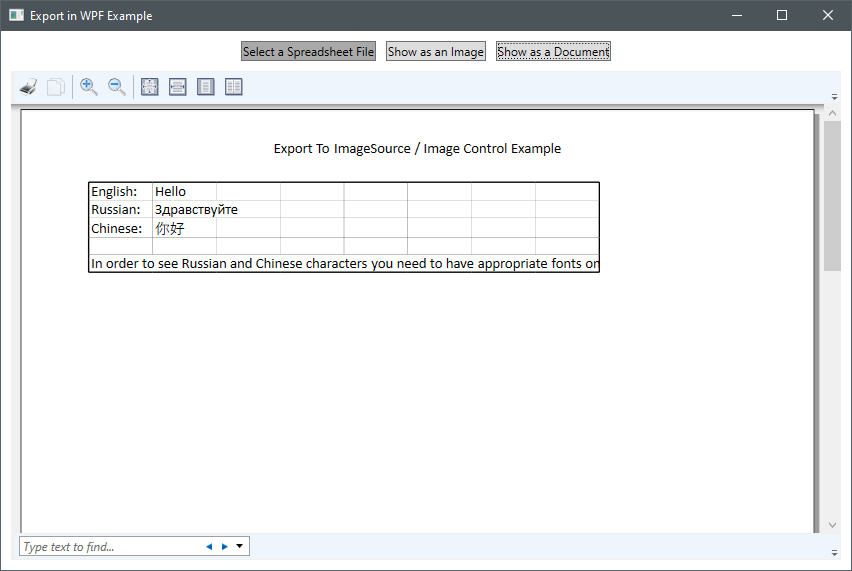
This will allow you to easily display the Excel file's content in a WPF application. But, if you want to be able to modify the spreadsheet data with some Graphical User Interface (GUI) control, you could export Excel to DataTable and bind it to DataGrid control or export Excel to DataGridView control.