

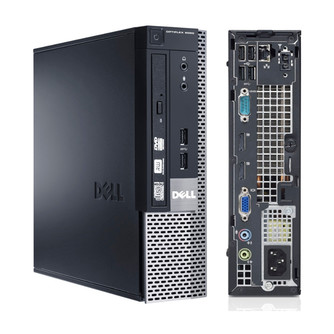
Dell OptiPlex 9020 USFF
Specification and Upgrade Options
The Dell OptiPlex 9020 USFF is an ultra-compact business solution designed for specialized deployments like kiosks, digital signage, or minimalist workstations. Released in 2013, it packs the Q87 chipset, 4th gen Intel Core processors, and up to 16GB of DIMM DDR3-1600 memory into a tiny shell. While its size prevents the addition of a gaming GPU, it is highly energy-efficient and perfect for general administrative tasks and media consumption.
Ultra Small Form Factor (USFF) computers are useful when you are low on space. This form factor is not so popular anymore and has been superseded by the Micro. As expected, free space inside those machines is extremely limited. Swapping components is of course easy, but adding something more powerful is not an option due to reduced cooling.
Can you upgrade Dell OptiPlex 9020 USFF to play games?
Dell OptiPlex 9020 USFF is a business desktop computer in micro form factor. It is using a processor that provides both the CPU and GPU functionality. While integrated GPUs are sufficient for basic gaming, they are not powerful enough to run demanding games. Dell OptiPlex 9020 USFF has no space for dedicated graphics card.
Micro desktop machines like Dell OptiPlex 9020 USFF are usually used as home theater PCs (HTPC), in home lab projects or a as home automation servers.
Does Dell OptiPlex 9020 USFF support Windows 11?
No, Dell OptiPlex 9020 USFF does not meet the Windows 11 hardware requirements. According to Windows 11 specification, all models with Intel 7th Gen CPU or older are not officially supported. Processor with TPM 2.0 and a UEFI Secure boot BIOS is also required in order to upgrade from Windows 10 to Windows 11 through Windows Update.
However, anyone with PC that does not pass the upgrade test can download the official Windows 11 ISO, make a bootable flash drive, and install the OS manually.
Processor
The Dell OptiPlex 9020 USFF supports Gen4 Intel Core technology on a Q87 chipset. 4th generation Intel Core CPUs (Haswell) introduced meaningful IPC gains and improved power efficiency. Lower-end models are appropriate for office productivity and programming tasks, while higher-end i7 CPUs can support moderate virtualization, homelab environments, and light gaming. Emulation performance improves over previous generations, with demanding emulators still requiring high-end SKUs.
Best CPUs for Dell OptiPlex 9020 USFF upgrade:
| Model | Cores (Threads) | Base frequency | Turbo |
|---|---|---|---|
| Core i5 4690 | 4(4) | 3.5 GHz | 3.9 GHz |
| Core i7 4770 | 4(8) | 3.4 GHz | 3.9 GHz |
| Core i7 4790 | 4(8) | 3.6 GHz | 4.0 GHz |
GPU upgrade
It is not possible to upgrade Dell OptiPlex 9020 USFF with a dedicated GPU due to the lack of space and absence of a PCIe slot. However, you can still use the integrated graphics processor for gaming. There are number of games you can enjoy with an Intel HD and UHD iGPU.
Memory
Dell OptiPlex 9020 USFF supports up to 16 GB of DIMM DDR3-1600 RAM across two DIMM slots, with memory speeds up to 1600 MT/s and dual-channel support depending on the installed configuration.
Actual supported memory capacity and memory channels may vary depending on the installed CPU and chipset.
Typical Dell OptiPlex 9020 USFF memory configurations include 8 GB for everyday productivity and 16 GB for gaming, heavier multitasking, or professional workloads.
Wi-Fi Support
Dell OptiPlex 9020 USFF doesn't come with any on-board Wi-Fi support. In that case, you have two options to upgrade this model with Wi-Fi. You either use an external USB Wi-Fi adapter (wireless network dongle) or a PCIe-based wireless adapter.
The USB dongle is much more convenient and easy to install, but has less space for a decent antenna and can have thermal problems. On the other hand, the PCIe based adapter is much more powerful, more reliable, and has better antenna, but it is harder to install.
Wi-Fi and Bluetooth wireless adapter upgrades for Dell OptiPlex 9020 USFF:
| Model | Speed | Frequency | Interface |
|---|---|---|---|
| WiFi 6E (Gig+) Kit | 3000 Mbit/s | 2.4GHz / 5GHz | NGFF M.2 A/E Key |
| Rekong AX210 | 3000 Mbit/s | 2.4GHz / 5GHz | NGFF M.2 A/E Key |
| Gigabyte GC-Wbax200 | 2400 Mbit/s | 2.4GHz / 5GHz | PCIe |
| TP-Link Archer TX50E | 2400 Mbit/s | 2.4GHz / 5GHz | PCIe |
| TP-Link Archer T9UH | 1300 Mbit/s | 2.4GHz / 5GHz | USB 3.0 |
Ports
Dell OptiPlex 9020 USFF provides a fixed set of external I/O ports for connecting peripherals and displays. Port availability and versions determine supported data transfer speeds and display capabilities.
USB ports
Dell OptiPlex 9020 USFF includes six USB ports in total in the following configuration - (4x) USB-A 3.0; (2x) USB-A 2.0; with no USB 3.1 ports available.
Video ports
Dell OptiPlex 9020 USFF features two DisplayPort 1.2 outputs, suitable for modern digital displays.
No HDMI output is available on the motherboard.
Motherboard video outputs require a CPU with integrated graphics. Systems equipped with a dedicated GPU must use the video ports on the graphics card instead.
SSD storage - M.2 sockets and SATA ports
The Dell OptiPlex 9020 USFF comes with two SATA port(s) for connecting storage devices.
Dell OptiPlex 9020 USFF has also one M.2 socket(s) that supports only mSATA drives with speed of up to 600 MB/s. The SATA interface works well for gaming, but for work related tasks, like video editing, you are better off with PC that has PCIe NVMe support.
The M.2 PCIe SSD connector in combination with an NVMe drive allows for higher transfer rates, compared to the old SATA interface. In some situations, NVMe device connected to the M.2 PCIe socket can be more than 5 times faster.
*Keep in mind that some M.2 connectors may not support SATA SSDs. Check the motherboard manual to confirm compatibility.
Power Supply
The Dell OptiPlex 9020 USFF comes with a 200 Watt PSU. Having a power supply with high power rating is important, especially if you are doing upgrade with addtional components, like dedicated GPU and more HDDs. Will this 200 W be enough, it all depends on your specific use. Please keep in mind that some models might have more than one PSU option. Whenever possible get the most powerful one, as it might make future upgrades easier.
