

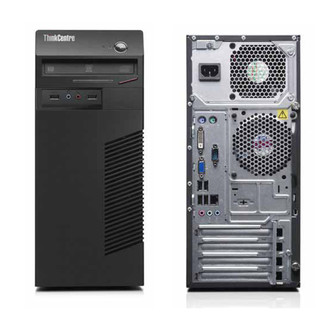
Lenovo ThinkCentre M72e Tower
Specification and Upgrade Options
The Lenovo ThinkCentre M72e Tower is a scalable business desktop designed for heavy office workloads, content creation, and home flexibility. First released in 2012, it is built on the H61 chipset and supports 3th gen Intel Core processors and up to 16GB of DIMM DDR3-1600 memory. Thanks to its larger chassis, it accommodates dedicated graphics cards, making it an excellent candidate for a gaming PC conversion or a high-performance workstation.
If you are looking for a system with maximum upgradability, Lenovo ThinkCentre M72e Tower is a good option. Models in this category usually have 4x PCIe slots, several drive bays and better cooling.
Can you upgrade Lenovo ThinkCentre M72e Tower to play games?
Yes, you can upgrade Lenovo ThinkCentre M72e Tower for gaming with better processors, graphics card, memory, and storage devices. However, like many other business pre-built PCs, this model may have proprietary elements like the power supply, the chassis or the power connector, which can make it difficult for users to install aftermarket PSUs to support better GPUs. You can also find that there is space constrains inside the chassis, making it difficult to accommodete larger GPU to boost the gaming performance.
Does Lenovo ThinkCentre M72e Tower support Windows 11?
No, Lenovo ThinkCentre M72e Tower does not meet the Windows 11 hardware requirements. According to Windows 11 specification, all models with Intel 7th Gen CPU or older are not officially supported. Processor with TPM 2.0 and a UEFI Secure boot BIOS is also required in order to upgrade from Windows 10 to Windows 11 through Windows Update.
However, anyone with PC that does not pass the upgrade test can download the official Windows 11 ISO, make a bootable flash drive, and install the OS manually.
Processor
The Lenovo ThinkCentre M72e Tower supports Gen3 Intel Core technology on a H61 chipset. 3rd generation Intel Core CPUs (Ivy Bridge) offer modest efficiency and performance improvements over Sandy Bridge. Performance depends heavily on the installed CPU model. Higher-end variants are suitable for office work, software development, light virtualization, and basic homelab usage. Entry-level emulation works well, while more demanding emulation (such as PS3) is only feasible on top-tier SKUs and remains limited.
Best CPUs for Lenovo ThinkCentre M72e Tower upgrade:
| Model | Cores (Threads) | Base frequency | Turbo |
|---|---|---|---|
| Core i5 3550 | 4(4) | 3.3 GHz | 3.7 GHz |
| Core i7 3750 | 4(4) | 3.4 GHz | 3.8 GHz |
| Core i7 3770 | 4(8) | 3.4 GHz | 4.9 GHz |
GPU upgrade
The Lenovo ThinkCentre M72e Tower can safely support GPUs with suggested PSU of 320W, but more powerful cards require a PSU upgrade. With the stock PSU model, it supports up to an GeForce GTX 1660 Super
GPU upgrade options for Lenovo ThinkCentre M72e Tower with the stock 320W power supply:
| GPU | Power consumption | Memory | Req. |
|---|---|---|---|
| NVIDIA GTX 1660 Super | 130 W | 6 GB DDR6 | *SATA to PCIe adapter |
| NVIDIA GTX 1660 Ti | 125 W | 6 GB DDR6 | *SATA to PCIe adapter |
| NVIDIA GTX 1070 | 145 W | 8 GB DDR5 | *Dual SATA to PCIe adapter |
| NVIDIA RTX 3050 | 130 W | 8 GB DDR6 | *Dual SATA to PCIe adapter |
GPU compatibility in the Lenovo ThinkCentre M72e Tower depends on several hardware constraints. The physical space available inside the chassis determines the maximum GPU length, height, and thickness that can be installed. In addition, the installed power supply unit (PSU) must provide sufficient wattage and the required PCIe power connectors for the selected graphics card.
Before you begin shopping for a new GPU, it is important to check the power supply unit (PSU) currently installed. This is because the Lenovo ThinkCentre M72e Tower is often sold with different PSU wattages depending on the original configuration.
Memory
Lenovo ThinkCentre M72e Tower supports up to 16 GB of DIMM DDR3-1600 RAM across two DIMM slots, with memory speeds up to 1600 MT/s and dual-channel support depending on the installed configuration.
Actual supported memory capacity and memory channels may vary depending on the installed CPU and chipset.
Typical Lenovo ThinkCentre M72e Tower memory configurations include 8 GB for everyday productivity and 16 GB for gaming, heavier multitasking, or professional workloads.
Wi-Fi Support
Lenovo ThinkCentre M72e Tower doesn't come with any on-board Wi-Fi support. In that case, you have two options to upgrade this model with Wi-Fi. You either use an external USB Wi-Fi adapter (wireless network dongle) or a PCIe-based wireless adapter.
The USB dongle is much more convenient and easy to install, but has less space for a decent antenna and can have thermal problems. On the other hand, the PCIe based adapter is much more powerful, more reliable, and has better antenna, but it is harder to install.
Wi-Fi and Bluetooth wireless adapter upgrades for Lenovo ThinkCentre M72e Tower:
| Model | Speed | Frequency | Interface |
|---|---|---|---|
| WiFi 6E (Gig+) Kit | 3000 Mbit/s | 2.4GHz / 5GHz | NGFF M.2 A/E Key |
| Rekong AX210 | 3000 Mbit/s | 2.4GHz / 5GHz | NGFF M.2 A/E Key |
| Gigabyte GC-Wbax200 | 2400 Mbit/s | 2.4GHz / 5GHz | PCIe |
| TP-Link Archer TX50E | 2400 Mbit/s | 2.4GHz / 5GHz | PCIe |
| TP-Link Archer T9UH | 1300 Mbit/s | 2.4GHz / 5GHz | USB 3.0 |
Ports
Lenovo ThinkCentre M72e Tower provides a fixed set of external I/O ports for connecting peripherals and displays. Port availability and versions determine supported data transfer speeds and display capabilities.
USB ports
Lenovo ThinkCentre M72e Tower includes six USB ports in total in the following configuration - (6x)USB-A 2.0; with no USB 3.1 ports available.
Video ports
Lenovo ThinkCentre M72e Tower does not include a DisplayPort output.
No HDMI output is available on the motherboard.
Motherboard video outputs require a CPU with integrated graphics. Systems equipped with a dedicated GPU must use the video ports on the graphics card instead.
SSD storage - M.2 sockets and SATA ports
The Lenovo ThinkCentre M72e Tower comes with three SATA port(s) for connecting storage devices.
Unfortunately, the Lenovo ThinkCentre M72e Tower has no M.2 PCIe soket and you have to rely on the available SATA ports to connect your drives.
The M.2 PCIe SSD connector in combination with an NVMe drive allows for higher transfer rates, compared to the old SATA interface. In some situations, NVMe device connected to the M.2 PCIe socket can be more than 5 times faster.
*Keep in mind that some M.2 connectors may not support SATA SSDs. Check the motherboard manual to confirm compatibility.
Power Supply
The Lenovo ThinkCentre M72e Tower comes with a 320 Watt PSU. Having a power supply with high power rating is important, especially if you are doing upgrade with addtional components, like dedicated GPU and more HDDs. Will this 320 W be enough, it all depends on your specific use. Please keep in mind that some models might have more than one PSU option. Whenever possible get the most powerful one, as it might make future upgrades easier.
