
Events are signals that are emitted when something happens, for example, when a user presses a physical button like a doorbell or when a button on a remote control is pressed.
The Event integrationIntegrations connect and integrate Home Assistant with your devices, services, and more. [Learn more] provides entitiesAn entity represents a sensor, actor, or function in Home Assistant. Entities are used to monitor physical properties or to control other entities. An entity is usually part of a device or a service. [Learn more] that represent these momentary signals from physical devices.
These events do not capture a state in the traditional sense. For example, a doorbell does not have a state such as “on” or “off” but instead is momentarily pressed. Some events can have variations in the type of event that is emitted. For example, a remote control might emit a single press, a double press, or a long press.
The event entity captures these events from the physical world and makes them available in Home Assistant as an entity.
Note
Building block integration
This event is a building block integration that cannot be added to your Home Assistant directly but is used and provided by other integrations.
A building block integration differs from the typical integration that connects to a device or service. Instead, other integrations that do integrate a device or service into Home Assistant use this event building block to provide entities, services, and other functionality that you can use in your automations or dashboards.
If one of your integrations features this building block, this page documents the functionality the event building block offers.
The state of an event entity
The event entity does not capture a state such as On or Off. Instead, an event entity keeps track of the timestamp when the emitted event was last detected.
👁 Event entity with timestamp value in state and event type "pressed"
Event entity with a timestamp value in state and event type "pressed".
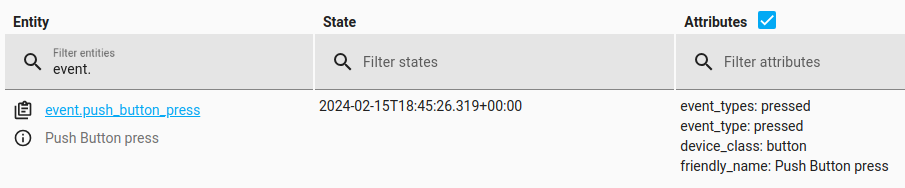
In addition, the entity can have the following states:
- Unavailable: The entity is currently unavailable.
- Unknown: The state is not yet known.
Event types
Besides the timestamp of the last event, the event entity also keeps track of the event type that was last emitted. This lets you trigger different automation actions based on the type of event.
For example, you can trigger a different action when a remote control button is pressed once versus twice, if your remote control can emit those different event types.
When creating automations in the UI, the event types are available as a dropdown list, depending on the event entity you are using. This means you don’t have to remember or look up the different event types.
Device class
A device class is a measurement categorization in Home Assistant. It influences how the entity is represented in the dashboard. This can be modified in the customize section. For example, different states may be represented by different icons, colors, or text.
The screenshot shows different icons representing device classes of the event entity:
👁 Screenshot showing different icons representing device classes of the event entity
Example of different icons representing device classes of the event entity.
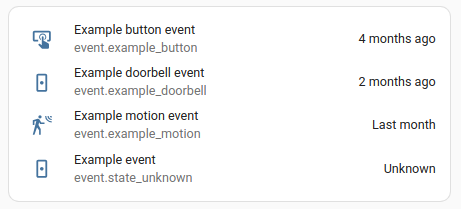
The following device classes are supported by event entities:
- None: Generic event. This is the default and doesn’t need to be set.
- button: For remote control buttons.
- doorbell: Specifically for buttons that are used as a doorbell.
- motion: For motion events detected by a motion sensor.
Video tutorial
This video tutorial explains how events work in Home Assistant and how you can set up Emulated Roku to control a media player using a physical remote control.
List of triggers
The Event integrationIntegrations connect and integrate Home Assistant with your devices, services, and more. [Learn more] provides the following triggers. Each link below opens a dedicated page with examples, fields, and a step-by-step UI walkthrough.
-
Event received (
event.received) Triggers when one or more event entities receive a matching event type.
For an overview of every trigger across all integrations, see the triggers reference.
Event automation examples
Automation: send a notification when the doorbell rings
Use this automation to get a message on your phone whenever someone presses the doorbell.
-
Trigger: Event received
-
Target: Front door doorbell (
event.front_door_doorbell) - Event type: Ring
-
Target: Front door doorbell (
-
Action: Send a notification message
-
Target: My Device (
notify.my_device)
-
Target: My Device (
Automation: turn on a scene when the remote is double-pressed
Use this automation to activate a scene when a remote control button is pressed twice.
-
Trigger: Event received
-
Target: Living room remote (
event.living_room_remote_on_button) - Event type: Double press
-
Target: Living room remote (
- Action: Activate scene