
The Home Connect integrationIntegrations connect and integrate Home Assistant with your devices, services, and more. [Learn more] allows users to integrate their home appliances supporting the Home Connect standard for Bosch and Siemens using the official cloud API.
Use cases
- Monitor the multiple sensors of the appliance and trigger automations based on these sensors.
- Start programs on your appliances from your dashboard.
- Monitor the program status of the appliances.
- Control the light of your appliances.
- Adjust the appliance settings.
Note
Note that it depends on the appliance and on API permissions which of the features are supported.
Supported devices
You can find information about supported devices on the Home Connect website.
Prerequisites
- Visit https://developer.home-connect.com and sign up for a developer account.
- Enter the email of your login for the original Home Connect App from Bosch/Siemens under “Default Home Connect User Account for Testing” in the sign up process.
- Go to the Applications page and select Register Application:
- Application ID: Home Assistant (or whatever name makes sense to you)
- OAuth Flow: Authorization Code Grant Flow
- Redirect URI:
https://my.home-assistant.io/redirect/oauth - Go to
https://my.home-assistant.io/and make sure that your Home Assistant URL is set there. For example:http://homeassistant:8123/orhttp://homeassistant.local:8123
- On success, you will be redirected to the Applications page. Select Details for your app. Make note of the client ID and secret - you will need it for the next step. Log out of the Home Connect developer portal.
- In Home Assistant, find the Home Connect integration and launch it. You will be prompted to create an Application Credential. You will need to provide a name (it’s arbitrary) in addition to the Client ID and Secret from the previous step. Then, follow the steps in the UI to complete setup.
Important
-
To update the appliance programs list, you can reload the Home Connect integration when an appliance is turned on. If the re-initialization process is not triggered by reload, restart the Home Assistant when an appliance is turned on.
-
After performing the steps above, log out of your Home Connect Developer account. If you don’t do this, the configuration steps below will fail during OAuth authentication with the message
“error”: “unauthorized_client”. -
The provided Home Connect User Account email address must be all lowercase; otherwise, it will result in authentication failures.
-
All changes in the developer portal take 15 minutes before the change is implemented.
Configuration
To add the Home Connect hub to your Home Assistant instance, use this My button:

Home Connect can be auto-discovered by Home Assistant. If an instance was found, it will be shown as Discovered. You can then set it up right away.
The integration configuration will ask for the Client ID and Client Secret created above. See Application Credentials for more details.
Supported functionality
Note
-
The entities availability depends on the appliance type, but the appliance might not support all the entities for its type.
-
The program option entities will not be provided by the integration until they are available in the selected or active program.
-
Some appliances don’t report data while they are turned off, so corresponding entities will not appear in the Home Connect integration after loading until the appliances are turned on.
Binary sensor
Button
Climate
Fan
Light
Number
Select
Sensor
Switch
Actions
The Home Connect integration makes various actions available.
Available actions: set_program_and_options, and change_setting
Action: Set program and options
The home_connect.set_program_and_options action starts or selects a program. If the program attribute is not set, this action sets the options for the active or the selected program.
| Data attribute | Optional | Description |
|---|---|---|
device_id |
no | ID of the device. |
affects_to |
no | Selects if the program affected by the action should be the active or the selected program. |
program |
yes | Program to select. If set, it will start or select a program depending on affects_to. |
heating_ventilation_air_conditioning_air_conditioner_option_fan_speed_percentage |
yes | Setting to adjust the venting levels of the air conditioner as percentage. |
heating_ventilation_air_conditioning_air_conditioner_option_fan_speed_mode |
yes | Setting to adjust the fan speed mode to Manual or Automatic. |
consumer_products_cleaning_robot_option_reference_map_id |
yes | Defines which reference map is to be used. |
consumer_products_cleaning_robot_option_cleaning_mode |
yes | Defines the favoured cleaning mode. |
consumer_products_cleaning_robot_option_suction_power |
yes | Defines the suction power. |
consumer_products_coffee_maker_option_bean_amount |
yes | Describes the amount of coffee beans used in a coffee machine program. |
consumer_products_coffee_maker_option_fill_quantity |
yes | Describes the amount of water (in ml) used in a coffee machine program. |
consumer_products_coffee_maker_option_coffee_temperature |
yes | Describes the coffee temperature used in a coffee machine program. |
consumer_products_coffee_maker_option_bean_container_selection |
yes | Defines the preferred bean container. |
consumer_products_coffee_maker_option_flow_rate |
yes | Defines the water-coffee contact time. The duration extends to coffee intensity. |
consumer_products_coffee_maker_option_multiple_beverages |
yes | Defines if double dispensing is enabled. |
consumer_products_coffee_maker_option_coffee_milk_ratio |
yes | Defines the amount of milk. |
consumer_products_coffee_maker_option_hot_water_temperature |
yes | Defines the temperature suitable for the type of tea. |
b_s_h_common_option_start_in_relative |
yes | Defines when the program should start, in seconds from now. For example: a value of 9000 means in 2 h 30 min. |
dishcare_dishwasher_option_intensiv_zone |
yes | Defines if the cleaning is done with higher spray pressure on the lower basket for very dirty pots and pans. |
dishcare_dishwasher_option_brilliance_dry |
yes | Defines if the program sequence is optimized with a special drying cycle to ensure more shine on glasses and plastic items. |
dishcare_dishwasher_option_vario_speed_plus |
yes | Defines if the program duration is shortened dynamically (up to 66% less run time) with the usual optimum cleaning and drying. |
dishcare_dishwasher_option_silence_on_demand |
yes | Defines if the extra silent mode is activated for a selected period of time. |
dishcare_dishwasher_option_half_load |
yes | Defines if economical cleaning is enabled for smaller loads. This reduces energy and water consumption and also saves time. The utensils can be placed in the upper and lower baskets. |
dishcare_dishwasher_option_extra_dry |
yes | Defines if improved drying for glasses and plasticware is enabled. |
dishcare_dishwasher_option_hygiene_plus |
yes | Defines if the cleaning is done with increased temperatures. This ensures maximum hygienic cleanliness for regular use. |
dishcare_dishwasher_option_eco_dry |
yes | Defines if the door is opened automatically for extra energy efficient and effective drying. |
dishcare_dishwasher_option_zeolite_dry |
yes | Defines if the program sequence is optimized with special drying cycle ensures improved drying for glasses, plates and plasticware. |
laundry_care_dryer_option_drying_target |
yes | Describes the drying target for a dryer program. For example: Iron Dry, Cupboard Dry, Extra Dry. |
cooking_common_option_hood_venting_level |
yes | Defines the required fan setting. |
cooking_common_option_hood_intensive_level |
yes | Defines the intensive setting. |
cooking_oven_option_setpoint_temperature |
yes | Defines the target cavity temperature, which will be held by the oven. |
b_s_h_common_option_duration |
yes | Defines the run-time of the program. Afterwards, the appliance is stopped. |
cooking_oven_option_fast_pre_heat |
yes | Defines if the cooking compartment is heated up quickly. Please note that the setpoint temperature has to be equal to or higher than 100 °C or 212 °F. Otherwise, the fast pre-heat option is not activated. |
cooking_oven_option_warming_level |
yes | Defines the level of the warming drawer. |
laundry_care_washer_option_temperature |
yes | Defines the temperature of the washing program. |
laundry_care_washer_option_spin_speed |
yes | Defines the spin speed of a washer program. |
b_s_h_common_option_finish_in_relative |
yes | Defines when the program should end, in seconds from now. For example: a value of 9000 means in 2 h 30 min. |
laundry_care_washer_option_i_dos_1_active |
yes | Defines if the detergent feed is activated / deactivated. (i-Dos content 1) |
laundry_care_washer_option_i_dos_2_active |
yes | Defines if the detergent feed is activated / deactivated. (i-Dos content 2) |
laundry_care_common_option_vario_perfect |
yes | Defines if a cycle saves energy (Eco Perfect) or time (Speed Perfect). |
Action: Start selected program
The home_connect.start_selected_program action starts the program that is already selected using the specified options. You can specify start-only options to set them when starting the program. You can also use it to update the start-only options for a program that is already active but delayed (so that the operation state is “delayed start”).
| Data attribute | Optional | Description |
|---|---|---|
device_id |
no | ID of the device. |
b_s_h_common_option_finish_in_relative |
yes | Defines when the program should end, in seconds from now. For example: a value of 9000 means in 2 h 30 min. |
b_s_h_common_option_start_in_relative |
yes | Defines when the program should start, in seconds from now. For example: a value of 9000 means in 2 h 30 min. |
Action: Change setting
The home_connect.change_setting action changes a setting.
| Data attribute | Optional | Description |
|---|---|---|
device_id |
no | Id of a device associated with the home appliance. |
key |
no | Key of the setting. |
value |
no | Value of the setting. |
Automation examples
Get started with these automation examples
Send a notification when the appliance ends the program
Start a program when electricity is cheap
Because electricity is typically cheaper at night, this automation will activate the silent mode when starting the program at night.
Data updates
This integration uses server-sent events from the Home Connect API to receive live updates from the appliances. When the configuration entry is loaded or after a streaming error (for example after disconnection), the integration will request all data (such as appliance info, available commands, programs, settings, and status) for all appliances. If a new appliance is added to the account, the integration will request data for the new appliance and expose the related entities automatically.
Known limitations
- The Home Connect API does not fully match the Home Connect app. Some programs, options, or settings available in the app may not be accessible or usable via the API.
- This integration supports only one integration entry, as the Home Connect API does not allow for the unique identification of an account.
Troubleshooting
I could not configure the Home Connect integration
Symptom: I tried to configure the Home Connect integration, but it failed with the message Error while obtaining access token.
Description
This problem might occur when the application credentials are not correctly configured.
Solution
To solve the above issue, follow these steps:
-
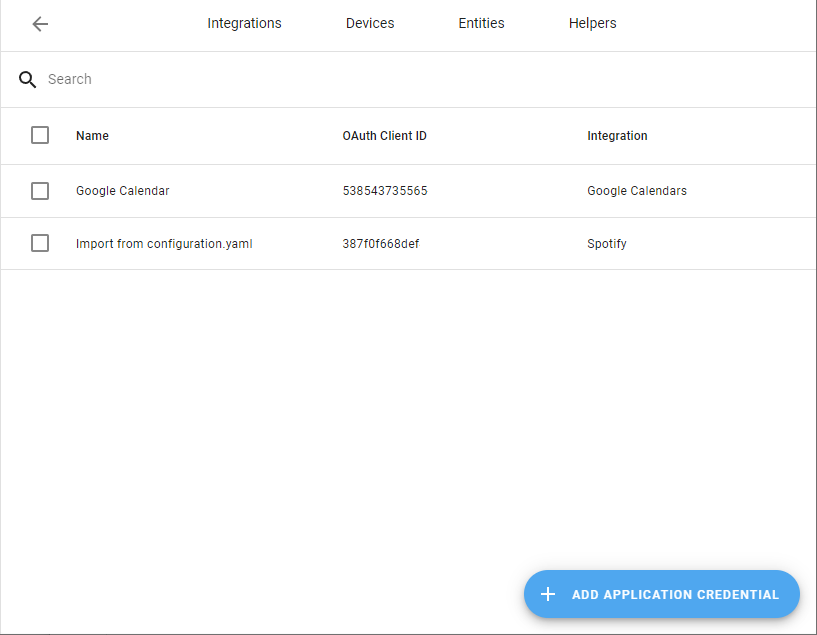
In the top right corner, select the three dots menu and select Application credentials.
-
Select the three dots menu from the application credentials you created for the Home Connect integration and select Delete.
-
Add the Home Connect integration again under Settings > Devices & services

Missing options at the “active program” and “selected program” entities
Symptom: “Although I have options, some programs that are available on the app are not in the list of options at the “active program” and “selected program” entities or the entities don’t show up”
Some programs that are available to select on the app, on the physical device or in the diagnostics file from the device are missing at the “active program” and “selected program” entities.
Description
If you see programs in the app or the physical device that are missing in the integration, first check if they are available in the diagnostics file. If they are in the diagnostics file, it means the API can send them to the integration, but the integration can’t recognize them.
Solution
The program key needs to be added to the integration. To help with that, you can open an issue at aiohomeconnect about the missing program key.
Symptom: “the “active program” and “selected program” entities are not provided by the integration”
The “active program” and “selected program” entities are not provided by the integration, and the downloaded device diagnostics file does not list any programs.
Description
The Home Connect API is not sending any programs to the integration.
Solution
There’s no solution for this issue. The only thing that can be done is reporting the issue to Home Connect through these channels:
Unavailable entities for a device
Symptom: “The entities related to an appliance were available but no longer are”
After reloading the Home Connect integration, the entities related to an appliance that used to be available are no longer available. Also, when downloading the diagnostics data from the device entry, the following data is obtained:
{"data":{"connected":false,"status":{},"programs":null}}Description
Unavailable entities can have multiple causes:
- The appliance is turned off. When it is turned off, the appliance is disconnected and the API does not retrieve information about the appliance.
- The appliance is experiencing a network issue.
- The Home Connect API is experiencing issues.
Solution
To try to solve the above issues, follow these steps:
- Turn on the appliance and reload the Home Connect integration.
- If the appliance is turned on and the issue persists, check the network connection of the appliance and perform a soft reset on the appliance.
- If the issue persists, check the connection of the appliance with the Home Connect API by checking it in the Home Connect app.
- Open the Home Connect app.
- Go to the appliance that is experiencing the issue.
- At the bottom of the screen, open the settings menu.
- Go to the Network section.
- Verify if the appliance is connected to the cloud:
- If the line between the appliance and the cloud is red and with a red warning icon , the appliance is not connected to the Home Connect API.
- If the line between the appliance and the cloud is green, the appliance is connected to the cloud.
- If everything is correct and the issue persists, contact Home Connect support.
Removing the integration
This integration follows standard integration removal. No extra steps are required.
To remove an integration instance from Home Assistant
- Go to Settings > Devices & services and select the integration card.
- From the list of devices, select the integration instance you want to remove.
- Next to the entry, select the three dots menu. Then, select Delete.
After deleting the integration, go to your applications at the Home Connect Developer portal, find the application that you were using for Home Assistant, click on details and click on “Delete Application”.