
ISY is a home automation controller capable of controlling Insteon, X10, Z-Wave and Zigbee/Matter devices connected to supported hardware manufactured by Universal Devices, Inc..
This integration supports the legacy ISY994 hardware family, as well as current ISY-on-Anything (IoX) hardware, such as the eisy or Polisy devices.
There is currently support for the following platforms within Home Assistant:
- Binary sensor
- Button
- Climate
- Cover
- Light
- Fan
- Lock
- Number
- Select
- Sensor
- Switch
Home Assistant is capable of communicating with any binary sensor, cover, fan, light, lock, sensor and switch that is configured on the controller. Using the programs on the controller, custom binary sensors, covers, fans, locks, and switches can also be created. Each device and the ISY hub also include a Query button to query the device.
ISY Networking Module Resources can be executed using the buttons created.
Configuration
To add the Universal Devices ISY/IoX hub to your Home Assistant instance, use this My button:

Universal Devices ISY/IoX can be auto-discovered by Home Assistant. If an instance was found, it will be shown as Discovered. You can then set it up right away.
Once the ISY controller is configured, it will automatically import any binary sensors, covers, fans, lights, locks, sensors and switches it can locate.
Configuration Options
There are several options available to further customize what is imported from the ISY controller and entity behavior.
- Sensor String: This is the string that is used to identify which devices are to be assumed to be sensors instead of lights or switches. If this string is found in the device name or folder, Home Assistant will consider it a sensor or binary sensor (if the device has on/off or true/false states). This is only necessary for nodes that are not automatically detected as sensors by Home Assistant. Insteon door, window, motion, and leak sensors should all be detected automatically.
- Variable Sensor String: This is the string that is used to identify which Integer or State Variables are to be enabled by default as
numberentities. If this string is found in the device name, Home Assistant will assume it is a sensor. The default is"HA.". - Ignore String: Any devices that contain this string in their name (or folder path) will be ignored by Home Assistant. They will not become entities and will not fire
control_events. The default is"{IGNORE ME}". - Restore Light State: If disabled (default behavior), lights turned ON from Home Assistant without a
brightnessparameter set will turn on to theon_levelset within the physical device. For example, on Insteon devices, this would be the same brightness as if the switch/device was turned ON. If this setting is enabled, lights that are turned on from Home Assistant will go to the last known brightness value. Both theon_levelandlast_brightnessvalues are available as attributes if needed for device-specific customization.
Sensors
An Insteon door/window sensor will show up as a single binary sensor rather than two discrete devices like it does in the ISY Admin Console. Note that when in “Two Nodes” mode, the sensor will have an UNKNOWN state until the sensor changes for the first time since the last Home Assistant reboot. If you do not use Insteon scenes that are controlled directly from the door sensor, you may prefer to set the sensor to “One Node” mode using the ISY Admin Panel.
Each Insteon leak sensor will also show up as a single binary sensor as opposed to the two nodes seen in the ISY Admin Console. The name of the device will be based on what the parent node is named in the ISY, which is typically the one with “-Dry” at the end of the name. This may be confusing, because “On” means wet in Home Assistant. You can rename this node in Home Assistant to be more clear, see the Customization section of your configuration.
If your leak or door/window sensor supports heartbeats, a new binary_sensor device will be added to Home Assistant to represent the battery state. The sensor will stay “Off” so long as the daily heartbeats occur. If a heartbeat is missed, the sensor will flip to “On”. The name of this device will be based on the heartbeat node in the ISY.
ISY/IoX Variables
Integer and State Variables from the ISY are imported as number entities. You can choose which variables are enabled by default by setting the “Variable Sensor String” Config Option and using it as part of the variable name in the ISY Admin Console (e.g., HA. in options and HA.Variable Name on the ISY) or you can manually enable the entities you need from the ISY Variables device in Home Assistant.
Handling Insteon or Other ISY Control Events
A Home Assistant isy994_control event is emitted for every “control” event in the ISY’s device network (as long as the device has not been ignored or disabled in Home Assistant). This allows you to write automations that trigger based on events such as Insteon button presses. You can also trigger off of the unique Insteon/Zigbee/Z-Wave events, such as double-presses or long-holds.
automation:
 - alias: "turnofflivingroomondoubletaplightswitch"
 triggers:
 - trigger: event
 event_type: isy994_control
 event_data:
 entity_id: light.lr_track_lights_front
 control: "DFON"
 value: 255
 formatted: "On"
 uom: "100"
 prec: "0"
 actions:
 - action: light.turn_off
 target:
 entity_id: light.lr_track_lights_rear
All isy994_control events will have an entity_id and control parameter in its event_data. You’ll need to refer to ISY documentation for the list of every possible control type, but the common ones are:
-
DON: On button. -
DOF: Off button. -
DFON: “Fast On”, usually from double-tapping an On button. -
DFOF: “Fast Off”, usually from double-tapping an Off button. -
FDUP: “Fade Up”, usually while holding down an On button. -
FDDOWN: “Fade Down”, usually while holding down an Off button. -
FDSTOP: “Fade Stop”, when releasing a long-held button. -
BRT: “Brighten”, from controllers that issue a single command to slightly brighten a light. -
DIM: “Dim”, from controllers that issue a single command to slightly dim a light.
Insteon Scenes & Keypad/Remote Buttons
All Insteon scenes configured in the ISY Admin Console will show up as a switch in Home Assistant, as they do not support dimming or setting specific brightness settings as Home Assistant’s light integration.
Insteon Secondary Keypad buttons and Remote buttons are added to Home Assistant to allow support for using Control Events in Automations. These devices are added as sensors since they cannot be directly controlled (turned on/off); their state is the last ON level command they sent, in a range from 0 (Off) to 255 (On 100%). Note: these devices may report incorrect states before being used after a reboot of the ISY. Secondary Keypad buttons may be turned on or off using ISY Scenes (refer to ISY Documentation for more details).
Insteon Device Configuration Support
Insteon devices will include entities for setting the device On Level, Ramp Rate, and Backlight Level, if supported; as well as button entities for Beep and Query actions. Note: Backlight Level cannot be read from the device, so an assumed state is used. The current state in Home Assistant will be valid if the backlight is changed from Home Assistant and will also be updated if changed from the ISY Admin Console or REST command while Home Assistant is running. Additional configuration changes still require the ISY Admin Console.
List of actions
The Universal Devices ISY/IoX integrationIntegrations connect and integrate Home Assistant with your devices, services, and more. [Learn more] provides the following actions. Each link below opens a dedicated page with examples, parameters, and a step-by-step UI walkthrough.
-
Delete Z-Wave lock user code (
isy994.delete_zwave_lock_user_code) Deletes a user code from a Z-Wave lock through the ISY. -
Get Z-Wave parameter (
isy994.get_zwave_parameter) Requests a Z-Wave device parameter through the ISY. -
Rename node (
isy994.rename_node) Renames a node or scene on the ISY. -
Send node command (
isy994.send_node_command) Sends a command to an ISY node using its Home Assistant entity. -
Send program command (
isy994.send_program_command) Sends a command to control an ISY program or folder. -
Send raw node command (
isy994.send_raw_node_command) Sends a raw ISY REST command to a node using its Home Assistant entity. -
Set Z-Wave lock user code (
isy994.set_zwave_lock_user_code) Sets a user code on a Z-Wave lock through the ISY. -
Set Z-Wave parameter (
isy994.set_zwave_parameter) Updates a Z-Wave device parameter through the ISY.
For an overview of every action across all integrations, see the actions reference.
Creating Custom Devices using ISY Programs
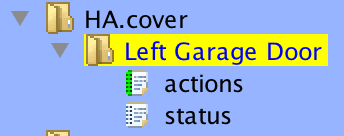
Using the Programs tab in the controller’s Administrative Console, custom devices can be created that will appear natively inside of Home Assistant. Home Assistant will scan the following folders and build the device to the associated domains:
My Programs
├── HA.binary_sensor
| ├── Movement In House
| | └── status
| └── Garage Open
| | └── status
├── HA.cover
| ├── Left Garage Door
| | ├── actions
| | └── status
| ├── Living Room Blinds
| | ├── actions
| | └── status
├── HA.fan
| ├── Desk Fan
| | ├── actions
| | └── status
| ├── Living Room Fan
| | ├── actions
| | └── status
├── HA.lock
| ├── Front Door
| | ├── actions
| | └── status
| ├── Back Door
| | ├── actions
| | └── status
├── HA.switch
| ├── Dining Lights
| | ├── actions
| | └── status
| ├── Sleep Mode
| | ├── actions
| | └── status
A device is created by creating a directory, with the name for the device, under any of the following root directories:
- HA.binary_sensor will create a binary sensor (see Customizing Devices to set the sensor class).
- HA.cover will create a cover.
- HA.fan will create a fan.
- HA.lock will create a lock.
- HA.switch will create a switch.
A program, named status, is required under the program device directory. A program, named actions, is required for all program devices except for binary_sensor. Any other programs in these device directories will be ignored.
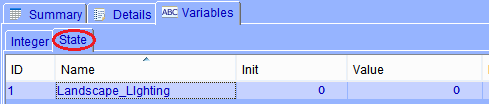
The status program requires that you create a state variable with the name of your choice. Note that you must use a state variable, not an integer variable. This variable will store the actual status of the new device and will be updated by the action program.
👁 Screenshot of switch variable
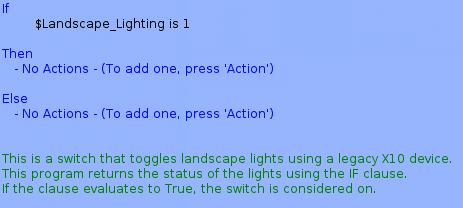
The IF clause of the status program in the device directory is what indicates the state of the device:
- binary_sensor on if the clause returns true, otherwise off.
- cover closed if the clause returns true, otherwise open.
- fan on if the clause returns true, otherwise off.
- lock locked if the clause returns true, otherwise unlocked.
- switch on if the clause returns true, otherwise off.
The actions program indicates what should be performed for the following device actions:
-
cover the THEN clause is evaluated for the
open_coveraction, the ELSE clause is evaluated for theclose_coveraction. -
fan the THEN clause is evaluated for the
turn_onaction, the ELSE clause is evaluated for theturn_offaction. -
lock the THEN clause is evaluated for the
lockaction, the ELSE clause is evaluated for theunlockaction. -
switch the THEN clause is evaluated for the
turn_onaction, the ELSE clause is evaluated for theturn_offaction.
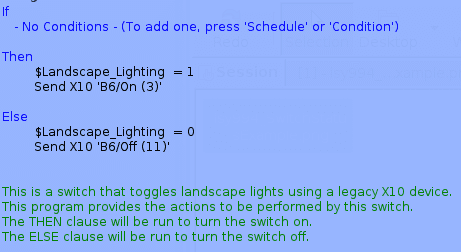
The example program above shows how to control a legacy X10 device from Home Assistant using an ISY controller.