
VOOZH about

URL: https://www.microsoft.com/en-us/edge/features/sleeping-tabs?form=MA13FJ&cs=3090232544

⇱ Sleeping Tabs in Microsoft Edge | Save Memory and Improve Performance


Sleeping tabs

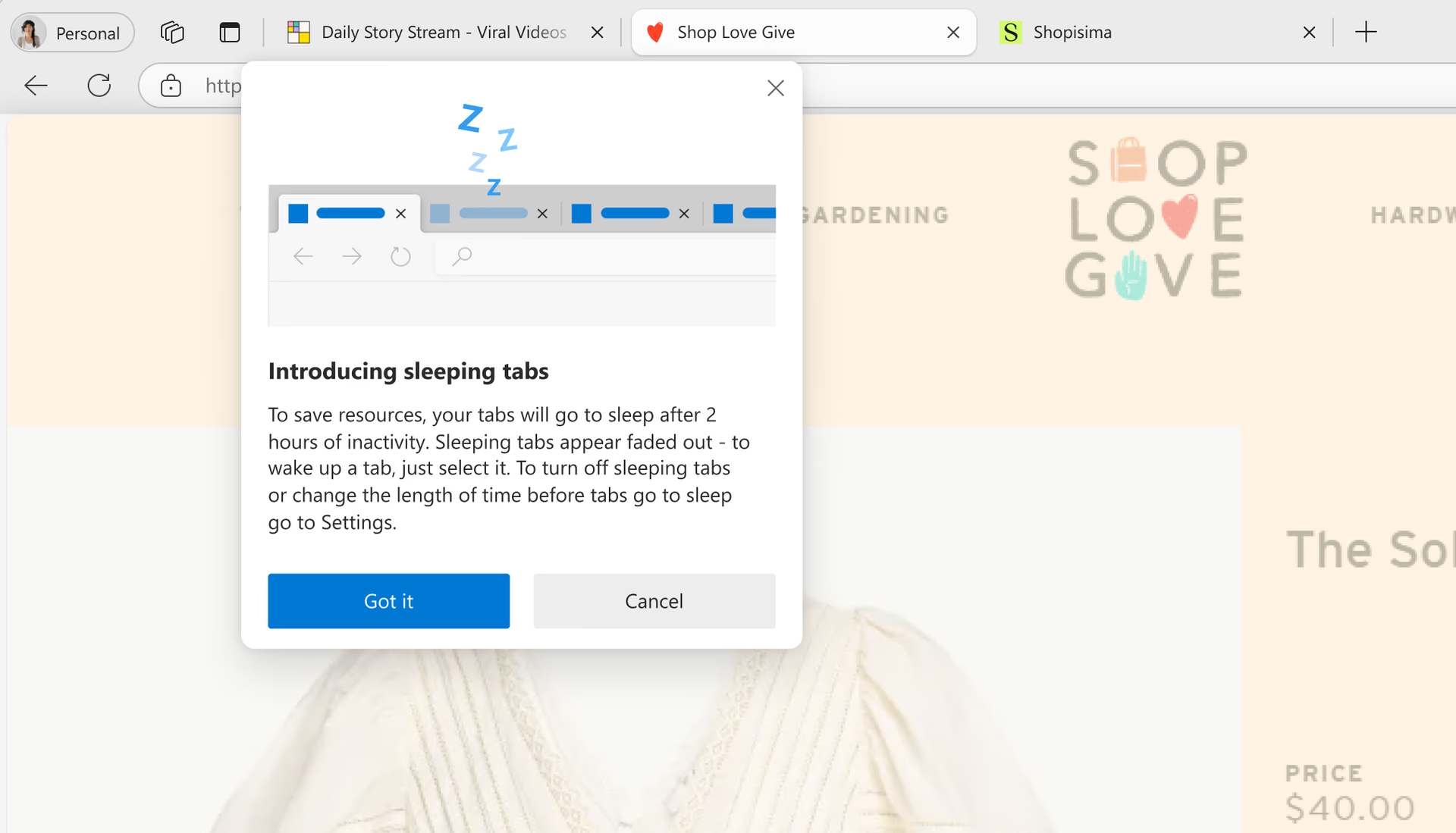
Microsoft Edge automatically puts tabs to “sleep” when you’re not using them, freeing up memory and CPU so your active tabs and apps can run smoothly. Sleeping tabs help improve performance, reduce battery consumption, and give you more control over how your browser uses system resources. You can choose when tabs go to sleep, keep important sites active, and let Edge manage background tabs so you can stay focused on what matters.
Feature

Sleeping tabs

Microsoft Edge automatically puts tabs to “sleep” when you’re not using them, freeing up memory and CPU so your active tabs and apps can run smoothly. Sleeping tabs help improve performance, reduce battery consumption, and give you more control over how your browser uses system resources. You can choose when tabs go to sleep, keep important sites active, and let Edge manage background tabs so you can stay focused on what matters.

tips

Tips and Tricks

faq

Frequently asked questions

  • Tabs are put to sleep after 1 hour of inactivity by default.

  • Yes, you can change the time when a tab goes to sleep in the settings menu from 30 seconds to 12 hours.

  • To help you stay on task and limit potential compatibility issues, the following activities prevent sites from going to sleep: 

    • The page is currently visible (active tab) 
    • The page is sharing its BrowsingInstance with another page 
    • The page is your company’s internal (intranet) site 
    • The page is currently being inspected by DevTools 
    • The page is currently playing audio 
    • The page is currently capturing a window or screen 
    • The page is currently capturing user media (webcam, microphone, etc.) 
    • The page is currently being mirrored (casting, etc.) 
    • The page is on the user’s block list in Settings 
    • The page is currently using WebUSB 

    We'll continue to adjust this list as needed.

  • You can add sites you never want to sleep to a block list in Settings.

    In Microsoft Edge, go to icon Settings System and performance Performance, then under Always keep these sites active, select Add site, enter the full URL, and select Add.

    To edit or remove a site, return to Always keep these sites active, select the three dots next to the site, and choose Edit or Remove.

  • Sleeping tabs builds on the core of Chromium’s freezing technology. Freezing pauses a tab’s script timers, which minimizes CPU usage and frees up the operating system to reuse the memory for other open tabs, new tabs, or system applications.

  • A sleeping tab simply pauses the page, allowing Microsoft Edge to release system resources. Specifically, sleeping reduces CPU usage to the bare minimum, which helps reduce battery consumption as well as release some of the memory. The advantage of sleeping a tab is that going back to it again is fast and seamless. 

    A discarded tab completely discards the page content from memory, allowing all of the resources (CPU, memory) to be released. The downside is that when you go back to that tab, the page content needs to be fully reloaded.

  • You can turn off Sleeping tabs by doing the following: 

    In Microsoft Edge, go to SettingsSystem and performancePerformance and set the Automatically put tabs to sleep toggle to Off

  • Microsoft Edge offers group policies to: 

    • Turn on and turn off the feature completely 
    • Manage the time before an inactive tab goes to sleep 
    • Manage which sites should be blocked from going to sleep 

    These can be both mandatory or recommended group policies. If it’s a recommended group policy, IT admins will have the ability to set the default behavior that their users can change later, if they wish.

  • * Feature availability and functionality may vary by device type, market, and browser version.