

Split screen
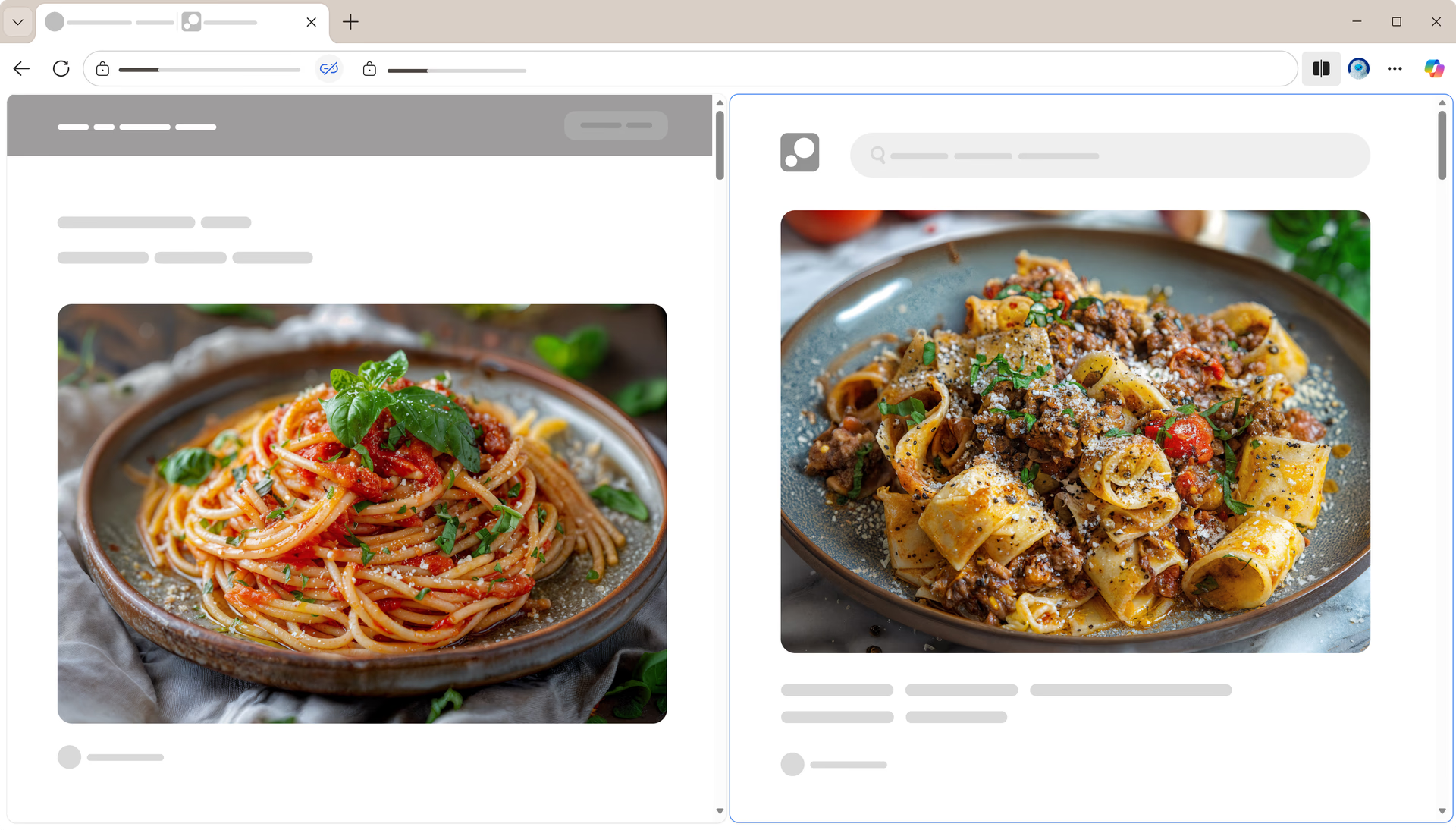
Work on two tasks at once without switching tabs. With Split screen in Microsoft Edge, you can view and interact with two pages side by side in a single browser tab—helping you multitask more efficiently. Select "Split screen" from "Settings and more" (Alt+F) to get started and stay focused on what matters.
Feature
Split screen
Work on two tasks at once without switching tabs. With Split screen in Microsoft Edge, you can view and interact with two pages side by side in a single browser tab—helping you multitask more efficiently. Select "Split screen" from "Settings and more" (Alt+F) to get started and stay focused on what matters.
tips
Tips and Tricks
faq
Frequently asked questions
- * Feature availability and functionality may vary by device type, market, and browser version.