
VOOZH about

URL: https://www.microsoft.com/en-us/edge/features/autofill?form=MT0160

⇱ Complete Forms Faster with Autofill | Microsoft Edge


Autofill

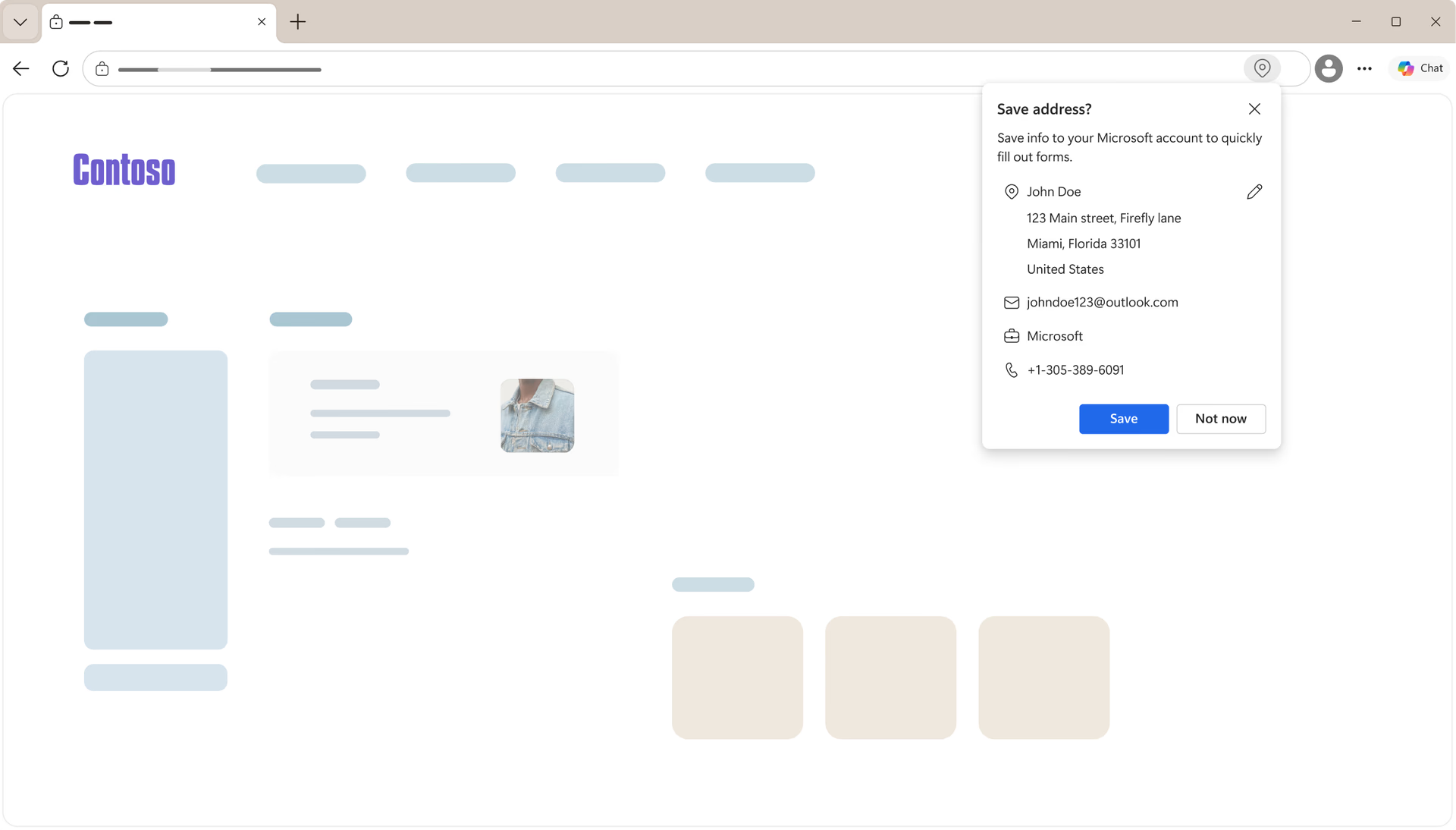
Autofill suggests completions when you start typing on an online form field, so your saved info such as name, email, addresses and more can be quickly filled by just pressing right arrow or tab.
Feature

Autofill

Autofill suggests completions when you start typing on an online form field, so your saved info such as name, email, addresses and more can be quickly filled by just pressing right arrow or tab.

tips

Tips and Tricks

faq

Frequently asked questions

  • To add, remove, and change your Autofill data, simply go to your Settings > Passwords and autofill > Addresses and more. You must be signed into Edge to use and manage Autofill.

  • Autofill can automatically suggest completions when you’re typing in a form field in Edge. This means it can pull up your addresses, email addresses, phone numbers and more when you’re typing it in a field – and all you have to do is hit Tab or Right arrow to accept the suggestion. Autofill can only reference the data that you have stored in Edge.

    You can turn off this feature by going to Settings > Passwords and autofill > Addresses and more and then toggling off "Save and autofill addresses".

  • Autofill can store basic information like your name, address, and date of birth, and more. To manage your data and even add custom fields ahead of time, simply go to Settings > Passwords and autofill > Addresses and more.

  • Autofill can suggest “last used” data to help you pick up where you left off in an online form. This only applies to forms and sites that you’ve already either filled in or partially filled in Microsoft Edge, but does not suggest this information for new forms.

  • * Feature availability and functionality may vary by device type, market, and browser version.