
VOOZH about

URL: https://www.microsoft.com/en-us/edge/features/tab-groups?form=MT0160

⇱ Group and Organize your Tabs | Microsoft Edge


Tab groups

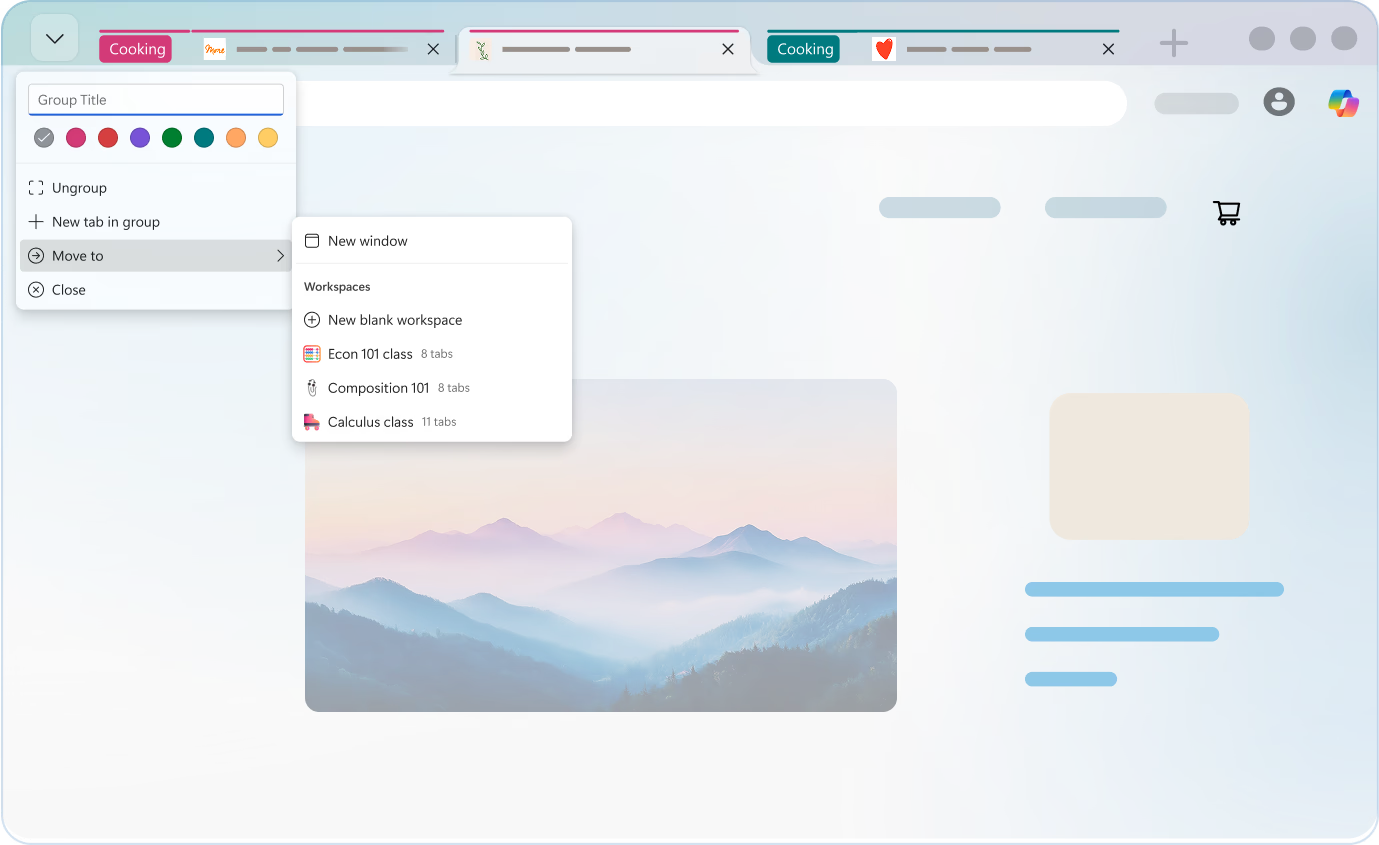
Keep related sites together and easy to find with Tab groups in Microsoft Edge. Group tabs manually with custom names and colors, or use AI‑powered Organize tabs to automatically group similar tabs—so you can stay focused and find what you need faster.
Feature

Tab groups

Keep related sites together and easy to find with Tab groups in Microsoft Edge. Group tabs manually with custom names and colors, or use AI‑powered Organize tabs to automatically group similar tabs—so you can stay focused and find what you need faster.

tips

Tips and Tricks

faq

Frequently asked questions

  • Right-click a tab and choose Add tab to a group and give a name to create a tab group.

  • Select the icon Search tabs menu located next to your tabs and then select icon Organize tabs to let Microsoft Edge group your tabs by relevance and assign them a name and a color.

  • To rename Tab groups, simply either right click on the group name or hover over the group name and then select "Edit". From here, you can rename your Tab group.

  • Yes, you can rename your Tab groups and change the color for the groups to make the tab group your own!

  • Yes, tab groups can be used in classic tabs and vertical tabs too. 

  • * Feature availability and functionality may vary by device type, market, and browser version.