
VOOZH about

URL: https://www.microsoft.com/en-us/edge/features/vertical-tabs?form=MT0160

⇱ Stay Organized with Vertical Tabs | Microsoft Edge


Vertical tabs

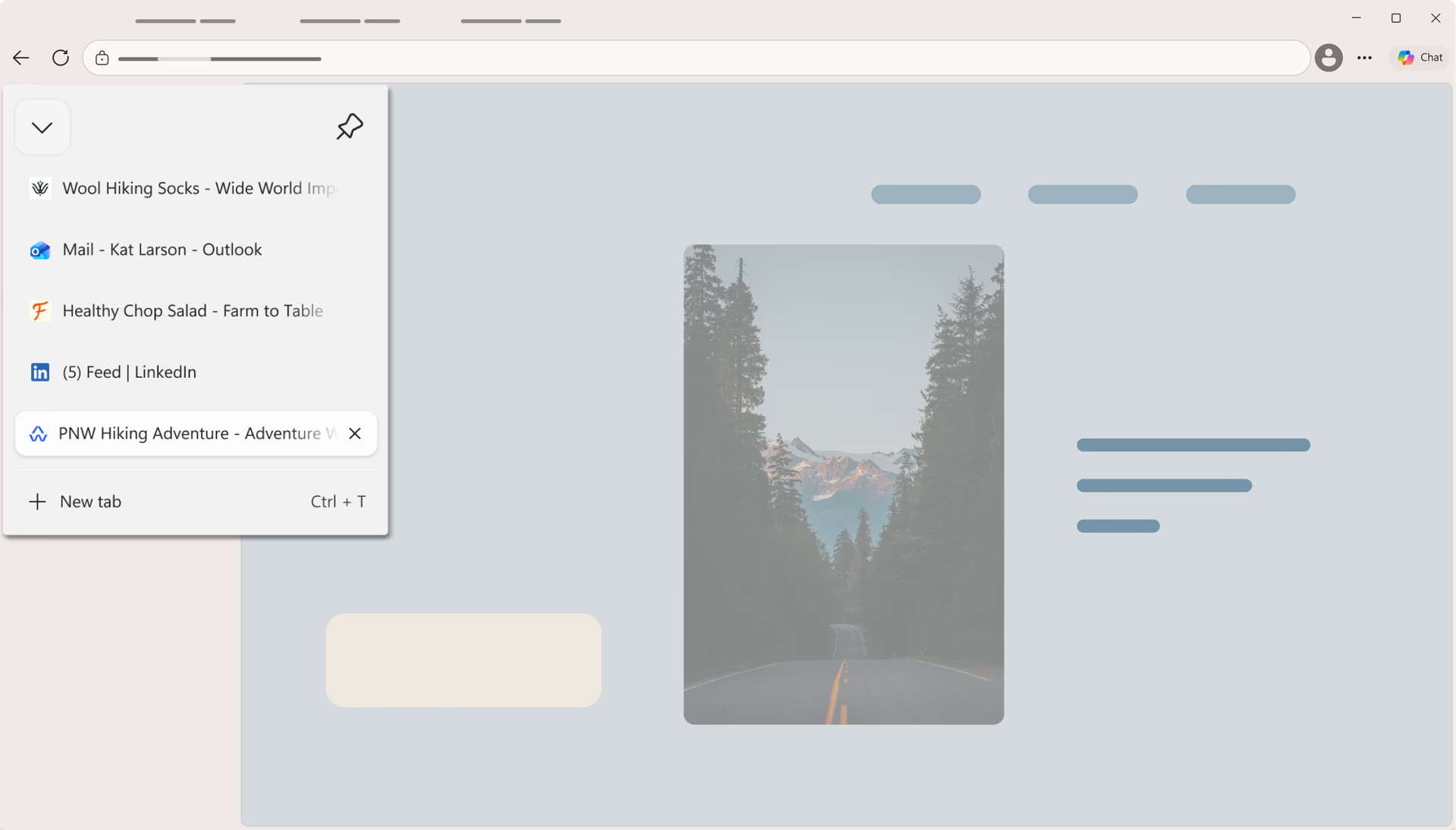
In Microsoft Edge, switch to vertical tabs for a cleaner view that keeps your browsing organized and lets you see more of each page. Your tabs move to a side pane, so they’re easier to scan, and you can quickly switch between vertical and horizontal layouts to match how you work—whether you’re browsing at home or at work.
Feature

Vertical tabs

In Microsoft Edge, switch to vertical tabs for a cleaner view that keeps your browsing organized and lets you see more of each page. Your tabs move to a side pane, so they’re easier to scan, and you can quickly switch between vertical and horizontal layouts to match how you work—whether you’re browsing at home or at work.

tips

Tips and Tricks

faq

Frequently asked questions

  • Vertical tabs are available in Microsoft Edge on the latest versions of Windows and MacOS.

  • Yes, to switch between Vertical Tabs and Horizontal Tabs, simply click on the "Search tabs" icon in the top left corner of your Edge window (the downward facing arrow) and select the "Turn on (or off) Vertical Tabs" option. Or you can quickly change back to your original browser layout by toggling between the two layouts with Ctrl+Shift+, (Comma).

  • You can group tabs by using the Tab groups feature. Right click or press and hold a tab and choose Add tab to a new group. Learn more about tab groups in Microsoft Edge.

  • It means those grayed out tabs are sleeping to save browser resources. Learn more about sleeping tabs in Microsoft Edge.

  • * Feature availability and functionality may vary by device type, market, and browser version.