Amazon EC2 Auto Scaling is a process that ensures the right number of EC2 instances are available for an application’s load. It helps businesses handle changing demand for compute and dynamic user traffic — adjusting capacity and maintaining application availability by automatically adding or removing EC2 instances as needed.
The goal of EC2 Auto Scaling is to (1) maintain performance and ensure sufficient resources, while (2) reducing cost by provisioning only the resources that are actually needed.
This article will discuss what Auto Scaling is, how to do it, an analysis of common approaches, the advantages and disadvantages of Auto Scaling, and best practices for maximizing your cloud cost savings.
What is EC2 Auto Scaling?
Amazon’s Elastic Compute Cloud (EC2) service provides virtual servers or instances that you can use to host your applications. EC2 Auto Scaling lets you automatically add or remove EC2 instances using scaling policies that you define.
Dynamic or predictive scaling policies let you add or remove EC2 instance capacity to service established or real-time demand patterns.
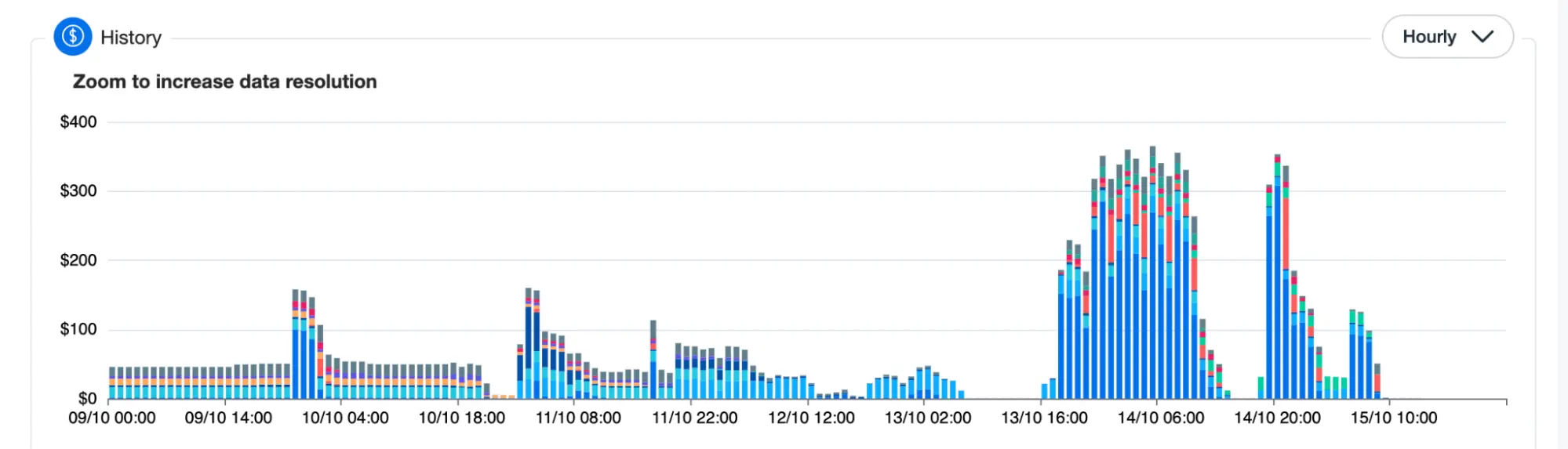
👁 AutoScaling-Graph
Application with an inconsistent usage pattern over the course of a week
Dynamic auto scaling policies can be triggered by performance-based metrics, CloudWatch alarms, events from Amazon services such as SQS or S3, or a predefined schedule.
In accordance with these scaling policies, AWS will scale your EC2 instances by launching new ones and terminating old unhealthy ones as needed.
EC2 Auto Scaling Components
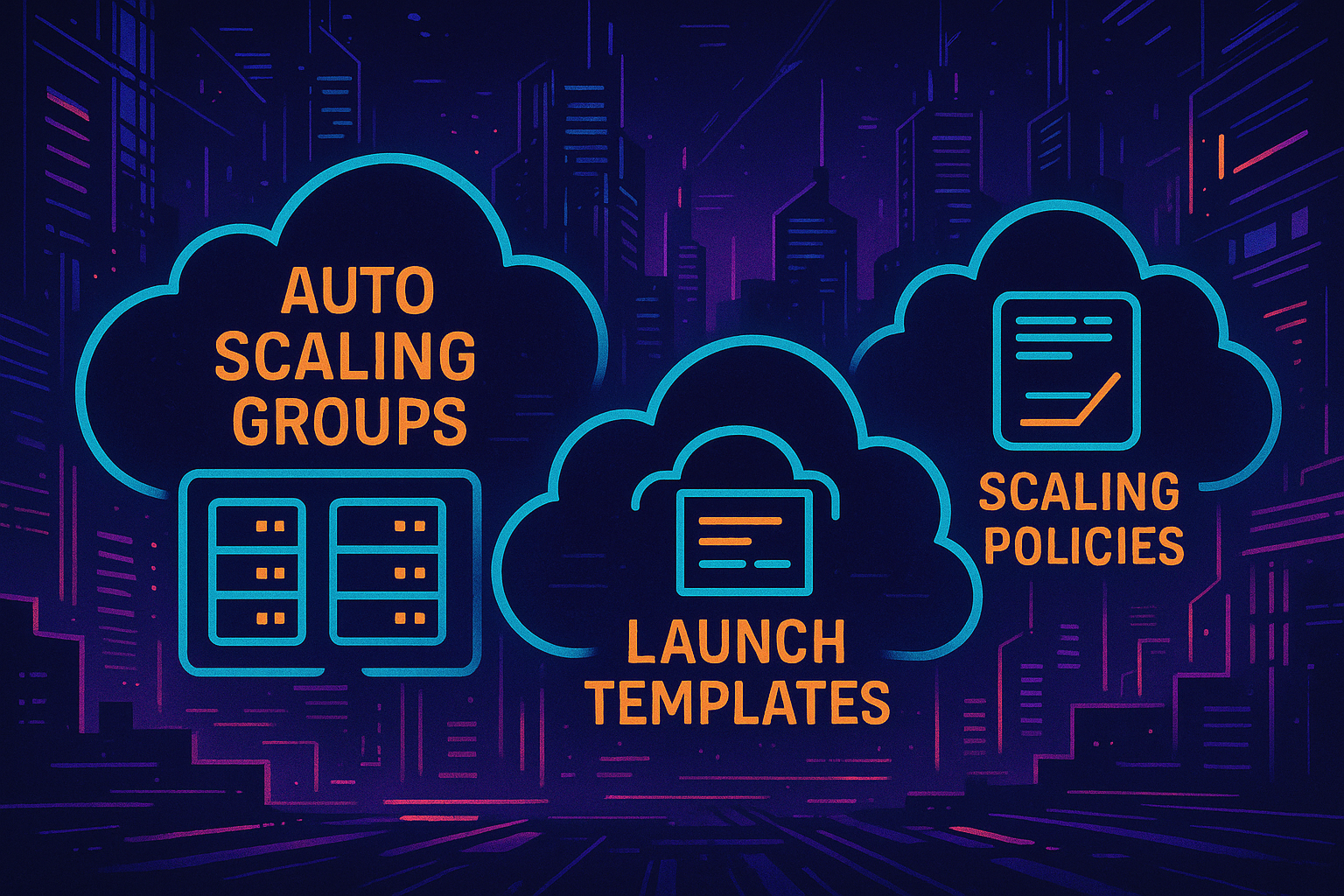
👁 Components of Auto Scaling in AWS
Auto Scaling Groups (ASG)
The ASG defines how many EC2 instances you want running, the minimum and maximum limits, and which subnets and load balancers they’re tied to. It’s the control plane for your fleet.
Launch Templates
A launch template is a blueprint for your instances. It includes things like the AMI ID, instance type, key pair, security groups, and any user data scripts to run at launch.
Scaling Policies and Other Options
Scaling policies dictate how and when to scale. These can be dynamic (based on metrics), scheduled (based on time), or predictive (based on trends). You can also integrate lifecycle hooks or instance refresh strategies for more control over how scaling events happen.
How does EC2 Auto Scaling work?
When configuring EC2 Auto Scaling, you’ll need to follow these basic steps in the AWS console.
Step #1: Draft a Launch Template
Launch Templates in Amazon EC2 define the settings for launching instances. It contains the ID of the Amazon Machine Image (AMI), the instance type, a key pair, security groups, and other parameters used to launch EC2 instances.
This replaces the legacy Launch Configuration option, while adding additional features.
Step #2: Set up Auto Scaling Groups:
Auto Scaling Groups are logical collections of EC2 instances, used to manage how instances are scaled out or in using Launch Templates / Launch Configurations. Once the Launch Template defines what to scale, the ASG determines where to launch the EC2 instances.
You can specify the initial, minimum, maximum, and preferred number of instances.
Step #3: Implement Elastic Load Balancer
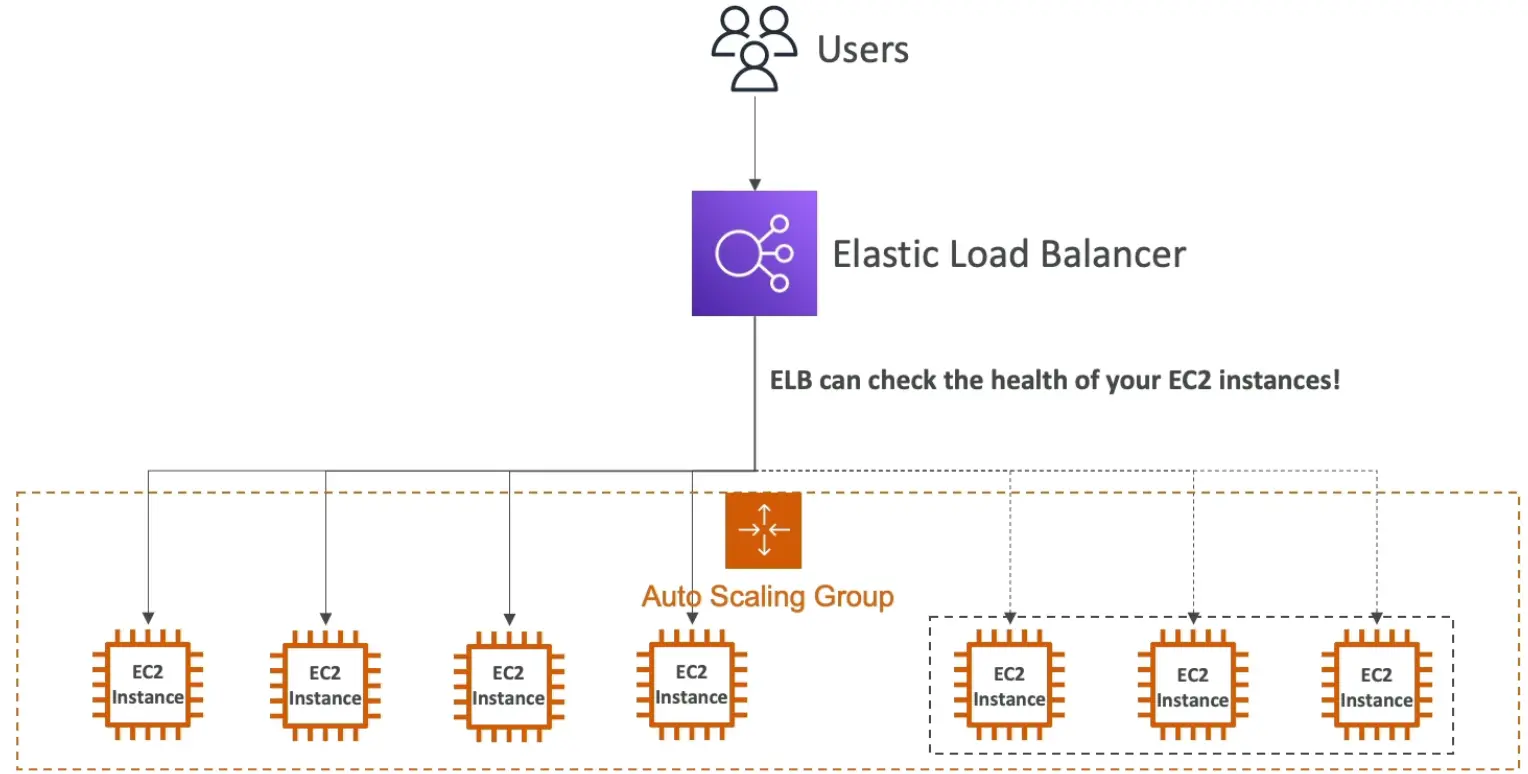
ELBs help evenly distribute incoming traffic among Amazon EC2 instances within your Auto Scaling groups as they scale up and down. And when an EC2 instance fails, the load balancer can reroute traffic to the next available healthy EC2 instance.
👁 load-balancer
Step #4: Set Auto Scaling Policies
Scaling policies dictate how and when the ASG should scale up or down. For example, a policy might be to scale out (add instances) when CPU utilization exceeds 80% for a period and to scale in (remove instances) when it drops below 30%.
An advanced scaling configuration might consist of scaling policies tracking multiple targets and/or step scaling policies for coverage of various scenarios.
12 AWS EC2 Auto Scaling Best Practices
Follow these AWS Auto Scaling best practices for more reliable and cost-effective AWS EC2 auto scaling.
1. Choose the appropriate instance families and sizing based on the workload in that ASG
There is a large selection of EC2 instance types available by family and size. Picking the wrong instance type can lead to inefficient use of the EC2 instance. For example, if the EC2 instance selected is compute optimized, but the underlying application running on it can comfortably operate in a general purpose or burstable general purpose instance type, this leads to highly inefficient usage of the EC2 instance and unnecessary costs.
2. Consider placement groups in ASG
Placement groups are a good option when you need more advanced control on how your EC2 instances should be placed inside your ASG. They influence the arrangement of interdependent instances to meet the needs of your workload, based on specific requirements like network performance, high-throughput, low-latency, or high availability.
3. Use Launch Templates
Create and use launch templates to define the instance type, Amazon Machine Image (AMI), security groups, and other launch parameters. Launch templates are recommended over launch configurations because they provide more flexibility and are easier to manage and launch configuration will be deprecated.
4. Group instances by purpose
Avoid lumping unrelated workloads into the same Auto Scaling Group. Instead, organize ASGs by function—such as frontend, backend, batch processing, or analytics—so each group can scale based on its own performance metrics and lifecycle needs. This separation helps you tune scaling policies more precisely, isolate performance issues faster, and avoid overprovisioning. It also improves cost visibility and resource governance by aligning infrastructure more closely with application architecture.
5. Set up health checks
Configure health checks to detect and replace unhealthy instances automatically. Auto Scaling can use either EC2 status checks or Elastic Load Balancer (ELB) health checks—or both—to monitor instance health. EC2 health checks detect issues at the hypervisor level, such as hardware or software failures, while ELB checks can catch application-level failures like unresponsive web servers. For web-facing applications behind a load balancer, ELB health checks are usually the better option, since they reflect real traffic behavior. Whichever you choose, timely detection and termination of failed instances keeps your application highly available and resilient.
6. Utilize target tracking scaling policies
Target tracking policies are one of the simplest and most effective ways to automate scaling. You define a target value for a specific metric—like keeping average CPUUtilization at 60%—and Auto Scaling automatically adjusts the number of instances to maintain that target. This “cruise control” approach works well for workloads with predictable or gradual demand patterns.
7. Implement cooldown periods
Cooldown periods help stabilize scaling actions by giving your Auto Scaling Group time to react before launching or terminating more instances. Without them, rapid fluctuations in metrics like CPU utilization can trigger excessive scaling—leading to “thrashing,” where instances are added and removed too quickly to be effective. Use separate cooldown periods for scale-out and scale-in actions when needed, or leverage the instance warm-up feature in target tracking policies for more fine-grained control.
8. Configure notifications
Enable Amazon SNS notifications to stay informed about important Auto Scaling events—like instance launches, terminations, or health check failures. These alerts help you monitor the behavior of your Auto Scaling Groups in real time and quickly troubleshoot unexpected activity. You can route notifications to email, Slack, Lambda functions, or other downstream systems for automated workflows or human intervention.
9. Implement proper security:
Security should scale with your infrastructure. Make sure security groups and Network Access Control Lists (NACLs) are tightly configured to allow only the necessary traffic to and from your instances. Avoid overly permissive rules—apply the principle of least privilege by limiting access to specific IP ranges, ports, and protocols. Also, ensure that IAM roles used by your Auto Scaling Groups grant only the permissions needed for tasks like pulling images or accessing S3.
10. Implement instance termination policies
When scaling in, Auto Scaling needs to decide which instance to terminate—and without guidance, it may not choose optimally. Instance termination policies let you define that logic. For example, you can prioritize terminating the oldest instances first to cycle out legacy workloads, or choose the instance closest to the next billing hour to reduce wasted spend. You can also prefer instances in specific Availability Zones to rebalance distribution.
11. Distribute instances across Availability Zones:
Running instances in a single Availability Zone creates a single point of failure. To improve fault tolerance and high availability, configure your Auto Scaling Group to span multiple Availability Zones within a region. This allows AWS to balance instance distribution automatically and continue serving traffic even if one zone experiences issues. It also improves load balancing performance and helps meet availability SLAs. Just make sure your subnets and resources (like ELBs or databases) are properly configured to support multi-AZ deployment.
12. Use Auto Scaling lifecycle hooks:
Lifecycle hooks let you pause the launch or termination process of EC2 instances to run custom logic—such as configuration scripts, logging, or graceful shutdown procedures. For example, you might run initialization scripts after an instance is launched but before it enters service, or archive logs before an instance is terminated. Hooks integrate with Amazon EventBridge, Lambda, or other automation tools, giving you control over key stages in the instance lifecycle. Use them when your application needs time to prepare or clean up during scaling events.
Challenges of using EC2 Auto Scaling
EC2 Auto Scaling can help improve fault tolerance, availability and cost management. However, there are also challenges associated with Auto Scaling.
Running Spot instances in ASG with Mixed Instance Families:
Spot can sometimes be cheaper. However, the unpredictable nature of Spot Instance terminations and 2-minute warning provided by AWS means that it can be complex, time-consuming, and even risky to run Spot. A combination of architectural, operational, and monitoring strategies are needed to ensure that Spot terminations don’t disrupt critical workloads.
Choosing the right combination of Spot instances
Spot instances vary in type, price and availability zone, and the market constantly fluctuates in terms of (1) what is available and (2) how much it costs. Spot instances have the potential to significantly reduce costs, but effective management and constant reevaluation is crucial to actually saving. Manually managing Spot placement and costs as your dynamic usage, commitments, and the market continually change can be time-consuming and tedious, taking away from engineers’ time to build and innovate.