|
VOOZH | about |
|
VOOZH | about |
Builders are users that you can add to your Process Street organization to collaborate with you on Workflows, Workflow Runs and Pages.
They can be added to groups, pre-assigned to tasks in workflows and scheduled workflow runs, and can be granted permission to edit and run your workflows.
Users: To invite Builders you must be an Administrator.
View all permissions by feature.
Builders can “view” company documentation, policies, and procedures stored in your Pages.
If you grant them “edit” permission they can also create, edit, share, and archive Pages.
Only admins can restore deleted pages.
Builders can also access workflows, workflow runs and tasks within workflow runs.
You can choose to grant them one of five different permission levels, giving you granular control over who can edit, run or view your workflows or tasks you have assigned to them.
You can invite builders from your organization’s users page.
To open your organization manager, click your profile picture in the upper right corner of your screen, then click “Settings“. You will be taken straight to your “Users” tab.
Type their email address in the field provided and select Invite as: Builder click “Invite” as shown above.
You’ll receive a flash notification at the top of your screen to confirm that their invite has been sent.
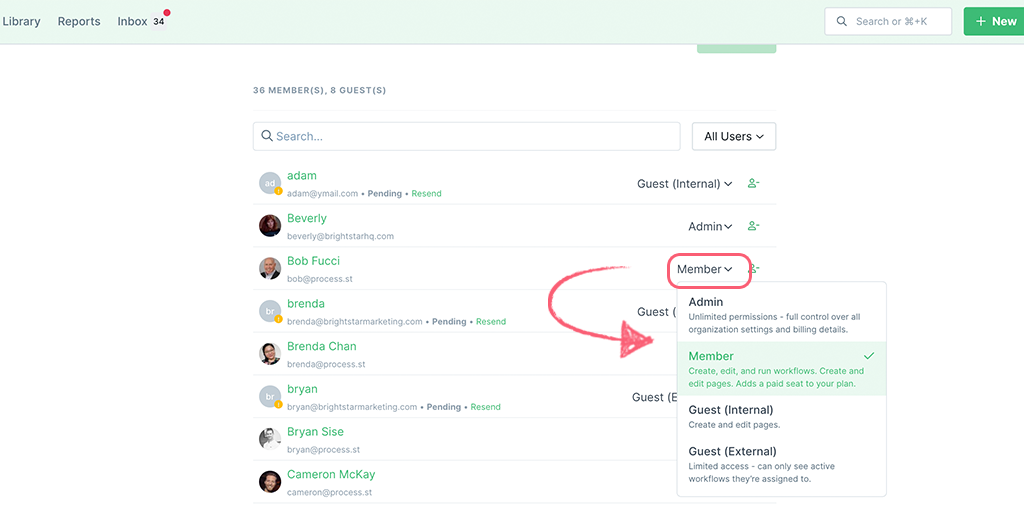
To promote a Builder to an admin or to demote them to a User, click the dropdown next to their name and make your selection.
You should only promote someone to an admin if you are happy for them to have full access to your organization and billing.
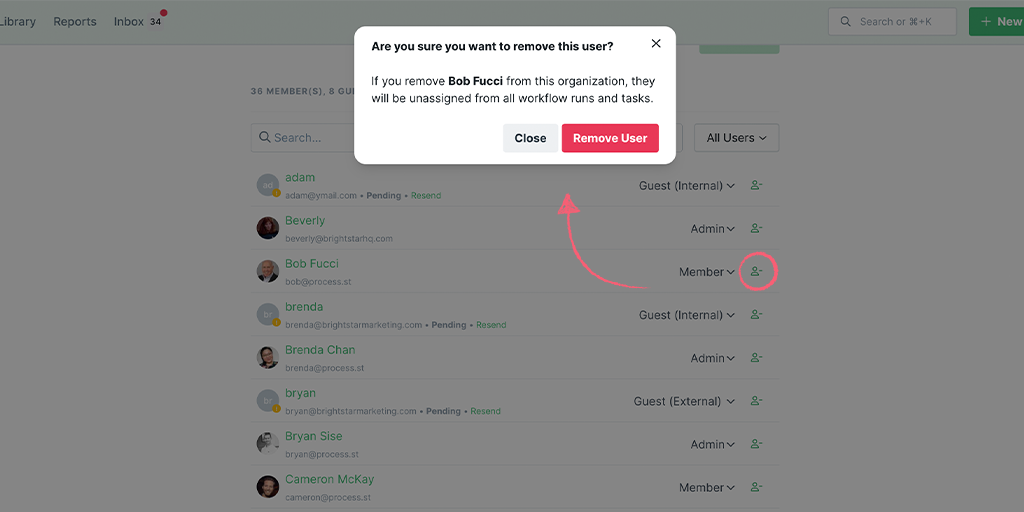
A builder can be removed from your organization entirely (and any workflow runs or tasks they are assigned to) using the remove user icon shown below.
Learn more about creating and using Pages, workflows and workflow runs.
Reach out to our Process Pros team if you have any questions or need any additional support.
Help us improve this help center.
Help us improve this article.
Please refresh the page and try again.