VOOZH about

URL: https://www.tecmint.com/ls-command-in-linux/

⇱ 20 Basic Linux 'ls' Command with Examples for Beginners


Skip to content

Listing files is one of the most widely undertaken tasks by ordinary Linux users and system administrators. In Linux, the ls command, short for “list” is used to list or display the contents of a directory.

This could either be your current directory or any other directory on the system. The command displays both files and subdirectories and in most cases distinguishes between different file types using color codes.

Without any command-line options, the ls command will simply list all the directory contents. However, it provides an array of handy command-line options to manipulate the output and display the desired output.

In this article, we’ll be discussing the basics of ls command examples with all the available various command options that it provides in Linux.
[ez-toc]

TecMint Weekly Newsletter
Get the Learn Linux 7 Days Crash Course free when you join 34,000+ Linux professionals reading every Thursday.
Check your email for a magic link to get started.
Something went wrong. Please try again.

ls Command Options in Linux

The ls command takes the following syntax:

$ ls [ options ] /path/to/directory

The options section represents the command-line arguments that can be passed to manipulate the output of the command.

In this tutorial, we will cover the following ls command arguments.

Options Description
ls -m Lists directory contents separated by a comma.
ls -Q Displays directory contents enclosed by quotation marks.
ls -l Displays files in a long-list format.
ls -lh Display file size in a human-readable format.
ls -g Omits group ownership column.
ls -F Adds a forward slash to directories.
ls -i Display inode number of files and directories.
ls -a Display all files including hidden files.
ls *. Filters files according to the file extension.
ls -la Displays all files and directories in long list format.
ls -R Display files and directories recursively.
ls -r Sort Files in reverse.
ls -X Sort files alphabetically by file extension.
ls -tl Display files according to file creation date and time.
ls -n List UIDs and GIDs.

1. List Files and Directories in Linux

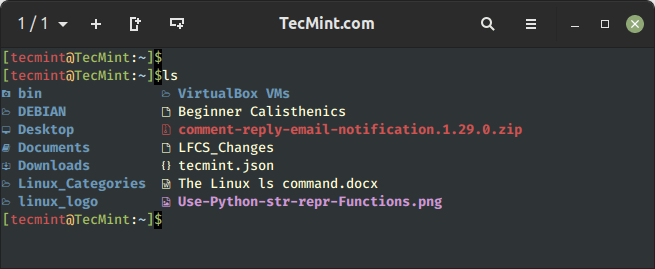
Running ls command without passing any command-line options or arguments, the ls command simply lists the directory contents in alphabetical order. Here we won’t be able to view details like file types, size, modified date and time, permission and links, etc.

$ ls
👁 List Directory Contents in Linux
List Directory Contents in Linux

2. Long Listing of Files in Linux

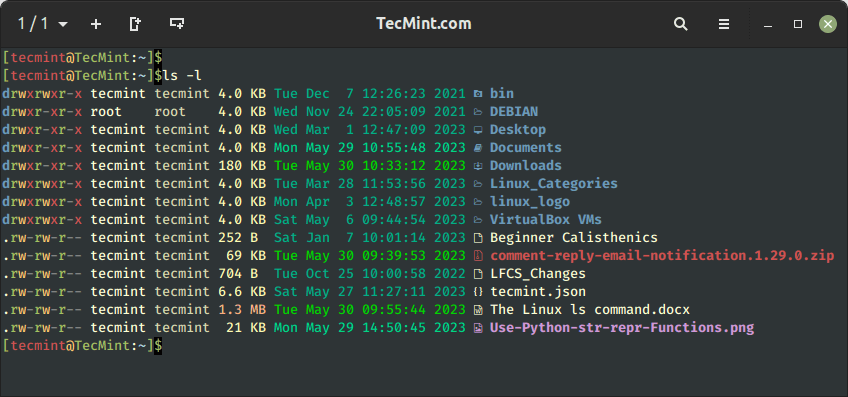
The -l command option lets you print out detailed information about the directory contents in a columnar format that includes size, modified date and time, file or directory name and owner of the file, and its permission.

$ ls -l
👁 Long Listinig of Files in Linux
Long Listing of Files in Linux

Starting from the far left, we have:

  • 1st column – File/directory permissions.
  • 2nd column – Number of links.
  • 3rd column – Name of the owner.
  • 4th column – Name of the group that the file belongs to.
  • 5th column – File size in bytes.
  • 6th column to 8th column – Last modification date.
  • 9th column – File / Directory name.

3. List Hidden Files and Directories

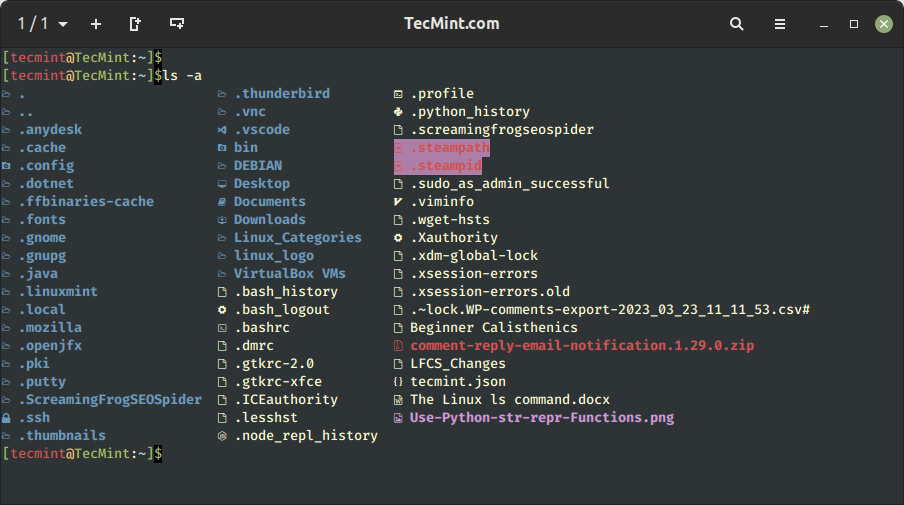
Hidden files are special files that store user settings and configuration files, which are used by running programs and services for reading and storing information.

For example. the .bashrc file is a script that contains user settings and configurations of the currently logged-in user, which include command aliases, shell history, the coloring of the terminal font, etc.

The .bash_logout file is executed when you log out of your bash sessions. It’s mainly used for cleanup purposes i.e. carrying out any operations that need to be performed once you exit the bash shell.

To list hidden files, pass the -a option as shown, which displays both hidden files and directories.

$ ls -a
👁 List Hidden Files on Linux
List Hidden Files on Linux

4. List All Files in Linux

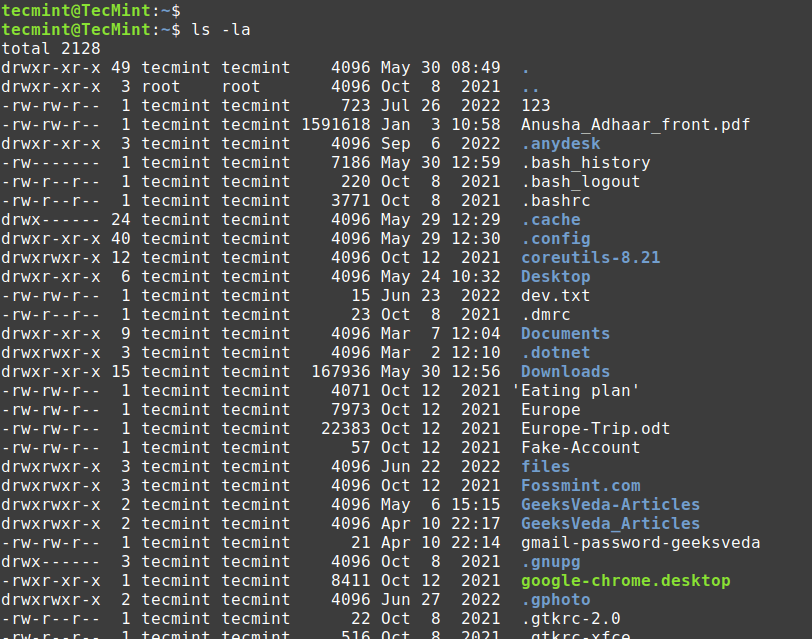
As you have noticed the -a option not only lists hidden files but all the files and directories. For better viewing, you can use the -la option

$ ls -la
👁 List All Files in Linux
List All Files in Linux

5. Display File Size in a Human-readable Format

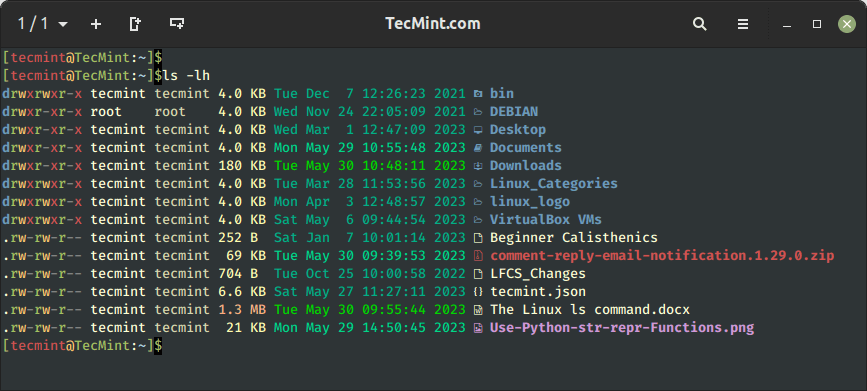
To present the output in a better format, add the -h flag to print the file size in a human-readable format. From the output, the file size is displayed in Kilobytes, Megabytes, and Gigabytes. By all means, this looks more presentable.

$ ls -lh
👁 Linux ls Command File Size Formatting
Linux ls Command File Size Formatting

6. Distinguish Directories and Files in Linux

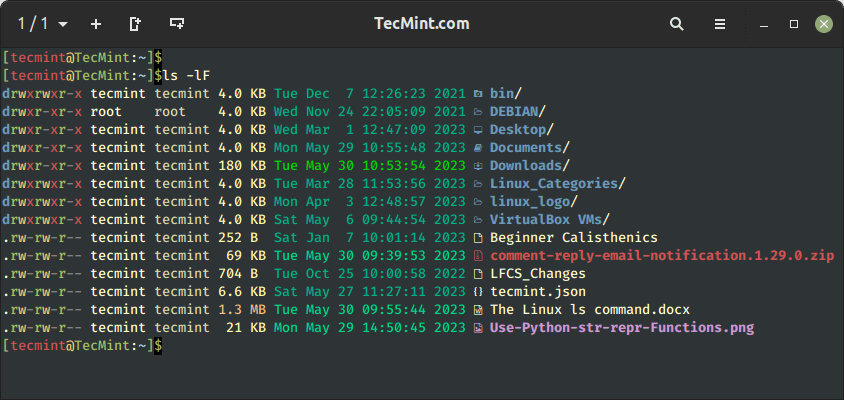
When running the ls command, it’s not always easy to make a clear distinction between files and directories. The -F option adds a forward slash (/) to directories, making it easier for them to stand out from the rest of the files.

$ ls -F
👁 Distinguish Directories and Files in Linux
Distinguish Directories and Files in Linux

7. Sorting Files in Reverse Order

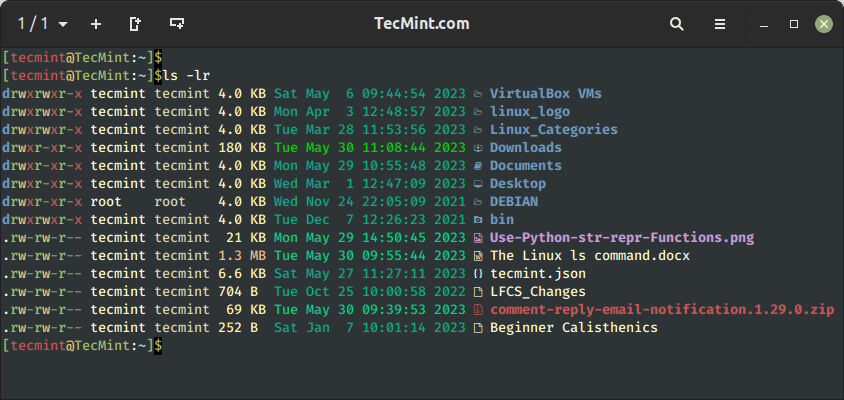
By default, the ls command sorts files and directories alphabetically (From A – Z). You can opt to sort the directory contents in reverse order using the -r option.

$ ls -lr 
👁 Sort Files in Reverse Order in Linux
Sort Files in Reverse Order in Linux

In addition, you can sort the file extensions alphabetically using the -X flag.

$ ls -X

8. List Files Recursively in Linux

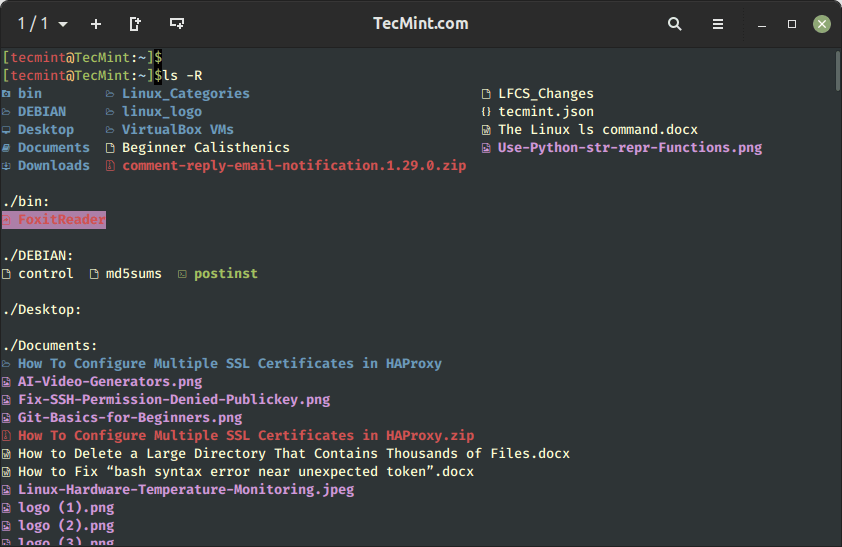
The -R flag lists files recursively. First, the command lists all the files and directories in your current directory, then proceeds to display files contained in individual directories and subdirectories.

$ ls -R

In the following example, the files in individual directories have been listed as well.
👁 List Files Recursively in Linux
List Files Recursively in Linux

9. Sort Files By Modification Time in Linux

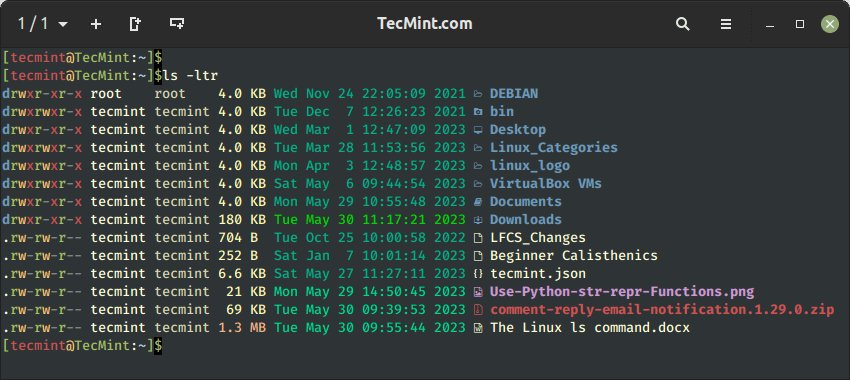
The ls -ltr command shows the files in the long listing format in reverse sorted by modification time, which means it will display detailed information about each file or directory in reverse order based on their last modified date/time stamp.

$ ls -ltr
👁 Sort Files By Modification Time in Linux
Sort Files By Modification Time in Linux

10. Sort Files By Newest to Oldest in Linux

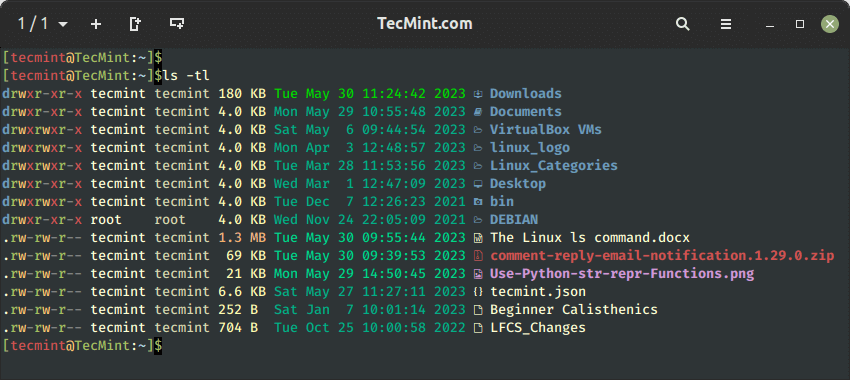
You can sort files by time and date using the -t option, which sorts the files in order starting from the newest to the oldest.

$ ls -tl
👁 Sort Files By Newest in Linux
Sort Files By Newest in Linux

11. Sort Files by File Size in Linux

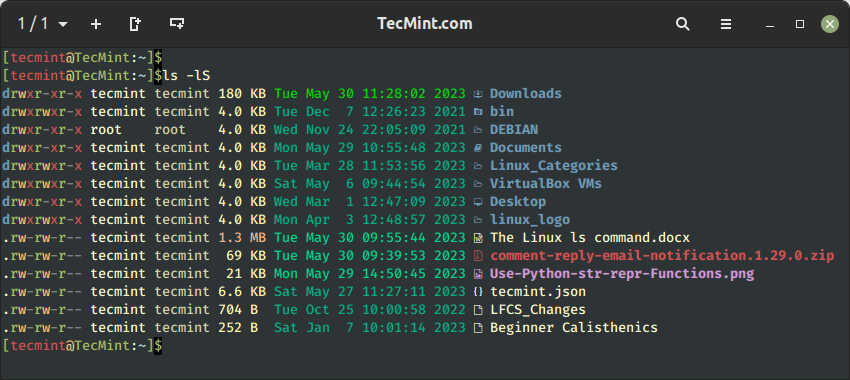
With a combination of -lS option, it will displays file size in descending order (biggest to smallest in size).

$ ls -lS
👁 List Files By Size in Linux
List Files By Size in Linux

12. List File Inode Number in Linux

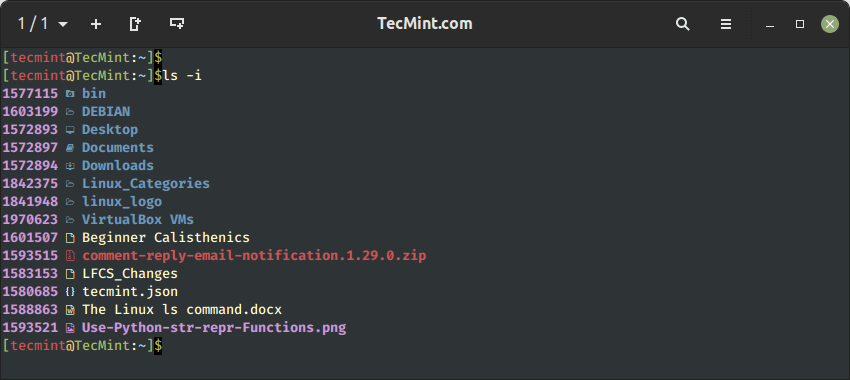
You can display the files and directories’ inode numbers using the -i option as shown.

$ ls -i
👁 Print File Inode Number in Linux
Print File Inode Number in Linux

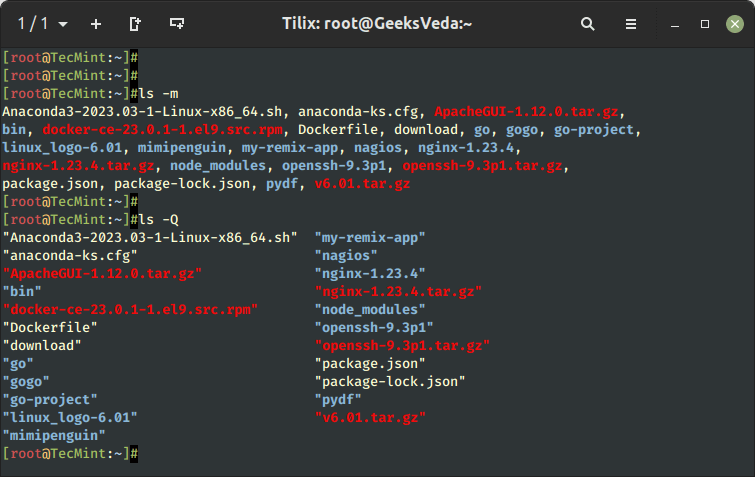
13. List Files and Directories Separated by Commas

The -m flag lists the directory contents one after the other separated by a comma.

$ ls -m

With the -Q flag, all the directory contents are enclosed by double quotation marks as shown.

$ ls -Q
👁 List Files Separated by Commas in Linux
List Files Separated by Commas in Linux

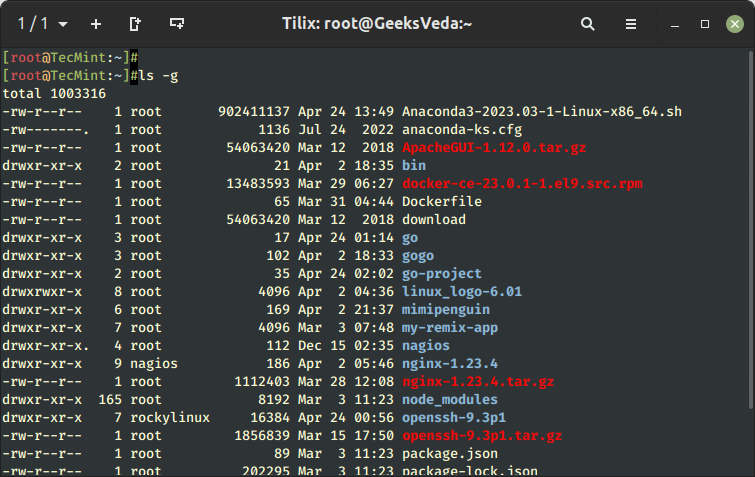
14. Omit Group Ownership in a Long-List Format

When used with the -l command option, the ls command prints both user and group ownership of the file. You can opt to omit the group column by passing the -g option.

$ ls -g
👁 List Files Without Group Owner in Linux
List Files Without Group Owner in Linux

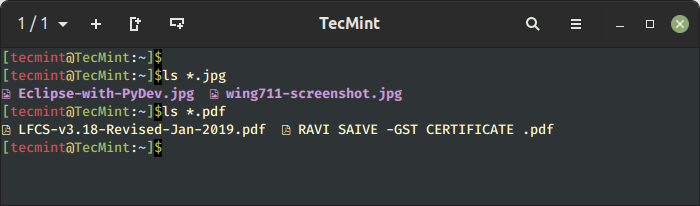
15. List Specific File Types or Extensions

To list specific file types or extensions, use the wildcard notation (*) followed by the file extension.

For example, to display all files with a .jpg extension, run the command:

$ ls *.jpg

Similarly, to list all PDF files, run the command:

$ ls *.pdf
👁 List Files By Extension in Linux
List Files By Extension in Linux

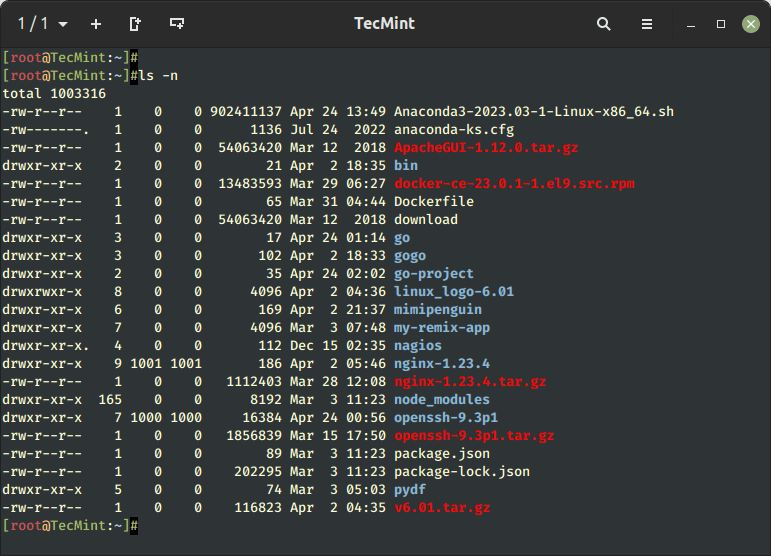
16. List the UID and GID of Files

To display the UID and GID of files and directories, use the -n option as shown.

$ ls -n
👁 Print UID and GID of Files
Print UID and GID of Files

17. Check ls Command Version

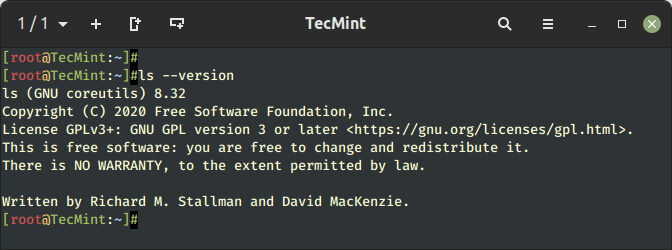
If you are a little curious and want to check the version of the ls command, you can do so as follows:

$ ls --version

From the output, you can see that we are running ls version 9.1.
👁 Check ls Command Version
Check ls Command Version

18. Show ls Command Help Page

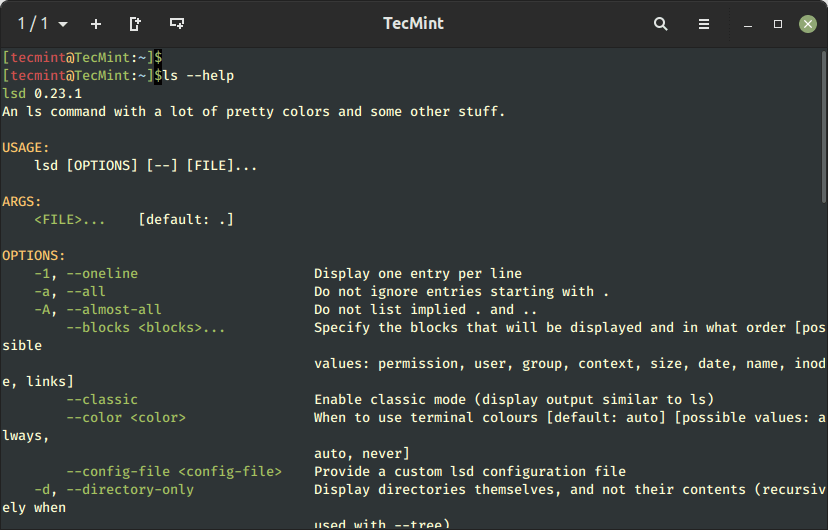
The ls program provides a wealth of command-line options. What we have covered are just some of the commonly used ones. For a comprehensive list of all the command options, run the following command:

$ ls --help
👁 View ls Command Help
View ls Command Help

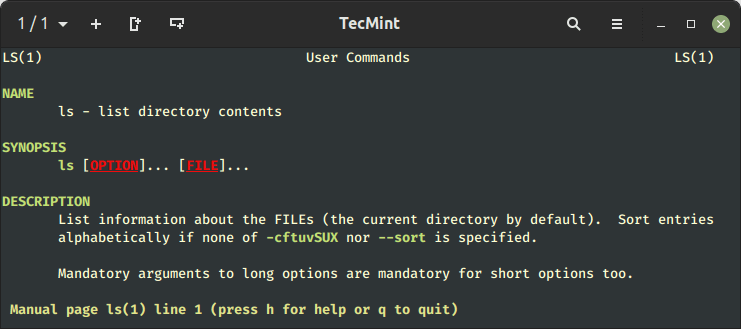
Optionally, you can visit the man pages by running:

$ man ls
👁 ls Command Manual
ls Command Manual

19. List Directory Information in Linux

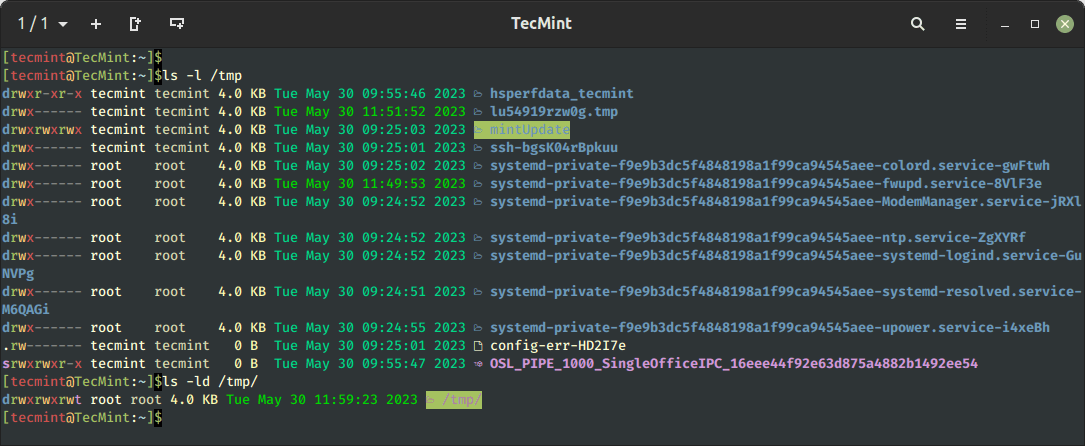
With the ls -l command list files under directory /tmp. Wherein with -ld options, it will display information of the /tmp directory.

$ ls -l /tmp
$ ls -ld /tmp/
👁 Print Directory Info in Linux
Print Directory Info in Linux

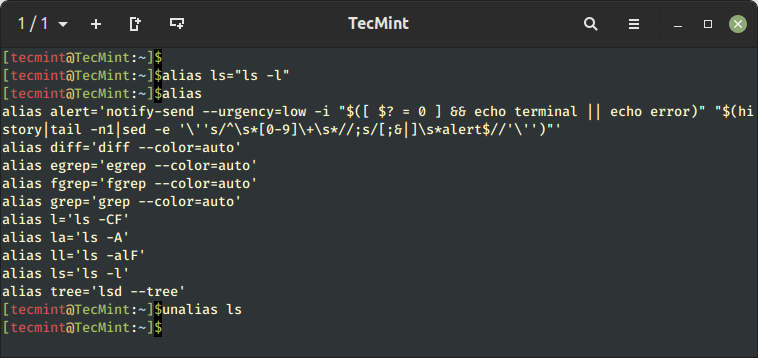
20. Create ls Command Aliase

We have made an alias for the ls command when we execute the ls command it will take the -l option by default and display a long listing as mentioned earlier.

$ alias ls="ls -l"

To view a number of aliases available in your system, use the below alias command and the same can be unalias as shown below example.

$ alias

To remove an alias previously defined, just use the unalias command.

$ unalias ls
👁 Create ls Command Alias
Create ls Command Alias

In this guide, we have demonstrated how to use the ls command to view the contents of a folder or directory. In addition, we went a step further and explored command options that can be used with the ls command in Linux.

In our next article, we’ll cover more advanced ls commands with their examples. Also, I suggest you go through some interview questions on the ls command, and also if we’ve missed anything in the list, please update us via the comment section.

If this article helped, share it with someone on your team.
TecMint Weekly Newsletter
Get the Learn Linux 7 Days Crash Course free when you join 34,000+ Linux professionals reading every Thursday.
Check your email for a magic link to get started.
Something went wrong. Please try again.
TecMint has been free for 14 years. Help keep it that way.
Google AI Overviews and tools like ChatGPT have cut into search traffic for independent tech sites like TecMint. Running this site costs over $2,000 every month for hosting, infrastructure, and paying authors to keep the content accurate and tested.

If this article helped you solve a problem, consider buying a coffee. It helps keep TecMint free, supports the authors, and keeps the project going.

☕ Buy Me a Coffee
Ravi Saive
I'm Ravi Saive, an award-winning entrepreneur and founder of several successful 5-figure online businesses, including TecMint.com, GeeksMint.com, UbuntuMint.com, and the premium learning hub Pro.Tecmint.com.

Each tutorial at TecMint is created by a team of experienced Linux system administrators so that it meets our high-quality standards.

52 Comments

Leave a Reply
  1. As a newbie to Linux this post is very informative as a tutoring device to reinforce!

    Reply
  2. How can I enable color coding in ls output, like in your screenshot?

    I currently use the command:

    ls --color=auto
    

    but it only colors files and folders. How can I achieve the same coloring effect for other types of output?

    Reply
    • @Pembeli,

      You need to use a tool called lsd, which is an alternative to the ls command written in Rust. It provides a more modern and feature-rich interface, including support for icons and colors.

      Reply
  3. I have worked on Unix (in the 90s) and on Linux here and there for the past 10 years, and I never took the time to check its man page.

    Thanks for the ls table, it made my day!

    Reply
    • @Philippe,

      That’s awesome to hear! It’s never too late to explore the man page, and I’m glad the ls table brightened your day.

      Reply
  4. When I tried this :

    ls *.
    

    I got this message :

    ls: cannot access '*.': No such file or directory
    

    I tried it in /etc and /var.

    Reply
    • @Philippe,

      It looks like you’re trying to use the ‘ls’ command with the pattern '*.' in the /etc and /var directories. The error message indicates that there are no files matching that pattern in those directories.

      Reply
  5. Please answer this question about the Unix command “ls”:

    What is the command to list the contents of a directory in Unix and Unix-like operating systems?

    Reply
    • @Kennedy,

      To list the contents of directory in Linux.

      $ ls -l directory-name
      
      Reply
  6. Really great article on ls command with examples.

    Thank you… :)

    Reply
    • Really great article on ls command with examples.

      Thank you… :)

      Reply
  7. I was hoping to see the option to output the version information of ls, but couldn’t get a clear answer…

    Reply
    • @Muaisiuomaue,

      You can check the version of ls command using:

      # ls --version
      
      Reply
    • Whenever you have questions about any command and its options, check the command’s MAN pages.

      $ man command
      
      Reply
  8. There are some questions that I have kept on answering for a week now and they say they are wrong…

    1: What is the option that prints the author of a file?
    My answer.

    $ ls --author -l
    

    2: What is the ls option to sort by file size?
    My answer.

    $ ls --sort= size
    

    3: what is the ls option to list entries by lines instead of by column?
    My answer:

    $ ls -1
    

    4: What is the option to output the version information of ls?
    My answer.

    $ ls--version
    
    Reply
  9. I was hoping to see ls -b. I know exactly what it does but can’t grasp why it’s necessary…

    Reply
  10. hey man how can I find start with k or m files or directories like m***** or c**** files…

    Reply
  11. Really very useful article on the basic ls command.

    Reply
  12. Thank you so much for these commands definitions!

    Reply
  13. Help Please, cay you show me coding of (The files which name were end with the letter [A-Z])- give me fast answer please i urgent need this.

    Reply
  14. Thank you. Very helpful (Mark G)

    Reply
  15. What is the number(#) between permissions and owner?
    dr-xr-x– # OWNER GROUP SIZE DATE NAME

    Reply
  16. every thing is fine sir ,but please show us the difference between accestime and modification time…….

    Reply
  17. Hello Sir,
    Can you please tell me from where can i get source code for these basic ls commands in C or Java.?
    please reply.

    Reply
  18. Hi I have a folders A and B and both were created on same day say day 1.

    On next day 2 day, I create another folder C.

    Now I make a sub folder “D” in A on day 5 and work on it creating new files for next 4 days.

    Now after day 9, when I do ls -lrt, I should expect A, C, B based on modifications time.

    I get the order C, B, A

    I don’t get folder A ( inside which the changes in subfolder D were made till day 9) but folder but folder C, B, A .

    Is there nay command that detects changes to sub folders and list it accordingly like ls -lrt

    Reply
  19. Great job. I find this very resourceful. Thanks

    Reply
  20. How to list directories from oldest to newest in /etc for example?

    Reply
    • ls -ltr to list the latest file last and ls -lth to list oldest one last

      Reply
  21. sir

    i have question about links?

    i wan to create link for one file with separate location

    but my intension is the both( original or link file) have same i node number?

    is it posible ? its posible which link i have to create that file?

    can you please explain sir.

    Reply
    • You can’t give same inode number to same file, because these inodes are set by system itself.

      Reply
  22. How to list files starting like character a or aa.. etc.

    Reply
    • To list all files starting with ‘a’ character, use the following command. For better understanding I’ve posted output also..

      # ls -l a*
      
      -rw-r--r-- 1 tecmint tecmint 0 May 31 12:37 a
      -rw-r--r-- 1 tecmint tecmint 0 May 31 12:37 aa
      -rw-r--r-- 1 tecmint tecmint 0 May 31 12:37 aaa
      
      Reply
        • What not working? can you let us clearly, so we could help you out.

          Reply
        • It works perfecty!

          Reply
  23. And I would also like to add what I was searching for …

    ls -1 ( numerical 1) – lists each file name in a new line

    Reply
  24. Thank you for sharing, I found what I was looking for :)

    Reply
  25. can u explain me about the following command

    ls -alhtr

    Reply
    • The command you are using does the following:

      list all files with

      -a = hidden
      -l = list
      -h = human readable
      -t = time
      -r = reverse

      So, the output will be a listing of all files (including hidden files) showing mb and gb (instead of bytes) and the order will be in reverse of time (older first, this is done by the combination of -tr)

      Regards

      Reply
      • Thanks. Good explanation

        Reply
  26. Where is the next article?

    Reply
  27. this is for beginners too!?!
    pls describe what I see. who is user, who is group? what is the meaning of the permissions.
    thx

    Reply
  28. It’s not the same as its ;-)

    Reply
  29. You can temporarily unalias an alias by putting the backslash in front of the command like this:

    $ \ls

    Reply

Got Something to Say? Join the Discussion... Cancel reply

Free Course
Get a free Linux course before you go.
Subscribe to TecMint Weekly and get the Learn Linux 7 Days Crash Course free. Read by 34,000+ Linux professionals every Thursday.
Check your email for a magic link to get started.


