
Fedora 21 has been released several days ago with many new changes and updated packages, if you want to view all the new changes and updates in Fedora 21, you may check our previous article about it.
In this tutorial we’ll explain how to install Fedora 21 step-by-step on your computer using the graphical user interface. For the installation, I’ll be using the MATE spin of Fedora 21, you can use any spin (Gnome, Xfce, Mate, KDE or LXDE) you want because the installation process is the same in all of them.
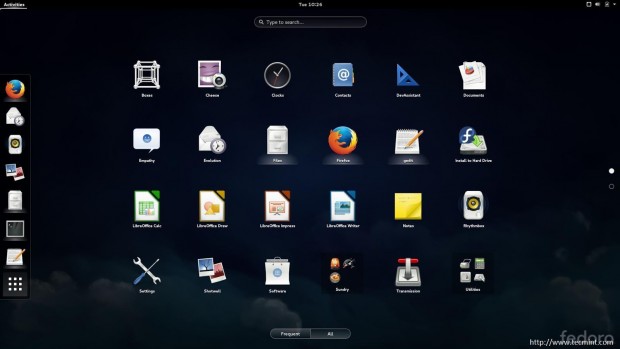
Installing Fedora 21 isn’t hard in fact, it’s like installing Fedora 20, but we’ll be explaining how to do it anyway for new users.
If you have Fedora 20 installed on your computer, you don’t need to install Fedora 21 as a clean installation, you can upgrade to Fedora 21 using the “fedup” tool, to learn how to do this, refer for the upgrading section in our article about Fedora 21.
Else, if you’re looking for a Fedora 21 server edition installation, head over to the below article that describes a complete step-by-step installation of Fedora 21 Server.
Fedora 21 Workstation Installation
1. First of all, you have to get Fedora 21 ISO file in order to burn it on a DVD/USB stack, you can download Fedora 21 workstation from here: https://getfedora.org/en/workstation/.
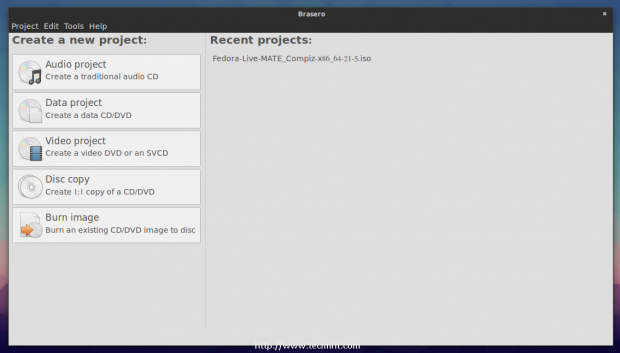
2. After you download the ISO file, you can burn it on a DVD using Brasero (is an free tool to burn CD/DVD for Unix-like systems).
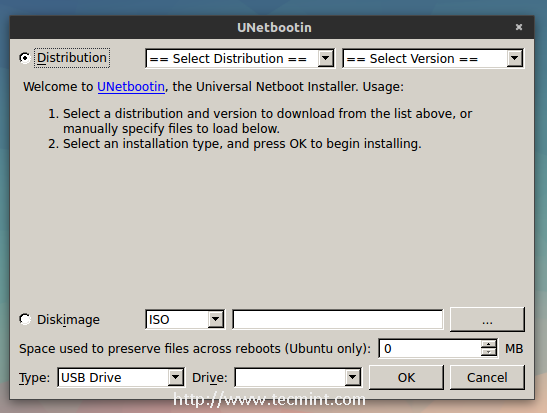
3. Alternatively, you can burn it on a USB stack using “Unetbootin” software, for more information on how to burn and make bootable ISO image on USB device, read our article at: Install Linux from USB Device.
4. Now after you burn it on any media drive.. Restart your computer in order to boot from the DVD/USB stack.
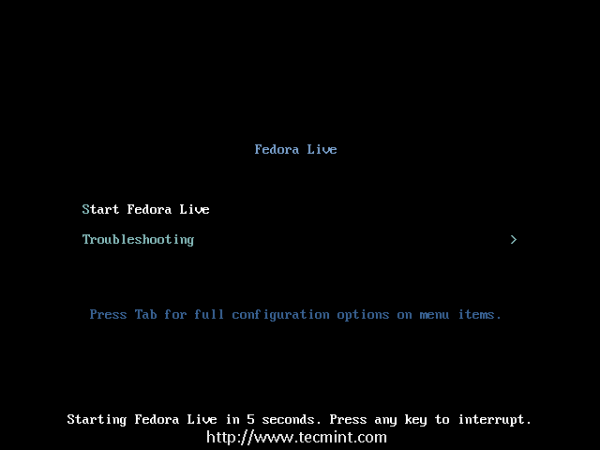
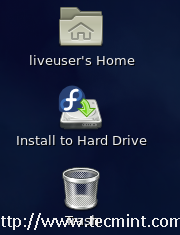
5. You’ll get to the Live desktop, click on the “Install to Hard Drive” icon in order to start the installation process.
6. Next, the installation wizard will start (it’s called Anaconda). At the first step, you’ll have to choose the language you want for the installation.
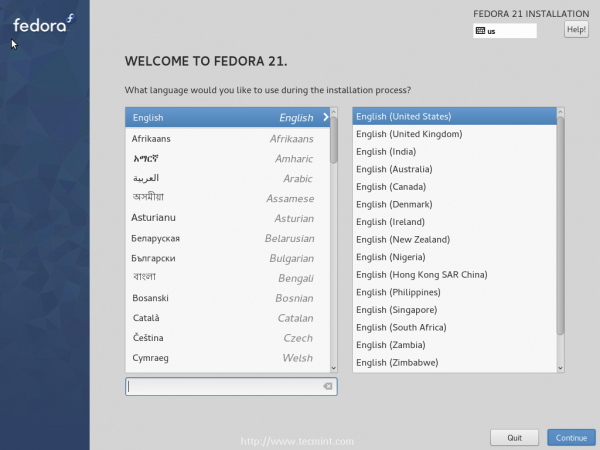
7. After selecting language, click on ‘continue‘ button. On the next screen select ‘Date & Time‘ and set your local timezone.
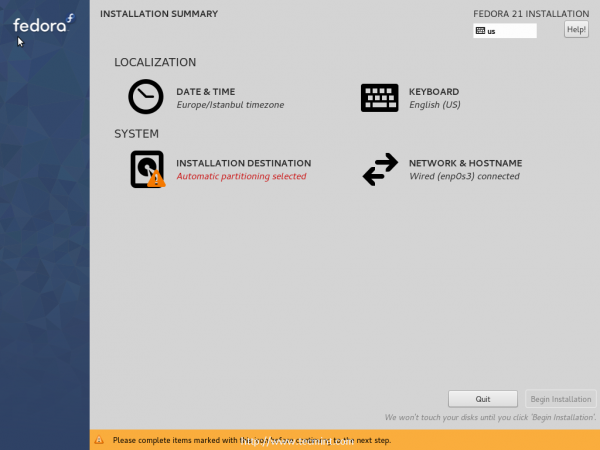
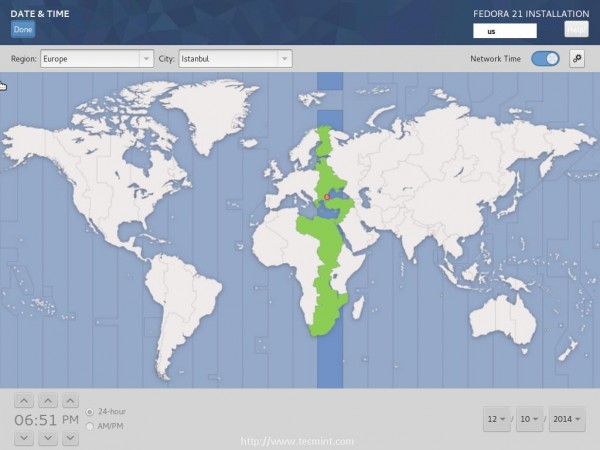
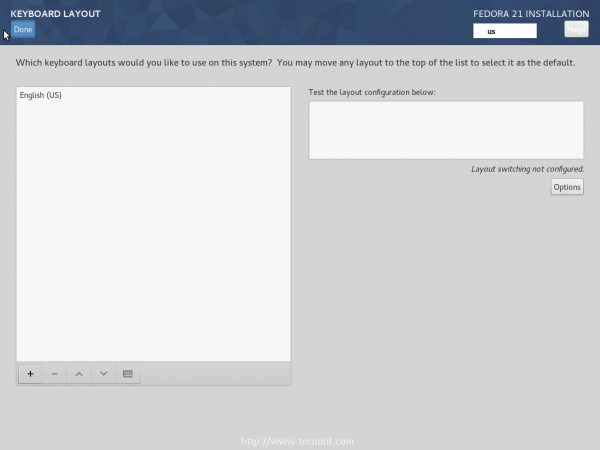
8. After setting local timezone, click on the “Done” button on the top left to go back to the summary page, now in order to configure the keyboard layout, click on “Keyboard” and add the languages you want to use as a layout.
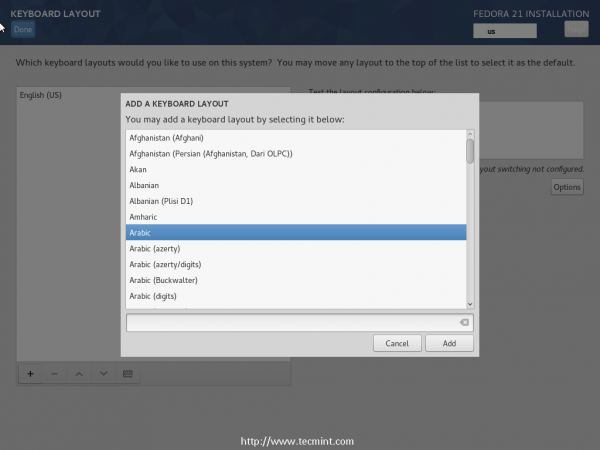
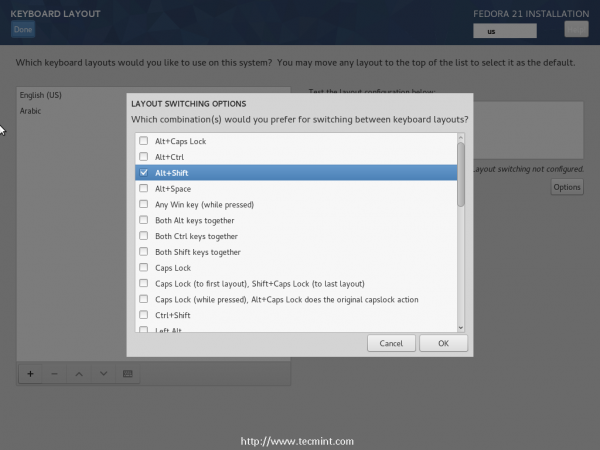
9. In order to enable switching between layouts on the system, click on the “options” button and flag the “Alt + Shift” selection.
10. Now, go back to the Summary, and click on “Installation Destination” in order to start configuring the Hard Drive, under the “Partitioning” section, select “I will configure partitioning”.
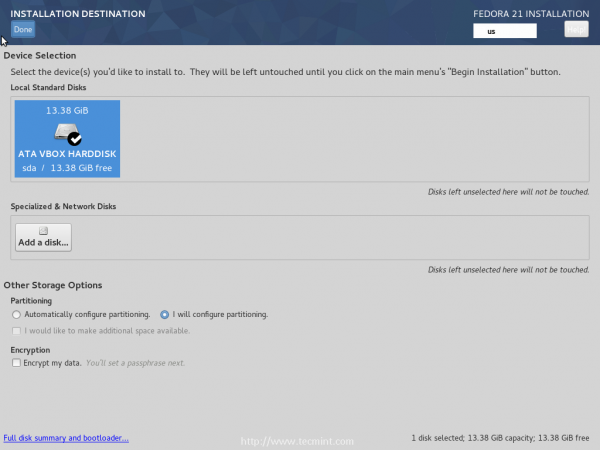
Next, choose the hard drive you want to install Fedora 21 on (Note: This will destroy all data on the selected drive, so be careful about the partition you choose), and click on the “Done” button.
11. Now you’ll be transferred to the manual partitioning page, Change the “Partitioning Scheme” to “Standard Partition” and click on the “+” button in order to create a new hard drive.

Make sure that the mount point is set to “/” and click on “Add mount point”, some options will show up.
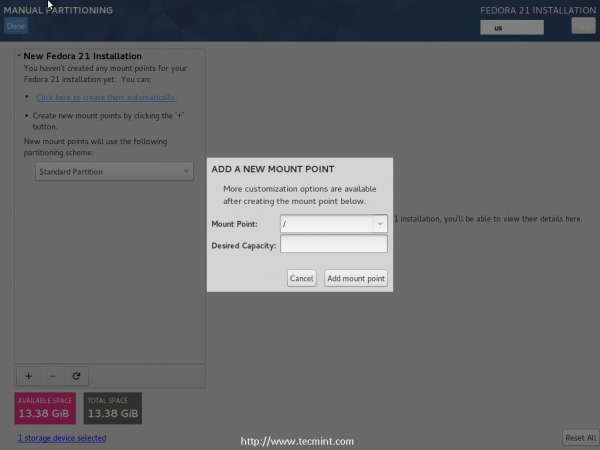
12. You can configure the hard drive options from this dialog if you want, like size,file system type, enable encryption or not.. etc, in my case, I have 13GB of disk space only, that’s why I’ll be choosing to create only 1 partition (i.e. / partition), but if you have a bigger hard drive, you may create partitions like “/boot”, “/home, /var and / partition” if you want.
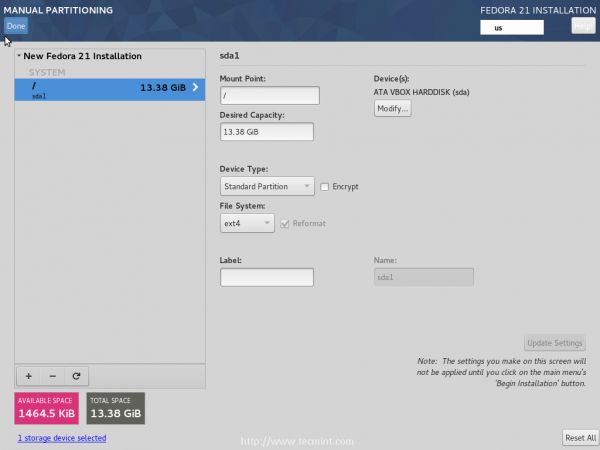
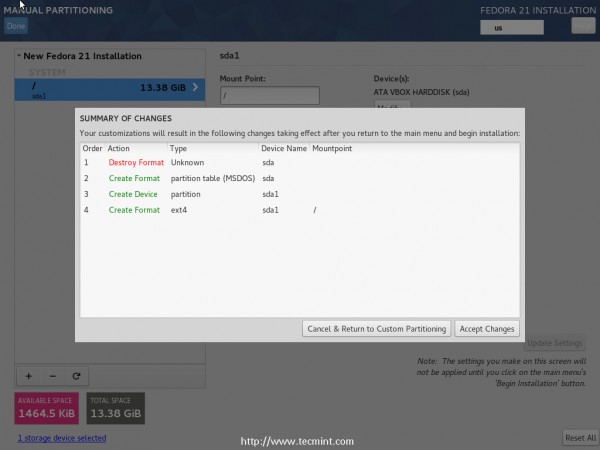
13. When you’re done, click on the “Done” button and choose “Accept Changes”.
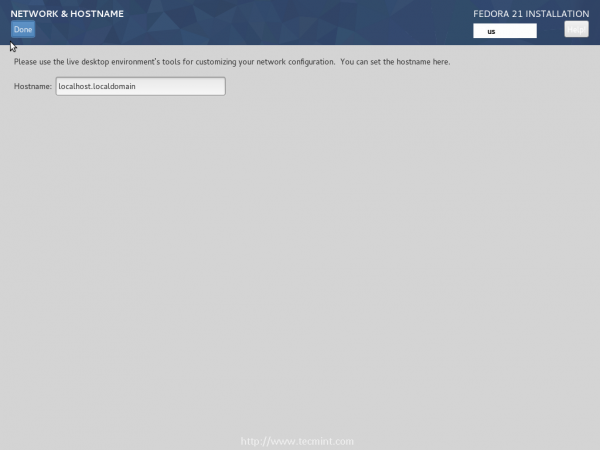
14. Now return to the Summary page, and click on “Network & Hostname” in order to change it, you may modify it or leave it like it is, it won’t be a problem.
15. Finally after making all above changes, click on the “Begin Installation” button in order to start installation process.
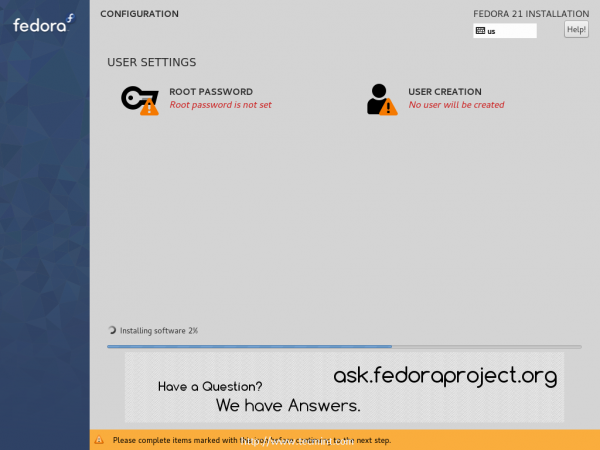
16. During installation, you can define a root password and a new user, so click on the “Root Password” button to create one.
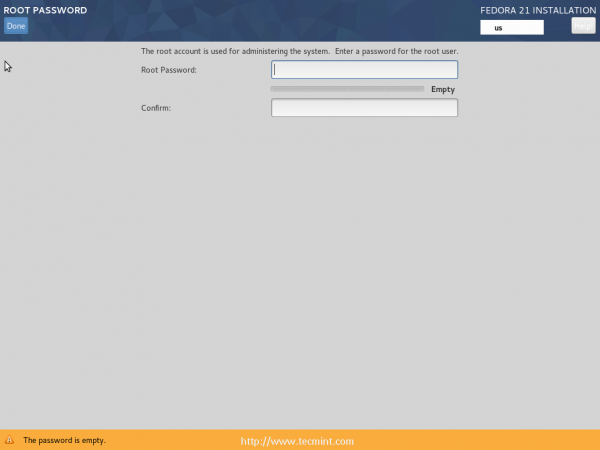
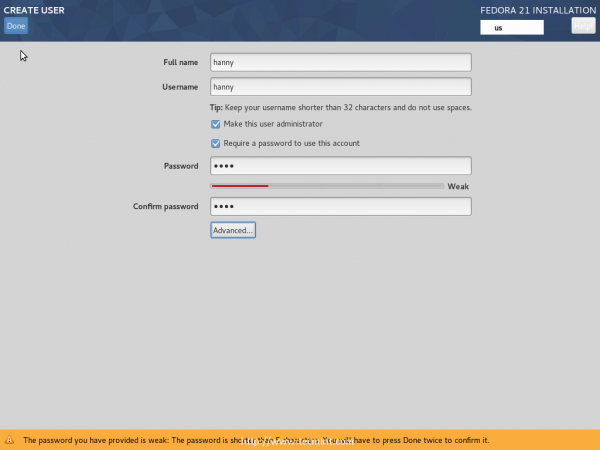
17. After setting root password, click on the “Done” button to go back and click on “User Creation” to create a new user.
18. Now wait for the installation process to complete.
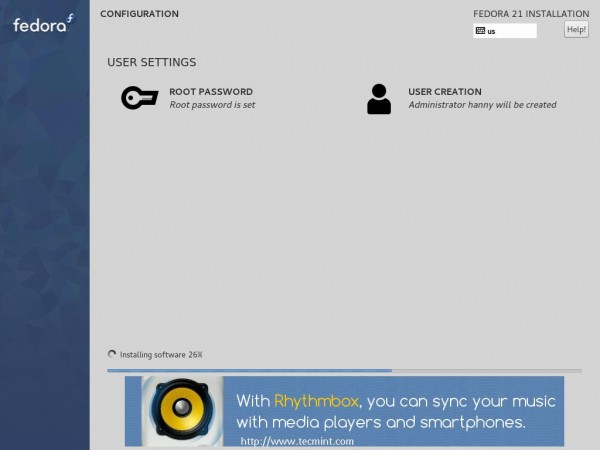
19. When the installation process is finished, you quit “Anaconda” for now:
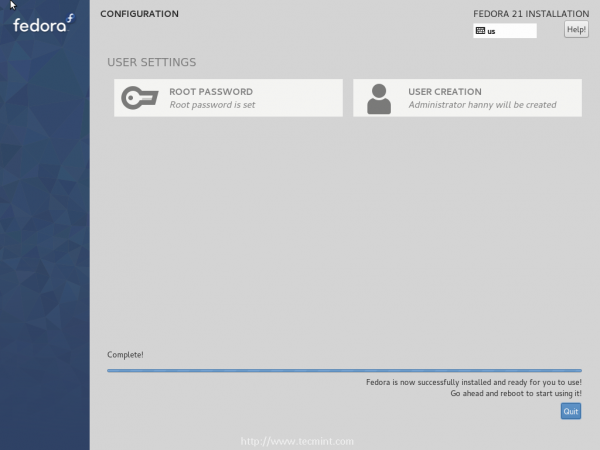
20. In order to start using your new system, you’ll have to make a reboot.
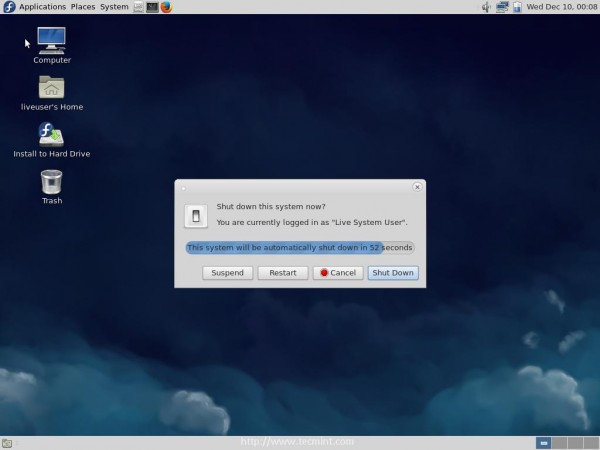
Note: Don’t forget to unplug the DVD / USB stack after the reboot process (So that you don’t boot it again).
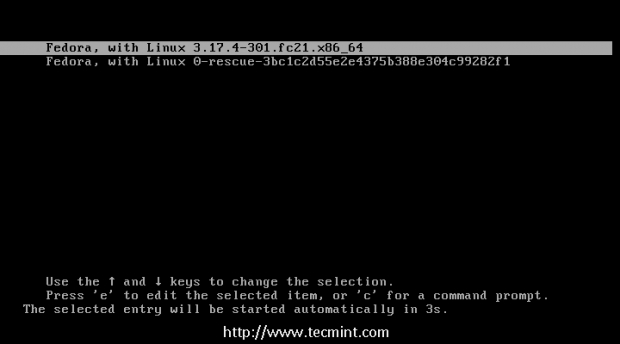
21. Once you reboot, the system will ask you to select your new Fedora Linux from the boot menu.
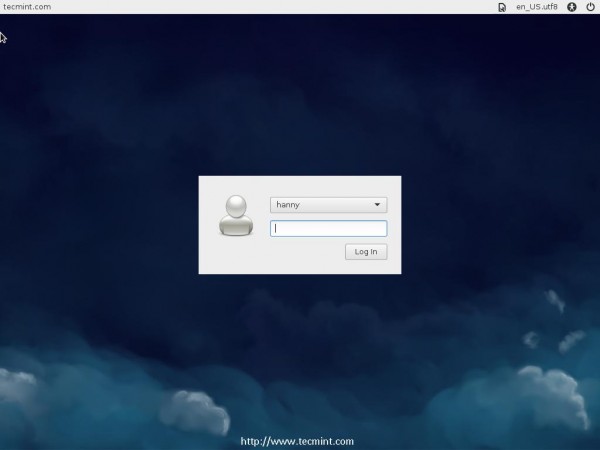
22. On the login screen, enter your new user login credentials that you’ve created during installation.
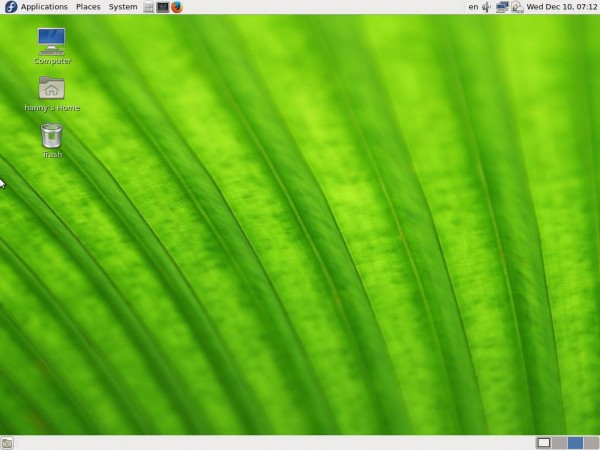
That’s it! You’ve successfully installed Fedora 21.
After installing Fedora 21 Workstation desktop, follow below guide that describes 18 most important things to do after installation.
Have you tried Fedora 21? What do you think about the new version? Also, what do you think about the new spins of Fedora 21? Do you like the new releasing system? Share us your thoughts in the comments!
If this article helped you solve a problem, consider buying a coffee. It helps keep TecMint free, supports the authors, and keeps the project going.




Got Something to Say? Join the Discussion... Cancel reply