
Summary
- TranslucentTB is a free app that offers different transparency effects for the taskbar, including a totally clear look.
- Start11 v2 provides extensive customization options for the taskbar and Start menu, with a $7 lifetime license.
- StartAllBack is a cheaper alternative to Start11, offering similar taskbar customization options and a Windows 7-like Start menu design.
- ObjectDock is another great option that makes your taskbar look more like the macOS dock.
There are plenty of things you can do to customize a Windows 11 PC, even without using any third-party apps. But one thing you can't do, despite being a fairly popular request, is make your taskbar completely transparent. In fact, Windows 11 doesn't let you adjust the transparency of the taskbar at all, which is a bit of a bummer.
Thankfully, developers have stepped up to the plate to bring this capability to Windows 11, and there are a few alternatives if you want to make your Windows 11 desktop feel a bit better. Here are some of our recommendations if you want to get a transparent taskbar on Windows 11.
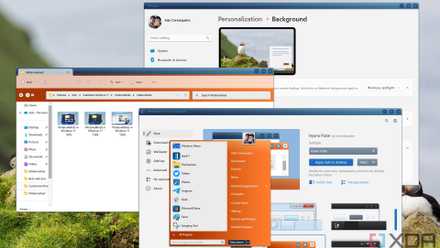
You can make Windows 11 feel like home — here's how to customize it
Windows 11 is a great operating system, but not everyone has to like how it looks out of the box. Here's how you can change
TranslucentTB
It's all in the name
TranslucentTB is a fairly self-explanatory name for this app, which is arguably the best option you can get if all you want is a transparent taskbar. It's free, and it does the job it aims to do very well. Transparent Taskbar gives you options for what kind of transparency effect you want to use, whether that's the same default effect available in Windows 11, a Windows 10-style acrylic transparency, or a completely clear look. If you don't want total transparency, you can also choose an accent color to tint the taskbar. You can even choose to remove the taskbar border for a completely uninterrupted look, it's quite neat.
On top of that, TranslucentTB lets you adjust the behavior of the taskbar so it changes if you have an app open, you're looking at the Start menu, or if battery saver is enabled, for example. It's simple and straightforward, but frankly, if you want a transparent taskbar and nothing more, this is the only app you need.
Start11 v2
Change the taskbar and so much more
If you're willing to spend a bit of money for a lot more functionality, though, Start11 is where it's at. As far as taskbar options go, you get a lot, including the ability to make the taskbar completely colorless and disabling the blur effect so the taskbar is totally transparent. That's fairly standard, but you have a few more options, too. You can move the taskbar to the top of the screen, too, or if you choose not to go completely transparent, you can give the taskbar rounded corners so it feels a bit more modern.

Start11 v2 review: Making the Windows 11 Start menu actually useful
With tons of configuration options for appearance and organization, Start11 makes the Start menu and taskbar so much richer
There's a lot more to Start11 beyond the taskbar options, though. There are a ton of customization options for the Start menu itself, including the same transparency and color settings, the ability to create pages, tabs, groups, and folders, the option to pin file folders to the Start menu or the taskbar, and so on. It does cost some money, but Start11 v2 is an excellent tool for customization, and while it can give you a transparent taskbar, it can do so much more, and you're only paying $7 for a lifetime license.
StartAllBack
The best alternative to Start11 (and it's cheaper, too)
Another excellent option for those willing to spend a bit of money is StartAllBack, a successor to the well-known StartAllBack, and a competitor to Start11. StartAllBack is a bit different from Start11, but it does similar things. For one thing, it can turn the taskbar completely transparent, complete with different blur options and transparency levels. You can also use a "dynamic transparency" option to make it so that the taskbar becomes opaque (or less transparent, at least) when an app is open in full screen or you're using the Start menu, for example.

StartAllBack review: Bringing back classic Windows goodness
Don't like the Windows 11 design changes? StartAllBack takes you back to better times, with some other improvements to boot.
In addition to this, StartAllBack also offers customization options for the Start menu, allowing you to make it look more like WIndows 7 while keeping the modern Windows 11 design language, and it looks quite good. It can even tweak File Explorer, too, changing the menu bar to use the Windows 10-style ribbon or the old command bar from Windows 7, both with modernized styles. It's a great app that's definitely worth the $5 if you want some extra customization options.
ObjectDock
Make it look more like a Mac
This one is a bit more out there, but it's honestly one of my personal favorite ways to get a transparent taskbar that gets completely out of the way when you're not using it. ObjectDock isn't necessarily a taskbar replacement, but it's default QuickLaunch dock can do exactly that, and it makes your Windows PC feel more like a Mac, but even more lively. It replaces the taskbar with a completely transparent dock to launch and manage your open apps, and it can also hide automatically, so you get the full real estate of your screen for your apps.

ObjectDock review: Making Windows look like a Mac is cooler than I thought
ObjectDock is a fairly simple app, but it's enough to make my PC feel much more personal and unique.
ObjectDock actually lets you create multiple docks, so you can have more launch points for any app you want on any side of the screen, and you can customize the look of the dock in various ways, making the background more transparent or changing its look entirely. You can also tweak various animations and other options. The app doesn't do much more than this, so the $5 price tag may be a bit harder to swallow, but I have to admit I love using ObjectDock.
Those are my personal favorite solutions for getting a totally transparent taskbar on Windows 11, and it just shows that if Microsoft won't give us something, we can always count on the huge Windows fan community to deliver what the company won't. As long as these options are around, you can have fun making Windows 11 look like anything you want.