
As much as I've been enjoying enjoying my Mac Mini since I reviewed it, it's impossible to deny that there are some notable faults with macOS. One of them is Finder, the built-in file manager, which is somehow even worse than File Explorer on Windows — in some ways, at least. One of my biggest pet peeves is that hitting Enter doesn't open a folder, and instead tries to rename it.
Thankfully, if you're wanting a better file management experience, there's no shortage of alternatives out there to try. I took it upon myself to try installing nearly 15 of them, and out of those, I came away with four that actually provided a good experience. So let's get right into it.

10 things that drove me mad using macOS for the first time
macOS is a learning experience
Commander One
An upgrade is an upgrade
Commander One is another great tool if you want something a little more capable. It's still a dual-pane file manager that makes it really easy to browse as many folders as you want, especially with tab support in each pane. The UI in Commander One can feel a bit cluttered, but it's a very capable app.
Actually browing files in Commander One feels decently close to Finder, except it does support opening folders by pressing Enter. The interface can feel a bit cluttered, but that means you can easily access many of the app's features.

5 macOS apps I use to help me transition from Windows
Learning macOS can be a challenge, but this helps
That being said, this app also has some drawbacks. Again, the UI feels a bit cluttered, and annoyingly, it doesn't support the side buttons on a mouse to navigate back and forward, and you also can't middle-click to close a tab, so it's a bit less natural if you're used to other file managers, including Finder. It also lacks bulk file renaming, which is a bit of a shame, and it doesn't support previewing files by pressing the space bar, either.
That being said, the dual-pane view and basic support for using Enter to open folders might still make this a worthy app compared to Finder.
-
Commander One
Marta
A super-simple, but effective option
Marta is one of the few completely free alternatives you can get for Finder, and frankly, it's one I quite enjoyed using. It's a very plain app, but it gives you a dual-pane view right out of the box, so it's easy to manage files across different folders and move them from one place to another. Of course, each pane also supports tabs, and you can also have multiple windows open, so you have options for how your experience works.
Despite being simple, Marta handles the essentials right including some things that other Finder alternatives failed at. For example, some of the options I tried couldn't properly launch apps, which wasn't an issue here at all. Some other things, like using the Enter key to open folders, or the ability to use the side buttons on a mouse to go forward and back, or the ability to press Space to preview a file also work perfectly here, which made this an enjoyable app to use overall. Plus, features like the Actions bar make it easier to find files in large folders.
Marta has some drawbacks, like the inability to see files as thumbnails (a list is more efficient, but it would be nice to have the option) or the lack of a sidebar that gives you quick access to major folders, including your apps. Plus, it doesn't support bulk file renaming like Finder does. I also wish it had a settings menu rather than a configuration file that requires text editing. At the end of the day, though, a free app is a free app, and Marta works very well and it's a big upgrade over Finder.
-
Marta
Forklift
Moving up in the world
Next up we have Forklift, and this is where things start to get really interesting. Forklift does a great job of being similar enough to Finder but building on top of that foundation to deliver something much more capable.
Once again, we're looking at a dual-pane file manager that makes it much easier to manage and move files across two folders, but even here Forklift has a big advantage. There's a button right in the toolbar that lets you instantly sync the two folders so the entire contents are reflected from one to the other. You also have a lot more tools like the ability to swap the panes, show panes vertically, or even go back to a single-pane view if you prefer that.
Forklift's strengths continue with the ability to easily set up network connections such as SFTP, FTP, SMB, and others. The inclusion of a sidebar also provides quick access to essential folders, including your apps and any folders you've opened recently, so it's always easy to get back to where you were before. The app is easily customizable, meaning you can change the buttons in the toolbar so you have faster access to the features you care about the most. Plus, you can view files as a list or as thumbnails, and you can still use the spacebar to preview files with ease.

How to map a network drive on Windows 11
If you want to access a folder on another PC on your network, you can map a network drive on Windows 11. Here's how to do it.
It's not all great, though. Pressing Enter on a folder has the same annoying behavior as Finder, meaning you'll edit the name instead of opening it. It also doesn't support the side buttons on a mouse to go back and forth. That being said, it does have a capable file renaming tool that's even better than Finder's with options to replace part of or all the text in the file name.
Good things rarely come free, though, and Forklift appears to be a paid app. I say this because while you can install it for free, it frequently nags you to pay up, and I can't find a good explanation of the actual limits of the free version. It seems like you should be able to use it forever, just with annoying pop-ups. That being said, a lifetime license costs $20 and gets you one year of updates, after which you can keep using the current version of the app indefinitely.
-
ForkLift
Path Finder
It's so capable
Finally, we have the cream of the crop, Path Finder. And yes, it has to be said that this is a paid app, though there is a 30-day free trial you can check out before committing to a purchase. Path Finder is the ultiamte form of file managers on macOS, following a similar design language to Finder, but upgrading it in every way.
It has everything you'd want: dual-pane navigation, adjustable views including lists and icon views (with resizable icons), tab support, the ability to use Preview by pressing the spacebar, a batch rename tool, the ability to open folders by pressing Enter or Return (though this needs to be set up in the app's settings). This is the perfect file manager for macOS already, and it nails basically all of the essentials. The only downside I've noticed is that the side buttons on my mouse don't navigate forward and back, but Finder also lacks that ability.
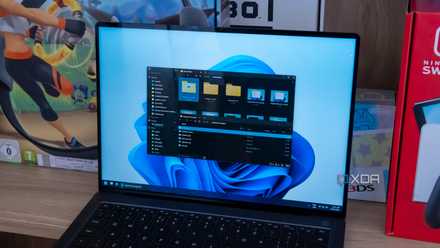
Hands-on: File Pilot may be the best File Explorer alternative yet
The new kid on the block has got some serious chops
The thing is Path Finder is so much more than the basics. It's extremely configurable, including the ability to change the list of items in the context menu when you right-click a file. But the big deal here is the modules. Path Finder can be customized with numerous modules to show additional informaiton or provide extra features. For example, one of these modules is called Drop Stack, and you can drag any file into it to hold it until you can move it into a target folder. You have modules to show file attrributes in real time, permissions, and more. You can choose where these modules go inside the app window, too.
Path Finder costs $30 per year if you choose to subscribe, but you can cancel the subscription at any time and retain access to your current version forever. Spending money may not be for everyone, but considering Finder is very flawed, it may be worth it.
-
Path Finder
Honorable mention: Raycast
While I can't properly call it a Finder replacement, I do want to mention the File manager extension in Raycast, which I wrote about just last week. It doesn't have a full proper UI, but Raycast allows you to easily browse your files using the search bar. It starts the search in your user folder, and you can use the keyboard to type the name of the folder or file you want within that folder.
You can actually browse into sub-folders this way and go as deep as you need to, so you could use this as a Finder replacement in some situations, but it's not meant for every use case. Still, it's a great free solution.
-
Raycast
Power up your productivity on macOS
All of these options offer upgrades over the built-in Finder on macOS, and to some extent, they're all worth checking out. As much as I love Path Finder, I do have a hard time recommending a paid app, so maybe sticking with something like Marta is the way to go if you want a free alternative.