
There's one device I truly couldn't live without, and that's my Steam Deck. I was in the first round of shipments for the original device, I upgraded to the OLED immediately, and even among tempting competitors like the ROG Ally X, Valve's handheld is still the one I reach for. A big reason for that is how much you can do with the Steam Deck, as it shapeshifts between a handheld, a desktop, and with enough console commands, even a server.
Over my years of using the Steam Deck, I've toyed around with just about everything, from DeckyLoader mods to EmuDeck, but there are a handful of small, lesser-known things you can do with the Steam Deck that don't get the limelight they deserve.
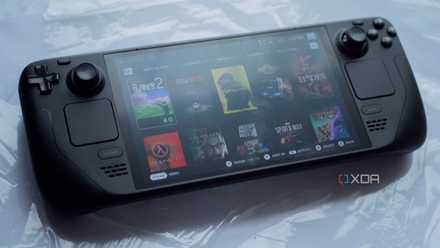
5 SteamOS 3 features that changed the way I game on Steam Deck
So, what are the best features of SteamOS 3? Let's see the 5 SteamOS 3 features that changed the way I game on Steam Deck.
4 Undervolt the Steam Deck for better battery life
You don't even need DeckyLoader
Undervolting the Steam Deck has been around for a while, but it's so easy to do that I'm shocked I don't see more people undervolting. If you have DeckyLoader installed, you can use plugins like PowerTools to adjust a bunch of power and core settings directly from Game Mode. If you're just trying to dial in a quick undervolt, though, all you need to do is head into the BIOS of the Steam Deck. Hold the Volume Up button while turning the Steam Deck on — from being powered off, not from sleep mode — to load into the BIOS. Select Setup, head to the Advanced tab, and you'll see voltages for your GPU, CPU, and SoC.
Out of the box, you can turn each down by up to -50 mV in steps of 10 mV. Start at -10mV on each, boot back into Steam, and start playing some games. If everything is running smoothly after a few days, push down to -20mV and repeat. You can go all the way down to -50 mV, but you'll almost certainly encounter stability issues long before then. You can push the GPU and SOC voltages down lower than the CPU voltage, but it really depends on the silicon inside your Steam Deck. I wouldn't expect much more than a -20mV offset across all three, and a lot of Steam Decks can only achieve a -10mV offset on the CPU.
Regardless, even a minor undervolt can give you a slight battery boost and even a little extra performance. It won't completely change your experience on the Steam Deck, but after dialing in a quick -20mV offset across my CPU, GPU, and SOC, I noticed better 1% lows in demanding games like Elden Ring and Clair Obscur: Expedition 33 that struggle to maintain high frame rates on the Steam Deck. Battery life was also improved, most notably for lighter titles. Particularly when gaming from the cloud, I went from about 9 to 10 hours on a full charge to around 11 hours. That shrinks with more demanding games, but I'll take all the battery life I can get when there isn't a performance penalty.

4 myths about undervolting that simply aren't true
Undervolting is a powerful tool, so it's important to understand how it works.
3 Use KDE Connect for file transfers, notifications, and more
Control with a more convenient touchscreen
If you aren't using KDE Connect, you're in for a treat. KDE Connect comes from KDE, as you might expect, and it allows two computers to communicate with each other, be it for inputs, commands, or even file transfers. Connect is special because it doesn't care about your operating system; it works across Android, iOS, Windows, macOS, and nearly all popular Linux distros, including SteamOS. In fact, Valve's operating system is built using KDE Plasma, and as a result, KDE Connect is built right into the Steam Deck. You don't even need to pull out any console commands to use it.
Instead, you just need to download the app on Android or iOS. Android has a few more features than iOS, but the core functionality is the same. Download the app, head to the Steam Deck desktop, and go into the settings. Under the KDE Connect tab, you should see your phone as a device available for pairing as long as they're both connected to the same network. And that's it. You'll want to install the KDE plugin through Decky Loader, as well, which allows you to turn on the connection from Game Mode, but that's all you need to do to get set up.
You can do a lot with KDE Connect, but the high-level features are straightforward. You can use your phone as a keyboard and trackpad, which is very useful if you don't want to take out a keyboard and mouse when navigating the desktop environment. You'll also see phone notifications on your Steam Deck, and you can transfer files between the two systems; though the speed is limited by your network. If you really want to get your hands dirty, you can even set up custom commands to automatically put your Steam Deck to sleep, switch between desktop and game modes, and so much more.

After bashing it for years, I'm finally loving KDE (and Plasma 6)
I've never been a big fan of KDE and Plasma. I always found it a little messy compared to GNOME and other desktop environments.
2 Play phone audio out of the Steam Deck speakers
Bluetooth goes both ways on the Steam Deck
This isn't something new, but it's a feature of the Steam Deck that doesn't get the love it deserves. You can connect your phone — or any other device — as an audio input on the Steam Deck and use the Steam Deck's internal speakers, and it all happens via Bluetooth. The Steam Deck's speakers aren't great or anything, but this is actually a super useful feature to have around.
If, like me, you like to have a podcast or music playing in the background while you play games, you can do that with the Steam Deck by connecting your phone over Bluetooth. You'll get both game audio and your phone's audio at the same time. There are ways to add apps like Discord, Spotify, and YouTube directly to the Steam Deck's Game Mode, and you can run them in the background while you play games. However, using Bluetooth this way is not only easier than manually configuring non-Steam apps on SteamOS, it also means you don't need a separate app running in the background, hogging the precious few resources available to the Steam Deck.
Setting it up is super easy, too. All you need to do is head into the Bluetooth menu of your Steam Deck and tick on Show all devices. Turn Bluetooth on your phone or tablet on, select it from the list, and you're off to the races. I actually use this setup frequently on flights, connecting both my headphones and my phone to the Steam Deck so I can listen to podcasts while endlessly restarting new Balatro runs.

4 reasons I'm using Proton GE on the Steam Deck, and you might benefit too
If you're facing issues in some games, Proton GE might be the answer.
1 Run Android TV via Waydroid
For docking your Steam Deck
You can run Android on the Steam Deck, and you don't even need to dual boot. That's thanks to Waydroid, which runs Android inside a Linux container. Waydroid has been around for years, but there's a repo on GitHub that's specifically made for the Steam Deck, allowing you to download and install Waydroid, as well as add it to the Steam Deck's Game Mode, with a few console commands. There are a few ways you can take advantage of Android on the Steam Deck. The first is, obviously, running Android apps. There are a ton of games on Android that play perfectly well on the Steam Deck, from Honkai Star Rail to Diablo Immortal that otherwise need specific workarounds.
I use Waydroid for Android TV, however. It's the full Android TV you'd find elsewhere, fit with all the streaming apps you could ever want, and you can navigate the interface with a controller. I particularly like using this setup when I'm traveling, as I can stream movies or TV shows from my Steam Deck rather than pulling out my laptop or carrying around a tablet. If you commonly dock your Steam Deck, you can use it on the big screen, too — I generally prefer Android TV over WebOS that's installed by default on my LG TV.
Unfortunately, Waydroid is broken right now. Each time there's a major SteamOS update, Waydroid and the installation script stop working, and it takes a few weeks for updates to roll out. This doesn't happen with every SteamOS update, but when there's a big change made to the stable channel, you can expect Waydroid to break. It's not a big deal for me, as I usually refresh the installation whenever I'm headed out for a trip, but it's something to keep in mind.

WayDroid can run Android apps on Linux without slowdowns
There are many ways to run Android apps on desktop PCs, but a new solution called WayDroid looks to be the best option for Linux machines.
A ton of flexibility
Valve intentionally designed the Steam Deck for modding. There's no other way to put it. Using a Linux base, a ton of open-source software, and opening up its own software contributions has created a vibrant ecosystem of third-party apps and mods that you can easily set up on your Steam Deck, most of which won't cost you a dime. Valve has taken a lot of notes from the community, too, and that shows up in everything from Bluetooth control via the quick access menu to KDE Connect being built right into the settings.