
Windows PCs are pretty easy to use, whether you’ve got a new laptop or one of our favorite gaming PCs. The most common way to control your Windows PC is through your mouse or keyboard. You can also remote into a Windows PC and access it when it’s not physically nearby. Another method, which many people don’t take advantage of, is voice control. With Windows 11, Microsoft introduced a feature called Voice Access, which lets you control your PC using your voice. It has a long list of commands that will enable you to open apps, write text, and more. Plus, there are other ways you can use your voice to control Windows.
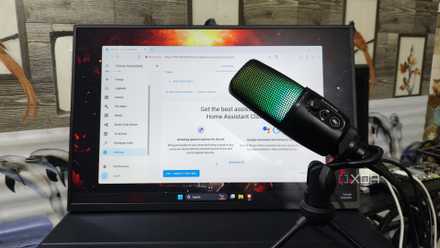
I control Home Assistant with my voice – here’s how you can too
Level up your smart home experience by adding voice control functionality to Home Assistant
4 Enable Voice Access
The power of the spoken word
You can use Voice Access to navigate and interact with Windows by speaking different commands, actions, keys, and keyboard shortcuts. For example, you can open and switch between apps, browse the web, and even handle your emails using your voice.
Voice Access has three different modes, depending on what you need. The default mode lets you switch between giving commands and typing out text. There’s a command mode, if you only want to issue commands without dictating. Or, you could utilize a dictation mode if you just want to speak to type out text (without giving any commands). Also, Voice Access doesn’t need an internet connection to work, unlike the Voice Typing feature we'll get to below.
This accessibility feature is particularly useful for those who can't use a mouse and keyboard due to physical limitations. If you want to give Voice Access a try, here’s how to set it up and get started.
- Open the Settings app on your PC.
- Select Accessibility from the left-side menu.
- Click Speech, then click the Voice Access toggle to switch it to On.
- A bar will pop up at the top of your screen. Click Download to install Voice Access.
After the service is installed, the Voice Access guide app will open to walk you through the basics of using Voice Access. You can also refer to our guide for setting up Voice Access on Windows 11.
3 Use Voice Typing
Perhaps you need a keyboard alternative
While Voice Access lets you control different tasks and type with your voice, Voice Typing (called Windows Dictation on Windows 10) is just for typing. To use the Voice Typing feature, make sure you're connected to the internet, have a working microphone, and have your cursor placed within a text box.
Press Win + H twice, and it’ll start listening automatically. To stop, just say “stop listening” or hit the mic button on the floating window. You can also say “delete that” or “scratch that” to erase the last word or phrase you spoke. By default, Windows requires you to speak punctuation marks, like “comma” or “period,” out loud while dictating. If that feels like a hassle, Windows 11 also offers the option to insert punctuation automatically. Click the gear icon in the Voice Typing window and turn on Automatic punctuation.
However, during my testing, I found that automatic punctuation wasn’t very reliable. I had to go back and edit the text over and over. You’re probably better off just speaking the punctuation while voice typing. Besides, the automatic punctuation feature isn’t available on Windows 10.
2 Invest in speech-to-text software
There are excellent options beyond the OS
If you're a professional looking to do even more with your voice on Windows, you might want to consider investing in dedicated speech-to-text software. One solid option is Dragon Professional, priced at $699 for lifetime access. This speech recognition software was made by Nuance Communications, a company specializing in speech recognition and AI products, which was acquired by Microsoft in 2022.
Dragon can recognize live speech and instantly convert it to text. It can also transcribe existing audio files on your computer. One of the standout features of Dragon Professional is the ability to create custom voice commands. This lets you automate tasks, like using a specific phrase to insert standard boilerplate text, or adding your signature to documents with a simple voice command.
1 Get a voice assistant
Step it up, Alexa
Microsoft killed Cortana last year (may she rest in peace), leaving Windows without its own voice assistant. The only real voice assistant you can use on Windows is Alexa. It can answer questions, play music, read the news, and set alarms or reminders. It also lets you control your smart home and manage to-do lists, both manually and with voice commands.
You can also (unofficially) get Google Assistant on your Windows PC. Google doesn’t offer an easy, official way to use its assistant on Windows, but thanks to the open nature of the Google Assistant project, there are workarounds such as using the Google Action Console which can get it working on your PC.
Use Windows with ease
You can easily control Windows with features like Voice Access and Voice Typing, as long as you have a working microphone. To make your Windows PC even easier to use, try these keyboard shortcuts or check out our favorite tips to help you get the best performance out of your PC.

5 reasons Windows updates as often as it does
Ever wonder why Windows updates so often? Here are the 5 main reasons behind this mystery of the universe