
Almost everyone has to use a PC or laptop for work nowadays, whether you work in an office, work from home, or are studying in school. Since Windows 11 is one of the most popular operating systems in the world and is, in most cases, the defacto operating system for businesses, it's a good idea to learn some of the more specific Windows shortcuts which can help you shave valuable time off of your already overworked schedule.
While most people will already know a few of these shortcuts by heart, there may be a few that you never knew about or have just completely forgotten existed. So, if you're looking for a way to speed up your workflow in the office or just don't feel like dragging your mouse around the screen constantly, then make sure to bookmark this list for future reference so that you can do more with less.
If you are using a laptop, you may have to use Shift with any function key (F1-F12) shortcuts because laptops often have their own functions mapped to the function keys.
5 The basics
Shortcuts everyone should know
To start this list, we would be remiss to not include the most basic shortcuts that absolutely every Windows user should know. These shortcuts can be used on most applications and will save you a ton of time during day-to-day work. To get the obvious shortcuts out of the way, you can use the Copy (Ctrl + C) and Paste (Ctrl + V) shortcuts to easily move content from one page to another.
If you want to automatically delete the original text, then you can use the Cut (Ctrl + X) shortcut instead. To paste text without keeping the same format (i.e. headings/font/bold/italics) use the Ctrl + Shift + V shortcut. If you want to select all text, then use Ctrl + A, and you can also use the clipboard history (Win + V) to see all the text and images you've copied.
If you make a mistake, use Undo (Ctrl + Z) anytime; and if it wasn't a mistake, use Redo (Ctrl + Y). If you can't see something, Zoom In (Ctrl + Scroll up), and if the text is too big, Zoom out (Ctrl + Scroll down). If you want to go side to side when you're zoomed in, then use Shift + Scroll instead.

The 6 best Windows 11 features you probably didn't know about
If you are looking for new ways to improve your workflow, then check out these hidden gems
4 Shortcuts for Windows applications
Navigate Windows like a pro
It's common knowledge that if you run into a problem with an application, you can access Task Manager by pressing Ctrl + Shift + Delete, but it's actually easier to just use Ctrl + Shift + Esc. If you’re someone who works with a lot of files, then use the File Explorer (Windows key + E) shortcut to quickly open the window and navigate through your folders.
If you need to know more information about your PC, then you will want to know how to quickly access the Settings (Win + I) menu, and if you like launching apps with the keyboard, it's good to know how to use the Run dialog box (Win + R). And if you still need access to more advanced applications in an easy-to-use list, then use the Quick Link menu (Win + X) shortcut, which will give you easy access to Windows' most important apps and features.
If you have a lot of programs that you need to use every day, then make sure that you take advantage of the taskbar shortcuts. If you pin your programs to the taskbar, you can use the shortcut (Windows + Number key) to open the corresponding application. An alternative to this is to use the Win + T shortcut to cycle through the pinned programs on the taskbar.

5 Windows 11 settings you should change now
If you've started up your new PC or laptop for the first time, make sure you change these 5 Windows 11 settings first
3 Shortcuts for multitasking
Organize your windows with just a few keys
Navigating Windows 11 can also be very frustrating when you are juggling a lot of tasks, and this is made worse when you have multiple screens running different programs. To easily manage all your applications on Windows, use Alt + Tab to quickly cycle between programs or, if you are using multiple desktops, use Win + Tab to open the task view, then use Win + Shift + Tab to switch between your active desktops and tasks.
If you don't want to see any of your windows or just need to get back to your desktop without closing/minimizing every application, then use the Hide/Show desktop (Win + D) shortcut. If you are someone who has at least two windows on their screen at all times, then you should use the Win + arrow key to snap windows in different layouts on your desktop.
The left and right arrows will snap your window to the side of your screen, whereas the down and up arrows will maximize and minimize your windows respectively. If you are mirroring your screen on another monitor or sending it to a second screen wirelessly, then you can use the Project (Win + P) and Cast (Win + K) shortcuts.

Windows 11's snap layouts and snap groups make multitasking easier
Windows 11 is introducing two new features for those who multitask a lot: Snap Layouts and Snap Groups. Read on to know more!
2 Shortcuts for internet browsers
Will work on most Chromium browsers👁 Screenshot of the default homepage in Google Chrome
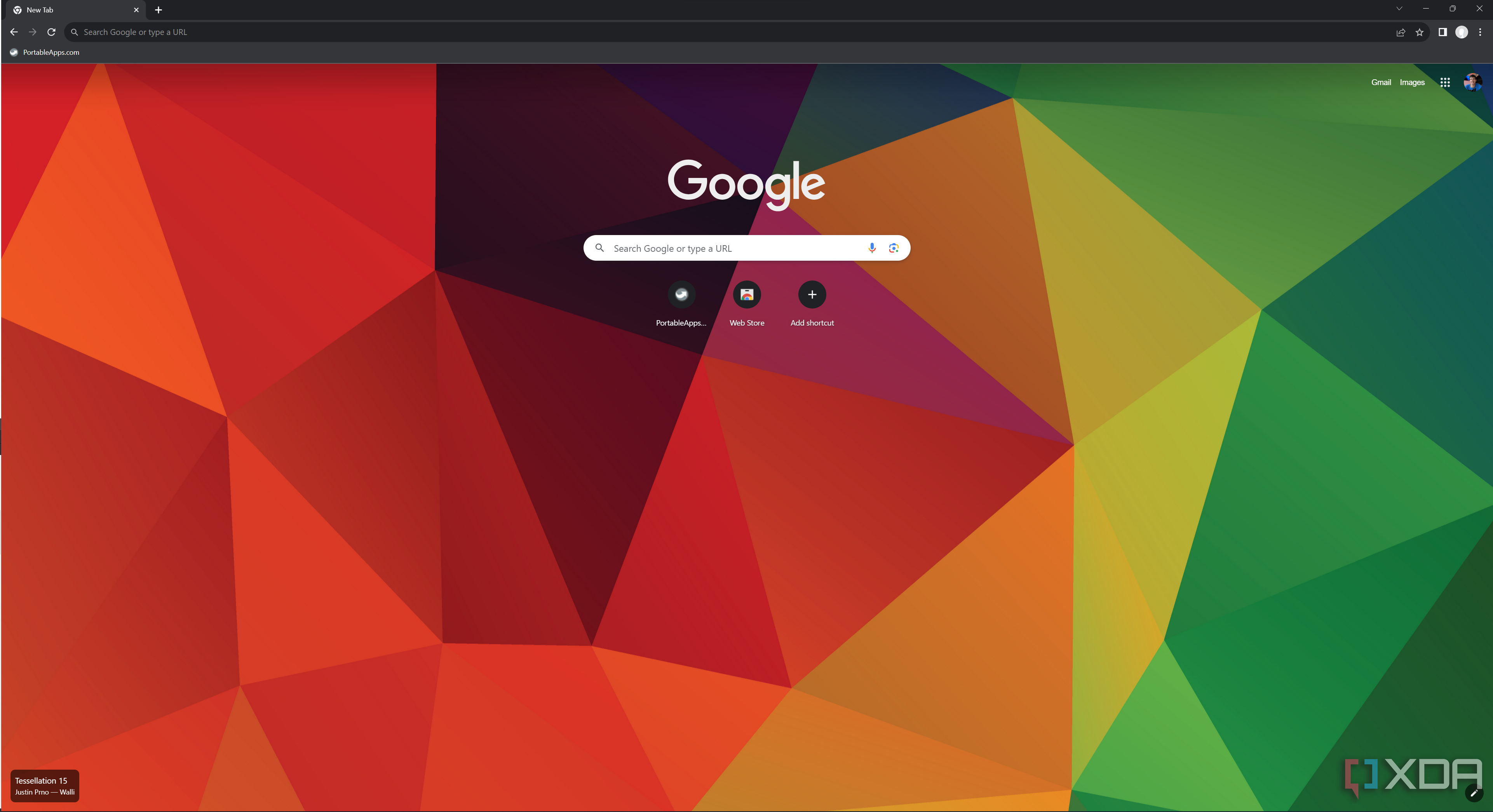
Using the internet is a part of our everyday lives and this is especially true in the workplace. These shortcuts are for Google Chrome, but they should be similar if not the same on most modern browsers. If you are constantly opening new tabs or splitscreening, then using the New Tab (Ctrl + T) and New Window (Ctrl + N) shortcuts can help speed up your workflow.
When you are done with a tab, you can close (Ctrl + W) it, and if you change your mind, you can Restore your last closed tab (Ctrl + Shift + T). If you want to cycle between tabs in your browser, you can use the Ctrl + Tab and Ctrl + Shift + Tab, and if you want to go back or forward on a tab, you can use the Alt + arrow key shortcut. If you’re always struggling with slow internet or a bad connection in general, then you can Refresh (F5) the page. And if you're filling in forms or editing text fields, then you can use Tab and Shift + Tab to cycle between fields in standard or reverse order.

How to speed up Google Chrome
While Google Chrome is one of the fastest browsers available, the program can sometimes slows down. But, you can troubleshoot the issue.
1 Shortcuts for Office suites
Will work on Microsoft and Google software
Whether you are using Microsoft Word or Google Docs, these shortcuts should give you quick access to all your most important tools on the platform and will shave a lot of time off your workday if you use them often. When you write text you can easily Bold (Ctrl + B) and Underline (Ctrl + U) any important words. If you are talking about a place or publication you may want to Italicize (Ctrl + I), or if you want people to go to a specific webpage, you can Insert links (Ctrl + K) with this shortcut.
To activate more advanced tools, you can use the Find (Ctrl + F) shortcut to locate certain words and know how many times you used them, or you can use the Find & Replace (Ctrl + H) function to change all instances of the word to something else. And don't worry if you didn't spell the word correctly as you have quick access to a Spellchecker (F7) too.

Best Microsoft Office alternatives in 2023
Microsoft Office is one of the most popular productivity tools in the world, but what if you don't want to pay for it or don't like the UI?
Too many shortcuts and not enough time!
While it may seem overwhelming to try and remember every shortcut you can use while you work, a lot of these shortcuts can be used to do the same thing in multiple different applications, and may even work on other operating systems.
So, by using this logic, you will only have to focus on the more specific shortcuts for the types of applications you use and remember those. If all else fails, there are hundreds of Windows 11 Shortcut printables that you can simply print out and paste on your desk for easy reference.
If you have programs you use every day, and Windows doesn't have a shortcut to open them specifically, then make sure to pin them to your taskbar so that you have dedicated shortcuts for them. If this still isn't useful enough for you, then you can always buy a new keyboard that has additional macro keys which you can use to perform certain actions or open programs with.

10 essential macOS keyboard shortcuts every Mac user needs to know
If you don’t use these shortcuts, you’re doing it wrong