
One of Linux’s biggest problems on the desktop isn’t stability, performance, or even software availability anymore. Rather, it’s the first impression. A fresh Linux install often works, but it doesn’t always feel good to use right away. The frustrating part is that most of what makes it feel rough isn’t fundamental to Linux at all, it's just default behaviors.
With a handful of tweaks you can make on first boot, plus a few lightweight tools worth installing, you can dramatically improve the day-to-day experience without changing your distro, replacing your desktop environment, or touching the terminal much at all.

5 GNOME tweaks that I can't live without
Here are some tweaks I always make to GNOME after installing a Linux distro.
Fix touchpad behavior
The defaults don't feel great
Touchpad behavior is one of the fastest ways Linux can lose a new user. Out of the box, both GNOME and KDE Plasma tend to ship with conservative defaults that don’t match modern laptop expectations; things like natural scrolling and tap-to-click are often disabled, and right click behavior can be weird.
On GNOME, these fixes live under Settings in Mouse & Touchpad. Enabling natural scrolling, tap-to-click, and two-finger right-click takes seconds, and once you do, everything feels a lot more natural. If you're on KDE Plasma, you have even more options. It's found under Input Devices, where you can control things like palm rejection and pointer speed there.
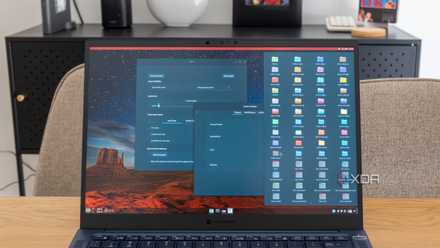
I tried Linux Mint as a lifelong Windows user, and the customization blew me away
Linux Mint is on a whole different level
Fixing display scaling and fonts
High resolution monitors might have issues
Out of the box, high resolution monitors might look a bit wonky in Linux, because their scaling defaults aren't tuned for them. This results in tiny UI, mistmatched app sizes, and very blurry text. That last one can also be a font issue, which is also very fixable.
GNOME offers fractional scaling under Settings, in Displays, though it can introduce slight blur in some apps. When that happens, increasing font scaling instead often produces better results. KDE Plasma handles fractional scaling more gracefully and exposes global scaling directly in its display configuration panel.
Both GNOME and KDE allow you to improve fonts further without heavy customization. KDE Plasma exposes subpixel rendering and hinting options directly in System Settings > Appearance > Fonts, while GNOME users can use GNOME Tweaks to set better default interface fonts. GNOME Tweaks is a great install in general, and allows for a ton of extra customizability that isn't available by default.
New to Linux? Here are 7 of the best beginner-friendly distros for you to try
Get up and running with Linux in no time.
Install a good system monitor
Mission Center may feel more like home
For those that want a good Task Manager equivalent on their Linux machine, Mission Center is probably the best option. Using the top command might suffice for a lot of people, but sometimes a GUI is just a lot more useful. You could also try GNOME Usage, or if you're on KDE, the included System Monitor is perfectly usable as well.

I tried out these 5 Linux desktop environments that aren't GNOME or KDE, and they're surprisingly decent
But KDE Plasma is still the king of desktop environments
Use Flatpak
Flatpak solves a lot of issues for new Linux users
One of the easiest ways to improve the Linux desktop experience has nothing to do with visuals at all, but instead it’s how applications are installed and updated. Mixing system packages, third-party repositories, and one-off downloads is a fast way to end up with dependency issues, mismatched themes, or apps that behave differently from one system to another. Flatpak helps smooth over a lot of that friction.
Flatpak packages applications with most of their dependencies, which means the app you install is largely isolated from the rest of your system. In practical terms, that leads to fewer broken updates, fewer conflicts, and a much more predictable experience, especially on desktops that you want to “just work.” If you’ve ever had an app stop launching after a system update, Flatpak exists largely to prevent exactly that scenario.
On most modern distributions, Flatpak is either already installed or a single checkbox away. GNOME Software integrates Flatpak seamlessly, often without users realizing it, while KDE’s Discover does the same once Flatpak support is enabled. Adding Flathub, the main Flatpak repository, is typically a one-time step, after which installing apps feels no different than using a mobile app store.

I run these 4 commands first on every fresh Linux install
This is a good place to start if you're new to the platform.
Install a better file manager
The defaults are fine, but alternatives are even better
Default file managers are designed to be safe and simple, but they can feel limiting once you start managing real data. Adding a secondary file manager focused on power workflows can make a huge difference without replacing the default one.
Double Commander is a standout option thanks to its approachable dual-pane layout. Krusader goes even further, especially on KDE systems, while Nemo offers a more flexible alternative for GNOME users who find Nautilus restrictive.
These 7 Linux myths you still believe simply aren't true
Linux is a completely different beast than it was a decade ago.
The best tweaks are often the simplest
Linux doesn’t need a dramatic overhaul to feel good on the desktop. Most of the friction people experience comes down to defaults that haven’t caught up with modern expectations, not hard technical limitations. A few minutes spent fixing touchpad behavior, cleaning up scaling and fonts, installing a clearer system monitor, and standardizing app installs with Flatpak can completely change how a system feels day to day.