
Let's say you've just bought a 7-port USB hub to clean up your desk. It feels like a productivity win, you've managed to clear your desk of so many cables and plug a whole load more devices into your laptop. But suddenly your mouse starts stuttering and your backup drive keeps disconnecting.
Most users treat USB hubs like power strips, but unlike a power strip, a USB hub shares a finite amount of data bandwidth and power across every single port. Just because the device has a USB plug, it doesn't mean it should live on a hub. To avoid ghost disconnections and hardware lag, you need to know which peripherals to monitor direct line to your motherboard.
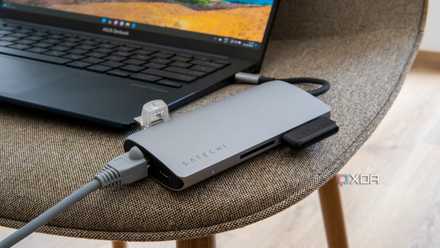
Please stop treating your USB hubs as port replicators
It's not quite the same
An external SSD
You're creating a bandwidth bottleneck
Modern NVMe SSDs can hit speeds of 1000 MB/s. When you plug it into a hub alongside a webcam and a keyboard, you aren't just sharing power, but you're forcing that SSD to wait its turn in a data queue. Realistically, you might think that it's working because the drive shows up in Windows, but your file transfers can take twice as long, and you might experience data corruption if the hub's controller momentarily resets under load. You might also find it takes a while to access files from your SSD thanks to these blips in speed.
Even worse are unpowered hubs, which are particularly dangerous here because SSDs have high peak power draws during write operations. These can exceed what a single laptop port can output. If the USB hub that you're using doesn't have enough power to provide to your external SSD, you might find that it regularly disconnects or appears in Windows but then can't be opened like a ghost connection. If you're using an external SSD, always plug it straight into your PC or laptop to avoid data corruption.
A high-resolution webcam
The frame drop culprit
If you're using a 4K webcam, you'll notice that it requires a massive, consistent stream of data. Sometimes, even high-end 1080p 60fps units require the same. As a result, when using a webcam, your video might look choppy or stuttered on Discord, Zoom, or your stream if you have it plugged into a USB hub that can't support this data transfer.
You might also find that the hub is struggling to prioritize the video stream alongside other data-heavy peripherals you might have plugged into it. High bandwidth video should always have a dedicated lane. If your webcam is flickering, the hub might be the culprit here, as it creates a data bottleneck.
If you're not too fussed about the quality of your webcam, then opting for a low-resolution camera can help remove some of this bottleneck. If you just don't have the USB ports in your device and need it to be plugged into a USB hub. It's also worth noting that many laptops have built-in webcams which might not look great but can be brought to life with a few tweaks from camera adjusting software like Nvidia Broadcast.
An external GPU
No high refresh gaming found here
It can be common for USB hubs, particularly USB-C kinds, to feature an HDMI port. But just because that port is there, it doesn't mean that it can handle high refresh gaming. Standard USB hubs use Display Link, a software-based GPU or alt mode which can be heavily compressed.If you are using your external GPU or even a display adapter through a USB hub, then the quality of your picture just won't be up to your expectations. It might feel like it works because you do get a picture, but you'll likely notice input lag or shimmering artifacts. True external GPUs require Thunderbolt 3 or 4 or even USB 4. You'll find that standard USB 3.0 hubs simply don't have the pipes to handle raw video signals.Ensure that your external GPU has a direct connection to your laptop or PC. If your laptop or PC doesn't support Thunderbolt 3 or 4, or USB 4 as an alternative, then maybe reconsider whether you'll be getting the full benefit out of your external GPU at all.
A high polling rate gaming mouse
It won't be high polling at all
Modern gaming mice now support 4000 Hz or even some going up to 8000 Hz polling rates. These are super beneficial for gaming as they send data up to your PC thousands of times per second, making sure you always have close to instant reactions as you move your mouse. Plugging them into a hub adds micro latency and jitter because the hub's controller has to multiplex that signal with everything else. For those that have normal gaming mice, this likely won't be an issue as the polling rate might not be that important to you. However, if you're a competitive gamer, then the hub is effectively adding ping to your hand movements which can create major issues for you in-game.
Ensure that you're plugging your mouse's wireless adapter directly into your PC or laptop for the quickest speeds on offer. However, better yet, if you're looking for absolutely zero latency, then go for a wired connection. But again, don't filter this through a USB hub if you want the fastest connection possible. If you're not gaming competitively, then the very minimal lag that this adds is probably something that you wouldn't notice anyway.
Another USB hub
The daisy chain disaster
Whilst many USB hubs do technically allow for tiering, which is where you connect another hub, each added hub increases the latency and the voltage drop. You'll often notice devices on the second or third hub will randomly disappear and reappear, which is called cycling making them practically unusable. This is usually the host controller on the motherboard giving up because the electrical signal has degraded too much and it just cannot recognize the device in the slightest as a result.
Rather than daisy-chaining, make sure your hubs are all plugged directly into your device. Where this isn't possible, peripherals and devices that are connected to the second or third hub in the daisy chain should be low latency, low voltage devices which won't need too much of a power draw and definitely shouldn't be any that are listed above. This way, you may still be able to use them, but this isn't always a guarantee.
There are never enough USB ports
As modern laptops slowly decrease in the number of USB ports they have on offer, USB hubs are becoming increasingly popular. They can be fundamental tools to a setup and also help you clean up your desk space by keeping all the cables hidden away. However, not every peripheral or external device is suited to being plugged into a USB hub.
They might seemingly work because they appear in Windows, but that doesn't mean that you're getting the full benefit of your device, and you may even be risking damaging the device or corrupting your files. Make sure you know that a device is suited to be plugged into a USB hub before doing so.
Anker 555 USB-C Hub (8-in-1)
- Connection
- USB-C
- Ports
- 8
The Anker 555 is a good value dock, opening up access to an HDMI port, USB-C and two USB-A data ports, Ethernet, and a microSD and SD card reader.
- Maximum display resolution
- 4K