
There's nothing more frustrating than having a big Youtube binge or a movie night interupted by buffering. Slow internet, poor connection, or a slow device can all contribute to ruining your streaming experience at home, whether its on your PC, phone or TV.
Luckily, there are some steps you can take to improve your home streaming experience. These tips won't be relevant for everyone, and might depend on the hardware you've got available, but they're a good place to start debugging. Hopefully, with a little investment of time, you'll be back streaming seamlessly. Here are our five top tips for improving your video streaming experience on your home network.
5 Use a wired connection
Okay, okay, we know this is dead obvious. But, if you're having consistent connectivity issues with your home devices then this is the first place to start. By connecting with a physical cable you can avoid a whole selection of issues and save yourself time troubleshooting.
We'd suggest this as a first place to start if you're having issues. If the problem isn't solved, then nothing ventured, nothing gained. If it does, you've at least isolated the problem and can continue to debug from there. If you're in a location that's difficult to access with a physical cable, you can always use a powerline adaptor to establish connection to another part of your house. It's not perfect, but it's a good starting point.
4 Limit other traffic
Another good place to start debugging Wi-Fi issues is to take a closer look at what the other devices on your network are doing. If you've got a custom router running pfSense/OpenSense, or another reasonably high quality router, you may be able to see the live bandwidth being consumed by each device. If that's not the case, there are some other things you can try.
If you've got relatively few devices on your network, try disconnecting other devices and testing your streaming again. If that's a bit tricky, you can always use your routers' parental/bandwidth controls to limit the traffic to each device. Most modern routers support this, and it's an easier way to isolate bandwidth than manually monitoring each device.
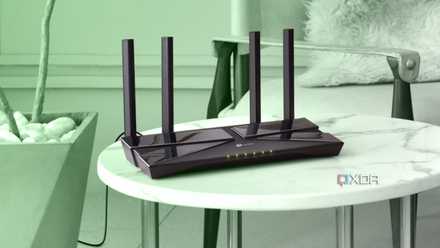
How to check if someone is stealing your Wi-Fi
Check if someone is stealing your Wi-Fi with these simple methods and learn how to kick them out
3 Setup QoS on your Router
QoS (or Quality of Service) is another way of throttling or controlling traffic on your network. Usually it's managed on either a per-device or per-application level, and allows you to prioritise some traffic over others. This can help solve some streaming or gaming issues if your network is congested and your traffic is struggling to get through.
We'd suggest setting up QoS on a per-device basis for the device you're having trouble with, and testing out streaming again afterward. Specific instructions will differ based on your router, but you can usually find QoS under something like 'Traffic Management' or 'Bandwidth Control'. From there, you can set priorities for your traffic, as well as bandwidth allocations, on a per-device level.
Unfortunately, this isn't a magic bullet, and can only help deal with congestion on your router. Your network or internet speed won't magically improve by setting priorities. We'd suggest testing this out with a normal network load, and reverting your changes if you don't see improvements.
2 Optimize your Wi-Fi
There's a million and one guides online about improving your Wi-Fi signal (including from XDA), so we won't rehash everything here. But here are some quick tips for basic ways to improve your connection.
Keep your router in a central location
Keeping your router / access point centrally in your home can help improve signal to all parts of your house, and reduce the number of heavy, exterior load-bearing walls your signal is likely to have to travel through.
Reduce interference
Honestly, I've never been entirely convinced this one makes too much of a difference, but its worth trying out anyway. Keep your devices away from any heavy metal objects, thick or load-bearing walls, or away from any other devices with large emitters in them like microwaves.
Reduce channel interference
This one is a little more tried and tested. Use a channel analyzer (there are loads of free apps available for your phone) to ensure that all your Wi-Fi devices aren't all piling up on the same channels, or interfering with each other. If your local airspace is simply overloaded with lots of signals, you might find some luck manually setting your router to always stay on a less congested channel.
Check your transmission power
This is a little more niche, but many ISP routers have a transmission power setting that doesn't always default to the highest possible value. It might be a little unsociable to your neighbors, but if you're having issues, we'd suggest ensuring that this is set to its highest possible setting. Most countries regulate the maximum transmission power of consumer devices anyway, so you don't have to worry about anything too egregious.

4 reasons you should build your own pfSense router
Take your home network to the next level (and learn something along the way) with a custom pfSense build
Cool your router
This is often a big issue in the UK (partially thanks to our habit of wiring routers in under stairs, sofas and all manner of other things), so your mileage may vary, but your router is a device that can overheat. Especially with cheaper consumer routers, their performance can often be hindered significantly by overheating if left unchecked. We'd suggest checking the temperature of your router with a quick touch-test to the outside casing, and leaving it switched off to cool down for a while if it's hot. If you're persistently having issues with poor performance or dropped packets from an overheating router, consider moving it to somewhere with better airflow or easier heat dissipation.
1 Upgrade your router
We've talked a lot recently about some of the best Wi-Fi routers available currently, as well as some of the benefits of building your own router using something like pfSense. If you're having persistent problems, this is one of the best upgrades you can make to your network. Not only will you get the latest technologies like Wi-Fi 6, dual or tri-bands, and 5GHz if you haven't already, you'll ensure that any performance bottleneck on your router itself is removed.
This is inevitably an expensive option, so we'd suggest testing things out beforehand. Other options for upgrades you can make if you're stuck with an ISP modem/router combo include adding a second access point, setting up a Wi-Fi Mesh, or using powerline adaptors to connect via a wire to your router.
There's plenty of debugging options for poor streaming performance
If you're struggling to get your favorite movies and shows delivered to your devices, then dont't fret. There are plenty of options to try to improve your Wi-Fi performance, and while this list is far from exhaustive, it should give you at least a good starting point when debugging your network. You also don't need to immediately go out and splash cash on new hardware. Often what you've got at home is more than sufficient if configured/placed properly.
One final point is that it's often worth contacting your ISP about poor network performance. Sometimes a fault on your line can cause them to throttle your connection slowly over time, and some ISPs offer guarantees about Wi-Fi signal in your home and will provide extenders or mesh networking components free of charge. It might be a hassle to get them on the phone, but can often be worthwhile.