
When you copy something on your Windows PC, it gets saved in the clipboard, where it remains until you copy something else or shut down your computer. This isn’t anything special, but the Windows clipboard can be a lot more useful if you know the right way to use it. For example, the tool actually lets you save up to 25 pieces of text or images for later. You can access these on the same PC, a different one, or even on your top Android phone. Here are five Windows clipboard tips and tricks everyone should know about.
How to enable clipboard syncing in Windows 11
Clipboard syncing in Windows lets you easily move images and text across your Windows and Android devices. Here's how to enable it.
5 Use clipboard history
Save multiple items to your clipboard
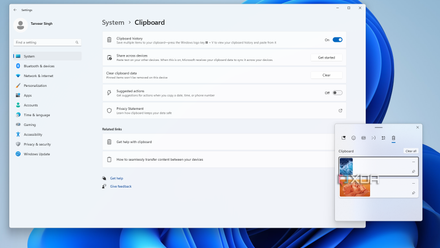
The clipboard has a hidden feature called clipboard history that allows you to see a list of your most recently copied data. Clipboard history is made up of entries that you select and either right-click on or press Ctrl + C to copy. Usually, when you copy text or an image, it gets erased once you copy something else. However, Clipboard history stores the last 25 objects you've selected, including text, code, and images, allowing you to easily copy and paste from your history.
To turn on this retention feature, go to Settings > System > Clipboard. Toggle the switch on for Clipboard history. Once enabled, you can press Win + V at any time to view your clipboard history. You won’t have to worry about your PC’s memory filling up with unnecessary items indefinitely. As new things are copied, the oldest ones are automatically removed, and your clipboard history is cleared every time you restart your device.
4 Sync clipboard content across your devices
Paste text from your PC to your Android phone
You can use the Windows clipboard sync feature to transfer copied items between your devices. Clipboard syncing allows you to quickly move frequently used images, links, and text between your Windows desktop, laptop, and even your Android phone. All you need is the same Microsoft account across your devices.
The easiest method to turn on clipboard syncing in Windows 11 is to use the Settings menu. You need to turn on Clipboard history to use this feature. Here's how to do so:
- Open Settings > System > Clipboard.
- Enable the toggle for Clipboard history as per above.
- Click the Get started button next to the Share across devices option.
- In the pop-up window, verify the email address you want to use on all your devices.
- Turn on Clipboard history across your devices and choose your preference between Automatically sync text that I copy or Manually sync text that I copy.
After enabling clipboard syncing on your Windows desktop or laptop, you can sync your favorite items to your Android phone. Download the Microsoft SwiftKey keyboard and sign in with the same Microsoft account to get started.
- Download and install SwiftKey AI Keyboard from the Play Store.
- Log in with the same Microsoft account you use on your other Windows devices.
- Go to Rich input > Clipboard and enable Sync clipboard history.
3 Use the pin feature
Keep items handy
The pin feature in the Windows clipboard is a useful tool for items you frequently use. Instead of copying the same text or image multiple times, you can pin it for easy access. For instance, you might pin a common email signature that you use in professional correspondence or keep a frequently used promotional code handy for online shopping.
To pin an item, click the pin icon next to it in your clipboard history. Pinned items remain accessible in the clipboard history even after you shut down your PC, unlike other entries which will inevitably disappear.
2 Enable suggested actions
Call someone or add things to your calendar easily
Windows 11's clipboard has a suggested actions feature that provides suggestions to open an app, make a call, or create an event. This feature only works when you copy dates, times, and phone numbers.
You can use this feature on almost all platforms, including Notepad, Gmail, Sticky Notes, and web browsers like Google Chrome, Microsoft Edge, and more. For example, after copying a phone number, click on your favorite calling app, like Teams or Skype, next to the "Call number" option to make the call. If you copy a date or time, you can add it to your calendar by selecting your calendar app and filling in the details.
1 Use a shortcut to clear clipboard history
It's faster
If you've enabled Windows clipboard history, you can clear items on an individual basis by clicking the three dots next to the entry you want to remove, then choosing Delete.
If you want to remove your entire clipboard history, click the Clear all button in the upper right corner of the clipboard history. If you want to clear the clipboard without having to open the clipboard history each time, create a dedicated shortcut using the steps below:
- Right-click on the desktop and select New > Shortcut.
- In the Create Shortcut window, type cmd /c echo off | clip command.
- Click Next, name the shortcut, then hit Finish.
Copy and paste with ease
The Windows clipboard makes it super easy to access your copied items on different devices. If you want to take your copy-paste game up a notch, check out the new AI-powered copy-pasting feature in PowerToys. While you are at it, learn different ways to copy and paste on a Mac.

How to copy and paste on Linux
Copying and pasting on Linux is the same as it is in Windows, with one exception regarding the terminal