
You've probably already heard the standard pitch for WSL. Windows Subsystem for Linux gives users an environment to run Linux apps, commands, and graphical tools. That pitch is accurate, and the fact that you can access Linux without dual-booting or spinning up a separate VM is reason enough to install WSL. But there's another handy way to use it that you may not expect. I like to take advantage of the Linux cron utility to automatically run scripts against my Windows filesystem, which is natively accessible under WSL.
Most guides on Windows automation will point you toward Task Scheduler and PowerShell, which admittedly are capable tools. But there's something I like about using cron. Its configuration is straightforward; it's easier to get an overview of all tasks at a glance, and it doesn't require me to use a GUI wizard tool every time I want to schedule something new. Plus, I get to script out tasks in Bash. The combination of cron's simplicity and using Linux tooling on Windows files is what makes WSL viable as an automation layer.
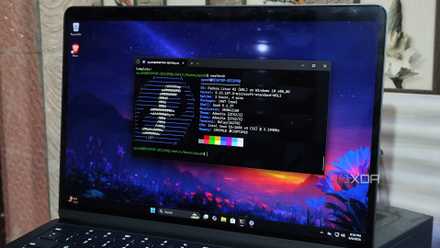
WSL2 isn't perfect, but it's the perfect amount of Linux for most people
WSL2 on Windows isn't the perfect option power users want, but it's good enough.
There's a small initial setup
Configuring cron to start automatically
One small caveat is that WSL (and therefore cron) doesn't start up automatically with Windows. To activate your automated tasks, you would need to manually launch WSL. Even closing WSL afterward is fine, but it needs to be launched once to get the background service up. Getting WSL and cron running at startup is the one remaining thing I use Task Scheduler for. If you want your cron jobs to take effect as soon as Windows loads, this is a one-time prerequisite step. It only takes a moment to set up, and the task just keeps WSL active in the background (nothing visible to the user).
Start by creating a new task, and naming it Start WSL (or whatever you prefer). Make sure you check the Run whether user is logged in or not box or this won't work. Select At startup for the trigger, and Start a program for the action. Enter wsl.exe for the program, and -d Ubuntu-24.04 --exec sleep infinity for the arguments, substituting your own distro where it says Ubuntu-24.04. To get the exact name of your WSL distro, type wsl -l into a PowerShell terminal. That's all there is to it. Now WSL and your configured cron jobs will run when you boot into Windows, without any intervention on your part.
Cron gives Windows a new way to schedule tasks
A plaintext alternative to a GUI wizard
Using cron inside of WSL is identical to using it on native Linux. Execute crontab -e to start setting up jobs. For example, I use this line to call my rsync backup script every night at 2AM:
0 2 * * * /home/user/rsync.shKeep in mind that WSL (and cron) can interact directly with your Windows filesystem — the C: drive is accessible under /mnt/c by default, but WSL can also see secondary drives or other storage you have plugged in. I take advantage of this feature by having cron clear my Windows cache folder once a week (every Sunday at midnight):
0 0 * * 0 rm -rf /mnt/c/Users/Username/AppData/Local/Temp/*Yes, I know Storage Sense is already supposed to cover routine cache cleanup. I use it, too. But there's a level of transparency and simplicity to cron that Windows often lacks in its menus. With cron, I control automated tasks with precision and don't need to wonder what unmentioned things a GUI checkbox may or may not include.
Windows executables can also be called directly from cron, which allows for some interesting options. It sounds ironic, but WSL's cron can even keep all your Windows apps up to date. This line uses WinGet to check for newer versions of all installed software, and silently install all available updates:
0 8 * * MON /mnt/c/Users/Username/AppData/Local/Microsoft/WindowsApps/winget.exe upgrade --all --silent --accept-package-agreements --accept-source-agreementsThat task is configured to run every Monday at 8AM. For this one, I'd argue that using Windows' own automation tools is actually more difficult. Tasks that have long, trailing arguments read better in cron than in a graphical wizard, and wiring them up is more straightforward.
WSL isn't always the right call
You can still do everything without Bash
To be fair, everything I've described is also achievable without WSL. PowerShell has Task Scheduler integration and a better object pipeline than Bash for certain tasks, including the ability to manipulate structured data. If you already have PowerShell scripts configured for your automated tasks, there's no advantage to dismantling them just to port them over to WSL.
Save on Workstation Gear: Deals for Better Productivity
The reason I find WSL's cron beneficial is that I'm already comfortable writing Bash scripts, and I wanted to bring that same muscle memory to Windows. I do also find Task Scheduler genuinely cumbersome to use, particularly when a job has long arguments or depends on another script running first. Cron handles both gracefully, and the whole schedule resides in one plain-text file I can read at a glance. PowerShell is still the right answer if you're building Windows-native automation from scratch, but WSL is a good alternative if you already speak Bash and want to work the way you're used to.
WSL doesn't advertise everything it's capable of
WSL gets a lot of attention for its appeal to developers: the Linux build environment, Docker containers, and Linux tooling. The scheduling and automation angle goes mostly unnoticed, and that's a shame. It's the perfect tool for a power user who just wants their Windows machine to take care of itself overnight.