
Most project management, note-taking, Personal Knowledge Management, and other productivity tools run on a freemium model. But here's the truth: you don't have to empty your wallet to unlock your true potential. There is no shortage of incredible, completely free productivity tools out there ready to supercharge your workflow, streamline your tasks, and help you achieve your goals without costing you a penny.
From sleek to-do apps to project management tools, here are the top apps to achieve peak efficiency without breaking the bank.

5 ways AI can help boost your productivity
To help manage your busy day, you should consider turning to the wealth of available AI tools to help boost your productivity.
10 Microsoft To-Do
A robust task management app
While there is no shortage of task management apps out there, Microsoft To-Do easily stands out for several reasons. It’s free, has cross-platform availability, and integrates seamlessly with other Microsoft 365 apps like Outlook and OneNote. You can create different lists and sub-lists, insert files, and even use different themes as background.
When you flag important emails in Outlook, they show up under the Flagged email list in To-Do. My Day is another handy add-on to check all your pending tasks for the day. While it doesn’t rival established solutions like Todoist and TickTick, Microsoft To-Do is miles better than the likes of Apple Reminders and Google Tasks.
Microsoft To Do

5 Microsoft To Do alternatives that will boost your productivity
Microsoft To-Do is basic at best. Instead, check out these alternatives to power through a productive day.
9 Mozilla Thunderbird
My go-to solution for managing emails
Thanks to its historically outdated and below-average UI, I had never considered Thunderbird as a serious Outlook alternative. However, the release of Thunderbird 128 marked an unexpected shift. Mozilla enhanced the overall user interface and customization options available. It now boasts a modern appearance that is comparable to Spark, Canary Mail, and Postbox. So here I am, recommending it.
The feature list remains as solid as usual. You can manage your contacts, calendars, and tasks with reminders. It also supports encryption to keep prying eyes away, a spell checker, a robust editor to draft professional emails on the go, a chat menu, and a unified inbox to manage all your messages efficiently.
Thunderbird
- OS
- Windows, Linus, macOS, iOS, Android
- Individual pricing
- Free
Thunderbird is an open-source, cross-platform email client.

These are the best Mail app alternatives for your Windows PC
From AI responses to high email volume capacity, explore the best solutions to replace the Mail app on your PC
8 Obsidian
An ultimate Personal Knowledge Management tool
Obsidian is one of the best PKM tools out there. It offers a robust Markdown-based editor, daily notes, the ability to link related notes, and a graph view to check the relationship between them. Canvas is another handy add-on where you can brainstorm ideas and thoughts on an infinite whiteboard.
Plugins truly help Obsidian shine. You can install and use third-party plugins to extend your vault’s functionality. There is also a dedicated theme store to change the look of your vault with a single click. Obsidian does offer a paid plan to sync your vaults across devices. However, you can easily bypass it by syncing your vaults using the cloud storage service of your choice.
Obsidian
- OS
- Windows, macOS, Linux, iOS, iPadOS, Android
- Individual pricing
- Free normally; $4/month for Obsidian Sync

11 Obsidian tips and tricks for boosting productivity
Tame your thoughts and craft yourself a digital mind palace with Obsidian
7 Krita
Bring your creative vision to life
As a beginner or a student, you don’t really need the Adobe Creative Suite to bring your vision to life. If you are looking for a digital painting program that also does basic image manipulation, use Krita. It’s a powerful and versatile free program for artists and illustrators. It boasts a wide variety of brush engines, each with unique properties and effects.
Krita supports extensive layer management, color management, assistant tools to create perfect shapes, Python scripting to create your own plugins and more. Krita supports your existing Photoshop files to continue your projects, a customizable interface, and more. It is a cross-platform solution, available on Windows, Mac, and Linux.
Krita
6 Joplin
A free alternative to Evernote
Joplin is a solid note-taking tool. If you are tired of paying the ever-growing subscription prices of Evernote and Standard Notes, give Joplin a try. While the UI is slightly outdated, Joplin hasn’t skimped on any important features. It uses a familiar note-taking system with notebooks, tags, and to-dos.
Like Obsidian, Joplin supports a Markdown editor, a robust toolbar to edit text, and more. You can also set reminders for your to-dos in order to stay on top of your tasks. Joplin also gives you the flexibility to pick a cloud storage of your choice to save and sync notes. Since it supports E2EE (End-to-End Encryption), you can always store private memories with personal content and keep them from prying eyes.
Joplin
5 LibreOffice
A feature-rich Microsoft 365 alternative
While Microsoft 365 is the gold standard among professionals and businesses, not everyone needs an active subscription to get the job done. There is no shortage of Microsoft 365 alternatives, but LibreOffice easily stands out for several reasons. It has all the essentials like Write (Word processing), Calc (Speadsheets), Impress (Presentations), and more to get through a busy day.
These aren’t just barebone though. They are feature-packed, support a wide range of templates, remain compatible with Microsoft Office format, support extensive languages, a rich collection of extensions, and more. Overall, If you're looking for a comprehensive, reliable, and free office suite, LibreOffice is an excellent choice.
LibreOffice
- Individual pricing
- Free
- Platforms
- Windows, macOS, Linux

5 reasons LibreOffice is still the best free alternative to Microsoft Office
Ace your assignments and projects without spending money to do so
4 WeKan
Manage your projects like a pro
Are you looking to effectively manage your personal projects? Instead of relying on freemium software like Trello, Asana, or Notion, you can pick an open-source solution like WeKan. It uses a familiar Kanban board format to help individuals and teams organize their work. Think of it as a virtual whiteboard with sticky notes that you can move around to represent tasks and their progress.
It supports multiple boards, lists, swimlanes, checklists, due dates, attachments, and more. You can even host WeKan on your own server for greater control and privacy. Ultimately, if you're looking for a free, open-source, and feature-rich Kanban board for managing your work, WeKan is a great option to consider.
WeKan

5 best project management tools for personal use
Manage your personal projects like a pro with these handy productivity tools
3 PowerToys
Unlock your Windows desktop’s true potential
Developed by Microsoft, PowerToys offers a bunch of neat utilities to level up your Windows experience in no time. Unlike other tools, PowerToys neatly integrates with core Windows apps like File Explorer. Think of it as a toolbox filled with handy utilities that enhance productivity and customization. It was originally introduced for Windows 95, which Microsoft axed, then later revived again with Windows 10.
PowerToys is packed with a long list of features such as Run to enable a quick launcher to find and open apps and files, FancyZones to create complex window layouts, mouse utilities, PowerRename, Color picker, keyboard manager, image resizer, and much more. Microsoft is slowly moving some of the essential tools from PowerToys into Windows (like Text extractor in the Snipping tool).
- OS
- Windows 10/11
Microsoft PowerToys is a collection of free, open-source tools that can improve Windows productivity.

7 best PowerToys tools I want to see in Windows
Hey Microsoft, make Windows more productive by integrating these PowerToys add-ons
2 RustDesk
Enable a remote location in no time
RustDesk is a no-brainer for remote teams. If you are tired of paying for TeamViewer, SplashTop, GoToMyPC, and other paid tools, RustDesk can be a refreshing change. It’s an open-source solution with cross-platform availability, a long list of features, robust customization, and flexibility.
You can either use RustDesk’s free server or compose your remote sessions on self-hosted servers for better privacy. It also supports end-to-end encryption to add an extra layer of security. RustDesk also has a neat UI that is quite easy to use and navigate. As for the list of features, it supports file transfer, dedicated file management, remote printing, and much more. It’s completely free for personal and commercial use.
RustDesk
1 Microsoft OneNote
A no-nonsense note-taking tool
Let’s end the list with my go-to note-taking tool – Microsoft OneNote. It’s one of the oldest software solutions out there. OneNote is available on all the major platforms and has a web clipper on desktop browsers like Chrome, Edge, and Safari.
OneNote supports a standard hierarchy where you can create several notebooks and add sections, sub-sections, and pages. It supports a range of drawing tools, math equations, a number of page customization options, and more. You can even lock an entire section to keep prying eyes away.
OneNote also has a range of templates to choose from. If you find the default collection slim, you can always find third-party templates from the web. Unlike other Microsoft 365 apps, Microsoft OneNote is completely free to download and use. Thanks to its robust integration with the Start menu and other Microsoft 365 apps, OneNote is surely a no-nonsense choice for Windows users.
Microsoft OneNote
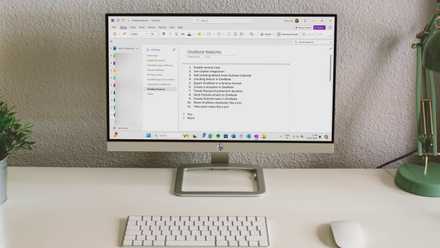
How to use the most advanced OneNote features to supercharge your note taking
OneNote is more capable than you may think
Work smarter, not harder
So there you have it – a robust collection of powerful and completely free productivity tools for your workflow. You certainly don’t need to use every app on the list. Pick the ones that will meet your needs and help you accomplish more in less time. Check out our dedicated guide if you are looking for open-source alternatives to popular software on Windows.