
Just like assembling a PC, putting together your first Network-Attached Storage server can be a thrilling experience. There’s the excitement of the hunt while browsing the latest components, and the satisfaction you get after successfully putting them together. If you aren’t familiar with the NAS-centric distributions out there, you’ll also experience the joy (and fright) of tinkering with an entirely new operating system.
Of course, the battle’s only half won after you’ve got a fully-functional storage server. While NAS units can last for a long time, there are a ton of ways you can boost their potential. And no, I don’t mean adding more storage drives (even though that’s technically a decent upgrade for folks running low on space). As someone who considers himself a NAS connoisseur, here are some of the best upgrades I’ve made to my DIY storage server.
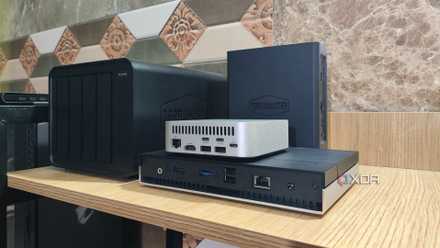
5 irreplaceable services my NAS provides that I couldn't live without
I rely on my little box of storage for a lot of things
5 Switching to ECC memory
It’s not really a requirement, though
Call me paranoid if you must, but I prefer taking as many precautions as possible when it comes to preserving my precious data. Although they’re pretty uncommon, the bits stored inside your NAS’ memory can get flipped over time – and the cause can range from normal aging and electromagnetic interference from other components to something as wacky as cosmic rays.
Unfortunately, once the flipped bits cross a certain threshold, you might end up encountering unreadable data issues. Worse still, your NAS’ file system could end up replacing perfectly fine data files and backups with corrupted copies once it detects discrepancies between the two. ECC memory can detect and fix bit flips, though the high rarity of these errors is the reason why I’d only recommend ECC RAM sticks to hardcore data hoarders.
4 Slotting a GPU
Even a low-profile card can provide extra transcoding oomph
Although my power-hungry PVE server and a couple of other systems cater to my self-hosting needs, I’ve got plenty of services that need to retain tons of data, and only my NAS can provide the storage provisions necessary to run them. Jellyfin is one such utility, and I host it on my NAS. However, the transcoding provisions of my processor were far from ideal, leading to choppy videos once I moved past the 1080p mark.
Slotting my Intel Arc A750 did the trick, though I’ll admit that the full-size GPU looks weird inside a DIY NAS. For the average custom NAS user, a low-profile card is more than enough for transcoding Jellyfin videos. I’ve also got Immich and Hoarder running inside my NAS, which can leverage the processing prowess of the card for their facial recognition and automatic tagging provisions.
3 Adding extra NVMe and SATA-to-PCIe adapters
To expand my arsenal of drives
One of my biggest gripes with pre-built enclosures – aside from the lack of dedicated PCIe slots – is the limited number of drive bays available to them. Sure, high-end setups involving dual M.2 SSD slots and quad HDD bays exist out there, but I wanted my first DIY server to include slots for as many as eight hard drives and four SSDs. Not because I need that much storage, but because I have multiple small-capacity drives salvaged from old laptops and PCs, and they would otherwise gather dust inside my cupboard.
That’s where dedicated PCIe adapters for NVMe and SATA connections come in handy, as they not only help me expand my custom NAS’ storage options, but also let me utilize the spare PCIe sockets in its motherboard.
2 Setting up RAM caching
Or rather, increasing the max memory of my NAS
When I started with my first TrueNAS Core setup, I went with a single 8GB RAM module, as I figured the NAS wouldn’t need all that much memory. Over the years, I upgraded the number of drives as well as switched to the distro’s Scale sibling, and despite several Zpools in my setup, the 8GB memory only saw decent utilization during specific VM-heavy workloads.
But all that changed once I enabled RAM caching for my HDDs. For the uninitiated, RAM caching is a facility that leverages the spare memory in your NAS to boost the transfer speeds of hard drives. Unfortunately, my 8GB module wasn’t enough for both the ZFS pools and RAM caches, and I had to upgrade to 32GB to ensure my HDDs could spread their (borrowed) wings.
1 Switching to a faster NIC
Especially for my SSD pools
Like your average PC, the motherboard I’d used for my original NAS had a 1 GbE connection, which isn’t terrible by any means. But there’s no doubt that the slower standard served as the bottleneck in my setup, as most of the HDDs in my server could hit transfer speeds of 150-170 MB/s trans. That’s before you include the SSD-based pools I use for my video editing and Steam game storage (and it’s actually a feasible project).
Upgrading to a 2.5G NIC provided a noticeable upgrade in my NAS’ transfer speeds. But once I broke the bank to purchase a 10GbE switch, there was no turning back. Even a budget-friendly TX401 Ethernet card was more than enough to let the DIY NAS leverage the blazing-fast standard for my workloads, including my RAM cache-enhanced hard drives and NVMe SSDs.
There’s plenty more you can do to enhance your NAS experience
Aside from these upgrades, I’ve used a couple more tips and tricks to boost my NAS game. Since my backwater town has tons of outages, grabbing a UPS for my NAS has spared me hours of downtime and averted the risks of accidentally corrupting my datasets during a brownout. Although I’ve got spare RAM slots on my DIY server, some pre-built NAS units in my possession are afflicted with the curse of soldered memory. In cases such as these, an SSD cache acts as a crutch for my HDDs instead of RAM caches.

The LincStation N2 is almost perfect for a budget-friendly SSD NAS
Multiple drive bays, 10GbE support, plenty of RAM, and good ol' Unraid. What more can you ask for?