
Most productivity tools today try hard to impress with shiny interfaces, long feature lists, and frequent updates. But in daily work, those things often slow us down. Over time, I’ve moved towards a different kind of software: open-source tools that may look simple or old, but do one job really well. No distractions, no pop-ups, no visual clutter. Just speed, control, and focused behavior. These tools don’t try to grab attention. They quietly remove friction from daily tasks, and that’s exactly why they’ve become some of the most productive apps in my workflow. Here is my productivity stack that may look boring, but consistently delivers the best results.
Ditto
The clipboard manager you’ll forget is even there
Ditto looks pretty boring at first glance. No modern UI, no flashy onboarding, no “productivity dashboard.” And that’s exactly why it works so well for me. It replaces the default Windows clipboard and quietly turns copy-paste into something far more powerful.
Instead of losing the last thing I copied, Ditto keeps everything. Text snippets, links, code blocks, and file paths are all stored in a searchable clipboard history. I hit a shortcut, type a keyword, and instantly get what I copied hours or even days ago: no switching apps, no re-copying, no digging through documents.
What I appreciate the most is how invisible it feels. It sits in the background, uses almost no resources, and only shows up when I need it. Over time, Ditto has saved me countless small interruptions. It’s not exciting, but it quietly removes friction from my workflow every single day.
Ditto
Ditto is a simple clipboard manager for Windows that adds a lot more functionality, including the ability to remember copied files and retain items indefinitely.
7-Zip
File archiver that simply refuses to quit
7-Zip is the one tool that truly defines "utility over aesthetics." It hasn’t changed its look in decades, but beneath that old interface is a beast that handles almost any file format I throw at it.
I used to get those "trial expired" pop-ups from other archivers until I switched. Now, when I’m sending a massive batch of high-res images to a client, I don’t just "zip" them. I use the native .7z format. The compression ratio is honestly ridiculous. I’ve seen it shrink folders by an extra 30–50% compared to standard ZIP files.
Beyond just saving space, it’s my go-to for security. If I’m handling sensitive project data, I use its AES-256 encryption to password-protect the archive. It integrates directly into my right-click menu, so I can extract or compress files in two seconds without ever opening the actual app. It’s fast, free, and completely bulletproof.
7-Zip
7-Zip is a free, open-source file archiver offering high compression ratios, strong encryption, and broad support for archive formats.

I use this perfect 7-Zip alternative that nobody knows about
Better interface, better security, better features
SumatraPDF
The minimalist PDF reader that opens in a blink
After struggling with Adobe Acrobat for years, I now use SumatraPDF as my full-time PDF reader. SumatraPDF is my go-to example of how boring software can be incredibly productive. The first time you open it, it almost feels unfinished. No toolbars screaming for attention, no feature overload. Just your document, front and center. And that’s exactly why I use it.
I open a lot of PDFs, ebooks, and documentation throughout the day, and SumatraPDF is always instant. It launches in a blink, even with large files. Scrolling is smooth, search is fast, and nothing ever feels slow. It doesn’t try to edit, annotate, or sync anything; it’s purely focused on reading.
I also love that it stays out of my workflow. No sign-ins, no background services, no update nags. It just opens files and lets me read. When your job involves constant reference reading, speed and simplicity matter a lot. SumatraPDF isn’t flashy, but it saves me time every single day, and that’s real productivity.
Sumatra PDF
SumatraPDF is a lightning-fast, minimalist, open-source PDF reader optimized for viewing documents, not editing. It is portable, low on system resources, and supports other formats like ePub and CBR.
VLC
Ditch the "File Not Supported" error
VLC is one of those tools I rarely think about until I realize how often I use it. It looks plain, almost outdated, but it plays everything. Any video format, any audio file, any random clip someone sends me, VLC just opens it without question.
I use it for quick video checks, long recordings, screen captures, and even random media files pulled from archives. There’s no setup, no codec hunting, no “this format isn’t supported” messages. I double-click the file, and it plays. That reliability alone saves me a surprising amount of time.
What I also appreciate is how much control it gives without forcing it on you. Playback speed, frame-by-frame navigation, subtitle syncing, it’s all there if I need it, but never in my way. There are no unnecessary interruptions or requirements — no ads, no accounts, no distractions.
VLC isn’t pretty, but it’s dependable. And when the media just works without friction, that’s a quiet but powerful productivity boost.
VLC
VLC media player is a free, open-source multimedia player supporting countless formats, streaming protocols, subtitles, and platforms without extra codecs.
Nmap
The network flashlight for your digital dark corners
If you’ve ever sat at your desk wondering why your printer won’t connect or which device is hogging all your bandwidth, Nmap is the answer. It’s a "Network Mapper" that looks like a daunting command-line relic from a hacker movie, but for me, it’s the ultimate diagnostic flashlight.
I originally felt intimidated by its text-heavy output, but now I use it every time I set up a new smart home gadget or troubleshoot a laggy connection. With one simple command, I can see every single device connected to my Wi-Fi, from my phone to that "ghost" smart bulb I forgot I installed. It’s perfect for spotting "Shadow IT" (unauthorized devices) on my network or checking if my router’s firewall is actually doing its job. It doesn't have flashy buttons or sleek graphs, but it provides a level of network visibility that "user-friendly" apps usually hide behind a paywall.
Nmap
- Individual pricing
- Free
- Platforms
- Windows, macOS, Linux
Nmap is an open-source network scanning tool used to discover hosts, services, ports, operating systems, and security vulnerabilities efficiently worldwide.
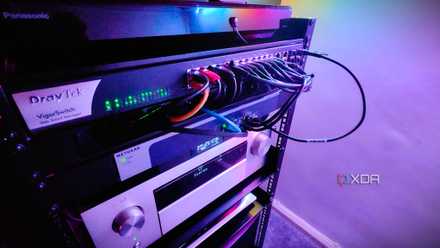
6 reasons Nmap is an excellent tool for troubleshooting your network
Very few options provide the depth of troubleshooting information that this FOSS option will gladly give you
Everything
The search bar Windows should have had from the start
Everything completely changed how I search for files on Windows. The interface is old and plain, a search box and a results list, but the speed is unreal. I start typing, and files appear instantly — no loading, no waiting, no spinning indicators.
I use it when I vaguely remember a filename, an extension, or even just a few letters. Instead of digging through folders or relying on Windows Search, I open Everything, type, and I’m done. It indexes file names once and then stays lightning fast, even on large drives with thousands of files.
What I really appreciate is how predictable it is. No “smart guesses,” no hidden logic. If the file exists, it shows up. That reliability saves me from breaking focus every time I need something mid-task.
Everything doesn’t look impressive, but it removes one of the most common daily frustrations: finding files. And when searching becomes instant, your workflow stays uninterrupted, which is pure productivity.
Everything
- Individual pricing
- Free
- Platforms
- Windows
Everything indexes all the files on your computer within seconds, and you can find any file or folder you are looking for quickly.
WinDirStat
The "PET Scan" for your bloated hard drive
Whenever my laptop starts gasping for air and giving me "Low Disk Space" warnings, I don't bother clicking through individual folders. I fire up WinDirStat. It looks like a relic from the early 2000s, complete with a Pac-Man icon that "eats" through your directories during a scan, but the data it provides is pure gold.
Once it finishes, it presents a color-coded "treemap" where every file is a rectangle. The bigger the rectangle, the bigger the file. I once spent an hour trying to find what was hogging 50GB, only to run WinDirStat and instantly spot a massive, forgotten screen recording buried in a temp folder. You can even filter by file type to see exactly how many gigabytes your raw photos or old installers are taking up. It’s a direct, visual way to hunt down "storage hogs" and delete them right from the interface. It’s simple, effective, and strangely satisfying to use.
WinDirStat
WinDirStat is one of the best ways to visualize what's using your storage on a Windows PC.
KeePass
The digital vault that puts you back in control
KeePass is one of the most boring-looking apps I rely on daily, and also one of the most important. The interface feels dated, almost spreadsheet-like, but beneath that is a rock-solid password manager that I fully control.
I use KeePass to store everything: logins, and random credentials I know I’ll forget. Everything lives in a single encrypted database file that stays with me, not on someone else’s server. I decide where it’s stored, how it’s backed up, and how it’s accessed.
What makes it truly productive is how efficient it is once set up. Search is instant, copying passwords is quick, and features like auto-type save me from constant context switching. There’s no browser account drama, no sync confusion, and no subscription pressure.
KeePass doesn’t try to feel friendly or modern. It focuses on security, speed, and control. And when password management fades into the background instead of demanding attention, it removes a huge mental load from my daily work.
KeePass
KeePass is a great open-source password manager that supports a lot of plug-ins, allowing you to customize your experience. It has a robust community and it even a forum in which you can interact with various community members.

Boring tools, sharper focus
Productivity isn’t about flashy dashboards or feature-packed apps. It’s about removing friction from everyday work. These tools don’t demand attention, push upgrades, or distract you with unnecessary choices. They simply work, every time.
When your tools fade into the background, your focus stays on the task that actually matters. Fewer interruptions mean better flow, quicker decisions, and less mental fatigue by the end of the day. That’s the real advantage of “boring” software. It respects your time.