
Summary
- Raspberry Pi cluster offers compact Kubernetes setup with under 10W power draw.
- Workloads include Home Assistant, Nextcloud, CI jobs, media streaming, monitoring.
- Benefits include NVMe speed boost, low power draw, and transferable cloud skills.
I wired three Raspberry Pi 5 boards into a shoebox‑sized rack, each Pi sporting 8GB of RAM, an NVMe drive on the PCIe lane, and the official active cooler. K3s went on top, giving me “real” Kubernetes in a footprint smaller than a paperback. This write‑up isn’t a step‑by‑step how‑to; it’s a candid look at what I actually run, the perks I’ve enjoyed, and the gremlins I had to tame.
Early on, I asked myself whether a cluster that idles at under a dozen watts but maxes out at roughly the cost of a single entry‑level mini‑PC could deliver enough utility to justify the effort. Eighteen months in, I’ve formed an opinion — one that shifts a little every time a node throttles under load or a Helm chart quietly drops its ARM64 image.
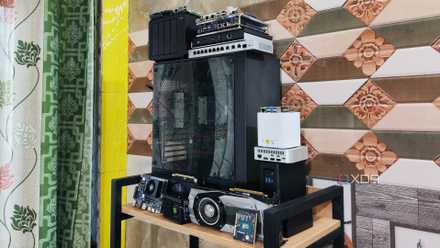
5 of the best devices you can build your home lab with
Old PCs, SBCs, NAS... everything can be repurposed into a home server!
Why I ventured down this rabbit hole
Cheap thrills and blinking LEDs
Learning Kubernetes in a low‑risk way was the big draw. Cloud sandboxes get expensive fast, and I didn’t want to add a noisy refurbished server to all the other sound pollution in my apartment. After all, 3D printers and laser engravers aren’t exactly quiet.
The Pi 5’s gigabit NIC, PCIe SSD option, and Cortex‑A76 cores promised “good enough” horsepower for home lab workloads while sipping power — the Raspberry Pi 5 idles around 2.2W to 2.7W, so three nodes plus drives stay well below 10W when they’re quiet. Add in the fun of hands‑on tinkering (and yes, bragging rights) and the project became irresistible.
What actually runs on my Pi-powered Kubernetes cluster
Tiny nodes, surprisingly big ambitions
Below are the workloads that have stuck around long enough to be called “production” at home:
- Home Assistant + Mosquitto + InfluxDB: A single Helm chart handles my smart home brain, MQTT broker, and time-series database. The stack idles at under 500MB RAM and hasn’t missed a Zigbee toggle yet.
- Nextcloud with S3‑style object storage (MinIO): My photo backups and collaborative documents live here. Running it on ARM is straightforward thanks to a maintained Helm chart and PVCs backed by my NVMe drive.
- GitLab Runner for CI jobs: Compiles my 3D‑printer firmware and a couple of Go projects. The official docs target Pi 4, but the 64‑bit packages work fine on Pi 5 once you bump swap to 4GB.
- Jellyfin media stack: It streams my video collection, but the Raspberry Pi’s hardware transcoding is limited. To account for this, I pin the CPU and accept that 1080p is the ceiling.
- Monitoring and logging: Prometheus, Grafana, Loki, and Alertmanager give me dashboards and alerts for temperatures, disk I/O, and pod restarts. The whole stack deploys smoothly with an ARM‑friendly manifest.
- Pi-hole for network-wide ad blocking: This uses negligible resources and allows me to retire the spare Pi Zero that previously handled DNS.
Together, these services use about half of the cluster’s CPU and RAM headroom, leaving space for weekend experiments like running llama.cpp jobs in short-lived CronJobs.
Benefits that made me glad I tried the experiment
My wallet and ego both feel lighter
Swapping microSD cards for NVMe delivered a 3‑to‑4X jump in sustained reads and writes. While my microSD peaked under 90MB/s, switching to an M.2 NVMe SSD yielded 350MB/s and higher. That speed boost slashed container image pull times and database restores.

Docker Swarm vs. Kubernetes: Battle of the container orchestration platforms
One's a beginner-friendly utility designed for smaller setups, the other's a robust production tool that's just as useful for home labs
Power draw is barely a blip on the utility bill. The stack draws less than many LED light bulbs, even with fans spinning. And because I’m using K3s on ARM, every Helm chart, GitOps pipeline, and Terraform script I rehearse here transfers directly to work projects that run on “real” clouds. The Pi cluster is basically a $300 certification lab.
Headaches I had to fix along the way
Gremlins, throttles, and missing images
Since NVMe over a single-lane PCIe 3 bus is still experimental, be sure to keep a mirrored micro SD card handy for system failures.
Power & thermals: The Pi 5 is picky: plug in anything less than the official 27W supply and USB current stays capped at 600mA, starving external attached SSDs. Heavy multi-hour workloads push temperatures toward the 80 °C throttle point, so active coolers are mandatory for my use case.
Image availability: About one in five charts I try still ship x86‑only containers. I now run a preflight script that scans manifests for ARM64 support before I execute kubectl apply — a trick I picked up after chasing mysterious CrashLoopBackOff events. Keeping a private registry with multi‑arch images reduces frustration but adds maintenance overhead.
Storage quirks: NVMe over the single‑lane PCIe bus is quick but not infallible. I had one cheap adapter that refused to negotiate PCIe Gen 3 speeds and soft crashed under load. Hot backups mitigate the risk, but I’ve learned to keep a mirrored SD card handy just in case.
So, was this home lab endeavor worth the trouble?
Spoiler: the answer is more complicated than a simple “Yes” or “No”
For raw compute power, a second‑hand mini‑PC would trounce this cluster. Yet the Pi stack wins on quiet efficiency, modular fun, and the satisfaction of mastering Kubernetes on hardware that fits in a desk drawer. If you value hands‑on learning and low‑power always‑on services more than screaming‑fast CPUs, a Pi‑powered cluster is absolutely worth the weekend build and the occasional ARM‑image hunt. Otherwise, buy the NUC and call it a day.