
You didn’t ask for it; you don’t really need it, but it’s there — taking precious space on your brand-new device and slowing it down. Bloatware has infiltrated today’s technology and found its way to computers, phones, tablets, and gaming handhelds. Even though handhelds have taken a more sensitive approach to bloatware than laptops, that doesn’t mean you get the best possible gaming performance out of the box.
Windows 11 comes with a long list of apps, processes, and optional features designed to run in the background at all times. Removing or stopping those helps you debloat your Windows handheld without affecting the system’s integrity. On top of that, it will help you squeeze a few more frames per second out of your games. A win-win situation, right?
Laptop bloatware is bad, but here are 5 apps that are actually useful
Laptops come with too much bloatware, but there are some useful ones.
7 Disable memory integrity
Microsoft-recommended step
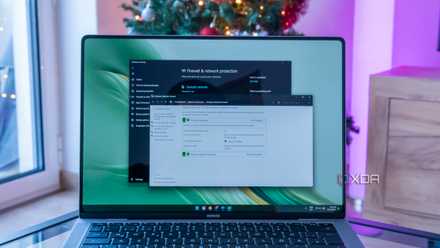
Windows 11 comes with a virtualization-based security (VBS) feature called Memory Integrity, which aims to provide stronger protection against malware. More precisely, this feature protects your system's kernel by ensuring all drivers loaded onto the operating system are signed and trustworthy.
Microsoft notes that Memory Integrity can impact gaming devices’ performance, which is why it is an optional feature. So, here’s how to deactivate it:
- Open the Start menu and launch the Windows Security app.
- Pick Device Security.
- On the right, select Core Isolation Details.
- Turn off the Memory Integrity feature.
Make sure to restart your PC for the changes to take effect. In case you ever decide to turn this feature back on again, just repeat the steps above to re-enable Memory Integrity.
6 Disable virtual machine platform
Another Microsoft-supported action
The Virtual Machine Platform component comes pre-enabled on Windows 11 devices. It supports virtualization processes and is used in conjunction with Memory Integrity to provide better protection against malware. Although useful, turning off this feature does not endanger your OS in any way.
We’ll also add that Microsoft notes that VMP can affect gaming performance, which is why there’s a safe way to disable this feature in the following way:
- Open the Start menu and type in Windows Features.
- Launch the Turn Windows Features ON or OFF action.
- Scroll down until you see the Virtual Machine Platform item.
- Uncheck the box on the left-hand side. That’s it!
Just like Memory Integrity, you can also opt to re-enable the Virtual Machine Platform at any time. Just make sure to restart your device each time you enable/disable this feature.
5 Uninstall unwanted software
Reclaim precious SSD storage space
Depending on your region, Windows 11 might come pre-loaded with bloatware apps. You can see those once you open the Start menu for the first time, where apps like Spotify, ESPN, Prime Video, Facebook Messenger, and Instagram might appear. Some are pre-installed, while others are placeholders and are installed the first time you open/run them.
Removing unwanted pre-installed apps helps you reclaim some SSD storage space and removes associated processes that run in the background. That said, do the following:
- Launch the Start menu and type in Settings.
- Open the Settings app and select Apps on the left side.
- Pick Installed Apps and review the list you’ll see on your screen.
- Remove unwanted apps by clicking the three dots icon and picking Uninstall.
You can also find third-party uninstallers online that can remove built-in Windows apps. If you decide to use those, avoid selecting gaming-related apps or services (for example, Xbox-related ones), as reinstalling those can be an issue down the road.
4 Disable optional Windows features
Focus on your handheld’s essentials only
Windows 11 has many optional pre-enabled features, extending its usability to various use cases. Most of those don’t involve gaming, so disabling them can help your device allocate more resources to gaming-related processes.
Turning off optional features in Windows 11 is done through the Settings app in the following way:
- Open the Start menu and navigate to Settings.
- Pick System on the left and Optional Features on the right.
- The currently active optional features are in the Added Features section.
- Scroll down and select More Windows Features.
- Go through the list on your screen and remove any of the features you think aren’t necessary.
Features such as Internet Explorer mode, Facial Recognition (Windows Hello), OpenSSH Client, Print Management, and Math Recognizer are safe to remove, as they don’t have any beneficial gaming-related aspects.
If you've disabled something important, there's no need to panic. In case of a software conflict with your gaming software, revisit the steps above and re-enable the features you've disabled.
3 Disable startup apps
Make your handheld boot up quickly
You probably have multiple game launchers installed on your handheld, as well as game optimizers and similar apps. Most of those apps are designed to run on system startup, adding a few extra seconds of wait time and additional background processes that take away from your device’s gaming performance.
Disabling startup apps on Windows 11 is quite easy. All you have to do is follow these steps:
- Open the Start menu and select Settings.
- Next, navigate to Apps -> Startup.
- Windows will now reveal all your apps with startup privileges.
- Disable unwanted apps using the ON/OFF switch on the right side.
Just as you can remove start-up apps, you can also add them. For example, if you use Steam, you can set its Big Picture mode to open on system startup by visiting the application's settings (Settings -> Interface -> Run Steam When My Computer Starts -> Start Steam in Big Picture Mode).
2 Install and utilize Windows PC manager
Microsoft’s nifty system optimizer
Earlier in this article, we told you that we don’t recommend third-party debloating scripts as they can often do more harm than good. We’ll add that we also don’t recommend software whose primary mission is to optimize your PC for gaming, as those applications can be overly aggressive towards Windows’ core components.
Instead, use Microsoft’s PC optimizer, Microsoft PC Manager. You can download and install it via the Microsoft Store. It comes free and provides more than you need to remove junk files, keep your Windows up-to-date, remove apps, identify large files and duplicates, and more. Here are some of the most useful highlights:
- PC Boost: This option is found on the PC Manager’s home screen. It automatically removes temporary files and frees up your device’s RAM. This action takes a few seconds, and you can perform it before each gaming session.
- Process: Navigate to Apps -> Process Management to terminate any background processes affecting gaming performance.
- Deep Cleanup: Go to Storage -> Deep Cleanup to remove temporary and junk files. Then, you can choose to remove applications or system items.
Windows PC Manager offers additional handy tools as well, such as the ability to block pop-ups, repair your taskbar, and more. So, we highly recommend exploring this nifty app on your own to check all its options.
1 Ultimate debloating - get a leaner version of Windows 11
Third-party developers offer custom Windows 11 versions
Replacing your handheld’s built-in operating system with a custom version of Windows 11 might void your device’s warranty. Even though this is a highly effective debloating step, it’s best to approach it if you have previous experience with installing operating systems or dual-booting Windows.
Following the steps and actions explained above can undoubtedly help you debloat Windows 11 for better gaming performance, but they can only go so far. That said, we have one more tip for those looking to squeeze every last bit of CPU and GPU power.
We’re talking about Tiny11, a scaled-down version of Windows 11 that requires only 2GB of RAM. It is free of bloatware and preloaded with all the essentials. For example, you can update the OS like you typically would, download apps and games from the Microsoft Store, and more.
It’s also important to note that the latest version of Tiny11 includes the Xbox Identity Provider support. That means that Xbox-related services are now supported, giving you full access to the Xbox app, cloud-streaming gaming services, and local game installations.
A word of caution - avoid automated debloaters
There’s no point in hiding the fact that automated debloating scripts exist. However, the problem is that most debloaters are overly aggressive. They might remove essential system services and processes or cause software conflicts. Even more worryingly, they can cause irreversible damage to your Windows 11.
The steps found above don’t require the use of unauthorized third-party scripts. We have focused on legitimate and the most effective time-tested actions to debloat Windows 11 — and if you have anything to add, feel free to let us know via the comments section below.