
The File Explorer has been an integral part of Windows for decades, and it's an incredible important tool since it lets you manage all your files. But while it does the job fine for the majority of users, there are a few things holding File Explorer back on Windows 11.
For one thing, it's not particularly fast, even things as simple as opening a folder have a slight delay. It also lacks some features that users can find useful like a dual-pane view or an easier way to view different folders at once. It's obvious that a lot of people aren't happy with File Explorer because there's no shortage of alternatives out there. Really, if you thought there weren't a lot of ways to improve on File Explorer, the community is clearly very happy to prove you wrong. So let's dive into some options.
5 Files
A more modern take on the file manager
Starting off this list we have the Files app, which is easily the most modern approach to a file manager on Windows 11. Files is designed to deliver on the vision of Microsoft's design language even better than Microsoft itself. Files fully leverages materials like Mica or Acrylic to deliver a beautiful app that is fully translucent (if you want it to be) and also follows the theme color of your choice, rather than just being white or black. Files even goes above and beyond with custom Properties dialog that also leverage the Fluent Design System, as opposed to the native dialog that has looked the same for decades.
But where it gets really interesting is with the features that are actually meant to boost your productivity. For instance, Files has a dual-pane view, so you can have two folders side by side and move files between them easily, or compare their contents to make sure they're the same, and you can split it vertically or horizontally. You can also use the compact overlay mode to have the Files app floating above all your other apps, keeping your files at hand if you need to drag and drop them, for example.

Files review: A more modern alternative to the Windows 11 File Explorer
The Files app is what I want the Windows 11 File Explorer to look like, but it's not quite perfect. It's also limited by Windows in some ways.
Another cool feature in the Files app is the ability to tag your files, similar to how macOS handles things with Finder. Tagging files makes it easier to find specific files within the same folder, and it's also very handy.
Files isn't the fastest app around, but it's a good way to get started if you want an app with more features and a more interesting design.
4 Total Commander
A classic customizable experience
If productivity is a bigger focus for you, then another great option worth checking out is Total Commander. This is one of those apps that probably offers way more than most users really need, but that's not a bad thing if you're lookinhg to maximize your productivity. Total Commander comes with a dual-pane view enabled by default, and it makes great use of it by adding some commands to the splitter between panes, too. You can easily copy files from one pane to the other, move them, and more.
Total Commander is also highlight cusotmizable, so whether it's the splitter menu or the menu at the top, you can change what actions are available to you more easily, so you can get things done more quickly. Plus, Total Commander can do things like connect to FTP servers, including the ability to save different servers to easily connect to at a later point. It can compress and extract archives and much more.
Total Commander's UI isn't the easiest to get used to, but there are a ton of options here for those looking to take their file management to the next level. The app is "shareware" meaning you the free version is meant to be more of a demo, but there's nothing really stopping you from using it full time. You can check it out below. If you do want to pay, it will cost you 42 EUR (roughly $44).
-
Total Commander
3 FreeCommander XE
Leveling up
One thing you'll notice about many of these options is that they have a lot in common, from the names to the overall design elements. FreeCommander XE looks a good bit like Total Commander, but it has some very notable changes. For one thing, the dual-pane UI is a bit more readable, and it's clearer at a glance which pane is active, which can help make sure you're doing what you actually want when using keyboard shortcuts. I also like the FreeCommander XE has the option for a more modern UI, with icons that seem to be inspired by the Windows 8 and Windows 10 era. There are actually a lot of themes available, which is always great to see.
There are other benefits, too. Files with certain file types are highlighted in different colors which can make them easier to spot (and makes the UI a little more visually interesting), selecting files by clicking and dragging is easier, and there are faster options for swapping the panes on each side so that the splitter commands go the way you prefer. Much like Total Commander, the menus are totally customizable, so you can add or remove commands as needed to make things easier for yourself. Options like compressing and extracting archives are also available, but FreeCommander can also take screenshots of your PC, among a few other things.
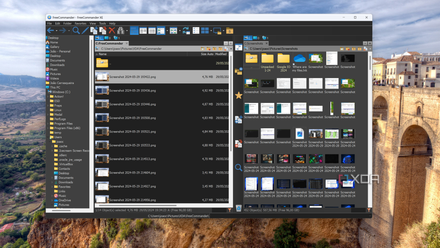
FreeCommander hands-on: A File Explorer replacement with potential (and a few problems)
This File Explorer replacement isn't it for me
Generally speaking, the menus in FreeCommander seem to be a bit more readable and easier to navigate if you're just getting started. It's definitely easier to get to grips with, and it's just as, if not more, capable. FreeCommander's 32-bit version is available for free, but the paid version is a 64-bit app with even more features, including native PDF handling and the ability to search for text within Microsoft Office files. It costs just 9 EUR, or just under $10 depending on conversion rates, so it's very affordable.
-
FreeCommander
2 OneCommander
Powerful, but accessible
OneCommander is a personal favorite of mine in the file manager field, and it's mostly because of its UI. Out of all these options, OneCommander feels like it strikes the best balance between looking and feeling modern and still being a productivity-oriented tool. Feature-wise, it's not as robust as some of the other options on this list, and it's not as customizable, either, but it still has a very useful dual-pane view with the ability to easily move files from one pane to the other and it includes a preview pane that actually shows you a good bit of info about the file. In fact, if it's a text file, you can read it directly within OneCommander, which is cool. I also like how OneCommander labels files by date with easy-to-identify colors, so you can easily find files from a given time frame.

You've never heard of these programs, but you'll never want to use Windows Explorer again after using them
OneCommander and Everything to the rescue
In addition to that, OneCommander has quick access to your favorite folders in a pane on the left, so the UI isn't limited to just the two folders you ahve open, and you have options to easily get back to important locations on your PC or in the cloud. It also lets you create quick notes within folders to help you remember to do certain things, and you can create batch scripts, too, which you can then run on any folder to take specific actions that you need frequently.
OneCommander also includes a cool File Automator tool, which can do things like rename files in batches and fixing the names of MP3 files based on their metadata. If you pay for the Pro version, there's even a file conversion tool powered by Ffmpeg, which even includes the ability to easily extract audio from a video file.
OneCommander may not be the most powerful option around, but it feels like the most balanced, and it's my personal favorite. You can use it for free or pay $25 for the Pro version.
-
OneCommander
1 Directory Opus
The cream of the crop
It's impossible for us to talk about file managers on Windows without numerous people in the comments mentioning Directory Opus, and it's easy to see why. Directory Opus has a lot in commin with the options we;ve already talked about, but it's clearly well designed to be as efficient as possible. Much like OneCommander, it's very easy to tell the two panes apart so you always know which pane is active, and important actions are available at the ready. Plus, there's also a proper navigation tree on the left side of the window, making it that much easier to get into a specific folder without breaking the flow of your two primary panes.
Directory Opus also has a ton of interesting features. You can quickly start a slideshow by selecting images in a folder, compress files into an archive, convert images to a different format, and much more. Opening either Command Prompt or PowerShell is easy, and you can also create scripts for processing files and folders in predefined ways. You can also preview files easily with a dedicated pane, including the ability to read certain files in full directly within the the preview pane. Directory Opus comes with light and dark themes out of the box but you can also download or create additional themes if you're so inclined.
The only big downside with Directory Opus is that the free version is only available for 60 days, and you need to register with your email, so you may not be able to use it forever without paying up. But considering how beloved this app is, it's probably worth the price of admission of 89 AUD (roughly $60 in the US at writing time).
-
Directory Opus
Take your file management to the next level
Whatever reason you may have for being disappointed with Microsoft's File Explorer, all of these apps offer excellent alternatives with productivity-focused design and features. As I've already mentioned, my personal favorite is OneCommander, as I don't need a lot of the more advanced features of other solutions and it has a modern-feeling UI. But all of these are fantastic apps, and you can try them for free if you're not ready to commit to a purchase just yet.
One cool thing that applies to almost all of these options is that while Microsoft doesn't officially provide a way to change your default file manager, these apps come with the ability to edit the registry so they can take over your file managing duties. You may never have to use File Explorer again!

4 reasons Microsoft should let you change the default file explorer in Windows
Managing your files could be so much better if Windows 11 gave you more options