
Playing your favorite retro games on Apple devices was almost impossible a year ago. But now, it's a straightforward process, thanks to a rule change made by Apple in April this year. This change allowed emulators to be made available on its App Store for the best iPhone and iPad devices. Since then, a range of emulators have emerged, capable of mimicking systems from the past, such as the Sony PlayStation, Nintendo 64, and others.
Today, you can download emulators such as Gamma, a dedicated Sony PlayStation 1 emulator, VirtualFriend, a Nintendo Virtual Boy emulator, and RetroArch, which emulates countless systems and handhelds from the past 30 years. However, one emulator that stands out from among the rest is Delta. Developed by Riley Testut, Delta supports the Nintendo Entertainment System (NES), Super Nintendo, and Nintendo 64, as well as handhelds like the Game Boy, Game Boy Color, and Game Boy Advance. Since its debut on the App Store in May, Delta has received several updates, including support for the iPad and better compatibility with the Nintendo DS. Delta has a lot of features you may be unaware of, so with that in mind, we've listed five below that you can take advantage of right now.

The best Nintendo emulator on iOS just hit the App Store, and it's blowing our minds
Bust out those DS games.
5
AirPlay Delta to a TV or Mac👁 Using AirPlay to mirror Delta to a Mac
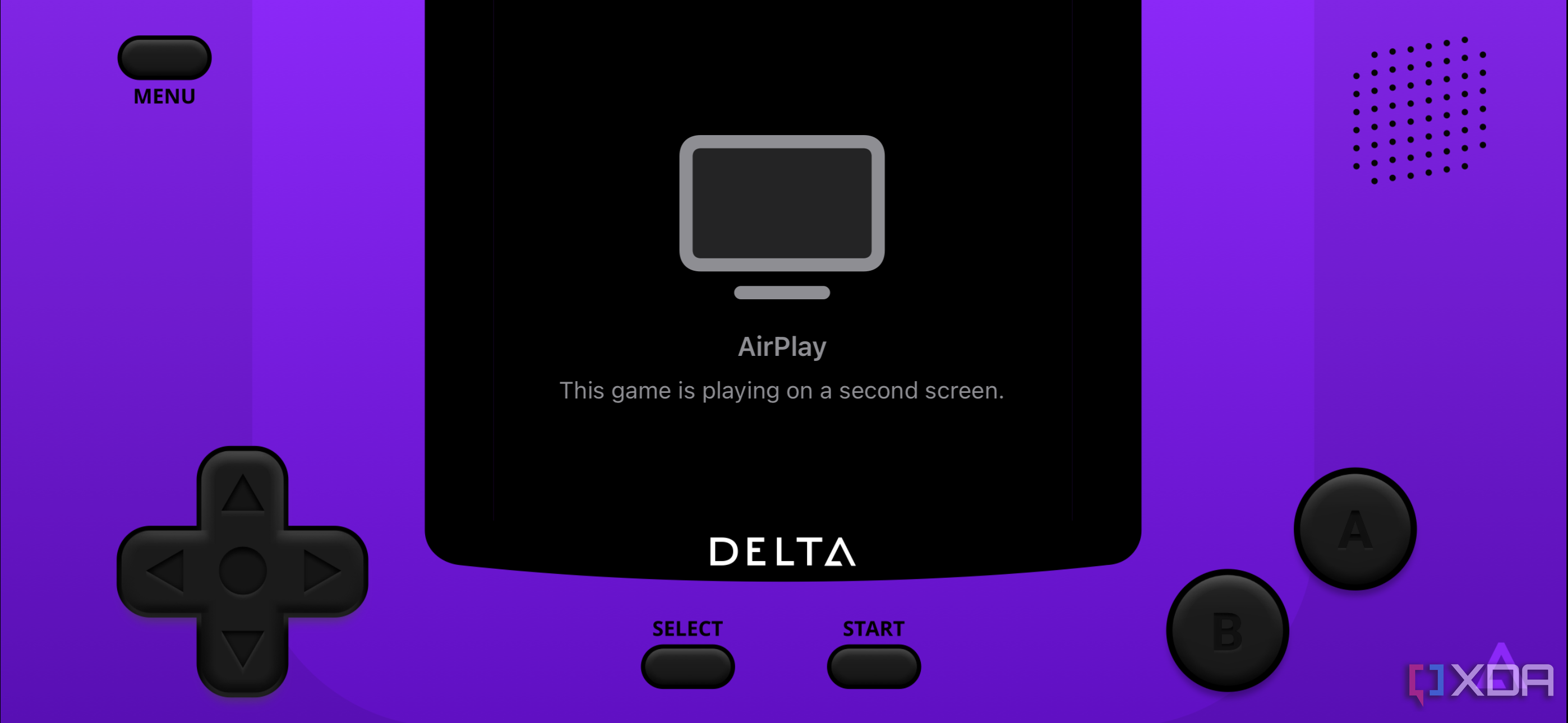
AirPlay is one of the most underrated features on Apple devices. For those unfamiliar, AirPlay lets users mirror the display of their iPhone or iPad to a television or other device that supports the feature. This means whatever is on your device is also shown on the display you've chosen to show the content via AirPlay. This is a perfect feature for Delta to utilize, and its developer Riley Testut knows it. When you decide to mirror a game that you're playing on Delta, it will appear on the big screen of a TV or Mac, and you can then use your iPhone as a controller. The setup is incredibly simple and works so well. It's also a great option for multiplayer gaming with family and friends. Speaking of which...
4
Local multiplayer👁 Assigning players in Delta for iPhone
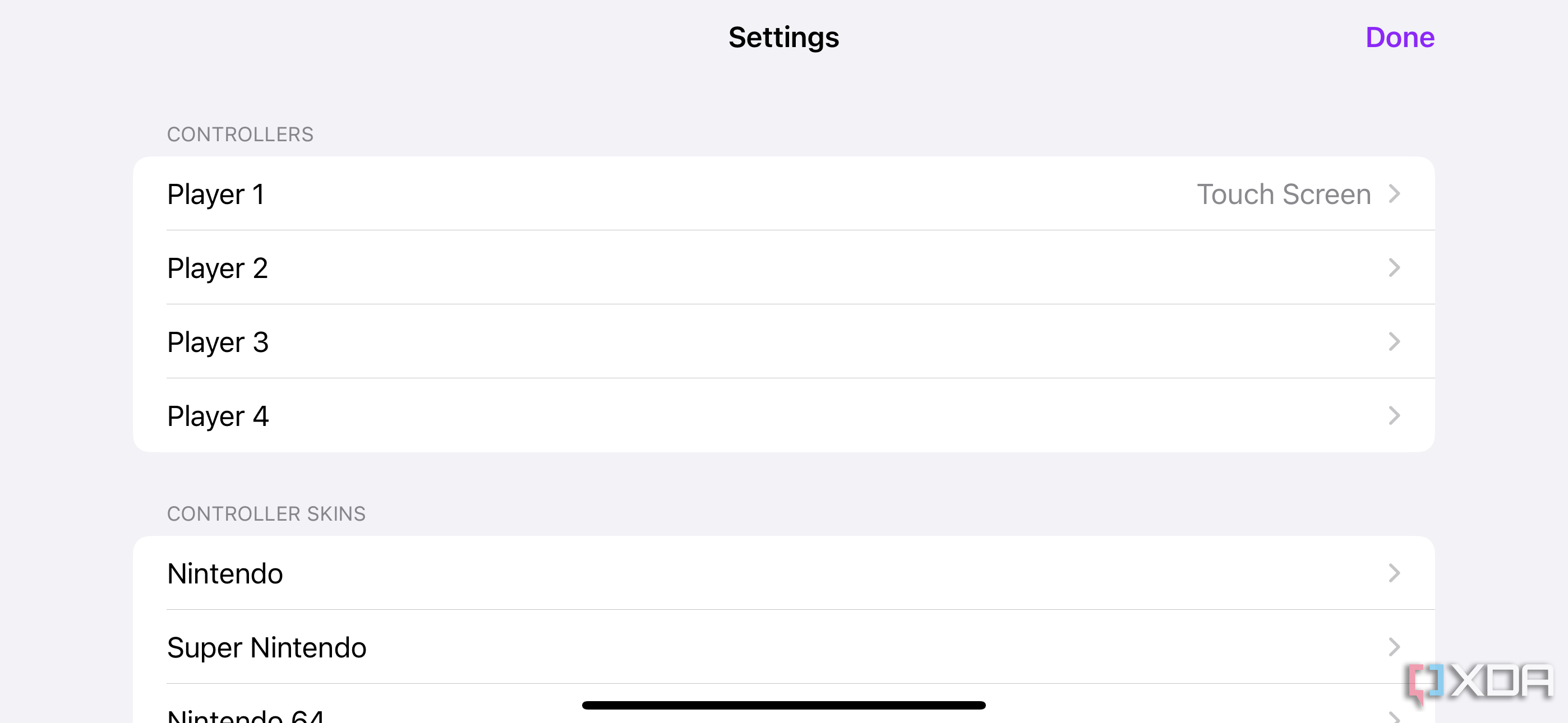
Some of the more memorable retro games, like Mario Kart 64 and Streets of Rage, are best enjoyed along with a second (or even third or fourth) player, and Delta makes that easy. When playing games from the Nintendo Entertainment System (NES), Super Nintendo Entertainment System (SNES), and Nintendo 64 (N64) systems, you only need to connect your Bluetooth controller(s) to the iPhone or iPad running Delta by going to the Settings app, then the Bluetooth section. Once paired, Delta automatically recognizes the additional players, and you'll be playing multiplayer matches just like the good old days.
3 Using custom controller skins
Delta comes pre-installed with a variety of built-in controller skins that mimic ones from the original consoles and handhelds. However, if you want more customization, Delta also supports third-party controller skins, which you can grab here. After downloading one, you can launch it in Apple's Files app and Delta will automatically add the skin, allowing you to select it.
2
Sync your games, save states, and more between devices👁 Enabling 'Delta Sync' on an iPhone
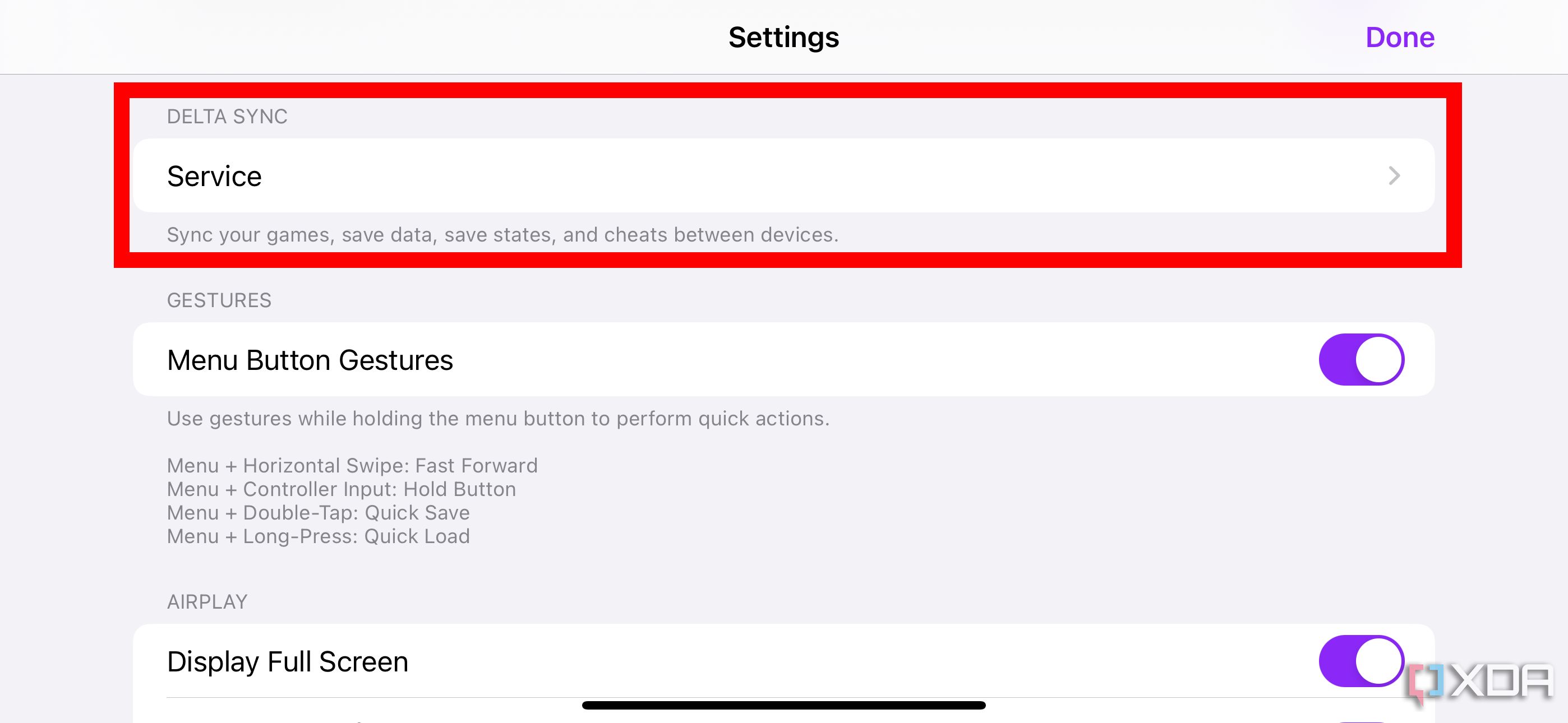
Much like how Apple's iCloud service can sync your photos, videos, and more across all of your devices, Delta offers this for your games through a feature called Delta Sync. For example, if you have an iPhone 16 Pro and an iPad mini 7 that both have Delta installed, you'll be able to play Super Mario 64 on one device, save your progress, and then carry it on later in the day on another device. To enable this, you need either a Dropbox or Google Drive account. Once you've signed in with your credentials, Delta will start to sync your games, save files, skins, and BIOS files across your devices.
1
Cheat codes👁 Using a Game Genie cheat code on Delta emulator

Cheat codes were a fun way to help extend a game once you finished it. The original Sonic the Hedgehog is a great example of this with cheats like Debug Mode, which lets you transform the blue hedgehog into an item you can place anywhere on the screen. Delta takes this a step further, allowing users to input codes that can change the game even more. When playing a game, press the Menu button, and there will be an option to enable cheats. Here, you can manually type in codes for the game you're playing, which can be found on sites like these. Whether you want infinite health in Metal Gear Solid on the Game Boy, or everything unlocked in Mortal Kombat 2, it's all possible.
Using a game controller with Delta is far easier than on-device controls
Granted, downloading emulators like Delta and Gamma on your iPhone or iPad via the App Store is fantastic. But playing your favorite retro games on a touch screen is never a good experience. Tiles like Street Fighter II: Hyper Fighting, Tomb Raider, and R-Type Delta are difficult to control with on-screen buttons — they're all meant to be played on a physical controller. Fortunately, many manufacturers offer gaming controllers specifically for iPhones, allowing you to interact with emulators on your iPhone via actual buttons for a more authentic experience. If you're interested, check out our guide below to help you decide on the perfect controller for you and your iPhone.

Best controllers for iPhones in 2024
Need a controller to play games on your iPhone? Here are our favorite options right now.