
When you use Excel for project management, you need to manage deadlines and dependencies to avoid any delay. With a few clever formulas, you can transform those rows and columns into a powerful command center for your projects. In this post, I will go over essential Excel formulas to track progress with minute details, predict potential roadblocks, and keep your projects sailing smoothly towards the finish line.

The 8 best free project management and planner templates for Microsoft Excel
Master project planning with these free Excel templates
8 TODAY
Let’s start with a couple of basic formulas for your projects. TODAY function acts like a date stamp that always knows the current date. You can simply type =TODAY() and it returns the current date. No argument is needed.
You can even get creative with the TODAY function. For example, if a task is due seven days from now, you can use =TODAY()+7. You don’t need to enter dates manually. In another example, if a task started on January 12th, 2025 (in cell C1), you can use =TODAY()-C1 to see how many days have passed since then.
7 DAYS
This is your go-to function for calculating differences between two dates. It acts as a simple date calculator in your project workbook. The syntax is =DAYS(end date, start date). For example, if a task started on January 10th, 2025 (in cell A1) and ended on January 20th, 2025 (in cell B1), use =DAYS(B1, A1) to get the result of 10 days.
Another good use is to could combine DAYS with the TODAY function, and utilize that to calculate how many days are left until a deadline. If a deadline is on January 25th, 2025 (in cell C1), use =DAYS(C1, TODAY()) to see how many days are left from today.
6 DATEDIF
This one is like the DAYS formula on steroids. It gives you more flexibility in calculating the time between two dates. You can check the difference in years and months. Here, you need to insert a unit into your formula.
Suppose a task started on "10/20/2024" (in cell A1) and ended on "1/15/2025" (in cell B1); you can use =DATEDIF(A1,B1,"M") to get the difference in a complete month (2 months). You can even type =DATEDIF(A1, B1, "MD") to calculate the remaining days after the complete months (26 days).

6 best ways to automate your Excel workbook
Bring your Excel workbook into the modern era with all that it has to offer
5 EDATE
If you are looking to manage your date-based schedules with minimal effort, use the EDATE formula. You can calculate the date, which is a given number of months before or after a starting date.
Let’s say a project starts on 1/15/2025 (in cell D1) and a phase lasts 4 months; you can use =EDATE(D1, 4) to find the end date of that phase (which would be 5/15/2025). Similarly, you can schedule recurring tasks, track contract renewals, and even forecast future milestones using the EDATE formula.
4 EOMONTH
If you are setting monthly deadlines to keep your project tasks on track, use the EOMONTH function. Let’s say you need to generate a finance report at the end of every month, starting from January 15th, 2025. If you have 1/15/2025 date entered in cell A1, move to another cell and type =EOMONTH(A1,0) to get the last date of January.
Similarly, you can enter =EOMONTH(A1, 1) to get the last date of February. As always, you can type =EOMONTH(A1, 0)+15 to arrive at the 15th of the month (2/15/25 in our case).
3 WORKDAY
WORKDAY formula takes project scheduling to the next level. You can calculate deadlines accurately by factoring in working days, weekends, and even holidays. It ensures that your project timelines remain realistic.
Let’s say a task starts on 1/15/2025 (in cell A1) and is estimated to take 10 working days to complete. You can use =WORKDAY(A1,10) to find the deadline, considering the weekends. Here is where it gets interesting. If you have a list of holidays in cells C1:C5, use =WORKDAY(A1, 10, C1:C5) to factor those in as well.
Use the DATE function to insert dates to avoid any errors. You may face issues if you enter the date as text.
2
NETWORKDAYS👁 NETWORKDAYS function in Excel
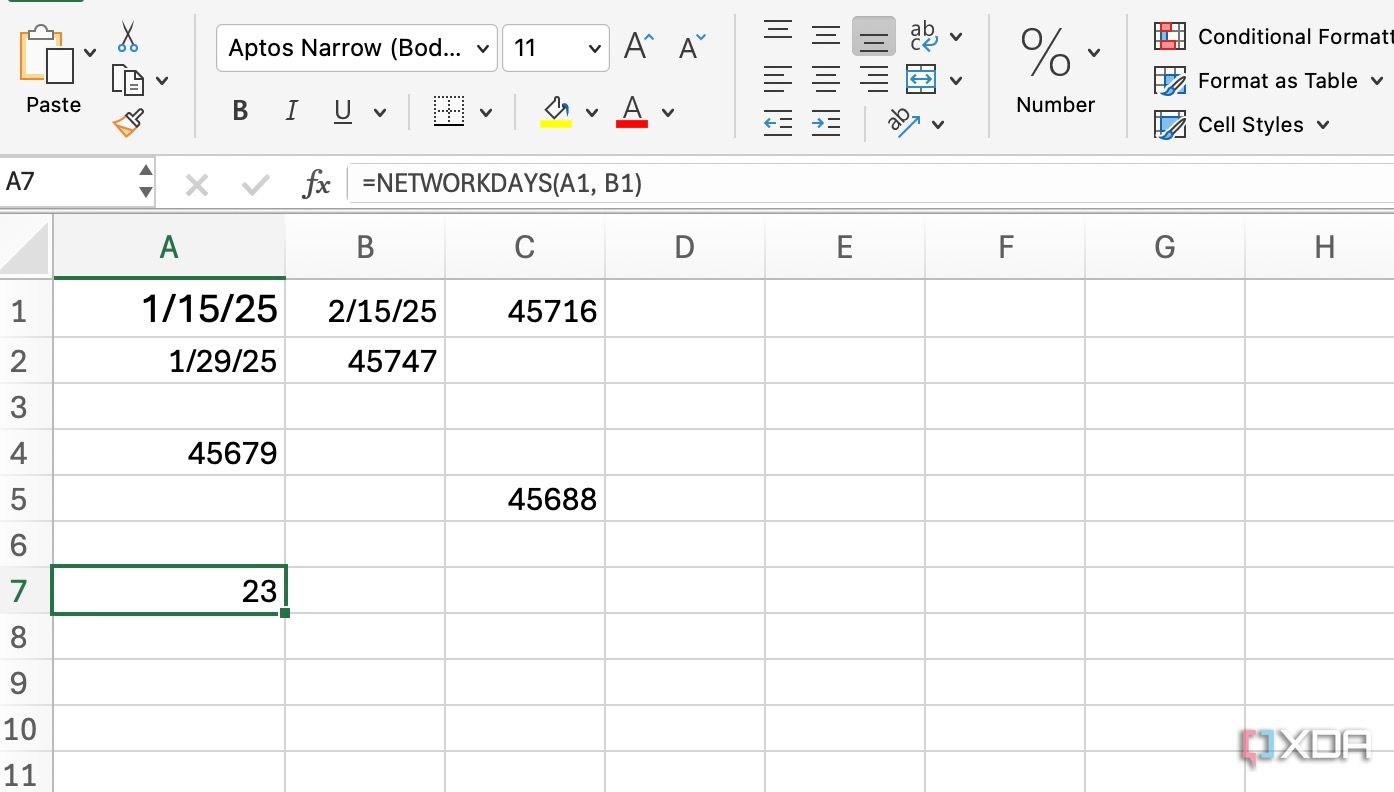
NETWORKDAYS is another essential function for your projects. While WORKDAY shows an actual date, NETWORKDAYS calculates the number of days between two dates. It excludes weekends and holidays (optionally). It’s a must-have function for accurate project planning and tracking.
Suppose a task starts on "1/15/2025" (in cell C1) and ends on "2/15/2025" (in cell D1); use =NETWORKDAYS(C1, D1) to get the number of working days between those dates (23). If you have a list of holidays in cells E1:E5, use =NETWORKDAYS(C1, D1, E1:E5) to exclude those holidays from the calculation.
1 IF
IF function can be useful for conditional dependencies. It helps you perform different actions based on whether a condition is met. Let's understand it with a live example. Suppose you have a task to write a report in three days (Task A) and another task to review it (which will take a single day and only starts when you complete Task A). If the start date is 1/15/2025, you can use =IF(D2"",D2+1,"") formula to get the correct answer.
This checks if Task A has an end date (D2). If it does, Task B starts the next day (D2+1). Otherwise, it stays blank.
Bonus: Explore conditional formatting in Excel
Aside from these formulas, you should use conditional formatting to highlight cells based on their values. You can easily spot deadlines, track progress, and identify potential issues. For example, you can head to Home > Conditional Formatting > Highlight Cells Rules > Less Than and enter =TODAY(), and pick formatting style to highlight any date that's earlier than today. Similarly, you can type =TODAY()+7 to highlight next week’s deadlines in a different color or style. The possibilities are endless here.

How I use conditional formatting to automate my Excel spreadsheets like a pro
Supercharge your Excel efficiency with conditional formatting
Manage project timelines like a pro
Every project manager needs to master these formulas to fly through deadlines and dependencies like a pro. You will not only stay on top of your projects but also free up valuable time to focus on what truly matters. After all, a well-structured spreadsheet is your secret weapon for achieving project success.
There is no shortage of Excel functions out there. Check out my dedicated guide to learn more such formulas for your complex workbooks. While you are at it, make sure not to go overboard with formulas. They may bog down your workbooks. Here are some tips to optimize and speed up Excel formulas.