
If you ever want to access your PC remotely, then you've probably heard of Chrome Remote Desktop. It's an extension for Chrome that allows you to connect to your PC from anywhere in the world. It's a very basic tool but it gets the job done, making for a very easy way to control it from your phone or another computer. However, there are alternatives you can use that are definitely better, even if they require a little bit more work to get going with.
5 Windows Remote Desktop
It's Windows 11 Pro-only, though
The best option for Windows users who just want to access their desktop from within the same network is probably Windows Remote Desktop. However, one of its biggest downsides is that it needs you have to Windows 11 Pro. You'll need to configure it, but once you do, it's a pretty straightforward process.
The biggest downside of Windows Remote Desktop is the amount of setup that you need to do, especially if you want to access your computer from outside of your home network. If you have multiple machines on your local network that you would like to remotely connect to, this can work, but that's about it. Otherwise, the other options in this list will be better for you.

6 reasons you should pay more for Windows 11 Pro, because it's worth it
You might run into a few dead ends while using Windows 11 Home
4 TeamViewer
The one everyone knows
Almost everyone has heard of TeamViewer, and there's a reason for that. It's a very simple program: you install it on your computer, you get a username and a password, and someone else then connects to your computer using those details. With TeamViewer, you can install it on your computer and log in from a client, and you'll see your computer available from remote access from anywhere in the world.
TeamViewer is free for personal use, but the company itself isn't the most trustworthy. They have suffered many security breaches, and allegations of attempted cover-ups have led to users losing faith in the company as a result. Their treatment of users who bought lifetime licenses also meant that many consumers switched to alternatives. It's a more than apt program for remote desktop work, but I wouldn't trust it with much else.
3 AnyDesk
Free for personal use
One remote connection software that's started to grow significantly is AnyDesk. It's very similar to TeamViewer, except you'll need to set up and configure unattended access. Otherwise, you'll need to physically be present to approve the connection at the computer each time.
With unattended access, you set a password, and you connect to your computer's AnyDesk address using the AnyDesk client, and it will then ask you for your password. Once you enter it, you'll have complete access to your computer. It has other features like Wake-on-LAN, too, though some other features are paywalled.
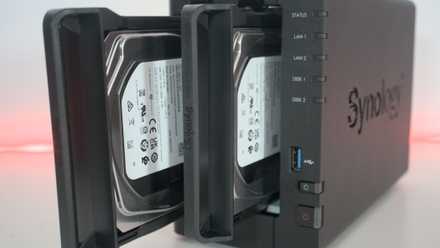
How to connect to your NAS remotely
If you have a NAS and want to connect to it from anywhere, this is the best way to do so.
2 Microsoft Quick Assist
Though there's no unattended access
If you want something that you don't mind needing to click a button to accept the connection, then Microsoft's Quick Assist is a great option. It's more useful for helping people out with their PCs rather than your own personal use, but you can get started with it simply by typing Quick Assist in your search bar on your PC and putting in the code that the other person trying to connect has given.
One of the best parts of Microsoft's Quick Assist are the options it gives you to interact with the PC that you're remotely controlling. It has some great features for helping friends or family members, like:
- Request control: Ask the other user to let you control their PC using your mouse and keyboard. The other user needs to approve the request.
- Laser pointer: Use your mouse to highlight an area or button on the other person's screen.
- Annotation: Use your mouse or touch to draw on the other person's screen.
- Chat: Send and receive messages from the user you're helping.
The laser pointer and annotations especially are very important, as those are features that you can use to help someone find something on their screen, or to learn how to do something themselves. It's built in to Windows, so while there's no unattended access, it's a great option for some use cases.
1 RustDesk
Self-hosted and open source
If you want something that you completely control, RustDesk is a great option. You can self-host it on a NAS, your computer, or another device, and have it manage the connections for you, but you don't even need to self-host it if you don't want to. It's significantly more technical if you do want to and requires way more steps than even Microsoft's Remote Desktop, but the benefits are that it's completely free and you control it.
The documentation for RustDesk is incredibly comprehensive, meaning that you won't need to worry about trying to find the answer for what you're trying to do with it. There's a Docker container that works out of the box, and you just need to make sure to port forward it so that you can access it from outside of your network. Alternatively, you can just use RustDesk's servers if you want, but self-hosting it is a great option.
