
When our once-snappy PC starts to lag, we have the sudden urge to browse for new RAM and SSD upgrades. But before you reach for your wallet, Microsoft has quietly released a game-changer that might save you a trip to the store.
Microsoft PC Manager is a free, no-nonsense utility designed to tackle every problem that slows your system down. It’s the performance toolkit Windows users have been waiting for. Here’s how it brought my nine-year-old HP Spectre to life.
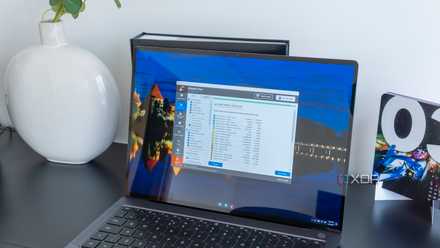
5 reasons you should avoid PC cleaning apps and use Windows Disk Cleanup instead
They're more trouble than they're worth
What is Microsoft PC Manager, anyway?
Let’s go over the basics
In short, Microsoft PC Manager is an official offering from the Windows makers to simplify maintenance. Of course, Windows has many powerful optimization tools like Disk Cleanup, Task Manager, and Windows Security, but they are all scattered across different menus and settings pages.
PC Manager has been in Preview since late 2022, and the company released it globally in early February 2024. Since then, the app has received several updates, and now it’s right up there with many popular third-party tools.
Instead of digging through dozens of menus, you now have a centralized dashboard to access all the utilities. Unlike many third-party tools, PC Manager plays well with your system and doesn’t mess up the registry. The latter is a common issue with many unofficial tools.
Thanks to its safety-first approach, PC Manager targets safe-to-delete files like temporary logs, system cache, and web fragments and ensures that you don’t accidentally wipe out critical system data.
It’s perfect for casual users who want to make their PC faster without dealing with unknown software and hardware upgrades. At the same time, it’s also a handy shortcut for power users who want a quick way to manage RAM and startup apps from a single, clean interface.
PC Manager is packed with features
And many neat utilities
What really surprised me is just how feature-packed this utility is for such a small footprint. When I first fired it up on my HP Spectre, I headed straight for the Deep Cleaning tool.
It didn’t just skim the surface; it dug into the system logs, temporary files, and web cache that had been quietly piling up. After running a full scan and clearing out several gigabytes of storage, the laptop felt snappier.
In my experience, the scanning process feels faster and more responsive than digging through the native Windows Settings app.
Beyond the basics, I found a ton of built-in utilities that usually require separate apps. There is even a handy option to enable a floating toolbar on your desktop. It gives you one-click access to the RAM boost and screenshot tools without even opening the main app.
I can even monitor real-time internet speed and see exactly which apps are hogging the bandwidth. And with deep uninstall, it is quite easy to find and purge those zombie apps I forgot to install months ago.
With the System Protection menu, I have the options to run virus protection, check for Windows updates, repair the taskbar, restore default apps, and block pop-up windows in apps.
I highly recommend spending some time with PC Manager to get the best out of it. It’s rare to find an official tool that offers this much functionality without making the interface feel cluttered or overwhelming. On my age-old Spectre, it has become my go-to for keeping things running at peak performance.
I tested 8 File Explorer alternatives, but this is the one that stuck
File Pilot is the king
Lightweight and non-intrusive
Minimal footprint
One of the things I appreciate most about Microsoft PC Manager is that it doesn’t try to take over my desktop. We have all had that frustrating experience of installing a performance tool only to find it’s actually slowing us down because it’s constantly running heavy background processes or, worse, nagging us with ‘Upgrade to Pro’ pop-ups every ten minutes.
This tool is the exact opposite. It’s lightweight and lives quietly in my system tray and uses a negligible amount of resources. When I’m not using it, I don’t even know it’s there.
Since it’s a direct offering from Microsoft, there are no annoying advertisements, special offers, and constant notifications trying to sell me a subscription.
Although PC Manager is an optional offering from Microsoft, the app feels like a native part of Windows rather than an uninvited guest. I love that I can open it, it's the boost button, and then close it completely. After all, it doesn’t sit in the background and eat up the very RAM I just tried to free up.
Replace all PC cleaning apps
In a world of ‘pro’ subscriptions and endless system utilities, it’s rare to find a tool that delivers genuine value without a hidden catch. Microsoft PC Manager is that rare exception — a utility that respects your time and hardware.
Whether you are trying to squeeze more life out of an aging laptop or simply want to keep your high-end workstation running at its peak, this is the first app I would recommend installing. It’s the simplest way to ensure your Windows experience stays as fast as the day you first pressed the power button.