
I never paid much attention to the Gemini sidebar in Google Docs. I figured it would only summarize my documents, and not much else. After ignoring it for a while, I gave it a shot.
After finishing a project, I was too tired to read everything again, so I asked Gemini to take a look. It helped me catch mistakes I would have missed. But after using it for a while, I saw that it could do a lot more than I gave it credit for.
I stopped reading entire documents just to find one detail
It broke down the pros, cons, and technical specs in an easy-to-read way
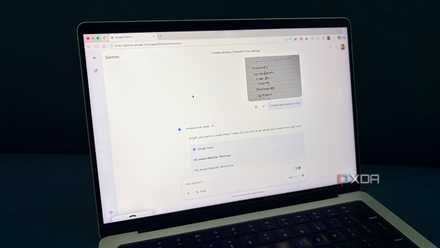
I was too tired to read a document about Intel Core i9 and Core Ultra 9 processors. I had already read a lot, and just looking at the text made me even more tired. Since the doc had info I needed, I opened the Gemini sidebar and asked for the key points of the file. The Gemini sidebar showed details such as a hybrid architecture with P-cores and E-cores, a thread director, and a neural processing unit (NPU).
I also saw the pros, such as:
- Single-core performance
- Accelerated creative workflows
- High-end connectivity.
It also showed me the drawbacks, like producing extreme heat, needing an expensive cooling system, and high power usage. The summary appeared instantly, and I loved not having to read the document again to find the important parts.
I thought Google Tasks was basic, then I paired it with Gemini
Supercharged Google Tasks with AI
I skipped the stock photo search because Gemini created one for me
One prompt gave me an image that I could actually use
I usually spend more time than I’d like finding the right image for a document. I go to a stock photo site and search for the perfect pic, but most of the time I end up settling for the closest one. Since I was already using the Gemini sidebar in Google Docs, I didn’t have to leave the document. That alone saved me more time than I expected.
I was still working on my Intel processor document, and I wanted an image that matched what I was writing about. So, I asked the Gemini sidebar to create a high-end PC build centered around an Intel Core i9. It appeared in the sidebar, with the option to insert it or reject it. It also gave me the option to generate similar images. When I clicked the image, it opened in a larger preview. I wasn’t too happy with the image, so I had it make another one, and the second one turned out to be a keeper.
Gemini acted like an editor and caught mistakes I would have missed
I was mixing formal and casual writing without even noticing
I was about to save my work and call it a night, but I decided to have Gemini take one more look to see if it could catch any mistakes. It came back with something I wasn’t expecting. It told me that part of the document sounded formal, while other sections read like I was just talking to someone.
I didn’t notice it while I was writing, but when I went over the section Gemini flagged, I saw my mistakes. I also saw that a few times I had switched between “I” and “you” in places where I should have stuck with one. They were the kind of mistakes I only make after staring at my monitor for too long. Having Gemini review the file saved me from rereading everything just to catch something I probably would have missed.
AI mistakes are easier to miss when I’m too tired to double-check
That’s exactly when a wrong answer could slip through
Gemini created images, answered my questions, and caught style mistakes in my document, but it’s still AI. It can make mistakes that, if missed, can cause even bigger ones. The sidebar can be helpful for getting a quick answer, but I would still need to check whether it’s correct. If I had been working on documents containing sensitive information and had just accepted Gemini's answer without checking, one wrong answer could have caused a mess.
I use Gemini as a second set of eyes, not a replacement
Since I wrote the document, I can tell when something is off
It’s no secret that Gemini can make mistakes; it’s even in small print in the chat. That’s why I never ask it to write for me, but I will ask it to look over something for any mistakes I may have missed. So if Gemini says it couldn’t find an answer to a question I asked, when I know it’s in there somewhere, I know it’s made a mistake. Even when it gets something wrong, catching that mistake is still faster than going through the whole document on my own.
I stopped ignoring the Gemini sidebar after this
I have to admit that I underestimated Gemini in Google Docs. I thought it could summarize my documents, but not much more than that. Now that I know what it’s capable of, I’m going to use it with every document as my second pair of eyes. It saved me from extra tabs, extra searching, and one more pass through the whole draft.
Google Gemini
Gemini is Google's AI assistant built into apps like Google Docs, Sheets, Slides, and Drive. It can summarize documents, answer questions about your files, create images, and help with editing.