
Windows 11 is not a perfect operating system by any means, but it is the most popular one out there, so while I would love to recommend everyone switch to Linux, I know that can be hard. But even if you have to stay on Windows 11, there are parts of the experience that are just too annoying by default, but they can thankfully be fixed... as long as you have the right edition of Windows, that is.
It's all thanks to the Group Policy Editor, a tool that comes included with Windows 11 Pro or higher. Unbeknownst to most Windows users, Group Policy can disable some of the most annoying parts of Windows 11, and turn a frustrating experience into a much more tolerable one. Here's how.

10 tweaks you didn't know you can make in Windows 11 with the Group Policy Editor
It's a very powerful tool
Stop automatic updates
And restarts, while we're at it
One of the aspects of Windows that gets the most criticism is the forced updates that seem to always happen at the worst times. While updates are essential for security, they always seem to install and prompt users for a restart when they need their computer, and if you take too long to do it yourself, you may even end up with a sudden restart that interrupts your workflow and possibly even causes data loss.
The Group Policy Editor can help fix these problems, and it's one of those things that really feels like it should be available ot everyone. There are two policies you can set to help prevent updates from breaking your flow. First, there's an option under Computer Configuration> Administrative Templates > Windows Components > Windows Update > Manage end user experience. In this folder, you'll find an option called Configure Automatic Updates, and once you enable this policy, you can set one of a few modes to handle updates, where I recommend going with number 2, Notify for downloads and auto-install. This gives you control over when updates start installing.
Another option you may want to disable is in the Legacy Policies folder, still under the Windows Update folder. It's called No auto-restart with logged on users for automatic update installations. Enabling this policy his will stop your computer from automatically restarting to finish installing updates, which should save you a lot of stress in the off chance that you don't restart the computer yourself. This is considered a "legacy" policy and there are newer settings for auto restart that aren't quite as powerful, but for now, you can still use this one.
There's even more you might want to do to prevent problems with Windows Update. Windows often tries to install driver updates along with operating system updates, but the drivers on Windows Update can often not be the right ones for your hardware, so compatibility issues arise. In the Windows Update folder above, there's another folder called Manage updates offered from Windows Update, and it contains a policy called Do not include drivers with Windows Updates. I recommend enabling this and getting your drivers from your PC or hardware manufacturers directly.

I don't trust Windows Update anymore, and you shouldn't either — here's why
Updates are good, unless they aren't
Stop OneDrive
It's a bit extreme, but kind of deserved
Speaking personally, OneDrive is the source of much of my animosity towards Windows 11 PCs these days. When you set a computer up for the first time, you're essentially forced to use OneDrive because it's enabled as soon as you log in with a Microsoft account, which is required for first-time setup. OneDrive backs up and restores a set of known folders on your PC (Desktops, Documents, and Pictures), which can quickly fill up cloud space and clutter the desktop with non-functioning icons.
You can just uninstall OneDrive, and subsequent accounts can avoid using a Microsoft account to prevent OneDrive from turning on, but frankly, when the initial setup requires a Microsoft account, any other users will be inclined to also use one.
If you want to stop OneDrive from bothering you or any other users on the same computer, you can disable OneDrive altogether using the Group Policy Editor. If you go to Computer configuration > Administrative Templates > Windows Components > OneDrive, you'll find an option called Prevent the usage of OneDrive for file storage, which will change this setting for every user account on the PC. If you're the only user of a computer, this isn't really easier than uninstalling OneDrive, but it can come in handy if you're sharing a family computer or something.
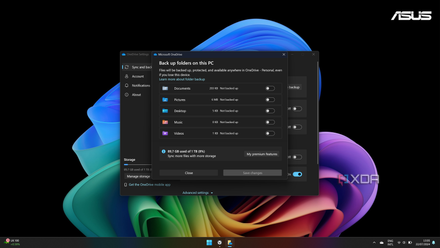
How to turn off OneDrive folder backup in Windows 11
Windows 11 comes with an annoying feature that automatically backs up and syncs certain folders with OneDrive. Here's how to turn it off.
Making notifications less obnoxious
We don't need popups all the time
Another major thing I recommend using Group Policy for is disabling toast notifications altogether. We live in an era where notifications are constant reminders of everything we have to do, from messages and emails to respond to, timers for a task that needs to be finished, and more. It's a constant fight for attention, and when all these notifications pop up on your screen while you're trying to do something else, it's frustrating and distracting.
Without Group Policy, you have two options to address this. You can turn off toast notifications for individual apps one by one, or you can use Do not disturb to disable notifications altogether, which can be a bit extreme. But Group Policy offers a perfect middle ground: turn off toast notifications for every app, but keep the remaining notification elements like sounds and the notification center.
To do this, you can navigate to User configuration > Administrative Templates > Start menu and Taskbart > Notifications, and then configure the policy called Turn off toast notifications to be enabled. This will preent notifications from popping up on scnreen in the future.

How to customize notification settings on Windows 11
Notifications can be useful, but also overwhelming at times. Here's how you can customize notification settings in Windows 11 to your liking.
I wish Group Policy wasn't limited to Pro users
Much of what makes Windows 11 frustrating is unavoidable, but there are a few things you can work around with tools like Group Policy. It's a shame that this is only included with Windows 11 Pro or higher when the vast majority of computers comes with Windows 11 Home. It sort of makes sense for these things to be limited to more mission-critical PCs, but almost everyone uses their computer for work, and being able to change these settings would go a long way to making a better experience.