
A few months ago, I started on my self-hosting journey thanks to a mini PC, Proxmox, and TrueNAS, which I've documented in various ways here on XDA. This is a fairly unconventional setup, as the mini PC in question only has one HDD in it, meaning there's no redundancy and I have to rely on cloud backups to keep things fully safe.
So when a few weeks ago, I started seeing ZFS drive errors in my TrueNAS dashboard, I was somewhat concerned. After some digging, I realized that this wasn't actually a hardware problem, though, and I just needed to properly set up HDD passthrough. Here's how I did it, and why you should do it too.

I know nothing about home labs or NAS, but I set them up anyway — here's how it went
It's a challenge, but setting up your own NAS is absolutely worth it
The problems with my setup
Errors made me worried about my data
So, let's start at the beginning. When I started this whole process, I created a virtual machine for TrueNAS SCALE inside of Proxmox, so I could also have a VM for Home Assistant running at the same time. Proxmox is booting off of the NVMe SSD inside the mini PC, along with the two virtual machines, but this SSD can't be used as a storage pool for TrueNAS, since it has other data on it. As such, I needed an HDD that could be used for the storage pool.
To do this, I had to use Proxmox to pass through the HDD to the TrueNAS VM, allowing it to access and modify the data on it. This worked fine and I didn't have any issues at first, but a few weeks ago, I logged onto TrueNAS to see it was listing eight ZFS errors on my HDD, which made me worried the drive might be starting to fail.
When I asked my colleague Adam Conway for guidance, we learned that running S.M.A.R.T tests was also not working, and at this point, we (meaning Adam) realized what the problem was — I had passed through the HDD itself, but not the actual controller on the mini PC. What this means is that a virtualized adapter was instantiated by Proxmox, connected to the HDD, and the adapter is passed to TrueNAS. While TrueNAS enjoys exclusive access to the HDD, it still doesn't have full control over it. And, as it turns out, both TrueNAS and ZFS really prefer having full control over the storage controller. Enabling passthrough for the drive rather than the SATA controller resulted in these ZFS errors, and also made it impossible for the S.M.A.R.T tests to run as the adapter doesn't actually support it.
jgreco on the TrueNAS resources page states exactly what's wrong with this setup:
DO NOT use hard drive passthrough (you Proxmox guys in particular) to get around a lack of decent PCIe-Passthrough support on your platform. It will seem to work fine, but ZFS expects to be able to strictly control write ordering and cache flushing towards the drives, so it will seem to work fine until suddenly it doesn't. ZFS does not have a "fsck" or "chkdsk" to correct errors introduced into a pool. People have lost data doing this. It's dangerous.
So, we identified the issue, but the next step was actually fixing it.
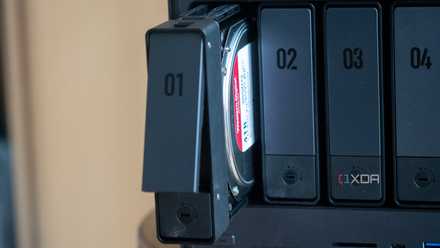
You can use Proxmox for your NAS, but be careful with your storage
You can use storage passthroughs for your NAS to avoid common pitfalls on Proxmox, but make sure to do it right.
Exporting the TrueNAS storage pool
It's pretty easy
Before properly configuring the controller passthrough for TrueNAS, it's important to export the storage pool from within TrueNAS' own UI. This is because, if you change the passthrough method in Proxmox without exporting, TrueNAS may no longer recognize the storage pool as its own, and it can require some manual tinkering to get it to reimport in the future.
Exporting the storage pool shuts down all your apps and disconnects the pool from your current TrueNAS instance, preparing the pool to be moved into a new TrueNAS instance. This can be useful if, for example, you buy a new NAS and want to move your drives over to it. In this case, we're doing it this way in case TrueNAS interprets my HDD as a new driver after the passthrough changes we're about to make.
To export the storage pool, just log in to TrueNAS, go into the Storage tab, and choose Export/Disconnect, then follow the steps and wait for the process to finish. Make sure to untick the option to delete the configuration from TrueNAS, so that you can still reimport it with everything as it was. If you see any errors unmounting the storage pool, rebooting the TrueNAS instance may help. I had that problem due to some leftover files from a self-hosted app I never fully deleted. Once it's done, shut down TrueNAS for the time being.

7 underrated TrueNAS features I use and swear by
These powerful tools are hiding in plain sight
Passing through the proper hardware
Finding the SATA controller
With this done, it was now time to go into Proxmox and change what device I was passing through. Initially, I had passed through the HDD based on the disk ID in Proxmox, so it was the drive specifically that was being passed through and not the entire SATA controller. Note that this will not work if you also boot from a SATA SSD, and it works in my case because my system boots from an M.2 slot. To switch from an HDD passthrough to a SATA controller passthrough, I first needed to figure out the PCIe ID of the SATA controller for the HDD. For that, I ran this command:
lspci -nnk
This listed all the PCI devices on my computer, and using this output, I could find the SATA controller, which for me, was found with the ID 00:17.0. With this information, I could now pass through the controller to the TrueNAS VM.
Passing through the SATA controller (and removing the HDD)
To change the device being passed through, I started by selecting the TrueNAS VM in Proxmox and going into the Hardware tab. Here, I first had to remove the HDD I had added before, which was the drive labeled as SCSI1 in my case. It should never be SCSI0, as that's the virtual hard drive TrueNAS boots from, so you can't remove it.
To pass through the SATA controller, I then clicked Add and chose PCI Device.
Here, I simply chose the Raw device option and used the dropdown menu to select the ID 0000:00:17, matching the ID I got in the section above. I checked the box labeled All functions and saved my changes.
Once it's done, you can start (or reboot) the TrueNAS VM from Proxmox for your changes to take effect.
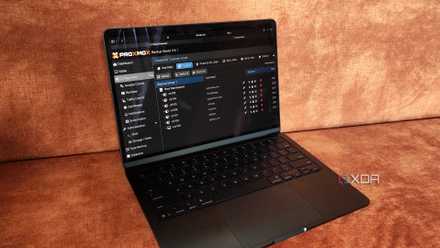
I use Proxmox Backup Server to save my VMs and LXCs to TrueNAS over NFS - here's how
It's a fully-automated backup procedure that saves my VM and LXC data to my trusty NAS
Importing the storage pool
Almost done
With proper passthrough done, it was time to sign in to TrueNAS yet again. This time, all you need to do is go into Storage and select Import pool, then choose your hard drive from the list (there should only be one item anyway). TrueNAS will then import your previous storage pool, and all your data and apps will be right back where you left them, as seen above.
Once I did this, everything was back in working order, and I could finally run the S.M.A.R.T. test to make sure nothing was physically wrong with the drive. Thankfully, it still has some life left in it, so I don't have to worry about it for a while longer. I had already purchased a new HDD in case that was the problem, but hey, it doesn't hurt to have a backup for when this one does fail. ZFS could finally heal itself, too, and my errors have gone away.

How I built my own NAS with a mini PC, without using TrueNAS or Unraid
If you have a PC lying around, including a mini PC, why not turn it into a NAS?
Save yourself the trouble
One big takeaway from this is that if you set things up the way I did, you still have ways to get yourself back to a working state. But perhaps an even bigger lesson to be learned is that you might just want to do things right from the beginning. All the hassle of exporting and importing pools, or dealing with errors you can't easily identify, can be avoided by just passing through the SATA controller when you first set up TrueNAS in Proxmox or, better yet, using a HBA. Either way, doing this will make things much easier for you.