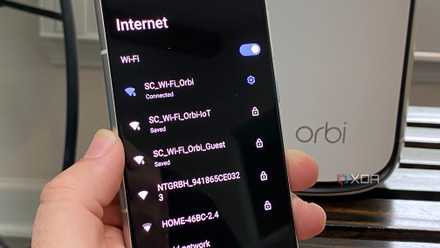
Wi-Fi comes in many flavors, with various versions of the protocol appearing over the years, as well as new bands. Today, Wi-Fi networks can operate in three bands: 2.4GHz, 5GHz, and most recently, 6GHz. A higher frequency, like 5GHz, means you can get much faster speeds, though this comes at the expense of effective range. That's even more true for the 6GHz band, which is still somewhat uncommon, making 5GHz the sweet spot for most people.
A network can operate on all three bands at the same time, and generally, your devices will determine which band is more appropriate to connect to in order to provide a better experience. But sometimes, this may not work out in the best way automatically, so you may need to get involved. If you need a faster and more reliable connection, here's how you can force your Windows 11 PC to connect to a 5GHz network instead.

What is Wi-Fi 7?
Wi-Fi 7 makes more efficient use of wireless spectrum to offer incredible speeds and better latency compared to even Wi-Fi 6E.
How to force your PC to connect to 5GHz Wi-Fi
In order to use 5GHz Wi-Fi, both ends of the connection need to support it. Most modern laptops and PCs support 5GHz connections, so if you're running Windows 11, you're almost guaranteed to have a compatible PC. Your router should support it, too, but this will depend on the model of router you have. Check with the manufacturer to make sure.
Now, to make sure your PC connects to the 5GHz network instead of 2.4GHz, follow these steps:
- Right-click the Start menu button on the taskbar and choose Device Manager.
- Expand the Network devices option and search for an item that mentions Wi-Fi. There should be only one.
- Right-click the Wi-Fi device and choose Properties.
- Switch to the Advanced tab.
-
Search for an option called Preferred Band and set the value to Prefer 5GHz band (or equivalent).
Options may have slightly different names depending on the adapter in your laptop. Try to look for something that looks similar.
- Optional: On some older devices, you may also need to look for a Wireless mode option and make sure it's using a 5GHz-compatible standard, such as 802.11be, 802.11ax, 802.11ac, or 802.11n.
- Click OK.
Once this is done, you can close Device Manager, and your PC should automatically connect to the 5GHz band for any network that operates in both 5GHz and 2.4GHz. Some adapters may allow you to make it so that you can operate only in 5GHz mode, but this means that if a certain network is only available in 2.4GHz mode (or the 5GHz signal is out of reach), your internet won't work. We don't recommend using this option.
How to check if your computer is using 5GHz Wi-Fi
In Windows 11, it's very easy to check if your computer is using the 5GHz band, especially if you have Windows 11 version 22H2 or newer.
- Right-click the Wi-Fi icon on your taskbar and click Network and Internet settings.
- On Windows 11 version 22H2 onward, you'll immediately see what band is being used under Properties near the top of the page. If not, move on to the next step.
- If you don't see it, click the Properties button.
- Look for the Network band field and check whether it says 5GHz or 2.4GHz.
Why you might not be getting a 5GHz connection
If you followed these steps and your PC still isn't using a 5GHz network, it's either because your router doesn't have it or because that band is a higher frequency and out of range. Some routers also have different network names for the 5GHz band, so you may need to connect to a different network in your settings. This will often be just the same network name, but with something like 5 or 5G at the end of the name. The password should also be the same as the standard 2.4GHz network.
Otherwise, you might just need to buy a new router if yours doesn't support 5GHz, though this is unlikely.