
Notion can handle everything from keeping track of household chores to large-scale, multi-database, project management, and CRM systems for businesses. I’ve designed complex Notion systems for large-scale operations, including a multimillion-dollar advertising company, but at home my personal trackers couldn’t be more simple. With all the possibilities Notion offers, it’s tempting to over-complicate things and track every little detail, but sometimes simple is better.
I went from running dashboards, linked databases, and complex workflows to appreciating a minimalist design instead. It is a bare-bones system that I use to track self-employed jobs like consulting and coaching, and also to calculate my hourly wage for commissioned jobs like writing and digital art. I’ll explain a simple approach to minimizing any system though, so you can strip yours down or trim a Notion template to make it your own.

Here is how I use Notion to stay on top of my life
Notion is my command center for everything
Why I started with a minimalist concept
While there are plenty of great time-tracking apps, they usually only do that one thing and lack the flexibility Notion gives you to build interconnected systems. That’s what led to building personal systems as if they were for large companies.
My shift towards minimalism began when a particularly difficult client questioned hours on an invoice that was fully within scope, but they claimed it was too expensive. Normally, I would send a detailed breakdown of my hours and then start charging a client like that the "jerk tax" for future work. That particular experience, though, was the breaking point that made me more selective about clients and prompted me to stop tracking every detail unnecessarily. Without those difficult clients, I didn’t really need to belabor things anymore.
Excess tracking added work without improving results, so I set out to create a minimalist system that focuses only on what’s essential.
Essential components of time tracking
I started by asking myself which components of the time tracker are absolutely essential. To simplify things, I reverse-engineered the system by removing every unnecessary element, one by one, until I was left with only the core components that couldn’t be eliminated without breaking the system.
First, I removed the complex task and project management systems, as they weren’t necessary for time tracking. I also discarded detailed page templates and tagging systems that added little value. Finally, I merged redundant Notion properties, such as combining separate Date fields for tracking time and duration. This process left me with four key meta-categories: time, money, description, and status.
Using these categories, I rebuilt the system to include only what was essential:
- A brief summary of the work
- The date with a start time and stop time
- The total amount of time worked
- The hourly rate being charged for the work
- The total amount received for project-based pricing
- A calculated hourly rate for project-based pricing
- The total income due
- The status of the work
While this might seem like overkill for a simple time tracker, it’s an effective way to streamline the system and break free from years of overly detailed project management practices.
This kind of analysis can also be applied to systems beyond time tracking. Doing this mental work upfront prevents the common problem of removing parts of your old system or a template only to realize later that a removed element was needed, forcing you to start over. By focusing on what’s truly necessary, you create a system that’s both efficient and effective.
Building Notion systems with meta-categories
Another way to structure any tracking system in Notion (or elsewhere) is by focusing on four essential meta-categories: Action, Time, Metrics, and Purpose.
- Action: What you are doing, such as exercising, pursuing hobbies, or learning new skills
- Time: How long the activity takes, including start and end times
- Metrics: The data you want to calculate, such as duration, earnings, or progress
- Purpose: The reason behind tracking - for example, my intention is status, as I need to track work to ensure I get paid, but yours might be progress if you’re monitoring workouts or improvement if you’re honing a new skill
When building, trimming, or expanding your system, keep these categories in mind. Ask yourself if new components fit within these categories, duplicate existing functionality, or serve a necessary purpose. If desired, you can also add a fifth meta-category: Progress. This category tracks advancement towards your goals, making it ideal for systems which are focused on growth or milestones. This approach helps streamline your system and maintain its focus on what truly matters.

I started using Notion forms to build engaging surveys, polls and quizzes – Here's how it works
Build and share powerful forms in Notion in no time
Steps to build a basic time tracking system in Notion
This system is designed to log your work hours and calculate income efficiently. Start and Stop button automations simplify timestamp entries into Start Time and Stop Time, while formulas handle calculations for Minutes, Hours, Commission Hourly, and Total Income.
While Notion's button automation does not function like a stopwatch, you can adjust timestamps manually. For invoice tracking, filtered views allow you to monitor specific time periods, though this guide does not cover that setup.
Note that formulas and button automation will be addressed at the end. To create this simple time-tracking system, follow these steps.
Description
For a description of each task, I keep it concise by asking myself two questions: what did I work on, and why was it important? I limit each to a single sentence, but you can adjust the length for your needs.
- Use the default property that’s created with a database, called Name property.
- Rename it to Work Summary.
Time
Tracking time always includes three key components: the date, start and end times, and the total duration.
- Add two Button properties and rename them Start and Stop.
- Add two Date properties and rename them Start Time and Stop Time.
- Move the Start Time property in between the Start and Stop button properties.
- Add two Formula properties and rename them Minutes and Hours.
Note: Start and end times can also be initiated with Notion’s automated buttons, but this will change the status of all currently active entries. Use the Date property and toggle End date and Include time manually if this doesn’t work for you.
Money
I charge different hourly rates for different types of work, and alternatively get paid a flat rate for other work. For this system, flat-rate work will be referred to as a “commission.”
- Add two Number properties, choose your currency under Number format, and name them Hourly and Commission.
- Add a Formula property to calculate what the hourly rate for a commission job would be if the time spent was billed hourly, and name it Commission Hourly.
- Add another Formula property and name it Total Income.
Status
I track invoice status with options like Not Sent, Sent, Paid, and Prepaid.
- Add a Status property and rename it to Invoice Status.
- Under To-do, rename Not started to Not Sent.
- Under In progress, rename In progress to Sent.
- Under Complete, click the + symbol to add another option and name it Paid.
- Rename Done to Prepaid.
- Color code them if desired.
Settings, formulas, and button automation
This section explains how to program the buttons and formulas to complete your time tracking system in Notion. Automating buttons in Notion allows you to easily log start and stop times while updating the status of your entries. Formulas in Notion allow you to calculate durations, hourly rates, and income automatically.
How to program the Start Button automation
- Click the Start property at the top of the database and select Edit automation.
- Under Do, click + New action and choose Edit pages in.
- Under Select database, choose This page.
- Under Edit a property, choose Start Time.
- Click Select... next to Start Time and choose Time triggered.
- Click Edit another property and choose Invoice Status.
- Click Select... next to Invoice Status and choose Not Sent.
- Click Save and the finished Start button automation will look like this:
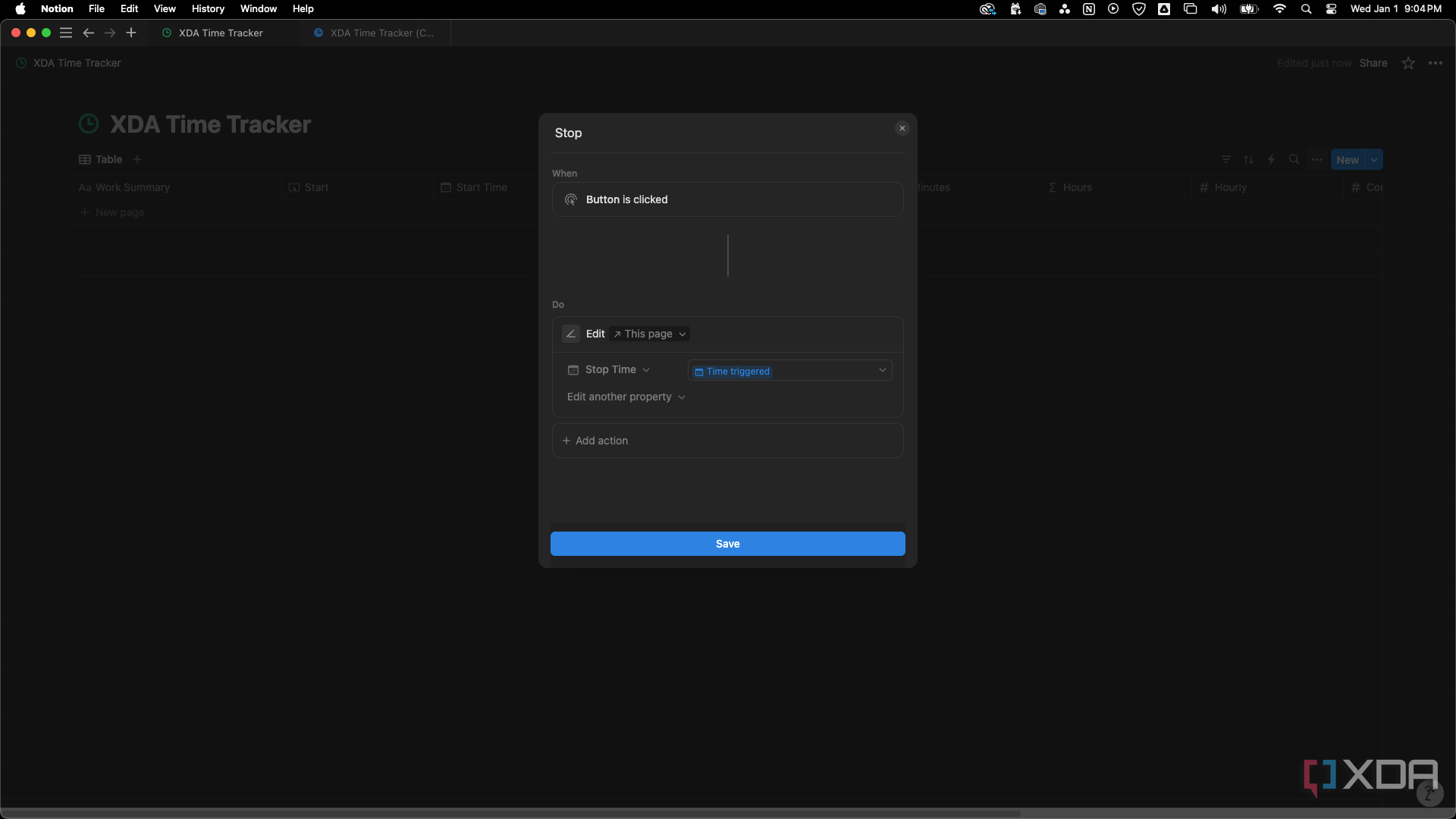
How to program the Stop Button automation
- Click the Stop property at the top of the database and select Edit automation.
- Under Do, click + New action and choose Edit pages in.
- Under Select database, choose This page.
- Under Edit a property, choose Stop Time.
- For Stop Time, select Time triggered.
- Click Save and the Stop button automation will look like the image below.
👁 Finished Stop button automation programming
Important note about entering formulas in Notion
When entering formulas in Notion, they will immediately appear different. Notion uses property-specific icons to link fields, such as Start Time and Stop Time. When you paste in a formula, it will automatically change appearance. For example, the formula:
dateBetween(dateEnd(prop("Stop Time")), dateStart(prop("Start Time")), "minutes")
Will appear in Notion as:
dateBetween(dateEnd(Stop Time), dateStart(Start Time), "minutes")
This can make troubleshooting difficult. Below, I will provide both the formula and what it will actually look like after being pasted in.
Calculating minutes from Date property timestamps in Notion
- Click the Minutes property at the top of the database.
- Select Edit property, then Edit formula.
- Enter the following formula and click Save:
dateBetween(dateEnd(prop("Stop Time")), dateStart(prop("Start Time")), "minutes") What this will look like in Notion:
dateBetween(dateEnd(Stop Time), dateStart(Start Time), "minutes")
Explanation: This formula calculates the total minutes between the start and stop times by referencing the Start Time and Stop Time properties.
Calculating hours from Date property timestamps in Notion
Click the Hours property and follow the same steps as above. Enter the following formula:
ceil((dateBetween(dateEnd(prop("Stop Time")), dateStart(prop("Start Time")), "minutes") / 60) * 100) / 100 What this will look like in Notion:
ceil((dateBetween(dateEnd(Stop Time), dateStart(Start Time), "minutes") / 60) * 100) / 100
Explanation: This formula converts minutes into hours and includes two decimal places, rounds up using the Ceil function, and ensures accurate billing for partial hours.
Calculating a flat-rate "Commission" payment as an hourly rate
Click the Commission Hourly property and follow the same steps. Enter the following formula:
if(not empty(prop("Commission")), prop("Commission") / prop("Hours"), "") What this will look like in Notion:
if(not empty(Commission), Commission / Hours, "")
Explanation: This formula calculates the effective hourly rate for a flat-rate (commission-based) job by dividing the commission by the total hours worked. If no commission is entered into the Commission property, it leaves the field blank.

Obsidian vs. Notion: The ultimate battle for your second brain
The clash of note-taking philosophies
This time tracker is now designed to log work hours and calculate income. To use it, click the button automation to Start and Stop, and your time stamps will be entered in Start Time and Stop Time. The duration of your entry will be calculated in Minutes and Hours.
Enter your Hourly and/or Commission rates to calculate what your hourly rate would be if a completed commission had been billed hourly in Commission Hourly and your Total Income. Use Invoice Status to keep track of what you've been paid for and what you haven't.

I created the perfect life planner in Notion so that you don’t have to
Obsessed with organization? This Notion life planner is for you.
Sometimes simple is better
I know this system isn’t for everyone, and my circumstances are what allow me to keep it so minimal. Still, I wanted to share this approach in case it resonates with someone else. When I first started tracking my time in Notion, I tried using other people’s templates, but all of them needed to be modified. I find that building things myself also helps me learn how to use the tool I’m building with.
By focusing on just the essentials—time, money, description, and status—I’ve found a balance that simplifies tracking while meeting my needs. Notion’s flexibility makes it easy to build your own time tracker, whether you prefer something minimal like mine or a more detailed setup including things like task management. If you want to see what else you can do with Notion, our guide offers some helpful tips and tricks to get you started.